Aller au contenu principal
Pour réparer ensemble - Je crée un compte

Microsoft Surface Book Keyboard Battery Replacement

Ce dont vous avez besoin

  1. Microsoft Surface Book Keyboard Battery Replacement, Howdy! Let's get started - Gather Your Tools: étape 1, image 1 de 1
    Outil utilisé dans cette étape :
    Jimmy
    $7.95
    • You should use an iFixit jimmy tool, a set of screwdrivers containing a Torx T4, a Phillips bit, and an iOpener. You can be risky like me and use a hair dryer and a scraper! The T4 is necessary, though.

    • Jimmy Tool

    • iOpener

    • Make sure to fully discharge the battery in your Surface Book. In most cases, this is irrelevant because your battery is dead anyway. If it's not, wait a while until the battery dies.

    • Please make sure to fully discharge the battery. You can ruin your Surface Book or, in rare cases, your whole home. BE CAREFUL!☺️

    Demander à FixBot

    Ajouter un commentaire

    • Heat up the area until unpleasant to touch using a heat gun or hair dryer.

    • This should be around 130 degrees Fahrenheit.

    • Careful! Don't get too brave! Heat guns get hot very quickly.

    Demander à FixBot

    Ajouter un commentaire

    • Use your jimmy to GENTLY pry the cover up. This is hard. It will take a while if you suck like me.

    • Be careful. Don't stick your jimmy too far in. This could damage the internals.

    Demander à FixBot

    Ajouter un commentaire

    • Insert Jimmy.

    • Tilt the jimmy flat.

    • Give the pick a little room to insert.

    • Pull out the Jimmy.

    • Insert into a different location on the device.

    • In the video, the device had already been opened and replaced, which is why it seems easier to open.

    Demander à FixBot

    Ajouter un commentaire

  2. Microsoft Surface Book Keyboard Battery Replacement, Cable Disconnection: étape 5, image 1 de 1
    • Disconnect the ribbon cable from the battery to the motherboard. You can disconnect it from the battery side.

    Demander à FixBot

    Ajouter un commentaire

  3. Microsoft Surface Book Keyboard Battery Replacement: étape 6, image 1 de 2 Microsoft Surface Book Keyboard Battery Replacement: étape 6, image 2 de 2
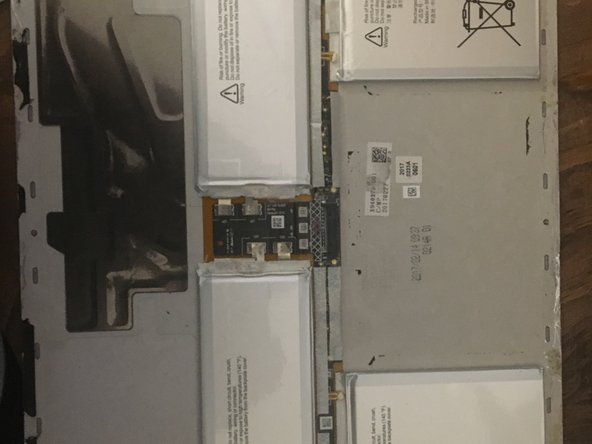
    • Separate the back panel from the top panel.

    Demander à FixBot

    Ajouter un commentaire

    • Heat the back panel to about 130 degrees Fahrenheit.

    • Heating batteries can be dangerous is dangerous, Proceed with caution!

    Demander à FixBot

    Ajouter un commentaire

    • Grab a non-metal bucket and fill it with sand. (1/2 gallon should do it)

    • This is in case the batteries get punctured or catch fire when being removed.

    • If you notice that you have punctured the battery or notice a sweet, metallic smell, throw the backplate into the bucket, and move the bucket and yourself outside. If you have trouble breathing, do something relating to calling 911 or the ER or something.

    • See here: iFixit Battery Safety

    Demander à FixBot

    Ajouter un commentaire

    • Gently, take your opening picks, and VERY, VERY gently, scrape the adhesive out from under the battery.

    • Put the batteries in the bucket and take them to a nearby battery recycling facility. battery recycling facility list

    Demander à FixBot

    Ajouter un commentaire

    • Unpack your new, beautiful, fantastic Surface Book Keyboard battery.

    • Take that battery, and take some of that adhesive, stick it to the back of the battery.

    • Put it on the backplate.

    • Plug in the connector that was keeping you from being able to pull the backplate off.

    Demander à FixBot

    Ajouter un commentaire

    • Take your adhesive, line the edges with the adhesive, and put the backplate back on

    Demander à FixBot

    Ajouter un commentaire

Conclusion

Congratulations! You did it!

TYSM for reading this guide!

To reassemble your device, follow these instructions in reverse order. Just don't pry in reverse. That won't work.

Annulation : je n'ai pas terminé ce tutoriel.

4 autres ont terminé cette réparation.

Aj Chiappini

Membre depuis le 08/30/23

340 Réputation

1 tutoriel rédigé

1 commentaire de tutoriel

Which adhesives should I purchase for this replacement?

Gabriel A Ohnstad - Réponse Partager

Ajouter un commentaire

Nombre de vues :

Dernières 24 heures : 7

7 derniers jours : 61

30 derniers jours : 271

Total : 8,912