Aller au contenu principal
Pour réparer ensemble - Je crée un compte

Creating a Bootable SD Card

Vues: 2,2 k

Afficher les statistiques :

Dernières 24 heures :
7
Sept derniers jours :
28
Trente derniers jours :
111
Total :
2 213
Commentaires: 0

Personne n'a commenté ce tutoriel. Serez-vous le premier ?

Aller aux commentaires de tutoriel
Terminé: 1

1 personne a marqué ce tutoriel comme « terminé ». Serez-vous la prochaine ?

Favoris: 1

1 personne a mis ce tutoriel en favori (et s'y est abonnée). Serez-vous la prochaine ?

Temps nécessaire: 3 - 6 minutes
Difficulté: Très facile
Tutoriel réalisé par la communauté

Un membre tout à fait remarquable de notre communauté a réalisé ce tutoriel. Il n'a pas été créé par l'équipe iFixit.

Creating a Bootable SD Card

Unless you have a starter pack with a pre-made Bootable SD Card, you'd need to create one for your Raspberry Pi.

In this guide I will walk you through the creation of your Bootable SD Card (This card will contain your Raspberry Pi's Operating System and will act as your device's storage).

Ce dont vous avez besoin

Pièces

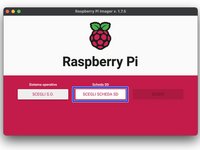
    1. Creating a Bootable SD Card, Downloading Raspberry Pi Imager: étape 1, image 1 de 3 Creating a Bootable SD Card, Downloading Raspberry Pi Imager: étape 1, image 2 de 3 Creating a Bootable SD Card, Downloading Raspberry Pi Imager: étape 1, image 3 de 3
      • To create our Bootable SD Card we will need the Official Raspberry Pi Imager software. This software is completely free, and can be downloaded here.

      Demander à FixBot

      Ajouter un commentaire

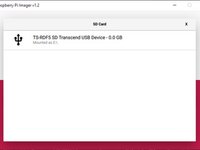
    2. Creating a Bootable SD Card, Configuring your SD Card: étape 2, image 1 de 1
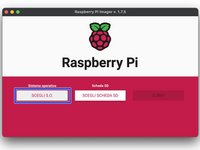
      • Once your download has been completed, open the Pi Imager program, and insert your SD Card into your computer. The Imager software should automatically detect your SD Card, and will begin to format the card.

      • Formatting your SD Card will erase any content that has been saved onto the card. Be sure to backup any photos or files to your machine before formatting.

      Demander à FixBot

      Ajouter un commentaire

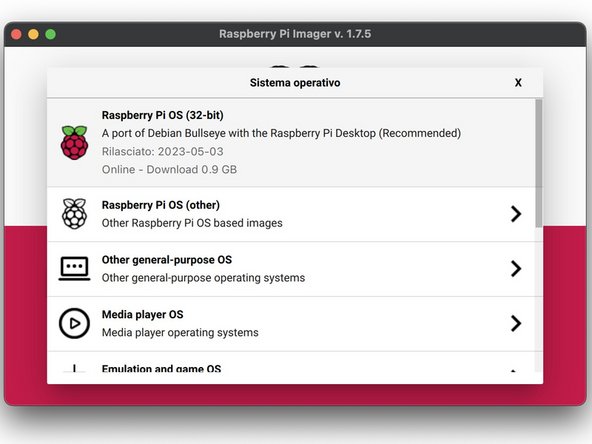
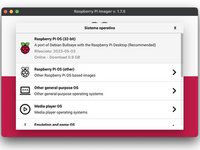
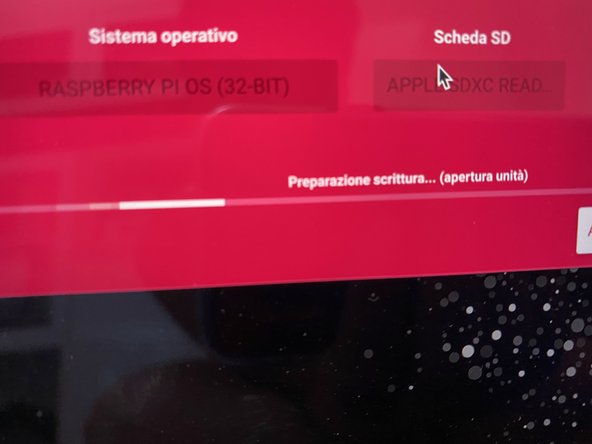
    3. Creating a Bootable SD Card, Select your Operating System: étape 3, image 1 de 2 Creating a Bootable SD Card, Select your Operating System: étape 3, image 2 de 2
      • Once your SD Card has been targeted, you'll need to select the Operating System that you would like loaded onto your SD Card.

      • Imager comes pre-loaded with several operating systems, however you can select a custom OS by scrolling to the bottom of the list of OS'.

      Demander à FixBot

      Ajouter un commentaire

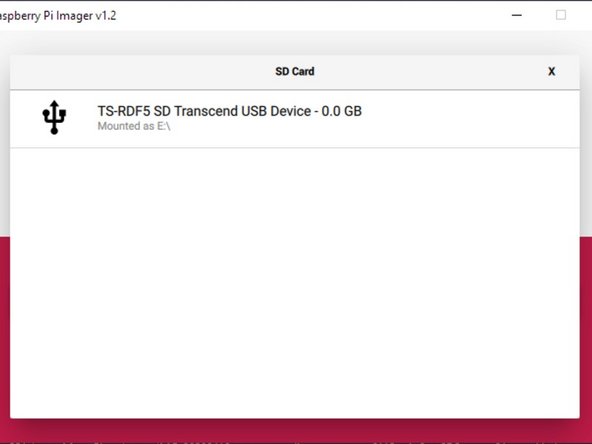
    4. Creating a Bootable SD Card, Choosing your SD Card: étape 4, image 1 de 2 Creating a Bootable SD Card, Choosing your SD Card: étape 4, image 2 de 2
      • Once your OS has been selected, select your inserted SD card.

      Demander à FixBot

      Ajouter un commentaire

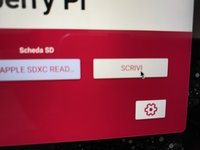
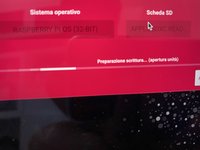
    5. Creating a Bootable SD Card, Writing the OS to your SD Card: étape 5, image 1 de 2 Creating a Bootable SD Card, Writing the OS to your SD Card: étape 5, image 2 de 2
      • Once you have your SD Card selected, click on the Write button. If prompted enter the password to your computer.

      • This step will erase any data that is on the SD Card. Be sure to back up any files or photos you wish to save to your computer

      Demander à FixBot

      Ajouter un commentaire

      • When the installation is complete, Imager will prompt you to remove your SD Card.

      • Imager will automatically eject your SD Card, so it should be safe for you to remove it once the installation is complete.

      • To begin using your Bootable SD Card, simply insert the card into your Raspberry Pi, and power on your device.

      Demander à FixBot

      Ajouter un commentaire

      • It is possible that at the moment you begin to WRITE the OS to your SD Card an alert may appear warning that the card is write protected. This happens when the switch on the left side of the SD is in protection mode.

      • You can solve this by ejecting the SD Card and move the lever to the side opposite, then repeat the OS selection operation. and of the SD Card.

      Demander à FixBot

      Ajouter un commentaire

Ligne d'arrivée

Annulation : je n'ai pas terminé ce tutoriel.

Une autre personne a terminé cette réparation.

Merci à ces traducteurs :

it en

100%

Ces traducteurs nous aident réparer le monde ! Vous voulez contribuer ?
Je commence à traduire ›

Ema.exe

Membre depuis le 06/19/22

545 Réputation

4 tutoriels rédigés

0 commentaires de tutoriel

Ajouter un commentaire

Nombre de vues :

Dernières 24 heures : 7

7 derniers jours : 28

30 derniers jours : 111

Total : 2,213