Introduction
Thrustmaster sells spare part through their online Eshop.
You can also contact Thrustmaster technical support to get spare part if not available in your region.
Ce dont vous avez besoin
-
-
Unscrew the four screws of the metal plate underneath the Warthog.
-
-
-
Carefully remove the four screws displayed on the picture.
-
Disconnect the two cables displayed on the picture by making sure to not damage them. A pair of flat pliers might be recommended.
-
-
-
Using a soldering iron, remove the previous PCB and replace it with the new one.
-
Once that is done, reassemble the product.
-
-
-
-
You will then need to update the firmware of the new PCB. To do that, connect the Magnetic Base (with a joystick on it) to your computer.
-
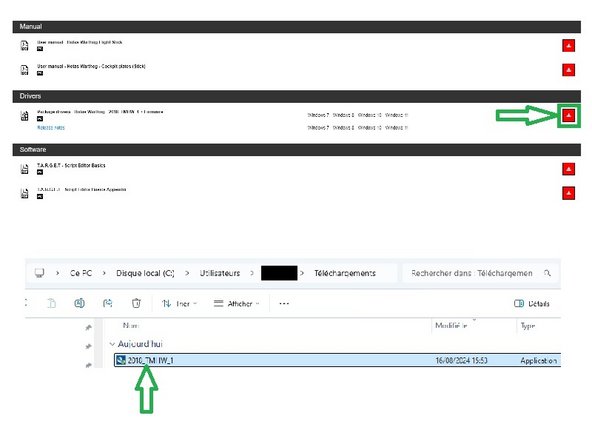
(First picture) If you have not already, download and install the driver of the product available on Thrustmaster support : https://support.thrustmaster.com/en/prod...
-
(Second picture) Open the "Firmware Updater". To do that, write "Firmware Updater" in the Windows search bar, the open the software.
-
-
-
(First picture) Your device appears in the firmware updater. Apply the update by clicking on "OK".
-
(Second picture) The update is in progress.
-
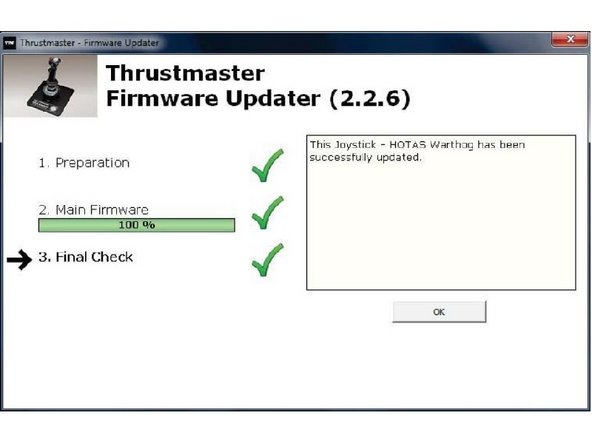
(Third picture) The update is done ! You can close the firmware updater by clicking on the arrow at the top right corner.
-
-
-
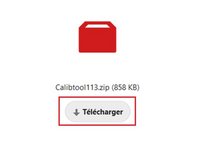
(Picture 1) Finally, you need to recalibrate the device. Thrustmaster has made this tool available here: https://nextcloud.guillemot.fr/index.php...
-
(Picture 2) Extract the archived file on your computer.
-
(Picture 3) Launch the calibration software.
-
-
-
The calibration software will detail all the steps to follow. Make sure your Warthog Stick is connected to your computer, with a compatible joystick mounted on it.
-
Once you have fully followed all the steps of the calibration tool, you are done !
-








To reassemble your device, follow these instructions in reverse order.


