Aller au contenu principal
Pour réparer ensemble - Je crée un compte

Lenovo Thinkpad T440s Display Replacement

Ce dont vous avez besoin

    1. Lenovo Thinkpad T440s Display Replacement, Back Panel: étape 1, image 1 de 2 Lenovo Thinkpad T440s Display Replacement, Back Panel: étape 1, image 2 de 2
      • Make sure to power down and turn off your device before proceeding with the repair.

      • Flip your laptop over so that the backside is facing you.

      Demander à FixBot

      Ajouter un commentaire

    2. Lenovo Thinkpad T440s Display Replacement: étape 2, image 1 de 1
      • Using a Phillips #1 screwdriver, remove the eight screws securing the backplate.

      • Don’t try to force screws which won't come out. They are held in place by a stopper on the reverse side. This will not prevent you from removing the backplate.

      Demander à FixBot

      Ajouter un commentaire

    3. Lenovo Thinkpad T440s Display Replacement: étape 3, image 1 de 2 Lenovo Thinkpad T440s Display Replacement: étape 3, image 2 de 2
      • Using the metal spudger, wedge it in the seam where the backplate meets the front plate and run the tool along the seam to separate the backplate.

      Demander à FixBot

      Ajouter un commentaire

    4. Lenovo Thinkpad T440s Display Replacement: étape 4, image 1 de 1
      • Remove the back panel from the device.

      Demander à FixBot

      Ajouter un commentaire

    1. Lenovo Thinkpad T440s Display Replacement, Display: étape 5, image 1 de 3 Lenovo Thinkpad T440s Display Replacement, Display: étape 5, image 2 de 3 Lenovo Thinkpad T440s Display Replacement, Display: étape 5, image 3 de 3
      • Use the Phillips #1 screwdriver to remove the five screws securing the display mounts.

      Demander à FixBot

      Ajouter un commentaire

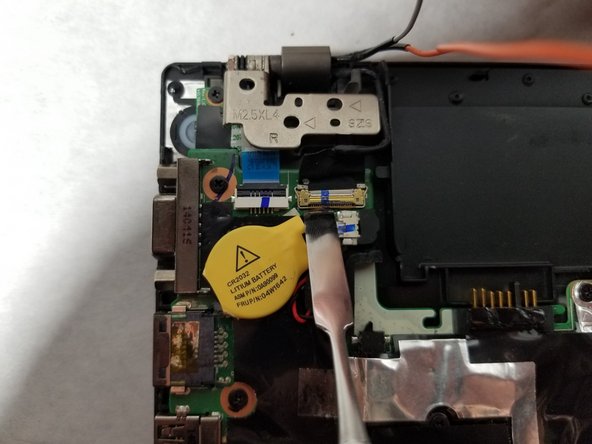
    2. Lenovo Thinkpad T440s Display Replacement: étape 6, image 1 de 3 Lenovo Thinkpad T440s Display Replacement: étape 6, image 2 de 3 Lenovo Thinkpad T440s Display Replacement: étape 6, image 3 de 3
      • Use the metal spudger to pry up the lever securing the ribbon cable in it's connection housing.

      Demander à FixBot

      Ajouter un commentaire

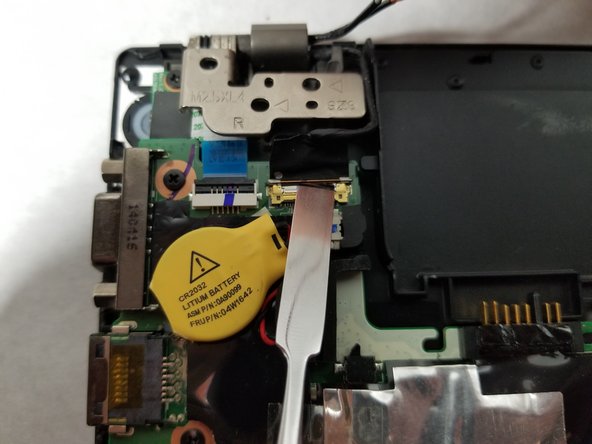
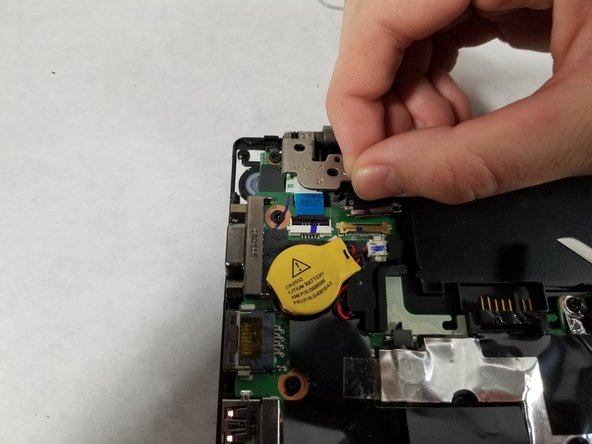
    3. Lenovo Thinkpad T440s Display Replacement: étape 7, image 1 de 3 Lenovo Thinkpad T440s Display Replacement: étape 7, image 2 de 3 Lenovo Thinkpad T440s Display Replacement: étape 7, image 3 de 3
      • Grab hold of the ribbon cable and pull it out of it's connection housing.

      Demander à FixBot

      Ajouter un commentaire

    4. Lenovo Thinkpad T440s Display Replacement: étape 8, image 1 de 2 Lenovo Thinkpad T440s Display Replacement: étape 8, image 2 de 2
      • Disconnect the white and blue wires connected to the mounted circuit by grabbing them close to the connection and pulling upward.

      Demander à FixBot

      Ajouter un commentaire

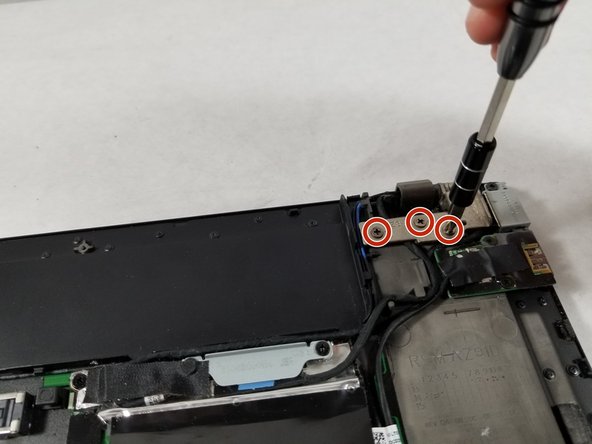
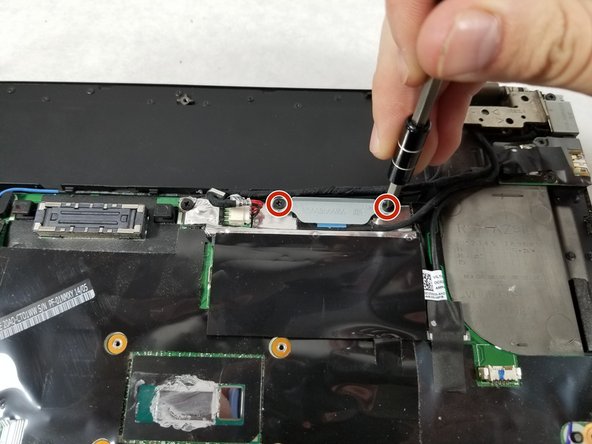
    5. Lenovo Thinkpad T440s Display Replacement: étape 9, image 1 de 2 Lenovo Thinkpad T440s Display Replacement: étape 9, image 2 de 2
      • Use the Phillips #1 screwdriver to remove the two screws securing the metal plate to expose the wire connection.

      Demander à FixBot

      Ajouter un commentaire

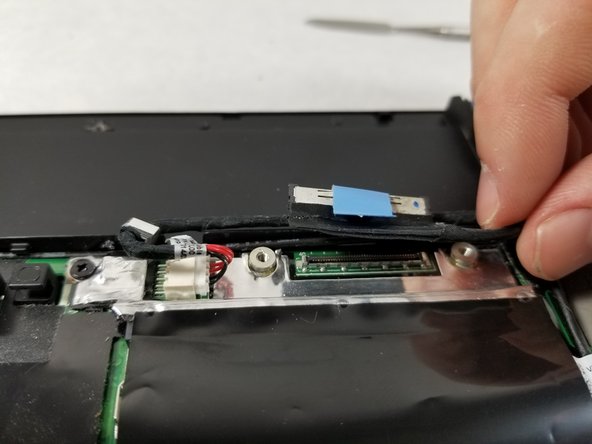
    6. Lenovo Thinkpad T440s Display Replacement: étape 10, image 1 de 2 Lenovo Thinkpad T440s Display Replacement: étape 10, image 2 de 2
      • Disconnect the wire by pulling it upward from the motherboard.

      Demander à FixBot

      Ajouter un commentaire

    7. Lenovo Thinkpad T440s Display Replacement: étape 11, image 1 de 3 Lenovo Thinkpad T440s Display Replacement: étape 11, image 2 de 3 Lenovo Thinkpad T440s Display Replacement: étape 11, image 3 de 3
      • Unclip the 5 wires connected to the display assembly from the motherboard and move them out of the way.

      Demander à FixBot

      Ajouter un commentaire

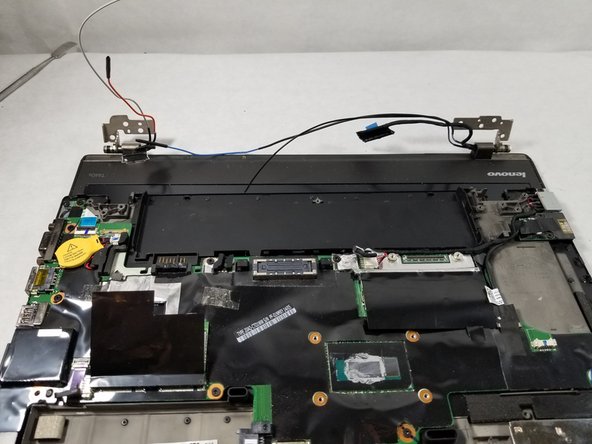
    8. Lenovo Thinkpad T440s Display Replacement: étape 12, image 1 de 3 Lenovo Thinkpad T440s Display Replacement: étape 12, image 2 de 3 Lenovo Thinkpad T440s Display Replacement: étape 12, image 3 de 3
      • Now that the display assembly is disconnected from the main body, lift both of the mounting brackets and remove the display assembly from the main body.

      Demander à FixBot

      Ajouter un commentaire

Conclusion

To reassemble your device, follow these instructions in reverse order.

Annulation : je n'ai pas terminé ce tutoriel.

3 autres ont terminé cette réparation.

Terelle Montalvo

Membre depuis le 10/22/18

1 495 Réputation

8 tutoriels rédigés

Équipe

UMass Dartmouth, Team S1-G5, Simcock Fall 2018 Membre de l'équipe UMass Dartmouth, Team S1-G5, Simcock Fall 2018

UMASSD-SIMCOCK-F18S1G5

3 membres

96 tutoriels rédigés

0 commentaires de tutoriel

Ajouter un commentaire

Nombre de vues :

Dernières 24 heures : 3

7 derniers jours : 28

30 derniers jours : 102

Total : 4,101