Aller au contenu principal
Pour réparer ensemble - Je crée un compte

Lenovo Yoga C930-13IKB Display Replacement

Ce dont vous avez besoin

    1. Lenovo Yoga C930-13IKB Display Replacement, Display: étape 1, image 1 de 2 Lenovo Yoga C930-13IKB Display Replacement, Display: étape 1, image 2 de 2
      Outil utilisé dans cette étape :
      Halberd Spudger
      $2.99
      • Using a halberd spudger, gently lift up the metal bezel that lines the lower edge of the display.

      Demander à FixBot

      Ajouter un commentaire

    2. Lenovo Yoga C930-13IKB Display Replacement: étape 2, image 1 de 1
      • Remove the ten 3 mm screws along the bottom edge of the display with a Phillips #00 screwdriver.

      Demander à FixBot

      Ajouter un commentaire

    3. Lenovo Yoga C930-13IKB Display Replacement: étape 3, image 1 de 2 Lenovo Yoga C930-13IKB Display Replacement: étape 3, image 2 de 2
      Outil utilisé dans cette étape :
      iFixit Opening Picks (Set of 6)
      $4.95
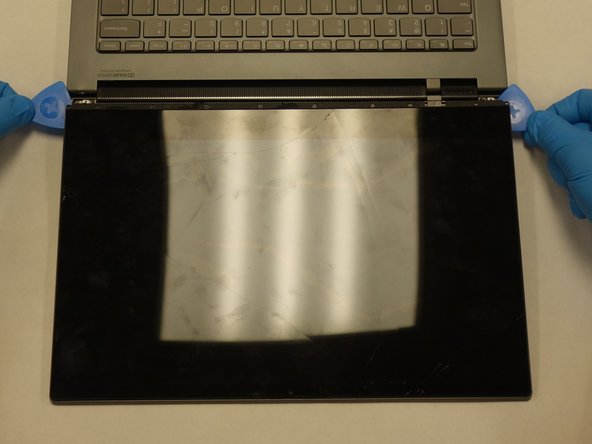
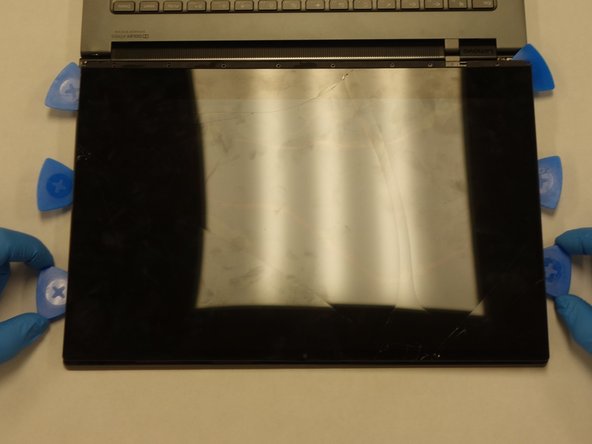
      • Gently wedge two opening picks underneath the display.

      • Slowly work the opening picks around the display.

      • Add opening picks as needed to keep display separated from the frame.

      • Use caution if dealing with broken glass.

      • The iFixit suction cup tool can be used to add some extra leverage to the mix when removing the display.

      Demander à FixBot

      Ajouter un commentaire

    4. Lenovo Yoga C930-13IKB Display Replacement: étape 4, image 1 de 2 Lenovo Yoga C930-13IKB Display Replacement: étape 4, image 2 de 2
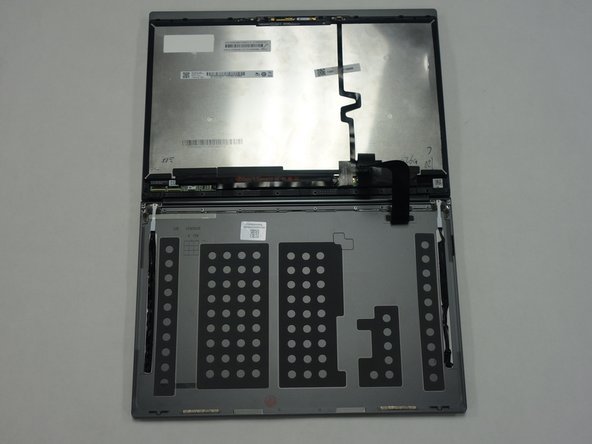
      • Gently flip the display assembly to rest on top of the keyboard.

      Demander à FixBot

      Ajouter un commentaire

    5. Lenovo Yoga C930-13IKB Display Replacement: étape 5, image 1 de 2 Lenovo Yoga C930-13IKB Display Replacement: étape 5, image 2 de 2
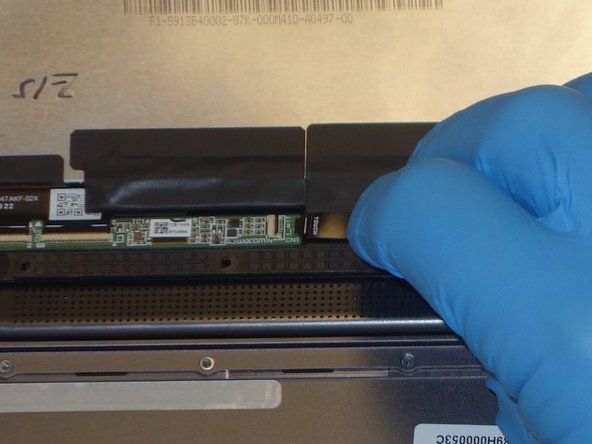
      • Use the halberd spudger to lift the locking tab of the ZIF connector holding the black ribbon cable that runs vertically across the display.

      • Pull out the black ribbon cable from the connector.

      Demander à FixBot

      Ajouter un commentaire

    6. Lenovo Yoga C930-13IKB Display Replacement: étape 6, image 1 de 3 Lenovo Yoga C930-13IKB Display Replacement: étape 6, image 2 de 3 Lenovo Yoga C930-13IKB Display Replacement: étape 6, image 3 de 3
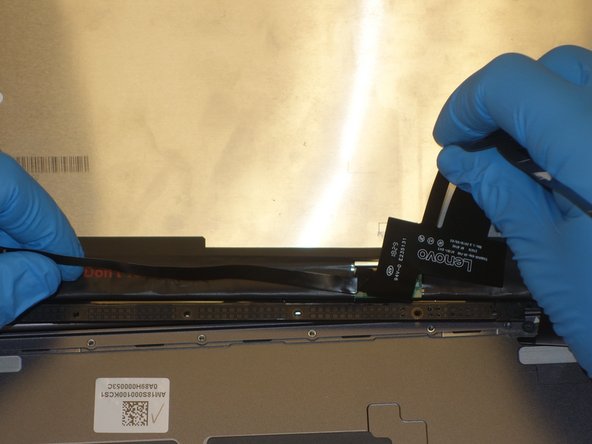
      • Use the halberd spudger to lift the latch on the ZIF connector of the horizontal black ribbon cable.

      • Pull out the horizontal black ribbon cable from the connector.

      • Gently pull the rest of the horizontal black ribbon cable from the back of the display.

      Demander à FixBot

      Ajouter un commentaire

    7. Lenovo Yoga C930-13IKB Display Replacement: étape 7, image 1 de 3 Lenovo Yoga C930-13IKB Display Replacement: étape 7, image 2 de 3 Lenovo Yoga C930-13IKB Display Replacement: étape 7, image 3 de 3
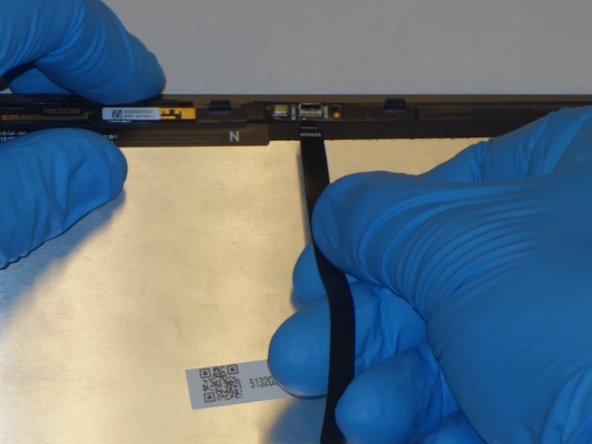
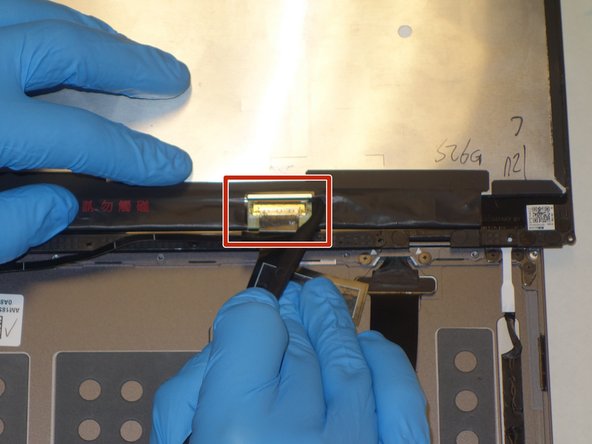
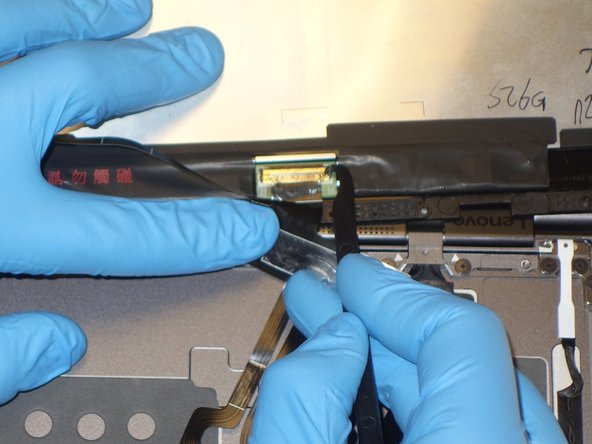
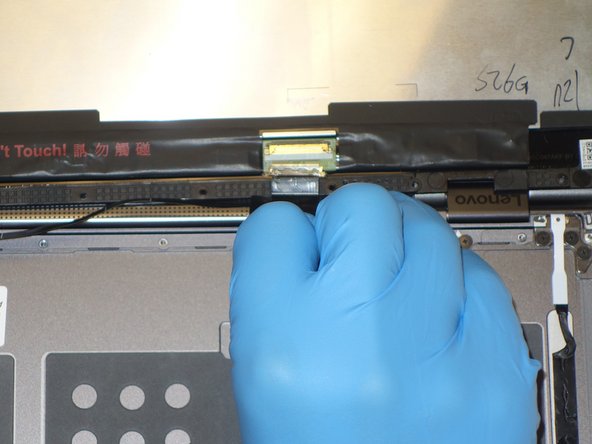
      • Use the halberd spudger to flip the metal latch of the display cable up.

      • Using the halberd spudger, gently pull the connector out of the display.

      Demander à FixBot

      Ajouter un commentaire

    8. Lenovo Yoga C930-13IKB Display Replacement: étape 8, image 1 de 1
      • Gently lift the display away from the laptop frame.

      Demander à FixBot

      Ajouter un commentaire

Conclusion

To reassemble your device, follow these instructions in reverse order.

Annulation : je n'ai pas terminé ce tutoriel.

2 autres ont terminé cette réparation.

1 commentaire de tutoriel

The screen is glued with iphone battery tape so you have to pull the white tabs at the bottom of the screen to release the tape as like almost all the last generation screens.

Roberto Meniketti - Réponse Partager

Ajouter un commentaire

Nombre de vues :

Dernières 24 heures : 1

7 derniers jours : 8

30 derniers jours : 57

Total : 3,529