Aller au contenu principal

Logitech G Cloud Right Joystick Replacement

Ce dont vous avez besoin

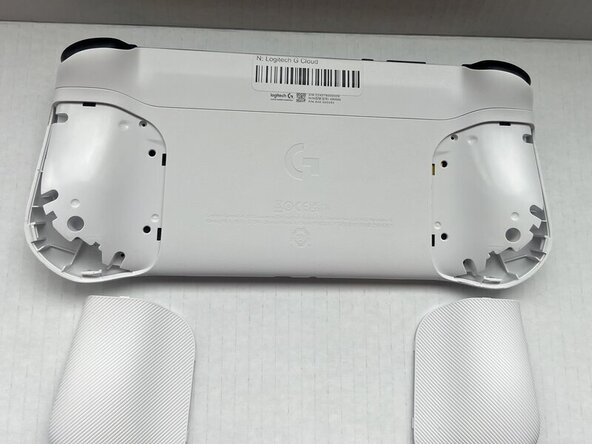
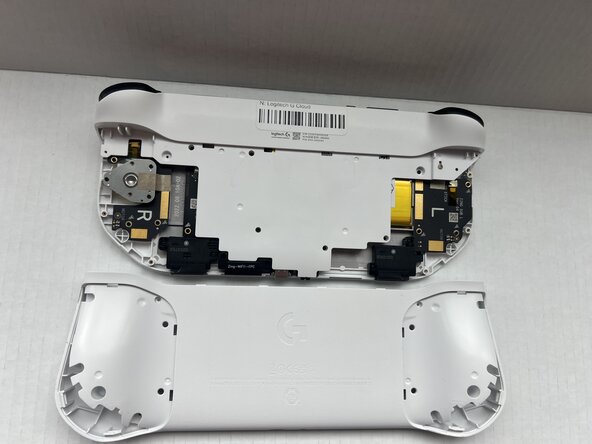
  1. Logitech G Cloud Right Joystick Replacement, Case: étape 1, image 1 de 2 Logitech G Cloud Right Joystick Replacement, Case: étape 1, image 2 de 2
    • Power the device off and turn it over so the screen is face down.

    • Insert an opening pick into the seam between the back plate and left handguard.

    • Pry around the entire perimeter until the handguard fully releases.

    • Remove the handguard.

    • Repeat the previous three bullets on the right handguard.

  2. Logitech G Cloud Right Joystick Replacement: étape 2, image 1 de 1
    • Use a Phillips #00 screwdriver to remove all eight 10 mm screws from the rear case located under where the handguards were.

  3. Logitech G Cloud Right Joystick Replacement: étape 3, image 1 de 2 Logitech G Cloud Right Joystick Replacement: étape 3, image 2 de 2
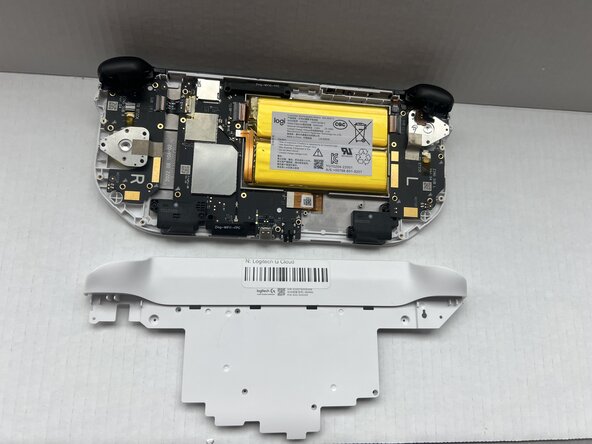
    • Insert an opening pick into the seam between the midframe and rear case.

    • Gently pry the rear case upwards to separate it from the midframe.

  4. Logitech G Cloud Right Joystick Replacement: étape 4, image 1 de 1
    • Use a Phillips #00 screwdriver to remove all seven 10 mm screws that secure the midframe.

  5. Logitech G Cloud Right Joystick Replacement: étape 5, image 1 de 2 Logitech G Cloud Right Joystick Replacement: étape 5, image 2 de 2
    • Insert an opening pick into the seam between the midframe and front case at the top of the device to separate the interior plating.

    • Gently pry out the midframe by lifting an opening pick.

    • You may hear loud popping noises when you remove the interior plating. That's the sound of the retaining clips disengaging.

  6. Logitech G Cloud Right Joystick Replacement, Right Joystick: étape 6, image 1 de 3 Logitech G Cloud Right Joystick Replacement, Right Joystick: étape 6, image 2 de 3 Logitech G Cloud Right Joystick Replacement, Right Joystick: étape 6, image 3 de 3
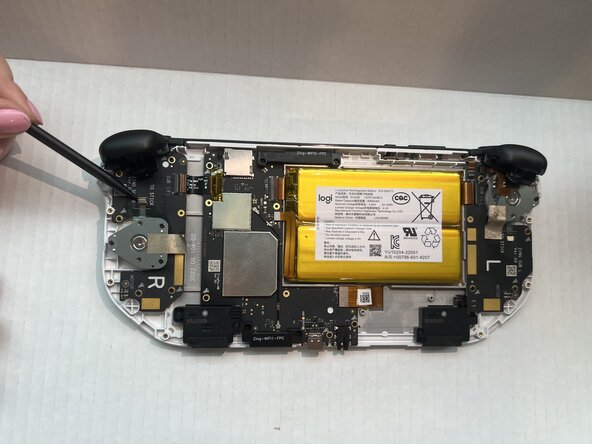
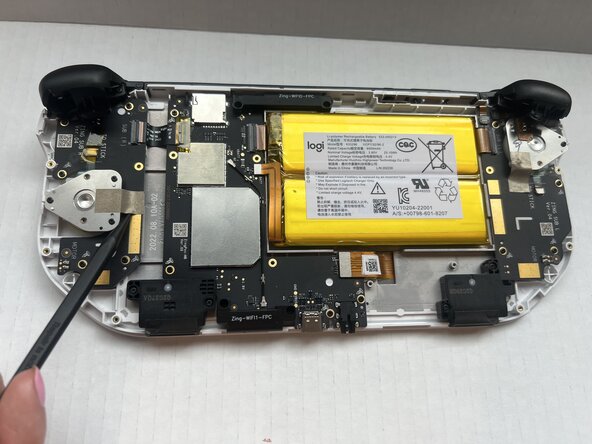
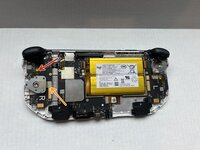
    • Use a spudger to lift upwards and disconnect the metallic sticker from the console.

    • The sticker should stay attached to the joystick plate.

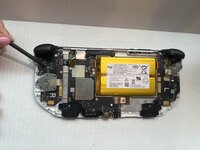
    • Insert the flat end of a spudger under the joystick press connector and lift upwards to disconnect it.

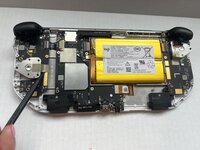
    • Use a spudger to remove the R2 trigger sensor from the joystick plate; it should stay attached to the console.

  7. Logitech G Cloud Right Joystick Replacement: étape 7, image 1 de 2 Logitech G Cloud Right Joystick Replacement: étape 7, image 2 de 2
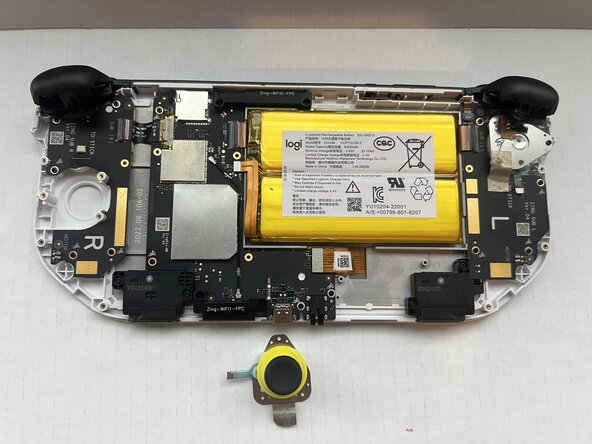
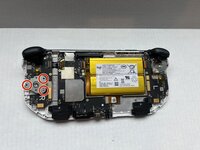
    • Use a Phillips #00 screwdriver to remove all three 10 mm screws that secure the joystick assembly.

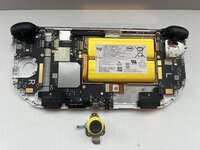
    • Pop the joystick out with your fingers.

Conclusion

To reassemble your device, follow the above steps in reverse order.
Take your e-waste to an R2 or e-Stewards certified recycler.
Repair didn’t go as planned? Try some basic troubleshooting or ask our Answers community for help.

Spencer Davis

Membre depuis le 01/23/25

517 Réputation

6 tutoriels rédigés

Équipe

0 commentaires de tutoriel

Ajouter un commentaire

Nombre de vues :

Dernières 24 heures : 1

7 derniers jours : 7

30 derniers jours : 41

Total : 241