Aller au contenu principal

Logitech G903 Battery Replacement

Ce dont vous avez besoin

  1. Logitech G903 Battery Replacement, Turn off the mouse: étape 1, image 1 de 2 Logitech G903 Battery Replacement, Turn off the mouse: étape 1, image 2 de 2
    • Before you begin, flip the mouse's power switch to the OFF position.

    • A red indicator should be visible beneath the switch.

    • Unplug all cables from the mouse.

    • Throughout the repair, it may be helpful to lay the mouse on a soft cloth to stabilize it and prevent damage while you work.

  2. Logitech G903 Battery Replacement, Heat the mouse foot: étape 2, image 1 de 1
    • The feet are secured to the bottom of the mouse with strong adhesive. In order to cleanly remove them, the adhesive needs to be thoroughly heated.

    • Heat an iOpener and lay it on the mouse feet for one minute to heat the adhesive.

    • Alternatively, you can use a hair dryer on the Low heat setting to soften the adhesive.

    • If you're using a hair dryer, only heat the feet a few seconds at a time or you may warp the plastic shell.

  3. Logitech G903 Battery Replacement, Separate the mouse foot adhesive: étape 3, image 1 de 3 Logitech G903 Battery Replacement, Separate the mouse foot adhesive: étape 3, image 2 de 3 Logitech G903 Battery Replacement, Separate the mouse foot adhesive: étape 3, image 3 de 3
    • The feet have two layers—a rubberized one and an adhesive pad underneath.

    • If you're reusing the feet, be very careful not to separate the two layers or damage the feet.

    • Slide the tip of an opening pick under an edge of the bottom mouse foot, making sure it goes under both the foot and its adhesive pad.

    • If the foot feels stuck, apply more heat and try again.

    • Gently slide the pick farther under the foot and lift until you can grip it with your fingers.

    • Use your fingers to peel up and remove the foot.

  4. Logitech G903 Battery Replacement, Clean off the old adhesive: étape 4, image 1 de 3 Logitech G903 Battery Replacement, Clean off the old adhesive: étape 4, image 2 de 3 Logitech G903 Battery Replacement, Clean off the old adhesive: étape 4, image 3 de 3
    • If the rubber layer separated from its adhesive pad:

    • Slide the flat end of a spudger under an edge of the adhesive. If the adhesive seems stuck, you may need to heat it further.

    • Peel the adhesive off.

    • To install a new foot:

    • If any of the feet got damaged during removal or separated from their adhesive pads, replace them.

    • Use a spudger to carefully scrape up and remove any remaining adhesive bits.

    • Use isopropyl alcohol and a microfiber cloth to thoroughly clean all adhesive residue from the foot recesses. Allow the surface to completely dry (about 1–2 minutes).

    • Remove the feet from their backing and firmly press them into place.

  5. Logitech G903 Battery Replacement, Remove the pentagonal mouse feet: étape 5, image 1 de 2 Logitech G903 Battery Replacement, Remove the pentagonal mouse feet: étape 5, image 2 de 2
    • Repeat the process to remove the two pentagonal mouse feet on the left and right sides.

  6. Logitech G903 Battery Replacement, Heat the Logitech sticker: étape 6, image 1 de 1
    • The Logitech sticker on the bottom of the mouse is sensitive to heat and crumbles easily. If you want to keep that sticker intact, apply as little heat as possible and remove the sticker carefully.

    • If you don't want to remove the sticker all the way, you can puncture it with a screwdriver where the two screws are located beneath it.

    • Heat an iOpener and apply it to the Logitech sticker for one minute to soften its adhesive.

    • Alternatively, you can use a hair dryer on the Low heat setting to soften the adhesive.

    • If you're using a hair dryer, only heat the sticker a few seconds at a time or you may warp the plastic shell.

  7. Logitech G903 Battery Replacement, Remove the Logitech sticker: étape 7, image 1 de 3 Logitech G903 Battery Replacement, Remove the Logitech sticker: étape 7, image 2 de 3 Logitech G903 Battery Replacement, Remove the Logitech sticker: étape 7, image 3 de 3
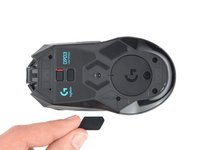
    • If you want to reuse the sticker, be delicate and work slowly.

    • Slide the tip of an opening pick under an edge of the Logitech sticker.

    • Gently slide the pick farther under the sticker and lift until you can grip it with your fingers.

    • If the sticker feels stuck, apply more heat and try again.

    • Use your fingers to peel up and remove the sticker.

  8. Logitech G903 Battery Replacement, Remove the case screws: étape 8, image 1 de 2 Logitech G903 Battery Replacement, Remove the case screws: étape 8, image 2 de 2
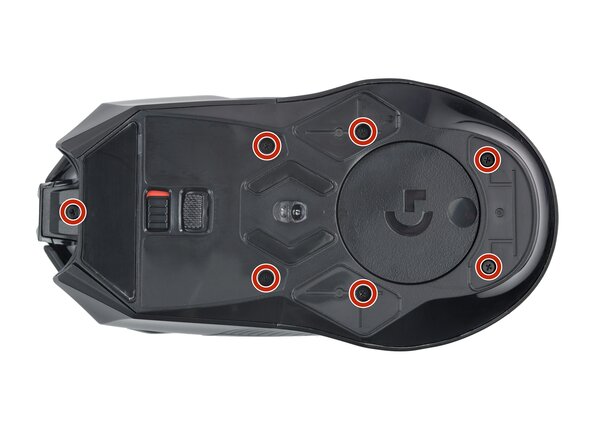
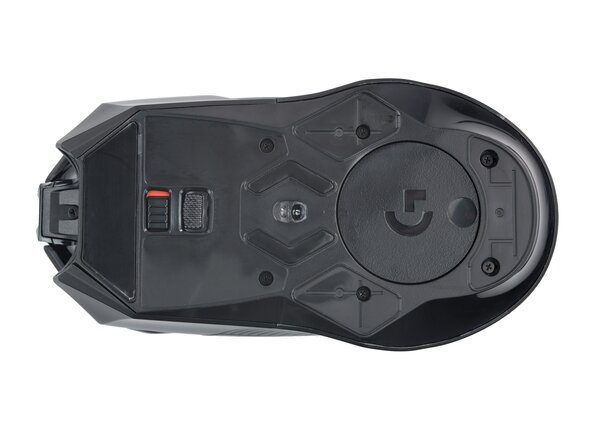
    • Use a Phillips screwdriver to remove the seven 4.5 mm‑long screws securing the two halves of the mouse together.

    • On older models, the top middle screw may be a Torx T5.

  9. Logitech G903 Battery Replacement, Open the mouse: étape 9, image 1 de 3 Logitech G903 Battery Replacement, Open the mouse: étape 9, image 2 de 3 Logitech G903 Battery Replacement, Open the mouse: étape 9, image 3 de 3
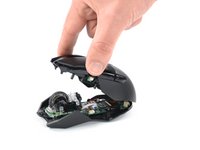
    • Don't completely separate the two halves yet—they're still connected together by a delicate cable.

    • Swing the top case towards the rear of the mouse to access the internals.

    • Keep the top case lifted with one hand, or use something heavy to support it while you work.

    • Be careful not to strain the cable connecting the two halves.

  10. Logitech G903 Battery Replacement, Disconnect the interconnect cable: étape 10, image 1 de 2 Logitech G903 Battery Replacement, Disconnect the interconnect cable: étape 10, image 2 de 2
    • Use a spudger or clean fingernail to gently flip the hinged locking flap on the interconnect cable ZIF connector up and towards the front of the mouse.

  11. Logitech G903 Battery Replacement: étape 11, image 1 de 2 Logitech G903 Battery Replacement: étape 11, image 2 de 2
    • Use tweezers or your fingers to grip the interconnect cable by its pull tab and slide it out of the socket.

  12. Logitech G903 Battery Replacement, Disconnect the battery: étape 12, image 1 de 3 Logitech G903 Battery Replacement, Disconnect the battery: étape 12, image 2 de 3 Logitech G903 Battery Replacement, Disconnect the battery: étape 12, image 3 de 3
    • Use a pair of tweezers to firmly grasp the sides of the battery connector.

    • Hold the tweezers with your fingers as close to the connector as possible to get a firm grip.

    • Pull the connector up and out of its socket, gently rocking it back and forth to loosen it.

    • During reassembly, make sure the connector is properly oriented—it should slide into place easily.

  13. Logitech G903 Battery Replacement, Remove the top half of the mouse: étape 13, image 1 de 1
    • Remove the top half of the mouse.

  14. Logitech G903 Battery Replacement, Heat the battery adhesive: étape 14, image 1 de 1
    • The battery housing is not directly touching the outer case, limiting heat transfer. You may need to repeat the heating process a couple of times to soften the adhesive enough to remove the battery.

    • Heat an iOpener and lay it on the top case for two minutes.

    • You can also use a hair dryer on the Low setting, applying heat in short bursts to avoid overheating—the plastic shell and internal components are susceptible to heat damage.

  15. Logitech G903 Battery Replacement, Separate the battery adhesiveRemove the battery: étape 15, image 1 de 3 Logitech G903 Battery Replacement, Separate the battery adhesiveRemove the battery: étape 15, image 2 de 3 Logitech G903 Battery Replacement, Separate the battery adhesiveRemove the battery: étape 15, image 3 de 3
    • Insert the tip of an opening pick under the battery, at the side opposite to the battery cable.

    • Slide the opening pick under the battery and lift to separate the adhesive.

    • Make sure you push underneath the battery and not into it. Don't bend or deform the battery.

    • If you're having trouble, apply more heat to the housing and try again.

  16. Logitech G903 Battery Replacement, Remove the battery: étape 16, image 1 de 1
    Outil utilisé dans cette étape :
    Tesa 61395 Tape
    $2.99
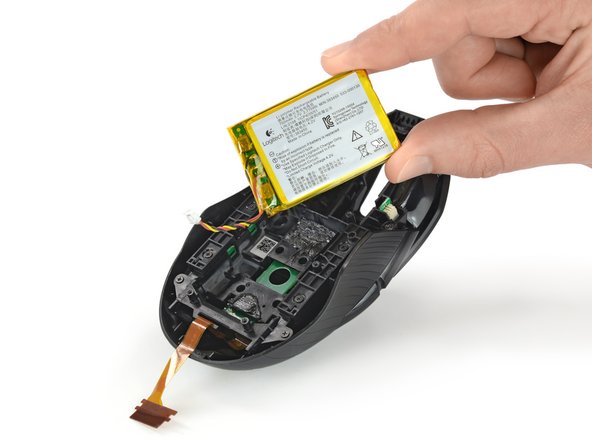
    • Remove the battery.

    • During reassembly:

    • Never install a deformed or damaged battery, as doing so is a potential safety hazard. Replace it with a new battery.

    • If the battery adhesive is still sticky, you can reuse it. Otherwise, use high-concentration (>90%) isopropyl alcohol and a microfiber or lint-free cloth to remove all the old battery adhesive.

    • If your new battery has adhesive pre-installed, remove the plastic liner to expose the adhesive. Otherwise, apply strips of thin, double-sided tape to the battery well (not directly to the battery) where the old adhesive was.

    • Firmly press the battery into place, making sure the cables are near the rear of the case.

Conclusion

To reassemble your device, follow these instructions in reverse order.

For optimal performance, calibrate your newly installed battery after completing this guide.

Take your e-waste to an R2 or e-Stewards certified recycler.

Repair didn’t go as planned? Check out our Answers community for troubleshooting help.

11 autres ont terminé cette réparation.

Dominik Schnabelrauch

Membre depuis le 11/23/16

246 368 Réputation

682 tutoriels rédigés

Équipe

iFixit Membre de l'équipe iFixit

Staff

123 membres

23 608 tutoriels rédigés

2 commentaires de tutoriel

This guide helped me on my G900's battery. Thank you!

Travis Moore - Réponse

G903: Easy peasy. Took longer to clean the glue residues up than to open, replace the battery and close it back up.

NowhereFast - Réponse

Ajouter un commentaire

Nombre de vues :

Dernières 24 heures : 13

7 derniers jours : 66

30 derniers jours : 306

Total : 17,106