Aller au contenu principal
Pour réparer ensemble - Je crée un compte

MacBook Air Models A1237 and A1304 DC-In Board Replacement

Ce dont vous avez besoin

  1. MacBook Air Models A1237 and A1304 DC-In Board Replacement, Lower Case: étape 1, image 1 de 1
    • Unplug your MacBook Air and power it off before you proceed.

    • Remove ten Phillips screws securing the lower case to the MacBook Air:

    • Six 2.8 mm screws

    • Two 3.8 mm screws

    • Two 5.4 mm screws

    Demander à FixBot

    Ajouter un commentaire

  2. MacBook Air Models A1237 and A1304 DC-In Board Replacement: étape 2, image 1 de 2 MacBook Air Models A1237 and A1304 DC-In Board Replacement: étape 2, image 2 de 2
    • Slightly lift the lower case near the vents and push it toward the rear of the computer to free the mounting tabs.

    Demander à FixBot

    Ajouter un commentaire

  3. MacBook Air Models A1237 and A1304 DC-In Board Replacement, Battery: étape 3, image 1 de 1
    • Disconnect the battery connector by pulling it straight out of its socket.

    Demander à FixBot

    Ajouter un commentaire

  4. MacBook Air Models A1237 and A1304 DC-In Board Replacement: étape 4, image 1 de 1
    • Remove the following nine screws securing the battery to the Air:

    • Four 2.9 mm Phillips.

    • Four 3.8 mm Phillips.

    • One 7.2 mm Phillips.

    Demander à FixBot

    Ajouter un commentaire

  5. MacBook Air Models A1237 and A1304 DC-In Board Replacement: étape 5, image 1 de 1
    • Lift the battery out of the Air.

    • If you're installing a new battery, you should calibrate it after installation:

    • Charge it to 100%, and then keep charging it for at least 2 more hours. Then, unplug and use it normally to drain the battery. When you see the low battery warning, save your work, and keep your laptop on until it goes to sleep due to low battery. Wait at least 5 hours, then charge your laptop uninterrupted to 100%.

    • If you notice any unusual behavior or problems after installing your new battery, you may need to reset your MacBook's SMC.

    Demander à FixBot

    Ajouter un commentaire

  6. MacBook Air Models A1237 and A1304 DC-In Board Replacement, DC-In Board: étape 6, image 1 de 1
    • Remove the single Phillips screw securing the display data cable ground loop to the upper case.

    Demander à FixBot

    Ajouter un commentaire

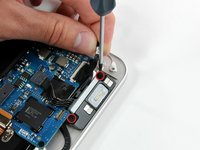
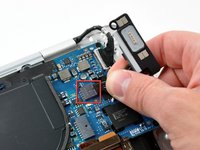
  7. MacBook Air Models A1237 and A1304 DC-In Board Replacement: étape 7, image 1 de 2 MacBook Air Models A1237 and A1304 DC-In Board Replacement: étape 7, image 2 de 2
    • Lift the display data cable slightly for enough clearance to remove the two Phillips screws securing the DC-In board to the upper case.

    • Lift the DC-In board slightly and pull its connector straight away from the socket on the logic board.

    Demander à FixBot

    Ajouter un commentaire

Conclusion

To reassemble your device, follow these instructions in reverse order.

Annulation : je n'ai pas terminé ce tutoriel.

4 autres ont terminé cette réparation.

0 commentaires de tutoriel

Ajouter un commentaire

Nombre de vues :

Dernières 24 heures : 4

7 derniers jours : 16

30 derniers jours : 71

Total : 16,813