Aller au contenu principal
Pour réparer ensemble - Je crée un compte

Motion Computing LE1600 Speaker Modules Replacement

Vues: 1,8 k

Afficher les statistiques :

Dernières 24 heures :
6
Sept derniers jours :
34
Trente derniers jours :
89
Total :
1 842
Commentaires: 0

Personne n'a commenté ce tutoriel. Serez-vous le premier ?

Aller aux commentaires de tutoriel
Terminé: 0

Personne n'a marqué ce tutoriel comme « terminé ». Serez-vous le premier ?

Favoris: 3

3 personnes ont mis ce tutoriel en favori (et s'y sont abonnées). Serez-vous la prochaine ?

Temps nécessaire: 5 - 10 minutes
Difficulté: Modérée
A besoin de meilleures images

De meilleures photos amélioreront ce tutoriel. Aider en proposant de nouvelles photos!

Motion Computing LE1600 Speaker Modules Replacement

If you're having sound issues, your speakers may be broken. Follow these steps to replace them.

Ce dont vous avez besoin

Outils

  • Phillips #1 Screwdriver
    5
  • Spudger
    4.9
    1. Motion Computing LE1600 Speaker Modules Replacement, Battery: étape 1, image 1 de 1
      • Turn the device so the screen is facing down.

      Demander à FixBot
      Ajouter un commentaire

    2. Motion Computing LE1600 Speaker Modules Replacement: étape 2, image 1 de 2 Motion Computing LE1600 Speaker Modules Replacement: étape 2, image 2 de 2
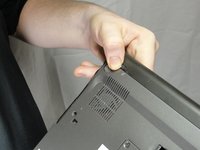
      • Slide the battery lock switch next to the power slider to the unlocked position.

      Demander à FixBot
      Ajouter un commentaire

    3. Motion Computing LE1600 Speaker Modules Replacement: étape 3, image 1 de 3 Motion Computing LE1600 Speaker Modules Replacement: étape 3, image 2 de 3 Motion Computing LE1600 Speaker Modules Replacement: étape 3, image 3 de 3
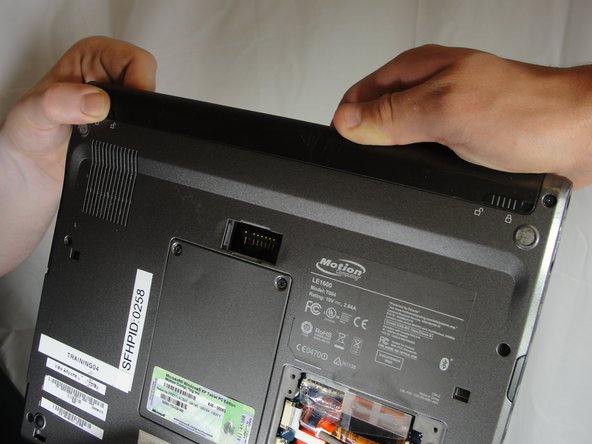
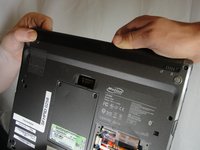
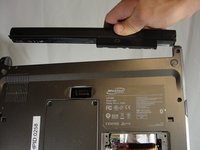
      • Slide and hold the switch by the fan vent to the unlocked position. Firmly grasp the battery and pull away from tablet.

      • When replacing the battery, place the end near the fan vent in first. Make sure to keep the other switch in the unlocked position while pushing the battery into place.

      Demander à FixBot

      Ajouter un commentaire

    1. Motion Computing LE1600 Speaker Modules Replacement, Bluetooth Module: étape 4, image 1 de 1
      • Unscrew hard drive panel using a Phillips head #1 screwdriver.

      • (Our device was not given to us with a hard drive or a hard drive panel)

      Demander à FixBot

      Ajouter un commentaire

    2. Motion Computing LE1600 Speaker Modules Replacement: étape 5, image 1 de 3 Motion Computing LE1600 Speaker Modules Replacement: étape 5, image 2 de 3 Motion Computing LE1600 Speaker Modules Replacement: étape 5, image 3 de 3
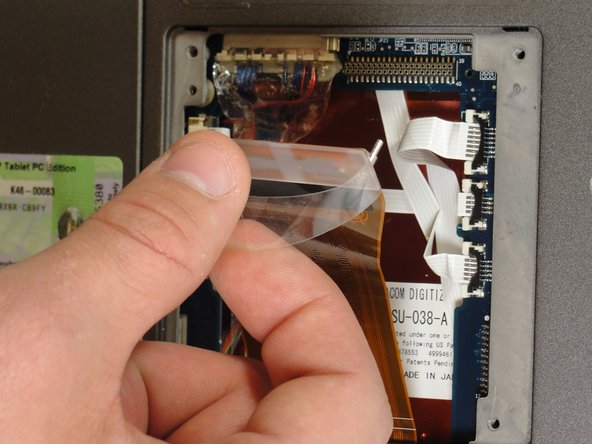
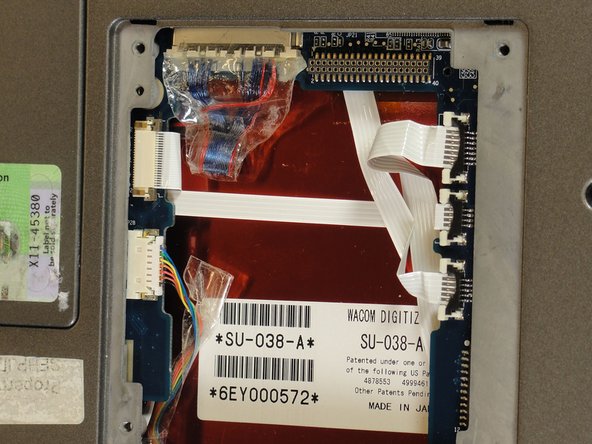
      • Pull clear plastic tab to detach hard drive from tablet.

      Demander à FixBot

      Ajouter un commentaire

    3. Motion Computing LE1600 Speaker Modules Replacement: étape 6, image 1 de 2 Motion Computing LE1600 Speaker Modules Replacement: étape 6, image 2 de 2
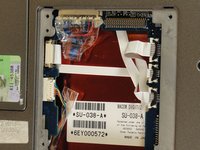
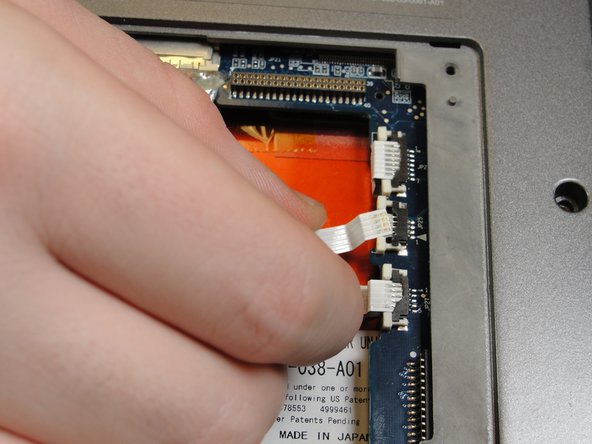
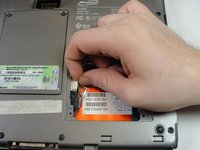
      • To disconnect the three white ribbon cables on the side closest to the hard drive connector, pull the white plastic tabs.

      Demander à FixBot
      Ajouter un commentaire

    4. Motion Computing LE1600 Speaker Modules Replacement: étape 7, image 1 de 1
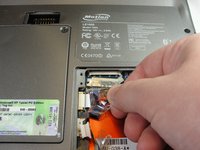
      • Pull the brown tabs to disconnect the white ribbon cable on the other side.

      Demander à FixBot
      Ajouter un commentaire

    5. Motion Computing LE1600 Speaker Modules Replacement: étape 8, image 1 de 2 Motion Computing LE1600 Speaker Modules Replacement: étape 8, image 2 de 2
      • Caution: do not pull on the wires, instead pull from the plastic connectors.

      • To disconnect the remaining ribbon cables, pull the plastic connectors away from their connections.

      Demander à FixBot

      Ajouter un commentaire

    6. Motion Computing LE1600 Speaker Modules Replacement: étape 9, image 1 de 1
      • With a Phillips #1 screwdriver, Unscrew the nine 10mm screws holding the case together.

      Demander à FixBot

      Ajouter un commentaire

    7. Motion Computing LE1600 Speaker Modules Replacement: étape 10, image 1 de 1
      • Using a spudger, press in the five tabs on the side where the battery was.

      • This should separate the two halves of the device. Carefully set the side with the display off to the side.

      Demander à FixBot

      Ajouter un commentaire

    8. Motion Computing LE1600 Speaker Modules Replacement: étape 11, image 1 de 3 Motion Computing LE1600 Speaker Modules Replacement: étape 11, image 2 de 3 Motion Computing LE1600 Speaker Modules Replacement: étape 11, image 3 de 3
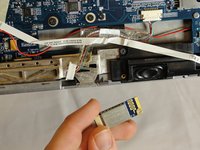
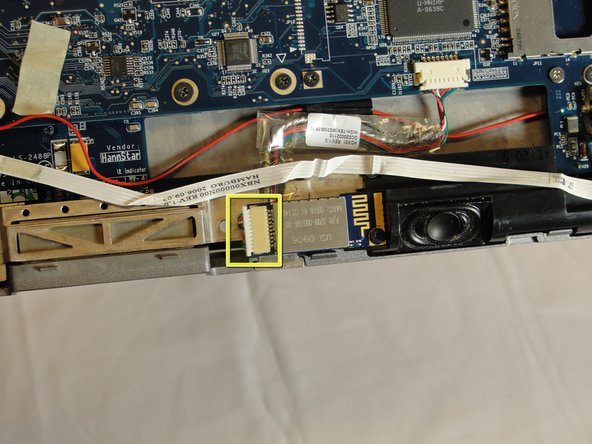
      • Locate the Bluetooth board.

      • Disconnect the ribbon cable by pulling on the plastic connector.

      Demander à FixBot
      Ajouter un commentaire

    9. Motion Computing LE1600 Speaker Modules Replacement: étape 12, image 1 de 2 Motion Computing LE1600 Speaker Modules Replacement: étape 12, image 2 de 2
      • Unscrew the 4mm screw holding the board onto the tablet.

      • Lift the board out of the tablet and carefully set it aside.

      Demander à FixBot

      Ajouter un commentaire

    1. Motion Computing LE1600 Speaker Modules Replacement, Speaker Modules: étape 13, image 1 de 3 Motion Computing LE1600 Speaker Modules Replacement, Speaker Modules: étape 13, image 2 de 3 Motion Computing LE1600 Speaker Modules Replacement, Speaker Modules: étape 13, image 3 de 3
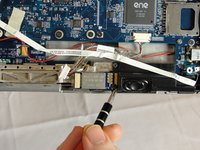
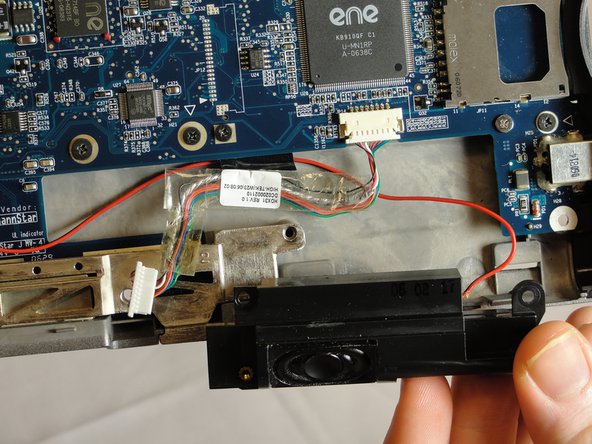
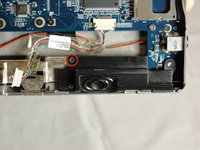
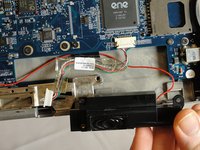
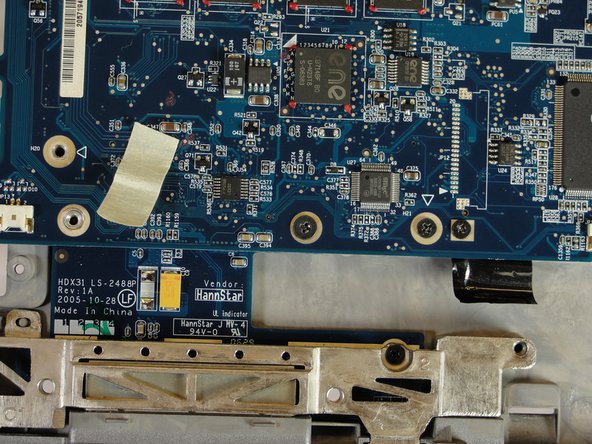
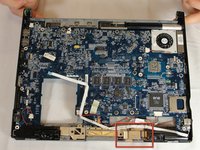
      • Locate speaker connectors on tablet and unplug them by pulling on the plastic heads.

      Demander à FixBot
      Ajouter un commentaire

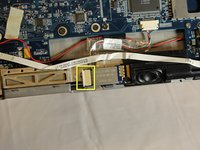
    2. Motion Computing LE1600 Speaker Modules Replacement: étape 14, image 1 de 2 Motion Computing LE1600 Speaker Modules Replacement: étape 14, image 2 de 2
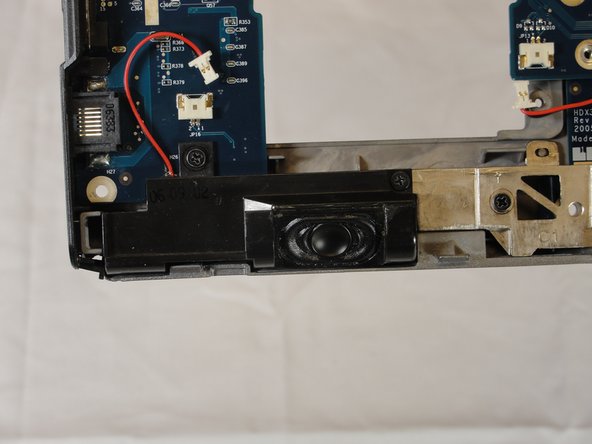
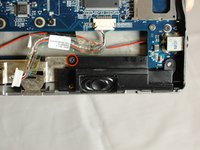
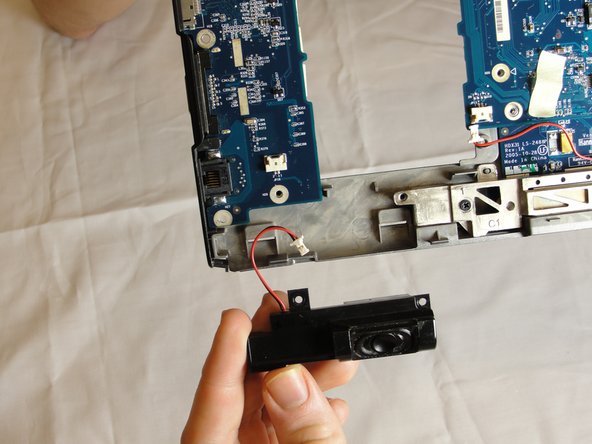
      • To remove the speaker near the network port, unscrew the two black 4mm screws securing it to the tablet and pull away.

      Demander à FixBot
      Ajouter un commentaire

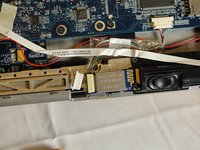
    3. Motion Computing LE1600 Speaker Modules Replacement: étape 15, image 1 de 2 Motion Computing LE1600 Speaker Modules Replacement: étape 15, image 2 de 2
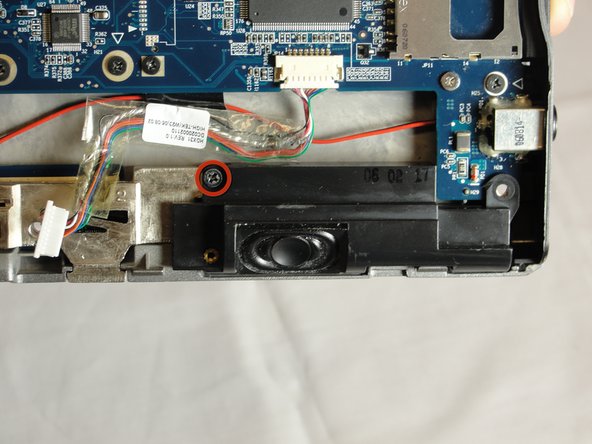
      • To remove the speaker near the headphone jack, unscrew the one 4mm black screw securing it to the tablet.

      Demander à FixBot
      Ajouter un commentaire

    4. Motion Computing LE1600 Speaker Modules Replacement: étape 16, image 1 de 2 Motion Computing LE1600 Speaker Modules Replacement: étape 16, image 2 de 2
      • Unstick the white masking tape and the black electrical tape holding the black and red wire down.

      • Pull out the wire and speaker.

      Demander à FixBot

      Ajouter un commentaire

Conclusion

To reassemble your device, follow these instructions in reverse order.

Annulation : je n'ai pas terminé ce tutoriel.

Auteur

avec

David Troy

Membre depuis le 04/04/12

44 Réputation

3 tutoriels rédigés

Équipe

Cal Poly, Team 15-14, Forte Spring 2012 Membre de l'équipe Cal Poly, Team 15-14, Forte Spring 2012

CPSU-FORTE-S12S15G14

5 membres

60 tutoriels rédigés

0 commentaires de tutoriel

Ajouter un commentaire

Nombre de vues :

Dernières 24 heures : 6

7 derniers jours : 34

30 derniers jours : 89

Total : 1,842