Aller au contenu principal
Pour réparer ensemble - Je crée un compte

Samsung Chromebook 2 Screen Replacement

Vues: 8,4 k

Afficher les statistiques :

Dernières 24 heures :
2
Sept derniers jours :
29
Trente derniers jours :
115
Total :
8 372
Commentaires: 1

1 commentaire d'étapes.

Terminé: 12

12 personnes ont marqué ce tutoriel comme « terminé ». Serez-vous la prochaine ?

Favoris: 1

1 personne a mis ce tutoriel en favori (et s'y est abonnée). Serez-vous la prochaine ?

Temps nécessaire: 5 - 15 minutes
Difficulté: Modérée
Samsung Chromebook 2 Screen Replacement

You may need to perform this replacement if your Chromebook 2 has a faulty screen, resulting in display issues. Ensure your device is powered off before beginning this replacement.

In order to reduce shock hazard during this replacement, the steps to remove the battery are included as a prerequisite.

Ce dont vous avez besoin

Pièces

Outils

    1. Samsung Chromebook 2 Screen Replacement, Battery: étape 1, image 1 de 1
      • Make sure your Chromebook is turned off before you begin.

      • Set the labtop face down on a flat surface.

      Demander à FixBot

      Ajouter un commentaire

    2. Samsung Chromebook 2 Screen Replacement: étape 2, image 1 de 3 Samsung Chromebook 2 Screen Replacement: étape 2, image 2 de 3 Samsung Chromebook 2 Screen Replacement: étape 2, image 3 de 3
      • Remove the nine 5 mm screws on the bottom cover using a Phillips #0 screwdriver.

      Demander à FixBot

      Ajouter un commentaire

    3. Samsung Chromebook 2 Screen Replacement: étape 3, image 1 de 2 Samsung Chromebook 2 Screen Replacement: étape 3, image 2 de 2
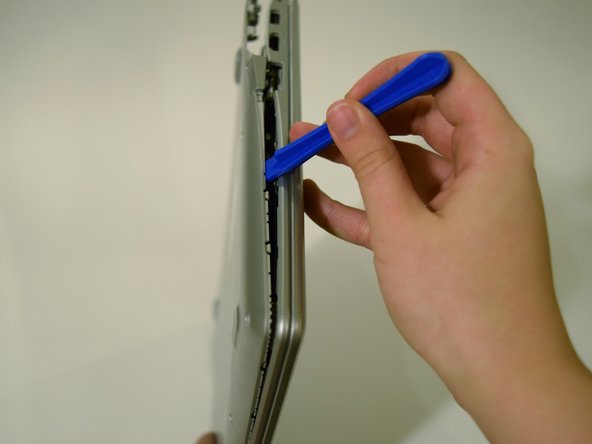
      • Loosen the back cover panel with a plastic opening tool, and work it all the way around the computer.

      Demander à FixBot

      Ajouter un commentaire

    4. Samsung Chromebook 2 Screen Replacement: étape 4, image 1 de 2 Samsung Chromebook 2 Screen Replacement: étape 4, image 2 de 2
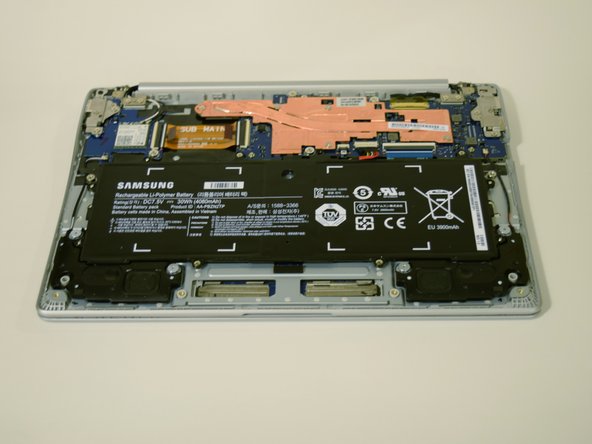
      • Once the cover is loose, remove the back cover panel using your hands.

      Demander à FixBot

      Ajouter un commentaire

    5. Samsung Chromebook 2 Screen Replacement: étape 5, image 1 de 2 Samsung Chromebook 2 Screen Replacement: étape 5, image 2 de 2
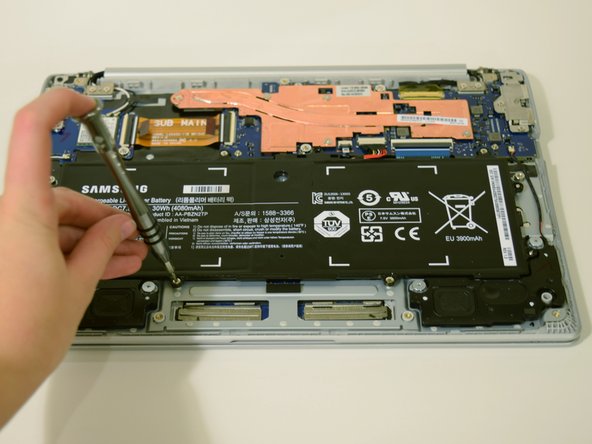
      • Unscrew the four 4 mm screws holding the battery in place with a Phillips #0 screwdriver.

      Demander à FixBot

      Ajouter un commentaire

    6. Samsung Chromebook 2 Screen Replacement: étape 6, image 1 de 3 Samsung Chromebook 2 Screen Replacement: étape 6, image 2 de 3 Samsung Chromebook 2 Screen Replacement: étape 6, image 3 de 3
      • Disconnect the wire that connects the battery to the motherboard by pulling upward.

      Demander à FixBot

      Ajouter un commentaire

    1. Samsung Chromebook 2 Screen Replacement, Screen: étape 7, image 1 de 2 Samsung Chromebook 2 Screen Replacement, Screen: étape 7, image 2 de 2
      • Replace the back cover by clicking it into place with your hands.

      • No need to replace the screws, this is just to protect the internal hardware while working on the screen.

      Demander à FixBot

      Ajouter un commentaire

    2. Samsung Chromebook 2 Screen Replacement: étape 8, image 1 de 2 Samsung Chromebook 2 Screen Replacement: étape 8, image 2 de 2
      • Open the laptop and place it so that the back of the screen is laying on a flat surface.

      • Insert a plastic opening tool between the front cover and plastic screen trim.

      • Work the plastic opening tool all around the trim.

      • Don't be afraid to use your hands to pull the trim from the front panel.

      Demander à FixBot

      Ajouter un commentaire

    3. Samsung Chromebook 2 Screen Replacement: étape 9, image 1 de 2 Samsung Chromebook 2 Screen Replacement: étape 9, image 2 de 2
      • Flip the computer over so that the keys and screen are facing down.

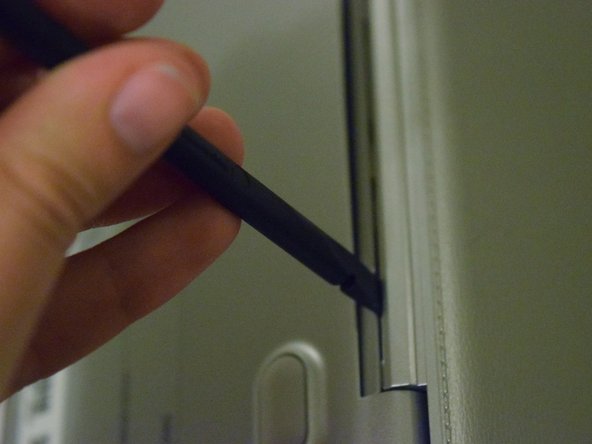
      • Insert the spudger between the back and front panel, at the hinge, and push the trim out.

      Demander à FixBot

      Ajouter un commentaire

    4. Samsung Chromebook 2 Screen Replacement: étape 10, image 1 de 1
      • Place the laptop in a position where it is resting on the back of the screen.

      • Remove the trim from the front panel by pulling up with your hands.

      Demander à FixBot

      Ajouter un commentaire

    5. Samsung Chromebook 2 Screen Replacement: étape 11, image 1 de 2 Samsung Chromebook 2 Screen Replacement: étape 11, image 2 de 2
      • Using a Phillips #0 screwdriver to unscrew the four 3 mm screws keeping the screen in place.

      Demander à FixBot

      Ajouter un commentaire

    6. Samsung Chromebook 2 Screen Replacement: étape 12, image 1 de 2 Samsung Chromebook 2 Screen Replacement: étape 12, image 2 de 2
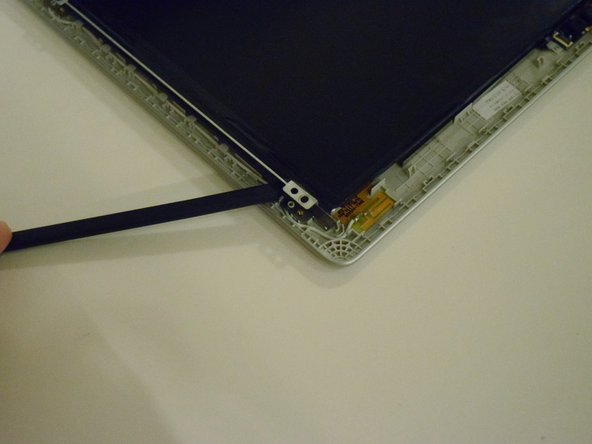
      • Using the spudger, pry the screen loose from the front panel.

      • Do not try to remove the screen yet, it is still connect by a wire.

      Demander à FixBot

      Ajouter un commentaire

    7. Samsung Chromebook 2 Screen Replacement: étape 13, image 1 de 3 Samsung Chromebook 2 Screen Replacement: étape 13, image 2 de 3 Samsung Chromebook 2 Screen Replacement: étape 13, image 3 de 3
      • Place the laptop in an upright position.

      • When you place the Chromebook in this position the screen may fall off, so make sure to hold onto it.

      • Pull back the screen to locate the LCD cable, and disconnect it by pulling the black tape that surrounds it towards you.

      Demander à FixBot

      Ajouter un commentaire

    8. Samsung Chromebook 2 Screen Replacement: étape 14, image 1 de 1
      • Pull the screen from the front panel using your hands to fully remove it.

      Demander à FixBot

      Ajouter un commentaire

Conclusion

To reassemble your device, follow these instructions in reverse order.

Annulation : je n'ai pas terminé ce tutoriel.

12 autres ont terminé cette réparation.

MacKenzie Colson

Membre depuis le 01/25/16

679 Réputation

1 tutoriel rédigé

Équipe

UW Tacoma, Team 1-3, Rose Winter 2016 Membre de l'équipe UW Tacoma, Team 1-3, Rose Winter 2016

UWT-ROSE-W16S1G3

4 membres

48 tutoriels rédigés

0 commentaires de tutoriel

Ajouter un commentaire

Nombre de vues :

Dernières 24 heures : 2

7 derniers jours : 29

30 derniers jours : 115

Total : 8,372