Aller au contenu principal
Pour réparer ensemble - Je crée un compte

iMac Intel 21.5" EMC 2428 AirPort Card Replacement

Vues: 19 k

Afficher les statistiques :

Dernières 24 heures :
4
Sept derniers jours :
26
Trente derniers jours :
116
Total :
18 905
Commentaires: 70

69 commentaires d'étapes, 1 commentaire de tutoriel.

Aller aux commentaires de tutoriel
Terminé: 11

11 personnes ont marqué ce tutoriel comme « terminé ». Serez-vous la prochaine ?

Favoris: 10

10 personnes ont mis ce tutoriel en favori (et s'y sont abonnées). Serez-vous la prochaine ?

Temps nécessaire: Aucune estimation
Difficulté: Modérée
iMac Intel 21.5" EMC 2428 AirPort Card Replacement

Replace a broken AirPort card to regain Wi-Fi connectivity.

Ce dont vous avez besoin

Pièces

Outils

    1. iMac Intel 21.5" EMC 2428 AirPort Card Replacement, Glass Panel: étape 1, image 1 de 2 iMac Intel 21.5" EMC 2428 AirPort Card Replacement, Glass Panel: étape 1, image 2 de 2
      Outil utilisé dans cette étape :
      Heavy-Duty Suction Cups (Pair)
      $16.95
      • Before beginning, unplug your iMac and lay it on a soft surface as shown.

      • Stick a suction cup near each of the two top corners of the glass panel.

      • To attach the suction cups we sell, first position the suction cup with the movable handle parallel to the face of the glass panel. While lightly holding the suction cup against the glass, raise the movable handle until it is parallel with the other handle.

      • If your suction cups refuse to stick, try cleaning both the glass panel and the suction cup with a mild solvent.

      Demander à FixBot

      Ajouter un commentaire

    2. iMac Intel 21.5" EMC 2428 AirPort Card Replacement: étape 2, image 1 de 2 iMac Intel 21.5" EMC 2428 AirPort Card Replacement: étape 2, image 2 de 2
      • Gently lift the glass panel perpendicular to the face of the LCD enough to clear the steel mounting pins attached along the underside of the top edge of the glass panel.

      • Pull the glass panel away from the lower edge of the iMac and carefully set it aside.

      • During reinstallation, be sure to meticulously clean the inside of the glass panel and the face of the LCD as any dust or fingerprints trapped inside will be annoyingly visible when the machine is turned on.

      Demander à FixBot

      Ajouter un commentaire

    1. iMac Intel 21.5" EMC 2428 AirPort Card Replacement, Display: étape 3, image 1 de 3 iMac Intel 21.5" EMC 2428 AirPort Card Replacement, Display: étape 3, image 2 de 3 iMac Intel 21.5" EMC 2428 AirPort Card Replacement, Display: étape 3, image 3 de 3
      • Remove the eight 8 mm T10 Torx screws securing the display to the outer case.

      • The last two pictures are detail shots of each side of the display.

      Demander à FixBot

      Ajouter un commentaire

    2. iMac Intel 21.5" EMC 2428 AirPort Card Replacement: étape 4, image 1 de 1
      • Slightly lift the top edge of the display out of the outer case.

      • Do not lift it too much. There are several cables attaching the display to the logic board. Twisting or pulling the display assembly with the cables attached will damage your iMac.

      Demander à FixBot

      Ajouter un commentaire

    3. iMac Intel 21.5" EMC 2428 AirPort Card Replacement: étape 5, image 1 de 2 iMac Intel 21.5" EMC 2428 AirPort Card Replacement: étape 5, image 2 de 2
      • Pull the vertical sync cable connector out of its socket on the LED driver board near the top left corner of your iMac.

      Demander à FixBot

      Ajouter un commentaire

    4. iMac Intel 21.5" EMC 2428 AirPort Card Replacement: étape 6, image 1 de 2 iMac Intel 21.5" EMC 2428 AirPort Card Replacement: étape 6, image 2 de 2
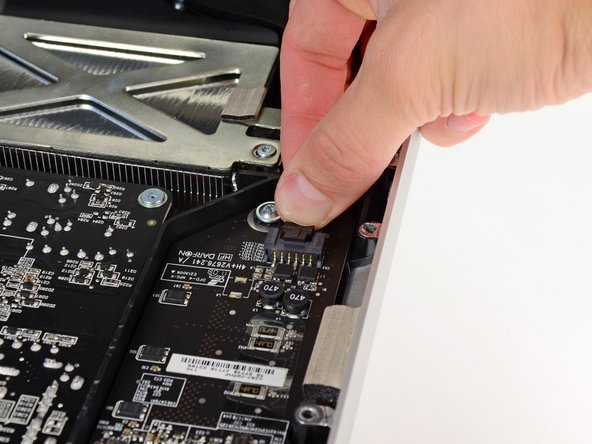
      • Rotate the display out of the outer case enough to disconnect the LED backlight power cable from the LED driver board.

      • Disconnect the LED backlight power cable by depressing the locking mechanism while pulling the connector away from its socket (toward the bottom edge of the iMac).

      Demander à FixBot

      Ajouter un commentaire

    5. iMac Intel 21.5" EMC 2428 AirPort Card Replacement: étape 7, image 1 de 3 iMac Intel 21.5" EMC 2428 AirPort Card Replacement: étape 7, image 2 de 3 iMac Intel 21.5" EMC 2428 AirPort Card Replacement: étape 7, image 3 de 3
      • Grab the plastic pull tab secured to the display data cable lock and rotate it towards upwards.

      • Pull the display data cable straight out of its socket on the logic board.

      • Do not lift up on the display data cable, as its socket is very fragile. Pull the cable parallel to the face of the logic board.

      Demander à FixBot

      Ajouter un commentaire

    6. iMac Intel 21.5" EMC 2428 AirPort Card Replacement: étape 8, image 1 de 2 iMac Intel 21.5" EMC 2428 AirPort Card Replacement: étape 8, image 2 de 2
      • Disconnect the LCD thermal sensor cable connector from its socket on the logic board.

      Demander à FixBot

      Ajouter un commentaire

    7. iMac Intel 21.5" EMC 2428 AirPort Card Replacement: étape 9, image 1 de 1
      • Carefully pull the display toward the top edge of your iMac and lift it out of the outer case, minding any cables that may get caught.

      Demander à FixBot

      Ajouter un commentaire

    1. iMac Intel 21.5" EMC 2428 AirPort Card Replacement, AirPort Card: étape 10, image 1 de 2 iMac Intel 21.5" EMC 2428 AirPort Card Replacement, AirPort Card: étape 10, image 2 de 2
      • Use the flat end of a spudger to pry all three AirPort antenna cable connectors up from their sockets on the AirPort card.

      • During reinstallation, connect the cable with no stripes to the socket marked CH0, the cable with one stripe to CH1, and the cable with two stripes to CH2.

      Demander à FixBot

      Ajouter un commentaire

    2. iMac Intel 21.5" EMC 2428 AirPort Card Replacement: étape 11, image 1 de 1
      • Remove the single 5.3 mm T6 Torx screw securing the AirPort card to its socket.

      Demander à FixBot

      Ajouter un commentaire

    3. iMac Intel 21.5" EMC 2428 AirPort Card Replacement: étape 12, image 1 de 1
      • Pull the AirPort card away from its socket and remove it from the iMac.

      Demander à FixBot

      Ajouter un commentaire

Conclusion

To reassemble your device, follow these instructions in reverse order.

Annulation : je n'ai pas terminé ce tutoriel.

11 autres ont terminé cette réparation.

1 commentaire de tutoriel

Inversion de CH / CH inversion :

J'ai constaté deux fois le même problème en changeant le HDD.

J'ai connecté normalement et ça fonctionne.

I have seen the same problem twice by changing the HDD.

I connected normally and it works.

Avant / Before : 0 = CH 2/1 = CH 1/2 = CHO

Après / After : 0 = CH 0/1 = CH 1/2 = CH 2

Cancan - Réponse Partager

Ajouter un commentaire

Nombre de vues :

Dernières 24 heures : 4

7 derniers jours : 26

30 derniers jours : 116

Total : 18,905