Aller au contenu principal
Pour réparer ensemble - Je crée un compte

iMac Intel 21.5" EMC 2544 RAM Replacement (Easier version)

Vues: 1,7 k

Afficher les statistiques :

Dernières 24 heures :
2
Sept derniers jours :
16
Trente derniers jours :
96
Total :
1 723
Commentaires: 0

Personne n'a commenté ce tutoriel. Serez-vous le premier ?

Aller aux commentaires de tutoriel
Terminé: 5

5 personnes ont marqué ce tutoriel comme « terminé ». Serez-vous la prochaine ?

Favoris: 2

2 personnes ont mis ce tutoriel en favori (et s'y sont abonnées). Serez-vous la prochaine ?

Temps nécessaire: 5 - 15 minutes
Difficulté: Modérée
Tutoriel réalisé par la communauté

Un membre tout à fait remarquable de notre communauté a réalisé ce tutoriel. Il n'a pas été créé par l'équipe iFixit.

iMac Intel 21.5" EMC 2544 RAM Replacement (Easier version)

Do you want to change out your RAM on your iMac, but don't want to spend more time, or risk getting shocked by the Power Supply? This is an easer way to Replace or upgrade the RAM in your iMac without removing the Logic Board or the Power Supply. You may want prior experience upgrading RAM for this.

Ce dont vous avez besoin

Pièces

Outils

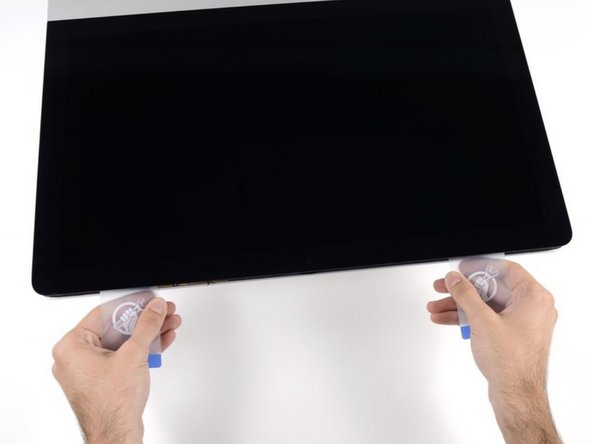
    1. iMac Intel 21.5" EMC 2544 RAM Replacement (Easier version), Cut off the Adhesive: étape 1, image 1 de 2 iMac Intel 21.5" EMC 2544 RAM Replacement (Easier version), Cut off the Adhesive: étape 1, image 2 de 2
      • The first step to getting into the iMac is to open the display. To do this, insert a iMac opining tool or an iFixit Opining Pick into the bottom left of the iMac, right above the chin.

      Demander à FixBot

      Ajouter un commentaire

    2. iMac Intel 21.5" EMC 2544 RAM Replacement (Easier version): étape 2, image 1 de 2 iMac Intel 21.5" EMC 2544 RAM Replacement (Easier version): étape 2, image 2 de 2
      • The next step to getting the screen off is to slide the pick around the screen. Move the iFixit oping pick around the display, and be very carefull around the edges; you could break the glass.

      Demander à FixBot

      Ajouter un commentaire

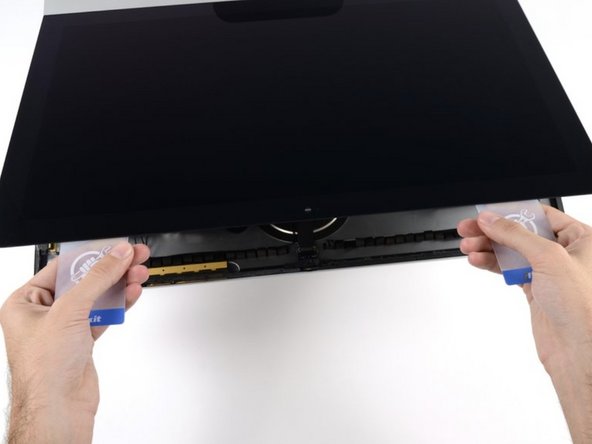
    3. iMac Intel 21.5" EMC 2544 RAM Replacement (Easier version), Remove the Display: étape 3, image 1 de 3 iMac Intel 21.5" EMC 2544 RAM Replacement (Easier version), Remove the Display: étape 3, image 2 de 3 iMac Intel 21.5" EMC 2544 RAM Replacement (Easier version), Remove the Display: étape 3, image 3 de 3
      Outil utilisé dans cette étape :
      Plastic Cards
      $2.99
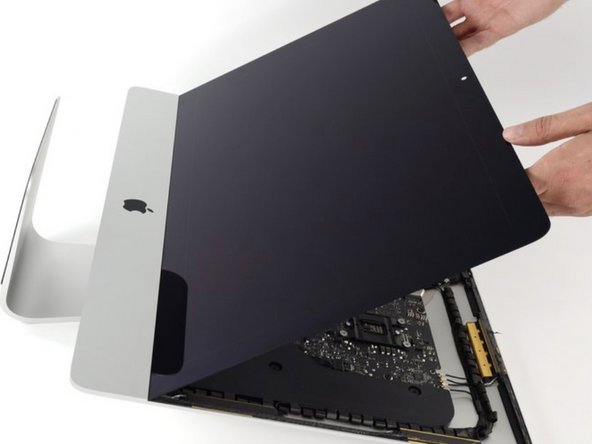
      • Once you have slid the opening tool around the iMac, get a Plastic card, then slide that around the display, and finally, use the cards to pull out on the display, and open it to about 4"

      Demander à FixBot

      Ajouter un commentaire

    4. iMac Intel 21.5" EMC 2544 RAM Replacement (Easier version), Remove the Display Power Cable: étape 4, image 1 de 2 iMac Intel 21.5" EMC 2544 RAM Replacement (Easier version), Remove the Display Power Cable: étape 4, image 2 de 2
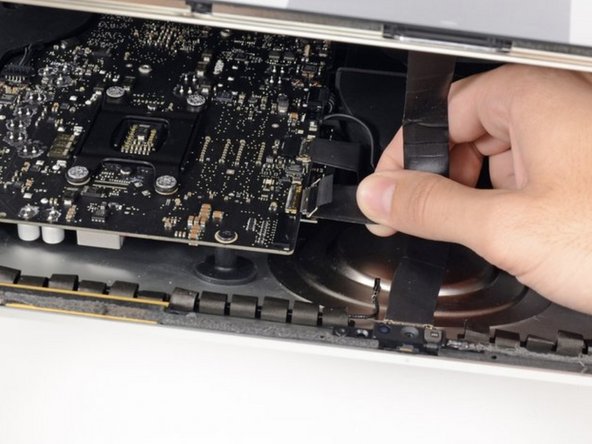
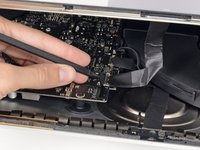
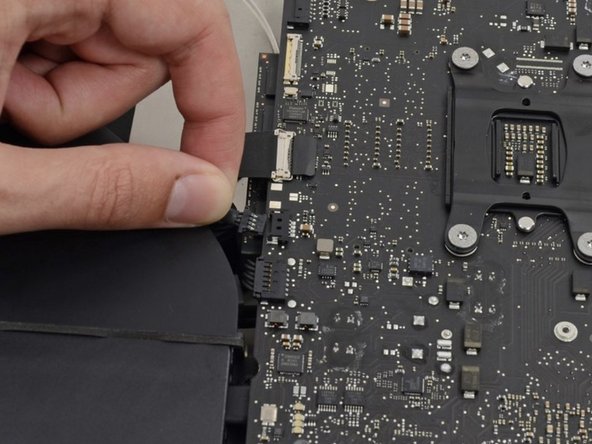
      • Next, open the display wide enough to fit your hand or a spudger inside, and disconnect the Display Power Cable.

      Demander à FixBot

      Ajouter un commentaire

    5. iMac Intel 21.5" EMC 2544 RAM Replacement (Easier version), Remove the Display Data Cable: étape 5, image 1 de 3 iMac Intel 21.5" EMC 2544 RAM Replacement (Easier version), Remove the Display Data Cable: étape 5, image 2 de 3 iMac Intel 21.5" EMC 2544 RAM Replacement (Easier version), Remove the Display Data Cable: étape 5, image 3 de 3
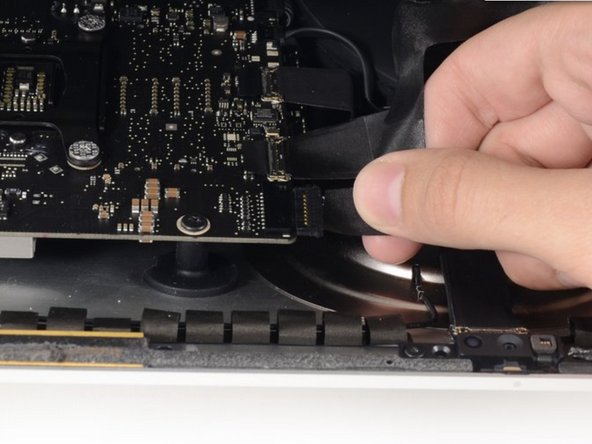
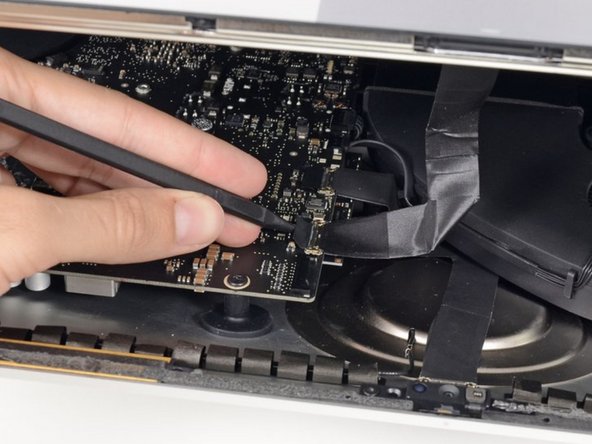
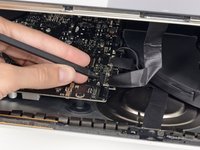
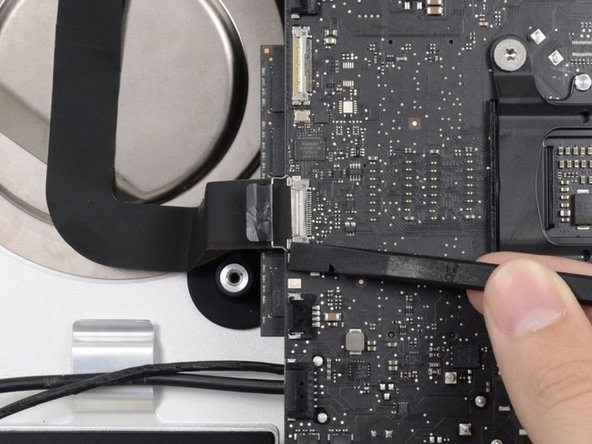
      • Use a spudger or your hand to disconnect the Display Data Cable.

      Demander à FixBot

      Ajouter un commentaire

    6. iMac Intel 21.5" EMC 2544 RAM Replacement (Easier version), Remove the Display: étape 6, image 1 de 2 iMac Intel 21.5" EMC 2544 RAM Replacement (Easier version), Remove the Display: étape 6, image 2 de 2
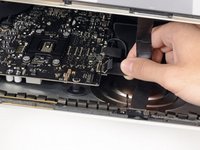
      • Pull the display off the iMac, and use an Oping pick to remove the adhesive off the bottom of the iMac screen. Then it should be able to come right off. Set the display somewhere safe.

      Demander à FixBot

      Ajouter un commentaire

    7. iMac Intel 21.5" EMC 2544 RAM Replacement (Easier version), Remove the Fan: étape 7, image 1 de 2 iMac Intel 21.5" EMC 2544 RAM Replacement (Easier version), Remove the Fan: étape 7, image 2 de 2
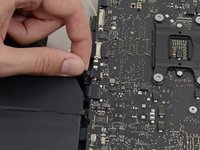
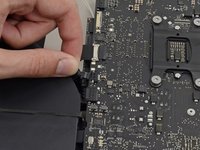
      • Disconnect the fan cable from the Logic Board.

      Demander à FixBot

      Ajouter un commentaire

    8. iMac Intel 21.5" EMC 2544 RAM Replacement (Easier version): étape 8, image 1 de 3 iMac Intel 21.5" EMC 2544 RAM Replacement (Easier version): étape 8, image 2 de 3 iMac Intel 21.5" EMC 2544 RAM Replacement (Easier version): étape 8, image 3 de 3
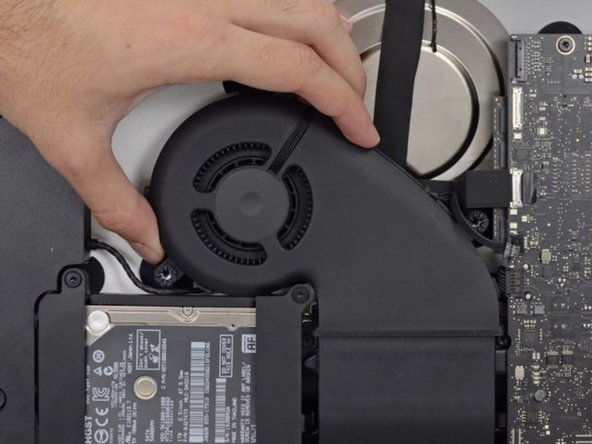
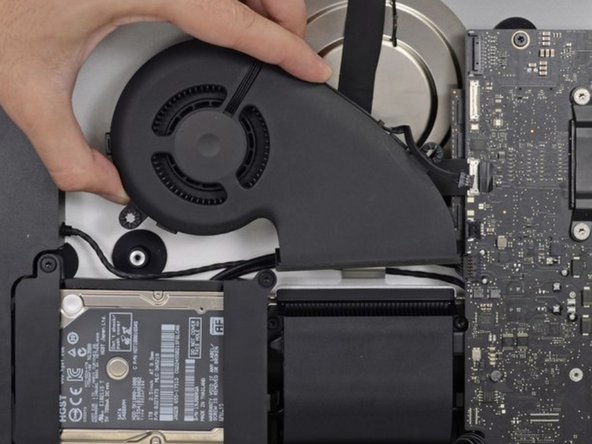
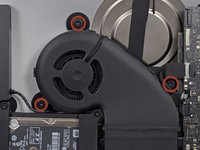
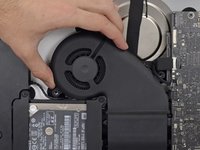
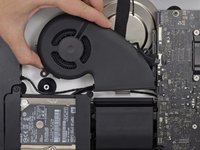
      • Unscrew the 3 T10 screws from the fan, and pull it gently out of the iMac.

      Demander à FixBot

      Ajouter un commentaire

    9. iMac Intel 21.5" EMC 2544 RAM Replacement (Easier version): étape 9, image 1 de 3 iMac Intel 21.5" EMC 2544 RAM Replacement (Easier version): étape 9, image 2 de 3 iMac Intel 21.5" EMC 2544 RAM Replacement (Easier version): étape 9, image 3 de 3
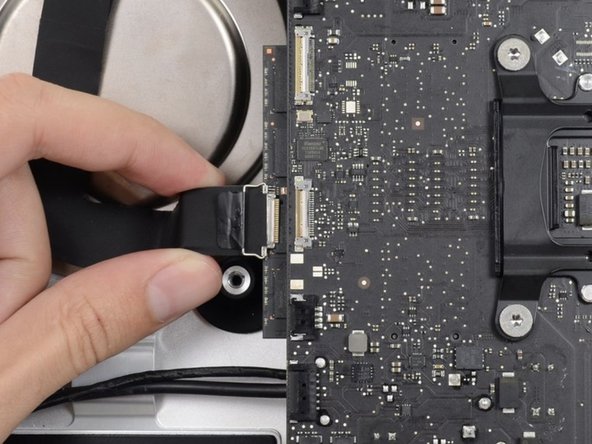
      • Detach the iSight camera cable from the iMac Logic Board.

      Demander à FixBot

      Ajouter un commentaire

      • Use your fingers or a Spudger to pull out the RAM retaining clips. This step is a lot harder.

      Demander à FixBot

      Ajouter un commentaire

      • Remove the first RAM module from their socket.

      Demander à FixBot

      Ajouter un commentaire

      • Use a Spudger or your fingers to pull out the last RAM module.

      Demander à FixBot

      Ajouter un commentaire

      • Insert your new RAM by putting it into the socket and pushing down, until you hear a click

      Demander à FixBot

      Ajouter un commentaire

Conclusion

To reassemble your device, Reattach the screen, and make sure to connect the cables.

Annulation : je n'ai pas terminé ce tutoriel.

5 autres ont terminé cette réparation.

Auteur

avec

Ottobunny

Membre depuis le 12/14/22

731 Réputation

1 tutoriel rédigé

0 commentaires de tutoriel

Ajouter un commentaire

Nombre de vues :

Dernières 24 heures : 2

7 derniers jours : 16

30 derniers jours : 96

Total : 1,723