Aller au contenu principal
Pour réparer ensemble - Je crée un compte

iPad 3G Home Button Switch Replacement

Vues: 27 k

Afficher les statistiques :

Dernières 24 heures :
1
Sept derniers jours :
14
Trente derniers jours :
88
Total :
27 406
Commentaires: 21

21 commentaires d'étapes.

Terminé: 7

7 personnes ont marqué ce tutoriel comme « terminé ». Serez-vous la prochaine ?

Favoris: 26

26 personnes ont mis ce tutoriel en favori (et s'y sont abonnées). Serez-vous la prochaine ?

Temps nécessaire: Aucune estimation
Difficulté: Modérée
iPad 3G Home Button Switch Replacement

Use this guide to replace the electronic portion of your home button switch. This will not instruct you on how to replace the plastic home button cover that you press on.

Ce dont vous avez besoin

Outils

    1. iPad 3G Home Button Switch Replacement, Display Assembly: étape 1, image 1 de 3 iPad 3G Home Button Switch Replacement, Display Assembly: étape 1, image 2 de 3 iPad 3G Home Button Switch Replacement, Display Assembly: étape 1, image 3 de 3
      • If your display glass is cracked, keep further breakage contained and prevent bodily harm during your repair by taping the glass.

      • Lay overlapping strips of clear packing tape over the iPad's display until the whole face is covered.

      • This will keep glass shards contained and provide structural integrity when prying and lifting the display.

      • Do your best to follow the rest of the guide as described. However, once the glass is broken, it will likely continue to crack as you work, and you may need to use a metal prying tool to scoop the glass out.

      • Wear safety glasses to protect your eyes, and be careful not to damage the LCD screen.

      Demander à FixBot

      Ajouter un commentaire

    2. iPad 3G Home Button Switch Replacement: étape 2, image 1 de 2 iPad 3G Home Button Switch Replacement: étape 2, image 2 de 2
      • The iPad shown in the photos may look slightly different from your iPad, but the procedure is the same.

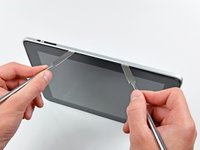
      • Insert a metal spudger between the right edge of the display assembly and the rear panel assembly.

      • Rotate the spudger away from you to release the tabs along the top edge of the display.

      Demander à FixBot

      Ajouter un commentaire

    3. iPad 3G Home Button Switch Replacement: étape 3, image 1 de 2 iPad 3G Home Button Switch Replacement: étape 3, image 2 de 2
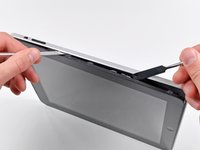
      • Insert a second metal spudger between the top edge of the display assembly and the rear panel assembly to keep the tabs from snapping back into place.

      • Pry the display assembly away from the rear panel.

      Demander à FixBot

      Ajouter un commentaire

    4. iPad 3G Home Button Switch Replacement: étape 4, image 1 de 2 iPad 3G Home Button Switch Replacement: étape 4, image 2 de 2
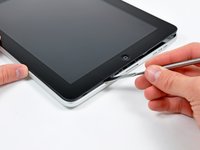
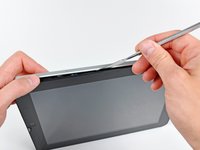
      • Continue prying the display assembly away from the rear panel along the bottom and left edges of the iPad.

      • Use extreme caution as you approach the top edge of the iPad. The digitizer ribbon cable is located near the edge of the rear panel and can easily be damaged.

      Demander à FixBot

      Ajouter un commentaire

    5. iPad 3G Home Button Switch Replacement: étape 5, image 1 de 1
      • Lift the display assembly away from the rear panel assembly by its bottom edge.

      • Do not excessively lift the display assembly off the rest of the iPad, as a fragile antenna cable with very little slack still connects the two components.

      Demander à FixBot

      Ajouter un commentaire

    6. iPad 3G Home Button Switch Replacement: étape 6, image 1 de 1
      • Use the flat end of a spudger to pry the antenna connector closest to the bottom of the iPad up off its socket on the communications board.

      Demander à FixBot

      Ajouter un commentaire

    7. iPad 3G Home Button Switch Replacement: étape 7, image 1 de 1
      • In the following steps, you will disconnect the three cables attaching the display assembly to the logic board. The cables are for the following components:

      • Digitizer

      • Ambient Light Sensor

      • Display Data Cable

      Demander à FixBot

      Ajouter un commentaire

    8. iPad 3G Home Button Switch Replacement: étape 8, image 1 de 3 iPad 3G Home Button Switch Replacement: étape 8, image 2 de 3 iPad 3G Home Button Switch Replacement: étape 8, image 3 de 3
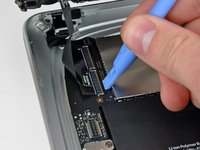
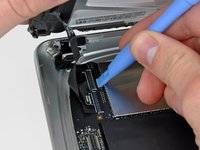
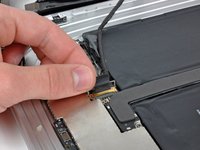
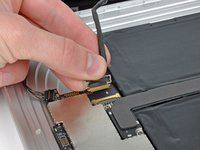
      • Use the edge of an iPod opening tool to flip up the retaining flaps holding the digitizer ribbon cables in their sockets on the logic board.

      • Be sure you are flipping up the retaining flap, not the socket itself.

      • Pull the digitizer ribbon cables straight out of their sockets.

      Demander à FixBot

      Ajouter un commentaire

    9. iPad 3G Home Button Switch Replacement: étape 9, image 1 de 1
      • Use an iPod opening tool to remove the ambient light sensor connector from its socket by gently prying upward.

      Demander à FixBot

      Ajouter un commentaire

    10. iPad 3G Home Button Switch Replacement: étape 10, image 1 de 2 iPad 3G Home Button Switch Replacement: étape 10, image 2 de 2
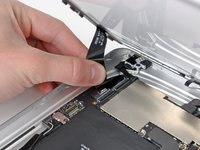
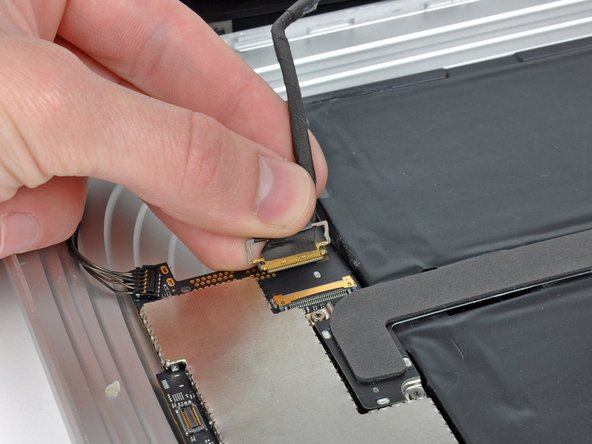
      • Disconnect the display data cable from the main board by flipping up the metal retainer by its black plastic pull tab.

      • Pull the cable connector away from its socket.

      • Pull the connector parallel to the face of the logic board.

      Demander à FixBot

      Ajouter un commentaire

    11. iPad 3G Home Button Switch Replacement: étape 11, image 1 de 1
      • Remove the display assembly from the rear panel assembly.

      Demander à FixBot

      Ajouter un commentaire

    1. iPad 3G Home Button Switch Replacement, Home Button Switch: étape 12, image 1 de 1
      • Remove the two T5 Torx screws securing the home button switch board to the display frame.

      Demander à FixBot

      Ajouter un commentaire

    2. iPad 3G Home Button Switch Replacement: étape 13, image 1 de 1
      • Remove the home button switch board from the display frame.

      Demander à FixBot

      Ajouter un commentaire

Conclusion

To reassemble your device, follow these instructions in reverse order.

Annulation : je n'ai pas terminé ce tutoriel.

7 autres ont terminé cette réparation.

0 commentaires de tutoriel

Ajouter un commentaire

Nombre de vues :

Dernières 24 heures : 1

7 derniers jours : 14

30 derniers jours : 88

Total : 27,406