Aller au contenu principal
Pour réparer ensemble - Je crée un compte

iRobot Roomba 551 Faceplate Replacement

Ce dont vous avez besoin

    1. iRobot Roomba 551 Faceplate Replacement, Side Brush: étape 1, image 1 de 1
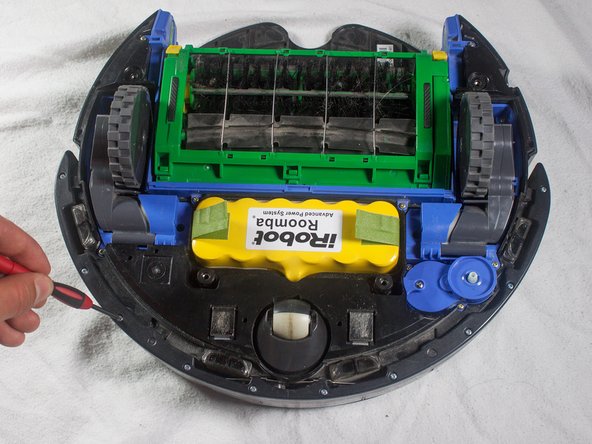
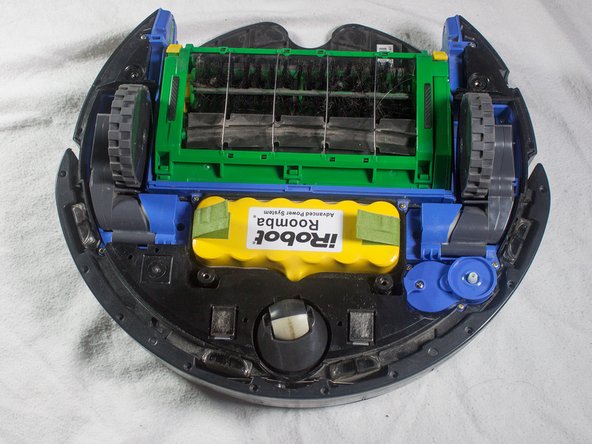
      • Place your Roomba upside-down on a hard surface.

      Demander à FixBot

      Ajouter un commentaire

    2. iRobot Roomba 551 Faceplate Replacement: étape 2, image 1 de 1
      • While holding the side brush in place, use a Phillips #1 screwdriver to remove the 4.5mm screw from the center of the brush.

      Demander à FixBot

      Ajouter un commentaire

    3. iRobot Roomba 551 Faceplate Replacement: étape 3, image 1 de 1
      • Gently pull upwards on the brush to remove it.

      Demander à FixBot

      Ajouter un commentaire

    1. iRobot Roomba 551 Faceplate Replacement, Bottom Plate: étape 4, image 1 de 1
      • Rotate the Roomba upside-down so the bottom is facing towards you.

      Demander à FixBot

      Ajouter un commentaire

    2. iRobot Roomba 551 Faceplate Replacement: étape 5, image 1 de 2 iRobot Roomba 551 Faceplate Replacement: étape 5, image 2 de 2
      • Using a Phillips #2 screwdriver, remove the captive screws that hold the bottom plate in place.

      Demander à FixBot

      Ajouter un commentaire

    3. iRobot Roomba 551 Faceplate Replacement: étape 6, image 1 de 1
      • Carefully lift the bottom plate.

      • The battery is only secured in place by the bottom plate, and may fall out once the bottom plate is removed.

      Demander à FixBot

      Ajouter un commentaire

    1. iRobot Roomba 551 Faceplate Replacement, iRobot Roomba 551 Dirt Bin Replacement: étape 7, image 1 de 1
      • Push on the dirt bin release button, and pull gently.

      Demander à FixBot

      Ajouter un commentaire

    1. iRobot Roomba 551 Faceplate Replacement, Bumper: étape 8, image 1 de 3 iRobot Roomba 551 Faceplate Replacement, Bumper: étape 8, image 2 de 3 iRobot Roomba 551 Faceplate Replacement, Bumper: étape 8, image 3 de 3
      • With a Phillips #1 screwdriver, remove the ten 12mm screws located along the bottom of the bumper.

      Demander à FixBot

      Ajouter un commentaire

    2. iRobot Roomba 551 Faceplate Replacement: étape 9, image 1 de 1
      • Lift the bottom cover and set it to the side.

      Demander à FixBot

      Ajouter un commentaire

    3. iRobot Roomba 551 Faceplate Replacement: étape 10, image 1 de 2 iRobot Roomba 551 Faceplate Replacement: étape 10, image 2 de 2
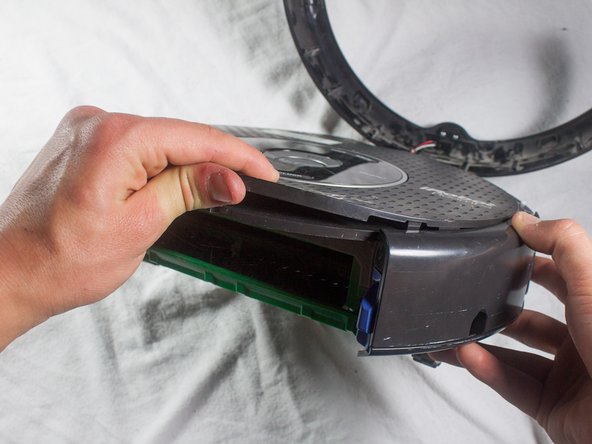
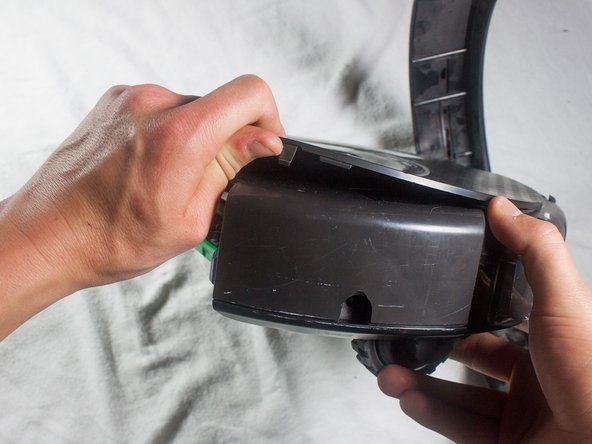
      • Flip the Roomba over, grasp the bumper, and gently lift to remove.

      • The battery is not secured in place once the bottom plate has been removed, and may fall out when the Roomba is turned right-side up.

      Demander à FixBot

      Ajouter un commentaire

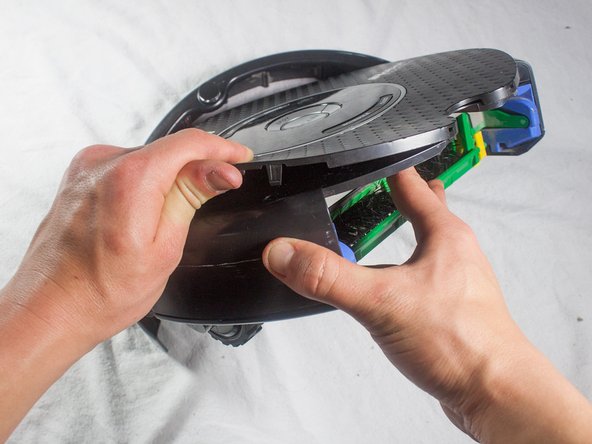
    1. iRobot Roomba 551 Faceplate Replacement, Faceplate: étape 11, image 1 de 3 iRobot Roomba 551 Faceplate Replacement, Faceplate: étape 11, image 2 de 3 iRobot Roomba 551 Faceplate Replacement, Faceplate: étape 11, image 3 de 3
      • Pull up on the front of the faceplate until the friction locks pop out of place.

      Demander à FixBot

      Ajouter un commentaire

    2. iRobot Roomba 551 Faceplate Replacement: étape 12, image 1 de 2 iRobot Roomba 551 Faceplate Replacement: étape 12, image 2 de 2
      • Continue around the outside of the Roomba, pulling up on the faceplate to free all of the outer friction locks.

      Demander à FixBot

      Ajouter un commentaire

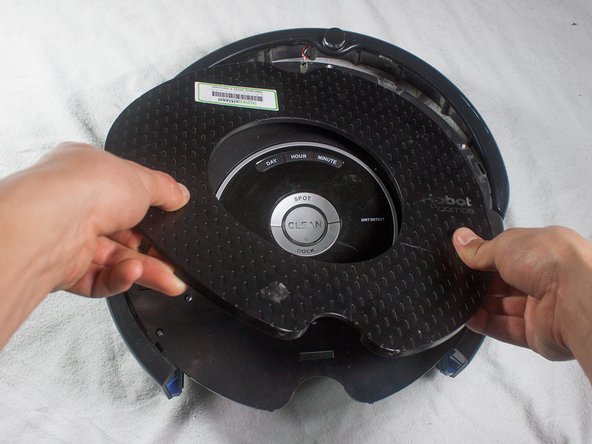
    3. iRobot Roomba 551 Faceplate Replacement: étape 13, image 1 de 2 iRobot Roomba 551 Faceplate Replacement: étape 13, image 2 de 2
      • Grab the faceplate by the outer edge and pull upwards, freeing the center friction locks in the process.

      Demander à FixBot

      Ajouter un commentaire

Conclusion

To reassemble your device, follow these instructions in reverse order.

Annulation : je n'ai pas terminé ce tutoriel.

Une autre personne a terminé cette réparation.

Aaron Jacobs

Membre depuis le 01/31/14

540 Réputation

4 tutoriels rédigés

Équipe

Cal Poly, Team 13-14, Regan Winter 2014 Membre de l'équipe Cal Poly, Team 13-14, Regan Winter 2014

CPSU-REGAN-W14S13G14

4 membres

32 tutoriels rédigés

1 commentaire de tutoriel

If all you need off is the faceplate, you can start at step 11 and skip the 1-10. The bottom and bumper assemblies seem completely unrelated to the faceplate. I removed the dirt bin and started lifiting at the back edge, then worked around the faceplate and it just popped off with no damage.

There are 4 long friction tabs around the circumference, and no tabs at the center. Once the outer friction tabs are free, the center circle of the faceplate comes off cleanly, leaving the display panel, control buttons and the chrome-ish ring. Under the 'IR' in the IRobot logo on the faceplate is the SCI port, more plastic and a number of screws to get to the motherboard.

David Forrest - Réponse Partager

Ajouter un commentaire

Nombre de vues :

Dernières 24 heures : 1

7 derniers jours : 6

30 derniers jours : 21

Total : 1,435