Aller au contenu principal
Pour réparer ensemble - Je crée un compte

HP 15-ef Battery Replacement

Ce dont vous avez besoin

  1. HP 15-ef Battery Replacement, Prepare your laptop for disassembly: étape 1, image 1 de 1
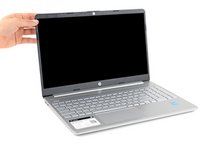
    • Fully shut down your laptop and unplug all cables.

    Demander à FixBot

    Ajouter un commentaire

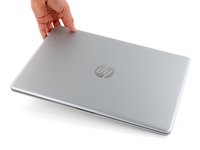
  2. HP 15-ef Battery Replacement, Flip your laptop over: étape 2, image 1 de 1
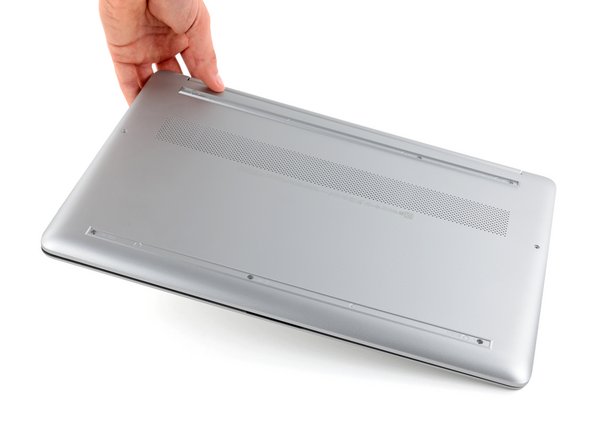
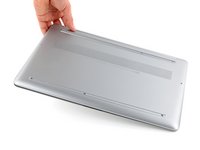
    • Flip your laptop over so the rubber feet are facing up.

    Demander à FixBot

    Ajouter un commentaire

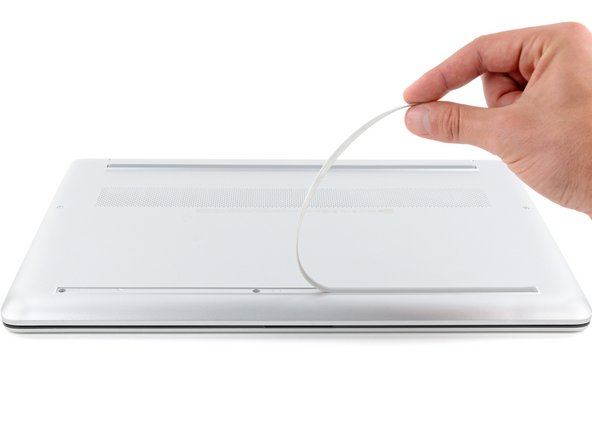
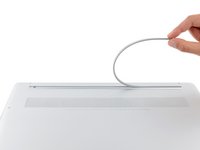
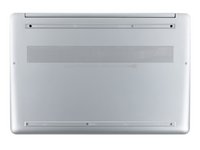
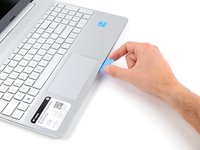
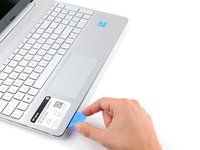
  3. HP 15-ef Battery Replacement, Peel up an end of the front foot: étape 3, image 1 de 3 HP 15-ef Battery Replacement, Peel up an end of the front foot: étape 3, image 2 de 3 HP 15-ef Battery Replacement, Peel up an end of the front foot: étape 3, image 3 de 3
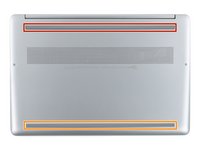
    • The rubber feet cover a total of six back cover screws.

    • Use an opening pick to peel up an end of the front rubber foot until you can grip it with your fingers.

    • Make sure both the foot and its adhesive peel up together, as they need to be removed as one piece.

    Demander à FixBot

    Ajouter un commentaire

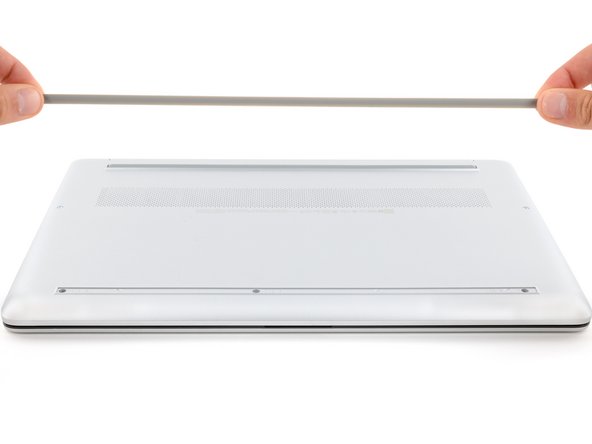
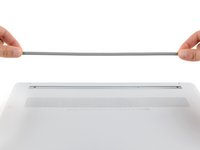
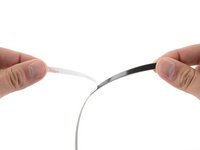
  4. HP 15-ef Battery Replacement, Remove the front foot: étape 4, image 1 de 3 HP 15-ef Battery Replacement, Remove the front foot: étape 4, image 2 de 3 HP 15-ef Battery Replacement, Remove the front foot: étape 4, image 3 de 3
    • Peel the front foot away from the back cover and remove it.

    Demander à FixBot

    Ajouter un commentaire

  5. HP 15-ef Battery Replacement, Remove the rear foot: étape 5, image 1 de 3 HP 15-ef Battery Replacement, Remove the rear foot: étape 5, image 2 de 3 HP 15-ef Battery Replacement, Remove the rear foot: étape 5, image 3 de 3
    • Use an opening pick to peel up an end of the rear rubber foot until you can grip it with your fingers.

    • Peel the rear foot away from the back cover and remove it.

    Demander à FixBot

    Ajouter un commentaire

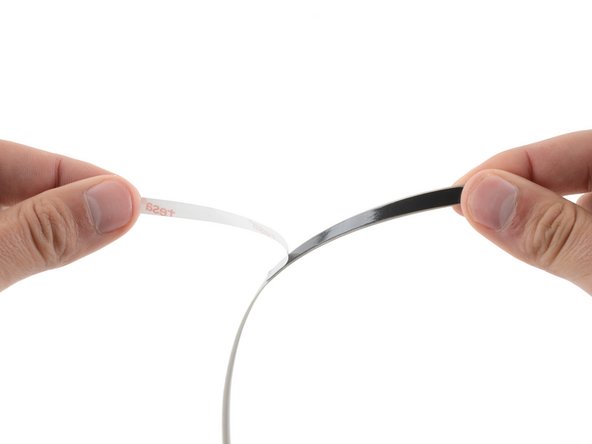
  6. HP 15-ef Battery Replacement, Reassembly information: étape 6, image 1 de 3 HP 15-ef Battery Replacement, Reassembly information: étape 6, image 2 de 3 HP 15-ef Battery Replacement, Reassembly information: étape 6, image 3 de 3
    Outil utilisé dans cette étape :
    Tesa 61395 Tape
    $8.95
    • Note that the rubber feet are different:

    • The rear foot is thicker, with a deeper recess.

    • The front foot is thinner, with a shallower recess.

    • During reassembly:

    • If you're reusing the rubber feet, the leftover adhesive should be tacky enough to reuse.

    • If the leftover adhesive isn't sticky enough or your replacement feet didn't come with adhesive, you can use double-sided tape such as Tesa Tape to secure the feet.

    • Make sure the strips of tape aren't wider than 6 mm, otherwise they may not fit.

    • To install a foot, remove its adhesive liner, lay the foot into its matching recess, and press down firmly along the entire length of the foot to secure it.

    Demander à FixBot

    Ajouter un commentaire

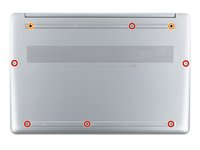
  7. HP 15-ef Battery Replacement, Unfasten the back cover: étape 7, image 1 de 2 HP 15-ef Battery Replacement, Unfasten the back cover: étape 7, image 2 de 2
    • Use a Phillips screwdriver to remove the eight screws securing the back cover:

    • Six 6.5 mm-long silver screws

    • Two 6.7 mm-long black screws

    • Despite the standards, Phillips screwdrivers can vary in size and shape—two drivers labeled as the same size may fit differently in the same screw. Use the size that fits the most snug into the screw head to avoid stripping it.

    Demander à FixBot

    Ajouter un commentaire

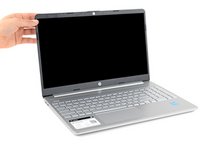
  8. HP 15-ef Battery Replacement, Open your laptop: étape 8, image 1 de 3 HP 15-ef Battery Replacement, Open your laptop: étape 8, image 2 de 3 HP 15-ef Battery Replacement, Open your laptop: étape 8, image 3 de 3
    • Flip your laptop over and open the screen.

    Demander à FixBot

    Ajouter un commentaire

  9. HP 15-ef Battery Replacement, Release the clips: étape 9, image 1 de 2 HP 15-ef Battery Replacement, Release the clips: étape 9, image 2 de 2
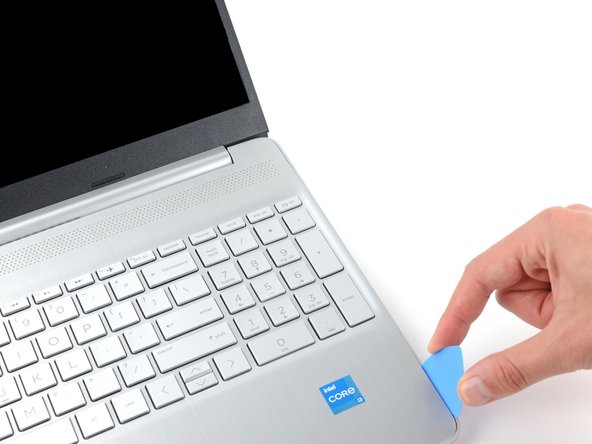
    • Plastic clips secure the back cover to the frame. You'll hear and feel the clips release as you work.

    • Insert the flat side of an opening pick into the seam between the top left edge of the back cover and the frame.

    • Slide the opening pick down to the bottom left corner to release the clips on the left edge.

    Demander à FixBot

    Ajouter un commentaire

  10. HP 15-ef Battery Replacement: étape 10, image 1 de 2 HP 15-ef Battery Replacement: étape 10, image 2 de 2
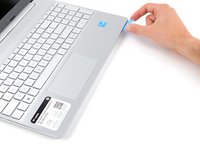
    • Avoid using excessive force when prying near the SD card slot, as it's a weak point in the case.

    • Insert the flat side of an opening pick into the seam between the top right edge of the back cover and the frame.

    • Slide the opening pick down to the bottom right corner to release the clips on the right edge.

    Demander à FixBot

    Ajouter un commentaire

  11. HP 15-ef Battery Replacement: étape 11, image 1 de 3 HP 15-ef Battery Replacement: étape 11, image 2 de 3 HP 15-ef Battery Replacement: étape 11, image 3 de 3
    • Insert the flat side of an opening pick between the bottom right corner of the back cover and frame.

    • Slide the opening pick to the bottom left corner to release the remaining clips.

    Demander à FixBot

    Ajouter un commentaire

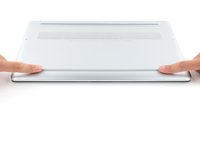
  12. HP 15-ef Battery Replacement, Flip your laptop over: étape 12, image 1 de 3 HP 15-ef Battery Replacement, Flip your laptop over: étape 12, image 2 de 3 HP 15-ef Battery Replacement, Flip your laptop over: étape 12, image 3 de 3
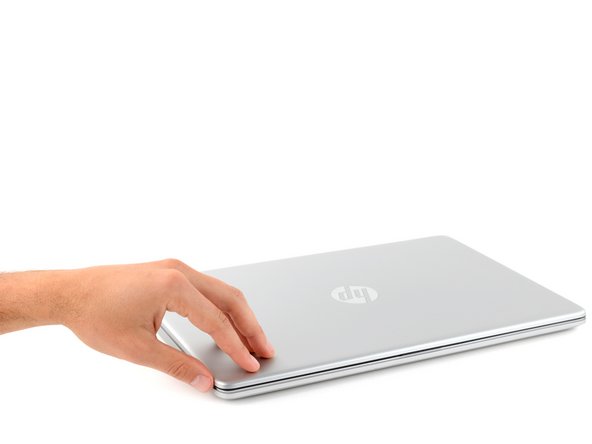
    • Close the screen and flip your laptop back over again.

    Demander à FixBot

    Ajouter un commentaire

  13. HP 15-ef Battery Replacement, Remove the back cover: étape 13, image 1 de 3 HP 15-ef Battery Replacement, Remove the back cover: étape 13, image 2 de 3 HP 15-ef Battery Replacement, Remove the back cover: étape 13, image 3 de 3
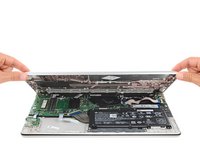
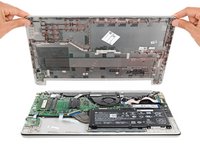
    • Remove the back cover.

    • To reinstall the back cover, lay it on the frame and firmly press down around the perimeter to engage all of the clips.

    Demander à FixBot

    Ajouter un commentaire

  14. HP 15-ef Battery Replacement, Unfasten the battery: étape 14, image 1 de 2 HP 15-ef Battery Replacement, Unfasten the battery: étape 14, image 2 de 2
    • Given the design of the battery connector, the only way to disconnect the battery is to physically remove it.

    • Try not to bend, crease, deform, poke, or puncture the battery with your tool—a damaged battery is a potential fire hazard.

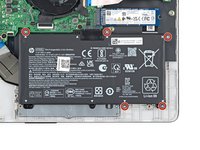
    • Use a Phillips screwdriver to remove the five 3.7 mm-long screws securing the battery.

    Demander à FixBot

    Ajouter un commentaire

  15. HP 15-ef Battery Replacement, Remove the battery: étape 15, image 1 de 3 HP 15-ef Battery Replacement, Remove the battery: étape 15, image 2 de 3 HP 15-ef Battery Replacement, Remove the battery: étape 15, image 3 de 3
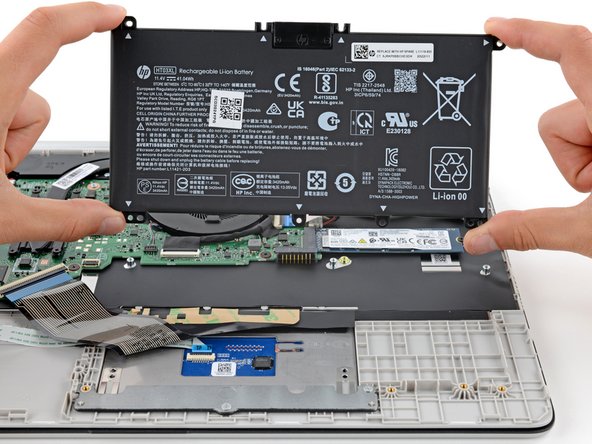
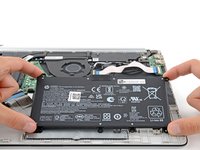
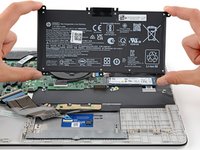
    • Gently lift the upper edge of the battery to disconnect its socket from the motherboard.

    • Remove the battery.

    • During reassembly, use the alignment posts to position the battery and press down on the socket to secure it.

    • Never reuse a deformed or damaged battery—it's a fire hazard. Replace it with a new battery.

    Demander à FixBot

    Ajouter un commentaire

Conclusion

Compare your new replacement part to the original part—you may need to transfer remaining components or remove adhesive backings from the new part before you install it.

To reassemble your device, follow these instructions in reverse order.

For optimal performance, calibrate your newly installed battery after completing this guide.

Take your e-waste to an R2 or e-Stewards certified recycler. Depending on your region, used HP devices and parts can be returned for reuse or recycling through the HP Planet Partners program.

Repair didn’t go as planned? Try some basic troubleshooting, or ask our Answers community for help.

Annulation : je n'ai pas terminé ce tutoriel.

Une autre personne a terminé cette réparation.

Spencer Day

Membre depuis le 09/14/22

191 211 Réputation

1 204 tutoriels rédigés

Équipe

iFixit Membre de l'équipe iFixit

Staff

122 membres

25 946 tutoriels rédigés

0 commentaires de tutoriel

Ajouter un commentaire

Nombre de vues :

Dernières 24 heures : 6

7 derniers jours : 44

30 derniers jours : 167

Total : 3,760