Aller au contenu principal
Pour réparer ensemble - Je crée un compte

MacBook Air 11" Mid 2011 Fan Replacement

Ce dont vous avez besoin

  1. MacBook Air 11" Mid 2011 Fan Replacement, Lower Case: étape 1, image 1 de 1
    Outil utilisé dans cette étape :
    P5 Pentalobe Screwdriver Retina MacBook Pro and Air
    $5.99
    • Shut down and close your computer. Lay it on a soft surface top-side down.

    • Remove the following ten screws:

    • Two 8 mm 5-point Pentalobe screws

    • Eight 2.5 mm 5-point Pentalobe screws

    • The special screwdriver needed to remove the 5-point Pentalobe screws can be found here.

    Demander à FixBot

    Ajouter un commentaire

  2. MacBook Air 11" Mid 2011 Fan Replacement: étape 2, image 1 de 1
    • Wedge your fingers between the display and the lower case and pull upward to pop the lower case off the Air.

    Demander à FixBot

    Ajouter un commentaire

  3. MacBook Air 11" Mid 2011 Fan Replacement, Battery: étape 3, image 1 de 2 MacBook Air 11" Mid 2011 Fan Replacement, Battery: étape 3, image 2 de 2
    • In this step you will disconnect the battery to help avoid shorting out any components during service.

    • Use the flat end of a spudger to pry both short sides of the battery connector upward to disconnect it from its socket on the logic board.

    • Bend the battery cable slightly away from the logic board so the connector will not accidentally contact its socket.

    Demander à FixBot

    Ajouter un commentaire

  4. MacBook Air 11" Mid 2011 Fan Replacement, Solid-State Drive: étape 4, image 1 de 1
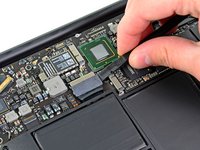
    • Remove the single 2.9 mm T5 Torx screw securing the SSD to the logic board.

    Demander à FixBot

    Ajouter un commentaire

  5. MacBook Air 11" Mid 2011 Fan Replacement: étape 5, image 1 de 2 MacBook Air 11" Mid 2011 Fan Replacement: étape 5, image 2 de 2
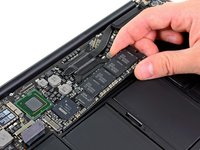
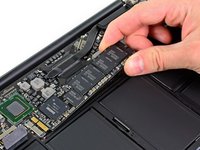
    • Use a spudger to help lift the free end of the SSD just enough to grab it with your other hand.

    • Do not lift the end of the SSD excessively.

    • Pull the drive straight out of its socket and remove it from the logic board.

    • When reinstalling the SSD, be sure it is properly seated before reinstalling its retaining screw.

    Demander à FixBot

    Ajouter un commentaire

  6. MacBook Air 11" Mid 2011 Fan Replacement, I/O Board Cable: étape 6, image 1 de 1
    • Use the flat end of a spudger to pry the I/O board cable up from its socket on the I/O board.

    Demander à FixBot

    Ajouter un commentaire

  7. MacBook Air 11" Mid 2011 Fan Replacement: étape 7, image 1 de 1
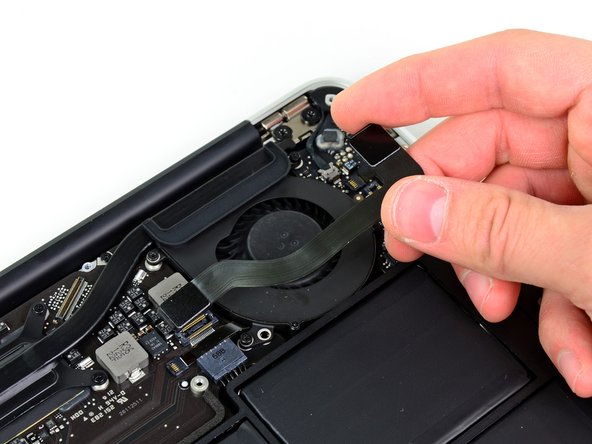
    • Peel the I/O board cable up from the adhesive securing it to the fan.

    Demander à FixBot

    Ajouter un commentaire

  8. MacBook Air 11" Mid 2011 Fan Replacement: étape 8, image 1 de 2 MacBook Air 11" Mid 2011 Fan Replacement: étape 8, image 2 de 2
    • Use the flat end of a spudger to lift the I/O board connector up and out of its socket on the logic board

    • Be sure to lift straight up on the connector as you disconnect it from its socket. The socket is very deep on the logic board and prying it from side to side may damage the logic board

    • Remove the I/O board cable.

    Demander à FixBot

    Ajouter un commentaire

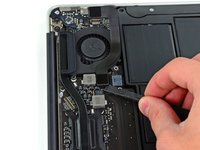
  9. MacBook Air 11" Mid 2011 Fan Replacement, Fan: étape 9, image 1 de 1
    • Use the tip of a spudger to carefully flip up the retaining flap on the fan cable ZIF socket.

    • Be sure you are prying up on the hinged retaining flap, not the socket itself.

    Demander à FixBot

    Ajouter un commentaire

  10. MacBook Air 11" Mid 2011 Fan Replacement: étape 10, image 1 de 1
    • Remove the following three screws securing the fan to the upper case:

    • Two 5.2 mm T5 Torx screws

    • One 3.6 mm T5 Torx screw

    Demander à FixBot

    Ajouter un commentaire

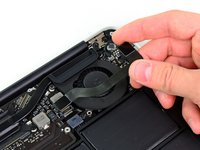
  11. MacBook Air 11" Mid 2011 Fan Replacement: étape 11, image 1 de 1
    • Lift the fan out of the upper case and carefully pull the fan ribbon cable out of its socket as you remove it from the Air.

    Demander à FixBot

    Ajouter un commentaire

Conclusion

To reassemble your device, follow these instructions in reverse order.

Annulation : je n'ai pas terminé ce tutoriel.

26 autres ont terminé cette réparation.

3 commentaires de tutoriel

Step 9- I prying up on the retaining flap and accidentally broke this right off... so basically the socket came right off. Helpppp....!!

Mike G - Réponse Partager

I did the same. What to do?

EW

Erik Wahlström - Réponse Partager

I too broke the socket of trying to pry open the retaining flap. Yes there is a warning “Be sure you are prying up on the hinged retaining flap, not the socket itself.” But there needs to be a much better picture/description of how to DO this on step 9. Without a reference on what/where the retaining flap is, there is a big danger of breaking it. Now my computer is toast.

Paul Camp - Réponse Partager

Ajouter un commentaire

Nombre de vues :

Dernières 24 heures : 1

7 derniers jours : 12

30 derniers jours : 111

Total : 23,525