
Aller au contenu principal
Pour réparer ensemble - Je crée un compte

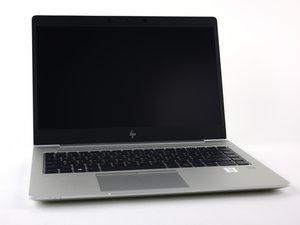
Informations de réparation et de diagnostic pour le HP EliteBook 840 G6, un ordinateur portable HP faisant partie de la gamme HP EliteBook. Sorti en mai 2019.

Laptop power blinks white and orange, not turning on.

I have a new laptop, worked fine and then it was dropped. And now it no longer turns on. The power button would light up along with the caps lock light then turn off. I plugged in the charger and it shows no life. So i took the battery out and put the power adapter in and now the indicator light blinks white, amber, and then stays amber. Sometimes the keyboard lights will come on and sometimes it will not but the screen will never come on. Might I mention that while putting the battery connector back in, a light on the board would flash white and go away. Same with the power adapter. I'm not sure what to make of it, I contacted HP Support and they were no help.

Répondre à cette question J'ai le même problème

Cette question est-elle utile ?

Indice 8

3 commentaires:

Check and count how many times the caps lock blink?

Then I will show you the error table.

par

Just once. It comes on for a few seconds then goes off.

par

Salut,une seule fois monsieur.

par

Ajouter un commentaire

3 Réponses

Hello @greykingdom

How many times does the caps lock light flash? I know that if it flashes three times, it is most likely that the RAM is not seated correctly. Just find the ram, remove it by pushing the metal clips away from the sides of the RAM, and it should pop out. Put the RAM back in, and the laptop may be functional.

Cette réponse est-elle utile ?

Indice 0
Ajouter un commentaire

It sounds like internal damage from the drop—possibly the motherboard, screen, or connectors. The blinking lights usually mean a hardware fault. Since HP support wasn’t helpful, consider taking it to a trusted local repair shop for a proper diagnosis.

Cette réponse est-elle utile ?

Indice 0

1 commentaire:

I have never had any drop of my Laptop.

And that's a greatfull Answer! by HP Support.

Thanks! HP Support.

par

Ajouter un commentaire
  1. ***Perform a Hard Reset:
Image

***

  • Unplug charger.
    • Remove battery (if removable).
    • Hold the power button for 60 seconds.
    • Reconnect power adapter (without battery), then try powering on.
  • ***Check RAM:
Image

***

  • Remove and reseat both RAM modules.
    • Try booting with one RAM stick at a time in each slot.
  • ***Test External Display:
Image

***

  • Connect HDMI or DisplayPort to an external monitor.
    • Press Fn + F4 (or the external display switch key).
  • ***Inspect Battery & Connectors:
Image

***

  • Ensure battery connector is not bent, burnt, or loose.
    • Try booting with only charger, and then only with battery (if charged externally).
  • ***Look for Visible Board Damage:
Image

***

  • Use a flashlight to inspect the motherboard for cracks, burnt areas, or loose chips.
    • Check DC jack port for looseness or wiggle.
  • ***BIOS Recovery (if applicable):
Image

***

  • HP laptops sometimes support BIOS recovery via USB.
    • Visit HP support to download BIOS for your model to a USB, hold Win + B or Win + V during boot.
  • ***Professional Repair Options:
Image

***

  • If no response after above:
    • Likely motherboard-level damage.
      • You’ll need a board-level technician for inspection with a multimeter and microscope.


Cette réponse est-elle utile ?

Indice 0
Ajouter un commentaire

Ajouter une réponse

Grey Kingdom sera éternellement reconnaissant.
Nombre de vues :

Dernières 24 heures : 4

7 derniers jours : 38

30 derniers jours : 177

Total : 4,967