Aller au contenu principal

Battery Disconnect

Conditions préalables uniquement
Il s'agit d'un tutoriel prérequis ! Il fait partie d'une autre procédure et n'est pas destiné à être utilisé seul.

Ce dont vous avez besoin

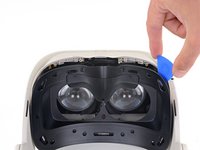
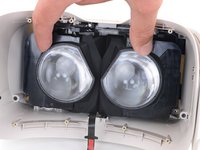
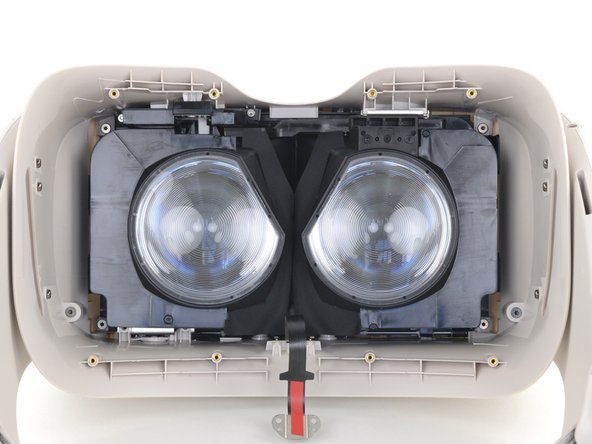
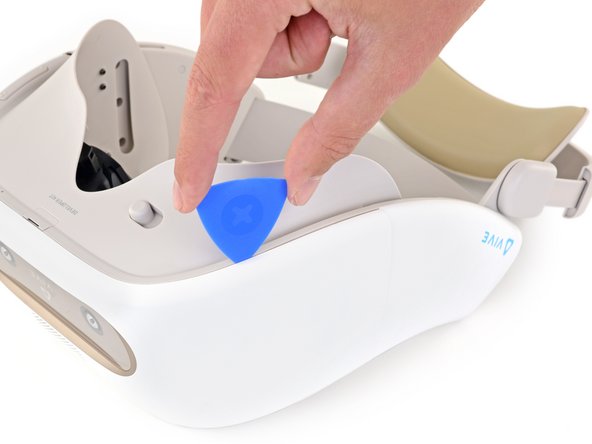
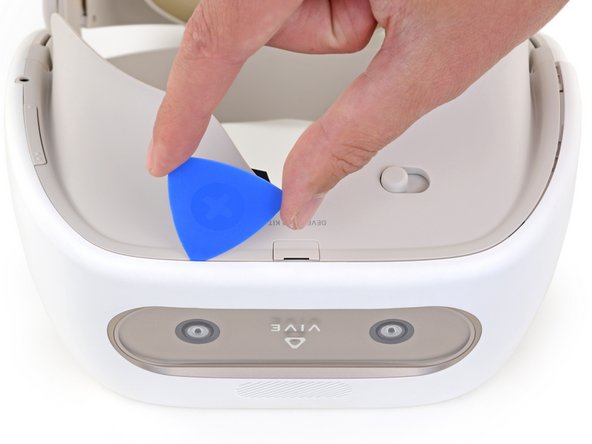
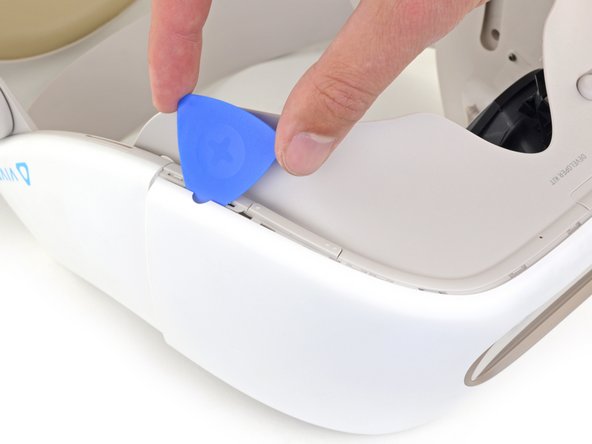
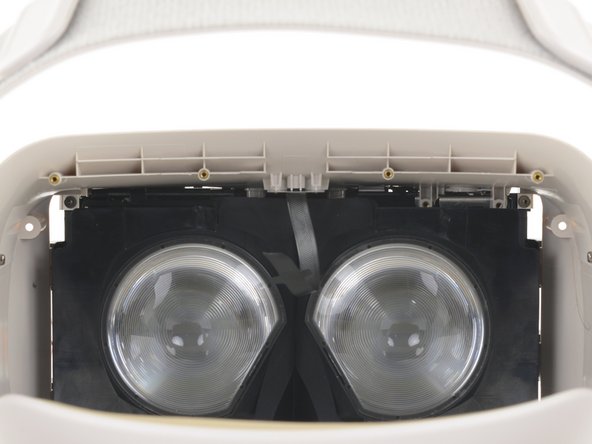
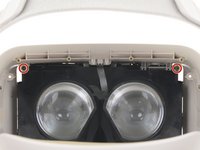
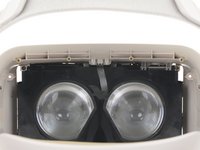
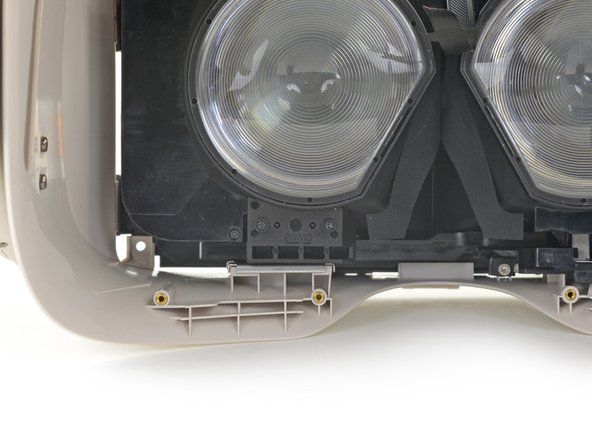
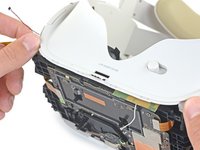
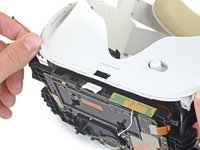
  1. Battery Disconnect, Remove the facerest cushion: étape 1, image 1 de 3 Battery Disconnect, Remove the facerest cushion: étape 1, image 2 de 3 Battery Disconnect, Remove the facerest cushion: étape 1, image 3 de 3
    • Place your device upside-down on your work surface.

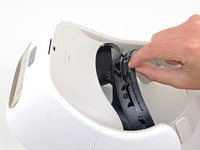
    • The facerest cushion is lightly held into place by seven plastic clips.

    • Use your fingers to gently pull the facerest cushion straight off of the facerest to remove it.

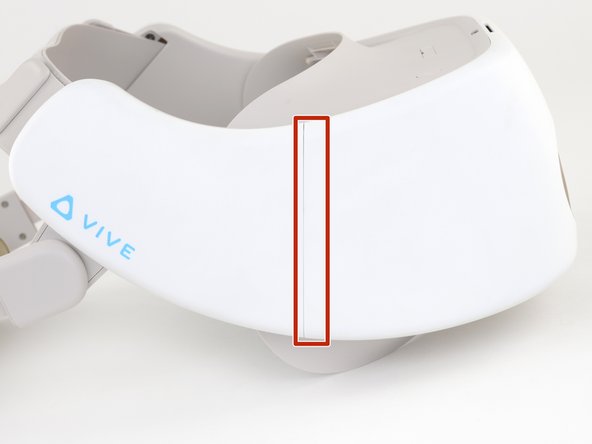
  2. Battery Disconnect, Remove the facerest: étape 2, image 1 de 1
    • Use a T5 Torx screwdriver to remove the eight 4.5 mm screws securing the facerest.

    • One of the screws will be covered by a tamper-evident sticker. Press the driver through the sticker to remove the screw.

  3. Battery Disconnect: étape 3, image 1 de 3 Battery Disconnect: étape 3, image 2 de 3 Battery Disconnect: étape 3, image 3 de 3
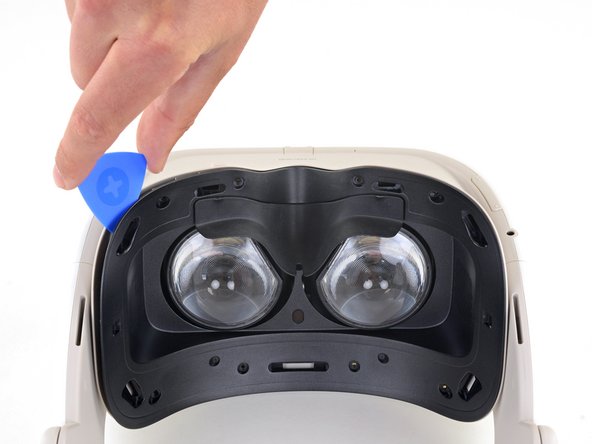
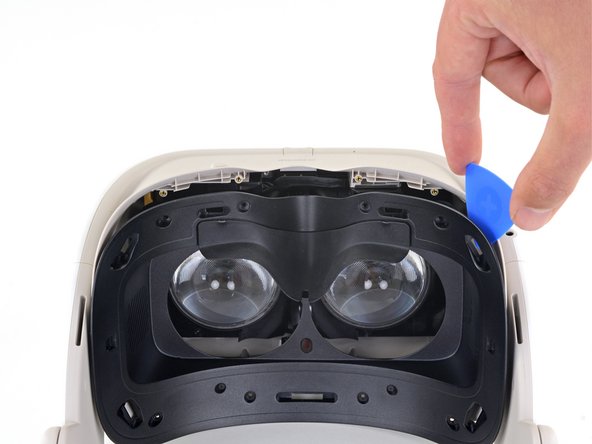
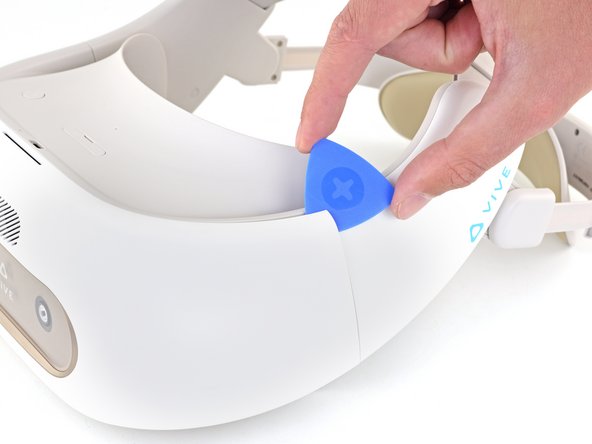
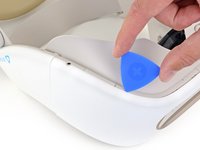
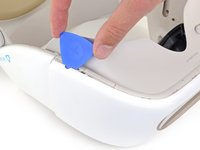
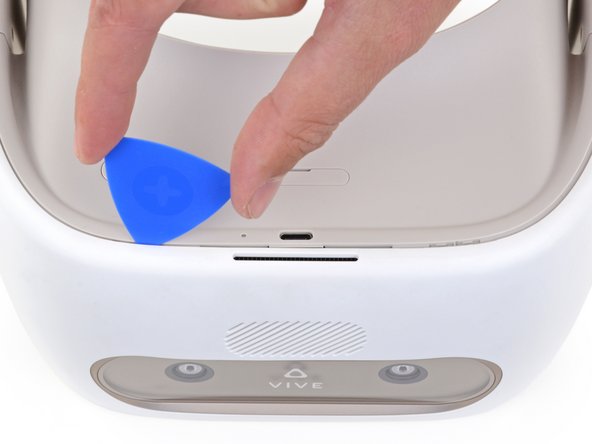
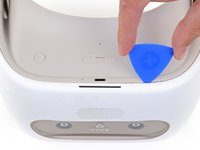
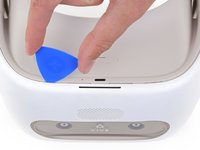
    • Insert an opening pick into the upper-left corner of the facerest.

    • Twist the opening pick to release the plastic clip securing the facerest.

    • Repeat for the upper-right corner.

    • Don't remove the facerest yet. It's still attached by the facerest sensor ribbon cable.

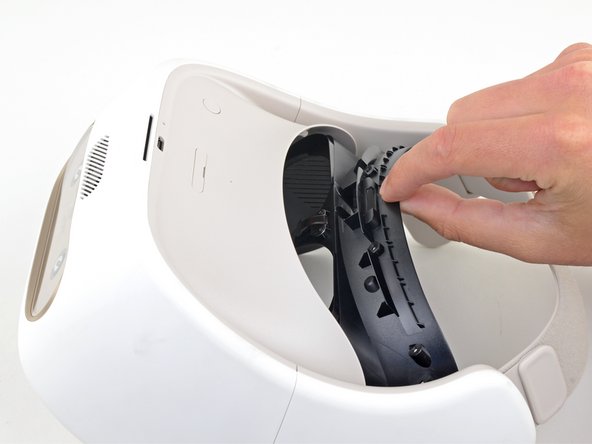
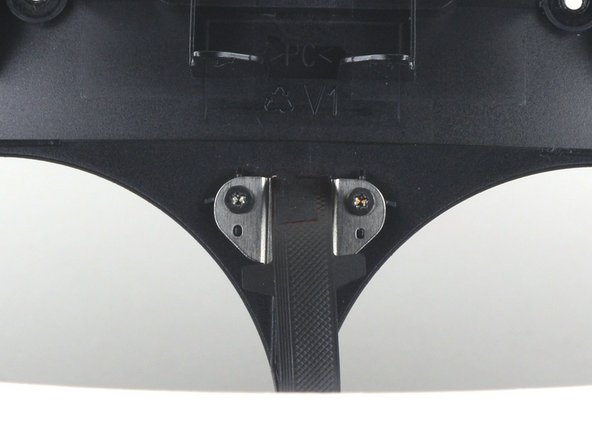
  4. Battery Disconnect, Remove the facerest sensor: étape 4, image 1 de 3 Battery Disconnect, Remove the facerest sensor: étape 4, image 2 de 3 Battery Disconnect, Remove the facerest sensor: étape 4, image 3 de 3
    • Carefully flip your device over.

    • Pull the facerest out just enough to access the screws securing the facerest sensor.

    • Don't put any strain on the facerest sensor ribbon cable.

    • During reassembly, make sure the facerest sensor ribbon cable is positioned between the lenses before reinstalling the facerest.

  5. Battery Disconnect: étape 5, image 1 de 1
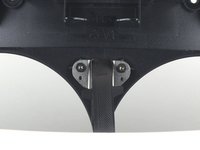
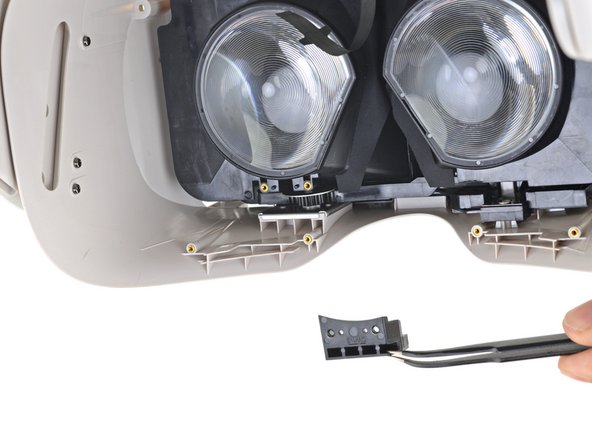
    • Use a T5 Torx screwdriver to remove the two 2.4 mm screws securing the facerest sensor to the facerest.

  6. Battery Disconnect: étape 6, image 1 de 1
    • Remove the facerest.

  7. Battery Disconnect, Unscrew the front cover: étape 7, image 1 de 2 Battery Disconnect, Unscrew the front cover: étape 7, image 2 de 2
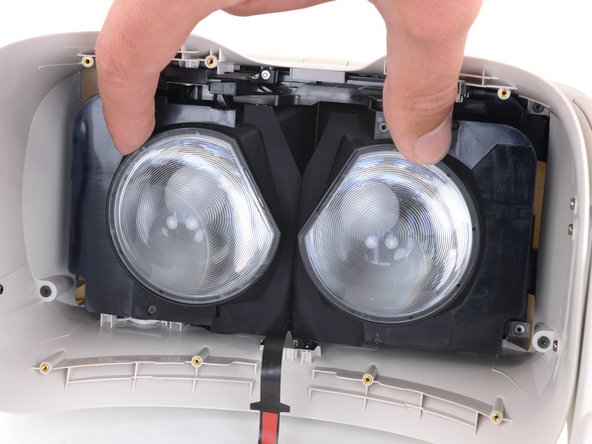
    • Use your fingers to slide the lenses towards each other so that they are positioned towards the center of the device.

  8. Battery Disconnect: étape 8, image 1 de 2 Battery Disconnect: étape 8, image 2 de 2
    • Use a T5 Torx screwdriver to remove the four screws securing the front cover from inside the device:

    • Two 5.7 mm screws with fine threads

    • Two 5.5 mm screws with coarse threads

    • The coarse-thread screws can strip easily. During reassembly, tighten the coarse-thread screws until they're hand tight and then no more.

  9. Battery Disconnect, Remove the front cover: étape 9, image 1 de 2 Battery Disconnect, Remove the front cover: étape 9, image 2 de 2
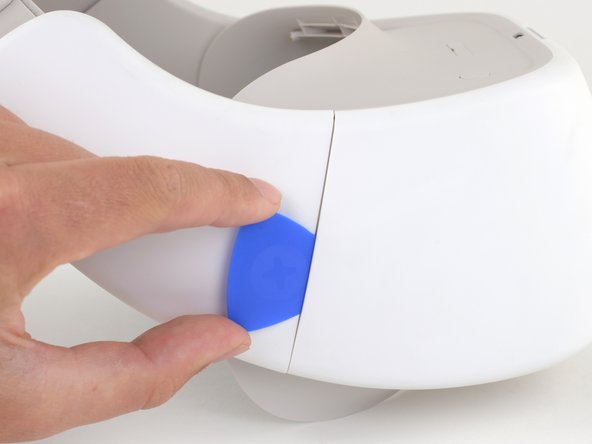
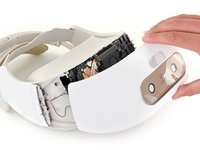
    • Note the location of the plastic welds on both vertical edges of the front cover.

    • After reassembly, the gap between the front cover and the side panels may no longer be flush. This is a cosmetic defect only and will not affect operation. The front cover's clips and screws are sufficient to secure it to the rest of the device.

  10. Battery Disconnect: étape 10, image 1 de 3 Battery Disconnect: étape 10, image 2 de 3 Battery Disconnect: étape 10, image 3 de 3
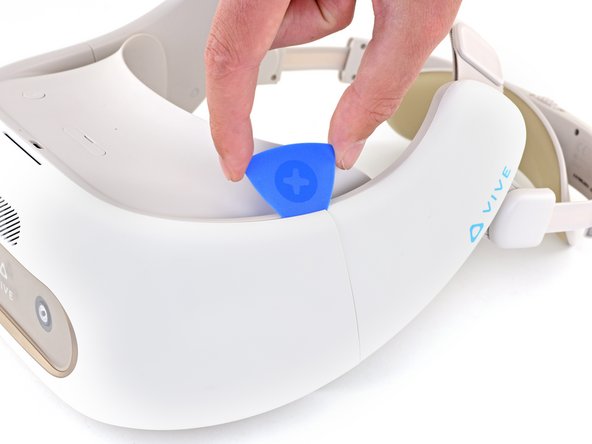
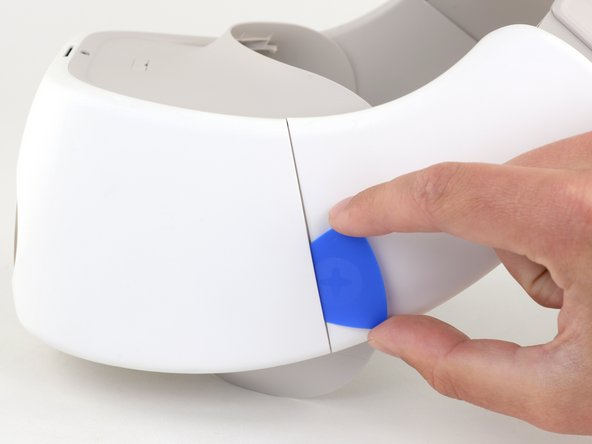
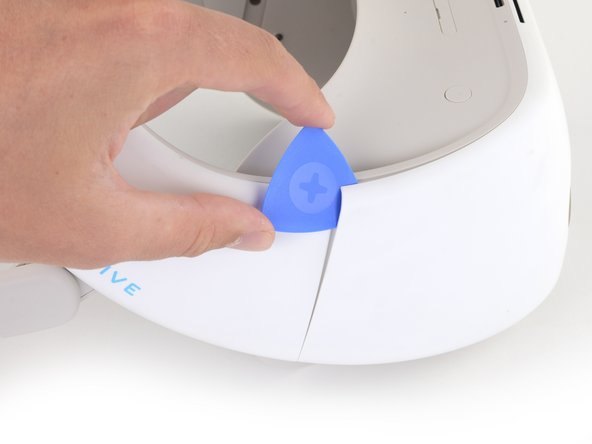
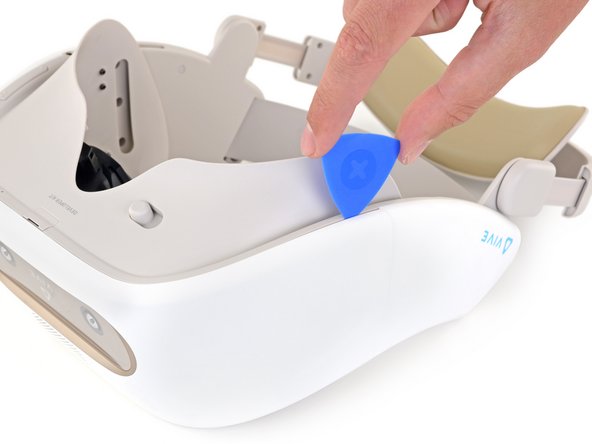
    • Insert an opening pick into the top of the front cover near the upper left corner.

    • Slide the opening pick around the upper left corner of the front cover.

  11. Battery Disconnect: étape 11, image 1 de 2 Battery Disconnect: étape 11, image 2 de 2
    • Use the opening pick to separate the weld securing the left side vertical edge of the front cover.

    • The weld may require significant force to separate.

  12. Battery Disconnect: étape 12, image 1 de 3 Battery Disconnect: étape 12, image 2 de 3 Battery Disconnect: étape 12, image 3 de 3
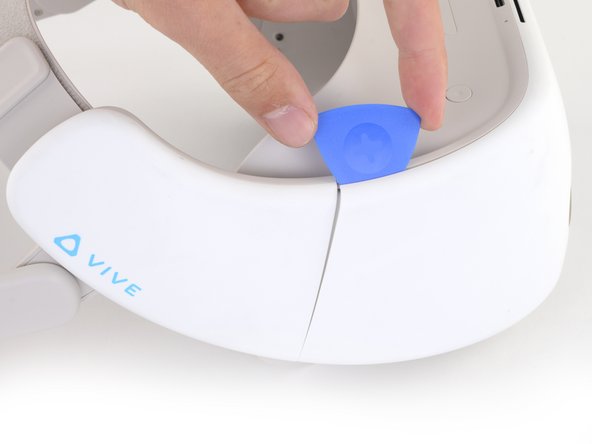
    • Insert an opening pick into the top of the front cover near the upper right corner.

    • Slide the opening pick around the upper right corner of the front cover.

  13. Battery Disconnect: étape 13, image 1 de 2 Battery Disconnect: étape 13, image 2 de 2
    • Use the opening pick to separate the weld securing the right side vertical edge of the front cover.

    • The weld may require significant force to separate.

  14. Battery Disconnect: étape 14, image 1 de 3 Battery Disconnect: étape 14, image 2 de 3 Battery Disconnect: étape 14, image 3 de 3
    • Flip the device upside-down.

    • Use an opening pick to disconnect the plastic clips securing the bottom right edge of the front cover to the device.

  15. Battery Disconnect: étape 15, image 1 de 2 Battery Disconnect: étape 15, image 2 de 2
    • Slide the opening pick along the bottom edge of the front cover to separate it from the device.

  16. Battery Disconnect: étape 16, image 1 de 2 Battery Disconnect: étape 16, image 2 de 2
    • Use the opening pick to disconnect the plastic clips securing the bottom-left edge of the front cover to the device.

  17. Battery Disconnect: étape 17, image 1 de 2 Battery Disconnect: étape 17, image 2 de 2
    • Flip the device right-side up.

    • Use the opening pick to separate the last few plastic clips securing the top of the front cover.

  18. Battery Disconnect: étape 18, image 1 de 2 Battery Disconnect: étape 18, image 2 de 2
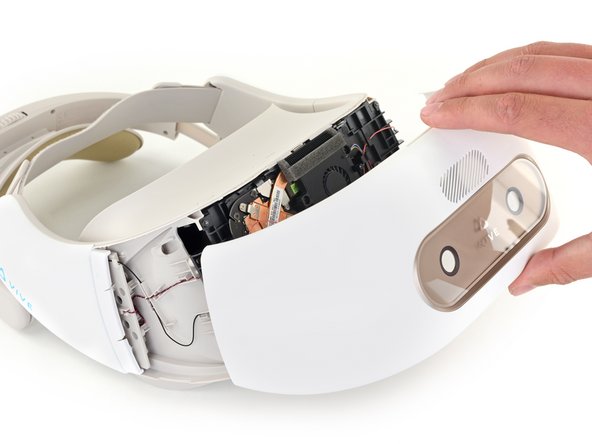
    • Remove the front cover.

  19. Battery Disconnect, Remove the CPU fan: étape 19, image 1 de 3 Battery Disconnect, Remove the CPU fan: étape 19, image 2 de 3 Battery Disconnect, Remove the CPU fan: étape 19, image 3 de 3
    Outil utilisé dans cette étape :
    Tweezers
    $3.99
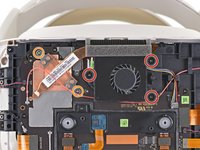
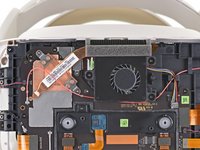
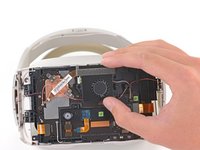
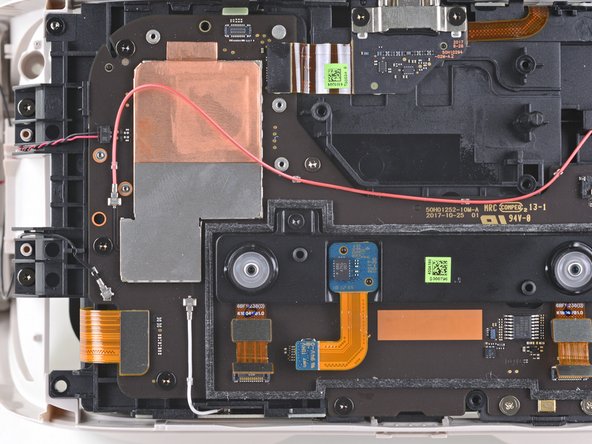
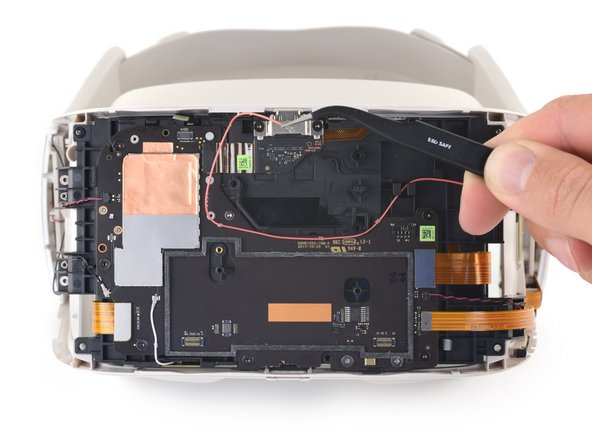
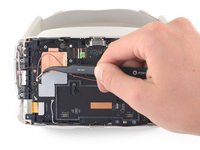
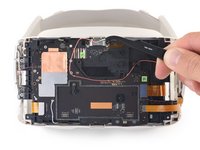
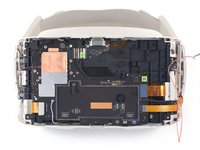
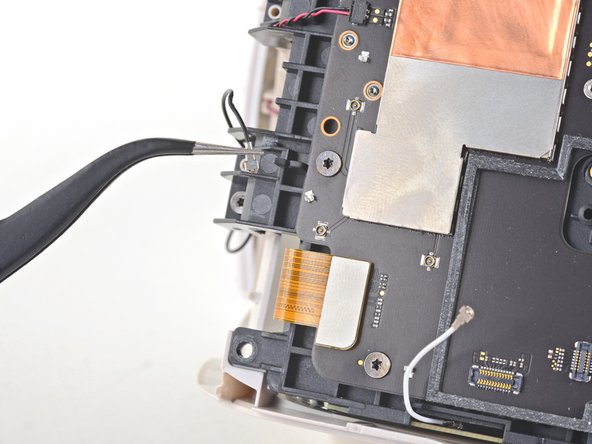
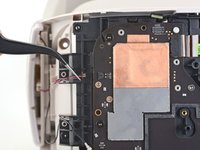
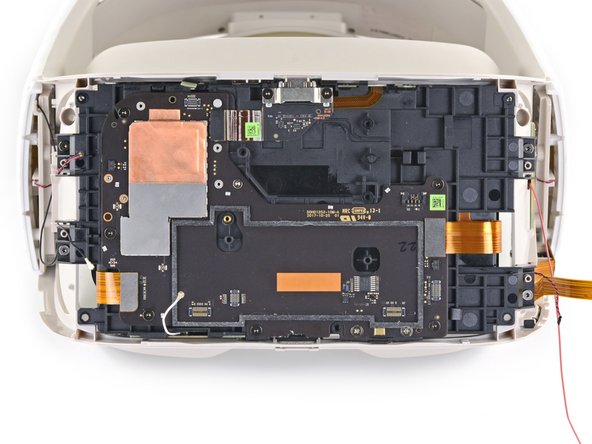
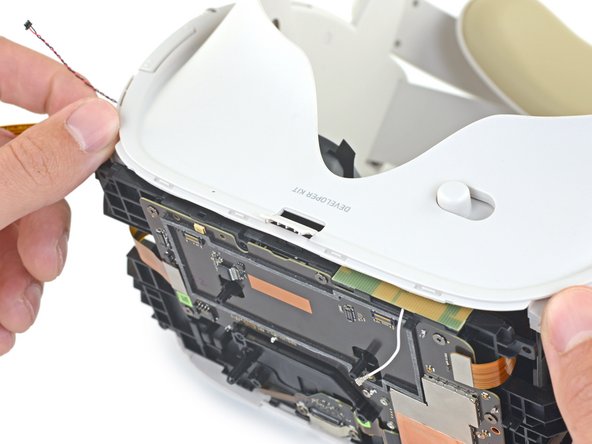
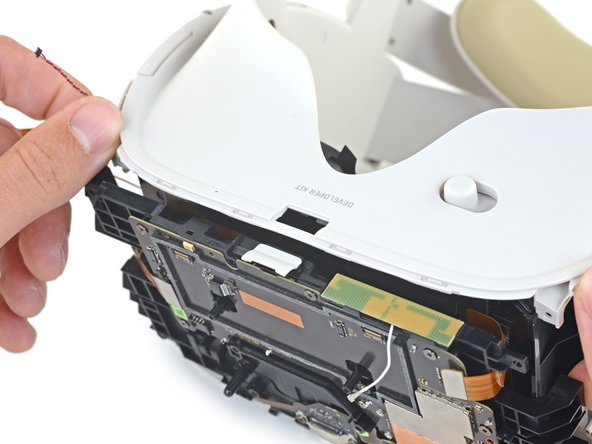
    • Use a pair of angled tweezers to disconnect the CPU fan cable from the motherboard.

    • Lift the CPU fan connector straight up from the motherboard to disconnect it from its socket.

    • During reassembly, align the CPU fan connector with its socket and use your finger to press it straight down into the motherboard.

  20. Battery Disconnect: étape 20, image 1 de 2 Battery Disconnect: étape 20, image 2 de 2
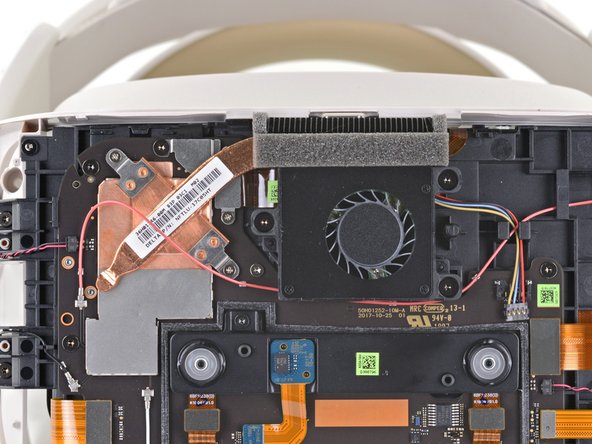
    • Use a T5 Torx screwdriver to remove the three 5.5 mm screws securing the CPU fan.

    • Use a Phillips screwdriver to remove the two 2.3 mm screws securing the CPU heatsink.

  21. Battery Disconnect: étape 21, image 1 de 2 Battery Disconnect: étape 21, image 2 de 2
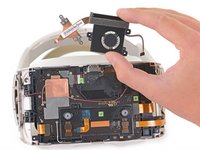
    • Remove the CPU fan.

    • During reassembly, do not sandwich the red antenna cable between the heatsink and contact plates.

  22. Battery Disconnect, Disconnect the power button: étape 22, image 1 de 2 Battery Disconnect, Disconnect the power button: étape 22, image 2 de 2
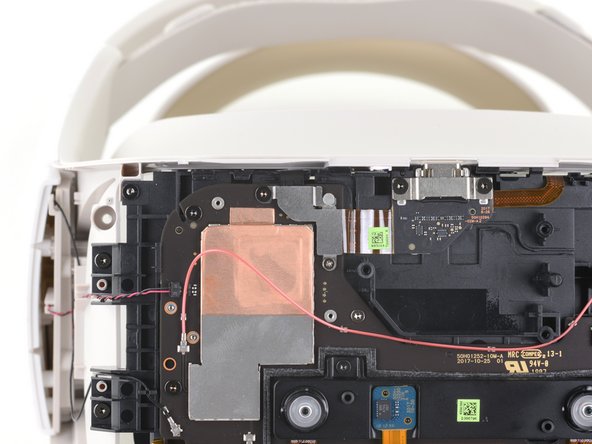
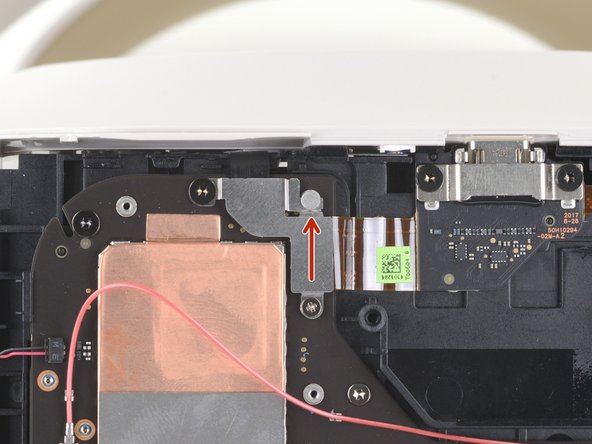
    • Use a T5 Torx screwdriver to remove the black 5.5 mm screw from the power button cable bracket.

    • Use a Phillips screwdriver to remove the 2.3 mm screw from the power button cable bracket.

  23. Battery Disconnect: étape 23, image 1 de 2 Battery Disconnect: étape 23, image 2 de 2
    Outil utilisé dans cette étape :
    Tweezers
    $4.99
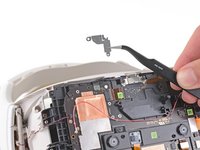
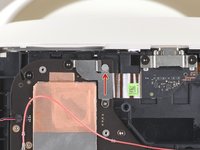
    • Use a pair of tweezers or your fingers to remove the power button cable bracket from the motherboard.

    • During reassembly, slot the power button cable bracket back onto the peg on the motherboard before reinstalling the screws.

  24. Battery Disconnect: étape 24, image 1 de 2 Battery Disconnect: étape 24, image 2 de 2
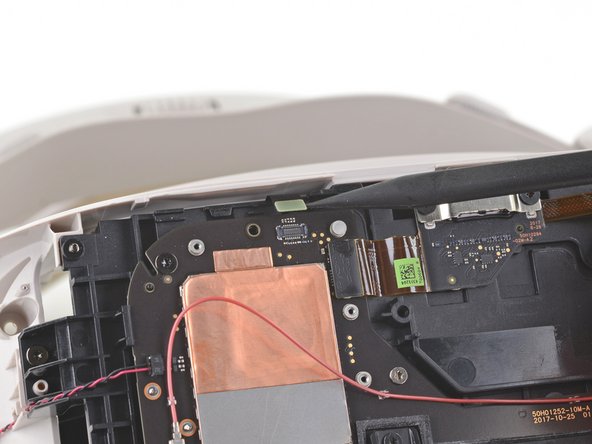
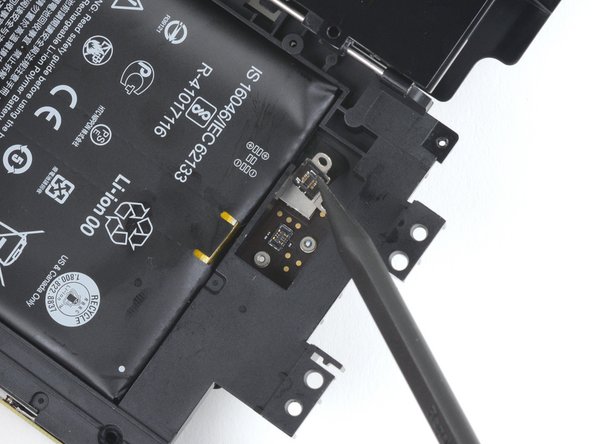
    • Use the pointed end of a spudger to disconnect the power button cable from the motherboard.

  25. Battery Disconnect, Remove the proximity sensor array: étape 25, image 1 de 2 Battery Disconnect, Remove the proximity sensor array: étape 25, image 2 de 2
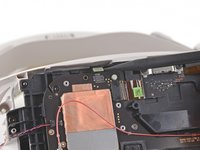
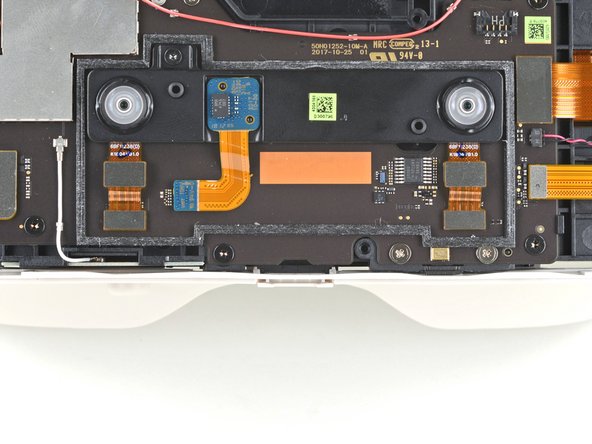
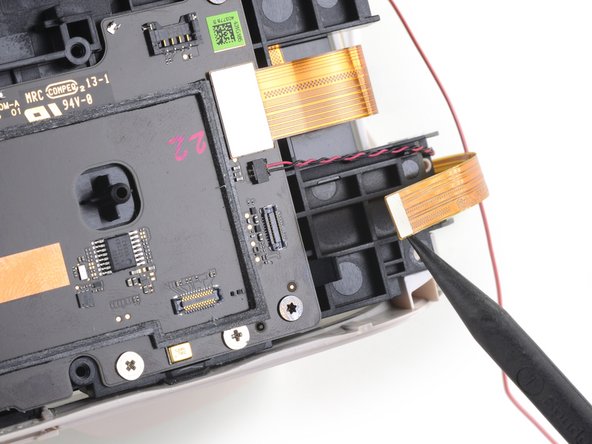
    • Pry up with the flat end of a spudger to disconnect the three ribbon cables connecting the proximity sensor array to the motherboard.

  26. Battery Disconnect: étape 26, image 1 de 2 Battery Disconnect: étape 26, image 2 de 2
    • Use a T5 Torx screwdriver to remove the 4.5 mm screw from the proximity sensor array.

  27. Battery Disconnect: étape 27, image 1 de 1
    • Remove the proximity sensor array from the motherboard.

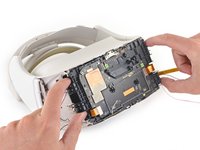
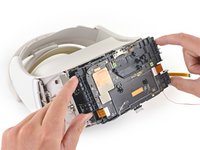
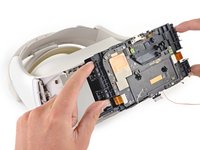
  28. Battery Disconnect, Remove the internal assembly: étape 28, image 1 de 3 Battery Disconnect, Remove the internal assembly: étape 28, image 2 de 3 Battery Disconnect, Remove the internal assembly: étape 28, image 3 de 3
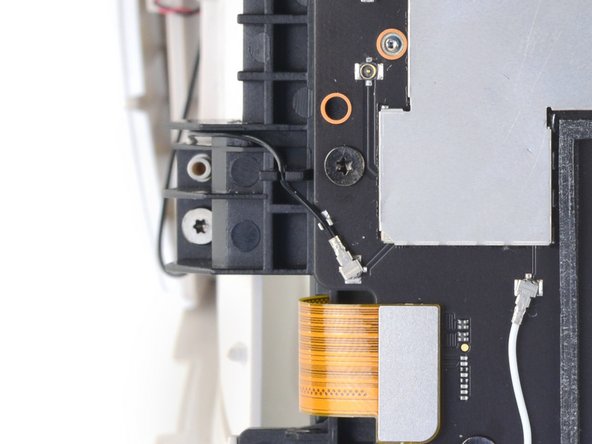
    • Antenna connectors are fragile and can break off of the motherboard. Use this technique when disconnecting antenna cables.

    • Use a spudger or a pair of tweezers to disconnect the red antenna cable from the front of the device.

    • De-route the antenna cable from the front of the device and place it to the side.

    • During reassembly, be sure to re-route the cable through the brackets and clips securing it.

  29. Battery Disconnect: étape 29, image 1 de 3 Battery Disconnect: étape 29, image 2 de 3 Battery Disconnect: étape 29, image 3 de 3
    • Use a spudger or a pair of tweezers to remove the black antenna cable from the motherboard.

    • During reassembly, re-route the black antenna cable through its channel and clip.

  30. Battery Disconnect: étape 30, image 1 de 2 Battery Disconnect: étape 30, image 2 de 2
    • Use a spudger to disconnect the ribbon cable connecting the volume buttons and headset jack to the motherboard.

  31. Battery Disconnect: étape 31, image 1 de 2 Battery Disconnect: étape 31, image 2 de 2
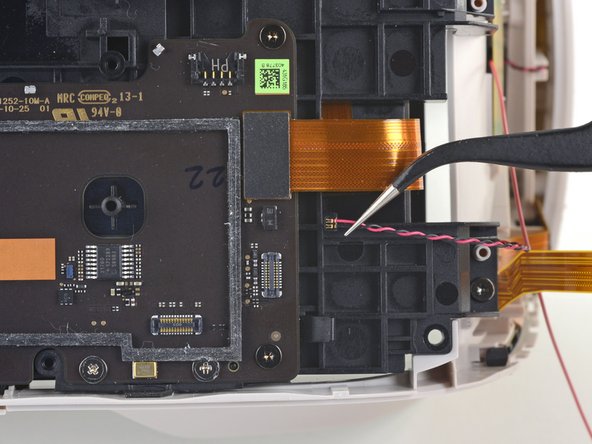
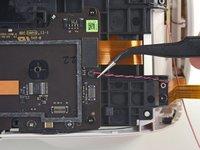
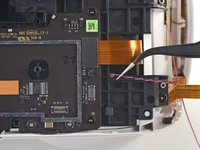
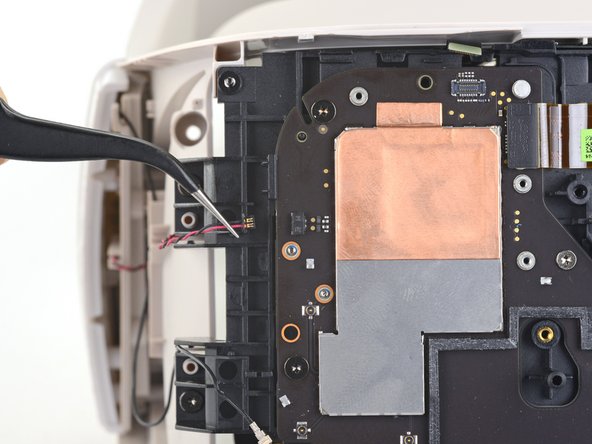
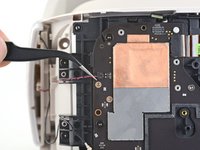
    • Use a pair of tweezers to carefully disconnect the speaker wire from the right side of the motherboard.

    • During reassembly, reinstall the speaker wire with the gold contacts facing towards you and the red wire on top.

  32. Battery Disconnect: étape 32, image 1 de 2 Battery Disconnect: étape 32, image 2 de 2
    • Use a pair of tweezers to carefully disconnect the speaker wire from the left side of the motherboard.

    • During reassembly, reinstall the speaker wire with the gold contacts facing towards you and the black wire on top.

  33. Battery Disconnect: étape 33, image 1 de 2 Battery Disconnect: étape 33, image 2 de 2
    • Use a T5 Torx screwdriver to remove the four 5.6 mm screws securing the corners of the internal assembly to the frame.

    • Use a Phillips screwdriver to remove the two 7.2 mm silver screws from the bottom of the motherboard.

  34. Battery Disconnect: étape 34, image 1 de 2 Battery Disconnect: étape 34, image 2 de 2
    • Use a T5 Torx screwdriver to remove the two 5.5 mm screws securing the internal assembly to inside of the frame.

    • During reassembly, make sure the internal assembly is fully seated on its centering pegs on each side and sits flush on the tabs on the frame before tightening these two screws.

    • Check for proper rack and pinion operation before continuing reassembly.

  35. Battery Disconnect: étape 35, image 1 de 2 Battery Disconnect: étape 35, image 2 de 2
    • Use a T5 Torx screwdriver to remove the two 4.5 mm screws securing the bracket under the left lens.

  36. Battery Disconnect: étape 36, image 1 de 2 Battery Disconnect: étape 36, image 2 de 2
    • Remove the bracket under the left lens.

    • To ensure correct operation, make sure this piece is properly seated on the adjuster mechanism by sliding the lenses as close together as possible before reinstalling it.

  37. Battery Disconnect: étape 37, image 1 de 3 Battery Disconnect: étape 37, image 2 de 3 Battery Disconnect: étape 37, image 3 de 3
    • Before removing the internal assembly, tilt the front out slightly to feed the microSD card slot cover through the frame.

  38. Battery Disconnect: étape 38, image 1 de 3 Battery Disconnect: étape 38, image 2 de 3 Battery Disconnect: étape 38, image 3 de 3
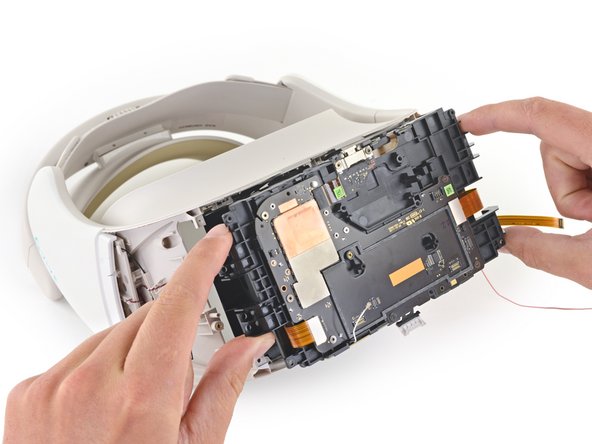
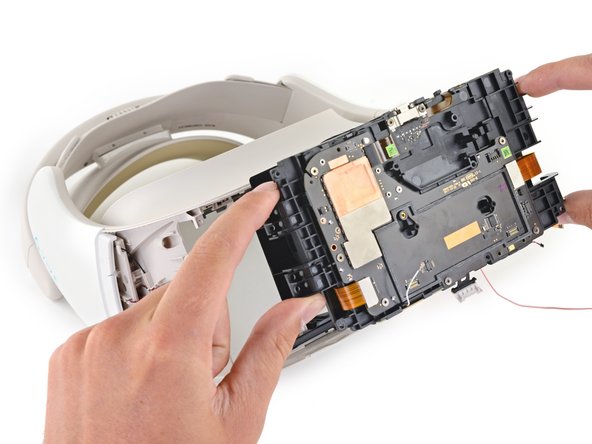
    • Carefully remove the internal assembly through the front of the device.

    • The internal assembly may not come out easily. Gently bend the outer frame as necessary to create space for the edges to clear.

    • Do not force any part of the internal assembly out.

    • During reassembly, feed the microSD slot cover referenced in the previous step back through the frame as you slide the internal assembly back into place.

  39. Battery Disconnect, Reassembly tips: étape 39, image 1 de 2 Battery Disconnect, Reassembly tips: étape 39, image 2 de 2
    • During reassembly:

    • Make sure not to trap any of the five loose wires and cables when reinstalling the internal assembly.

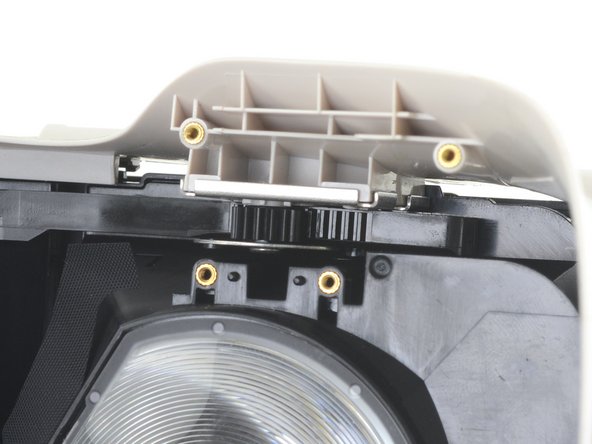
    • Hold the lenses as close together as possible and align the rack and pinion with the gear and washer.

    • This will ensure the lenses are properly aligned.

  40. Battery Disconnect, Disconnect the LED displays: étape 40, image 1 de 2 Battery Disconnect, Disconnect the LED displays: étape 40, image 2 de 2
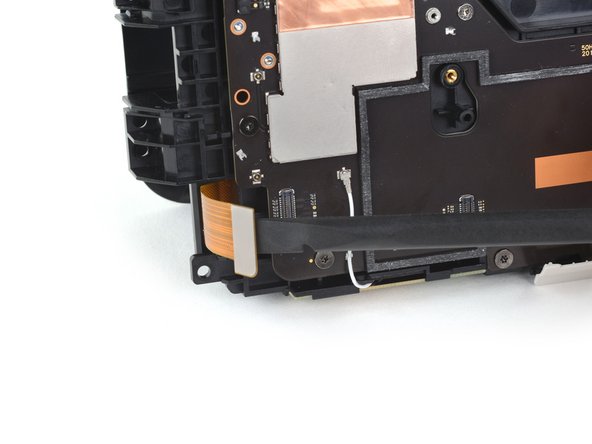
    • Use the flat end of a spudger to disconnect the left LED display ribbon cable from the motherboard.

  41. Battery Disconnect: étape 41, image 1 de 2 Battery Disconnect: étape 41, image 2 de 2
    • Use the flat end of a spudger to disconnect the right LED display ribbon cable from the motherboard.

  42. Battery Disconnect, Open the midframe: étape 42, image 1 de 3 Battery Disconnect, Open the midframe: étape 42, image 2 de 3 Battery Disconnect, Open the midframe: étape 42, image 3 de 3
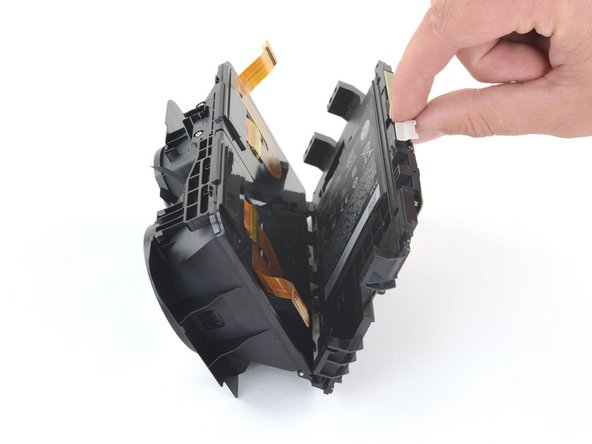
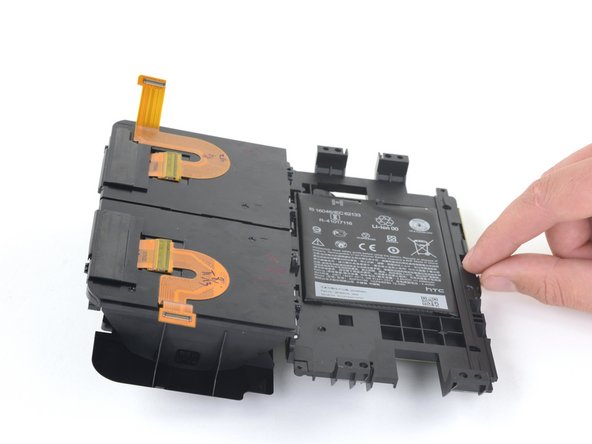
    • Swing the midframe open to access the battery.

    • During reassembly, be careful not to crush the LED display ribbon cables when folding the midframe back into place.

  43. Battery Disconnect, Disconnect the battery: étape 43, image 1 de 2 Battery Disconnect, Disconnect the battery: étape 43, image 2 de 2
    • Use a Phillips screwdriver to remove the two 2.3 mm screws securing the battery cable to the back of the motherboard.

  44. Battery Disconnect: étape 44, image 1 de 2 Battery Disconnect: étape 44, image 2 de 2
    • Use the tip of a spudger to disconnect the battery from the back of the motherboard.

    • During reassembly, use a spudger to align the battery connector screw holes and press it into place.

Conclusion

To reassemble your device, follow the above steps in reverse order.

Repair didn’t go as planned? Try some basic troubleshooting, or ask our Answers community for help.

Sam Omiotek

Membre depuis le 02/25/19

93 358 Réputation

290 tutoriels rédigés

0 commentaires de tutoriel

Ajouter un commentaire

Nombre de vues :

Dernières 24 heures : 0

7 derniers jours : 0

30 derniers jours : 2

Total : 44