Aller au contenu principal
Pour réparer ensemble - Je crée un compte
HP Envy Sleekbook m6-k010dx Keyboard Replacement

Ce dont vous avez besoin

    1. HP Envy Sleekbook m6-k010dx Keyboard Replacement, Battery: étape 1, image 1 de 1
      • Remove the twelve 9 mm Phillips #00 screws.

      Demander à FixBot

      Ajouter un commentaire

    2. HP Envy Sleekbook m6-k010dx Keyboard Replacement: étape 2, image 1 de 2 HP Envy Sleekbook m6-k010dx Keyboard Replacement: étape 2, image 2 de 2
      • Use the plastic opening tool and your hands to remove the bottom cover.

      Demander à FixBot

      Ajouter un commentaire

    3. HP Envy Sleekbook m6-k010dx Keyboard Replacement: étape 3, image 1 de 1
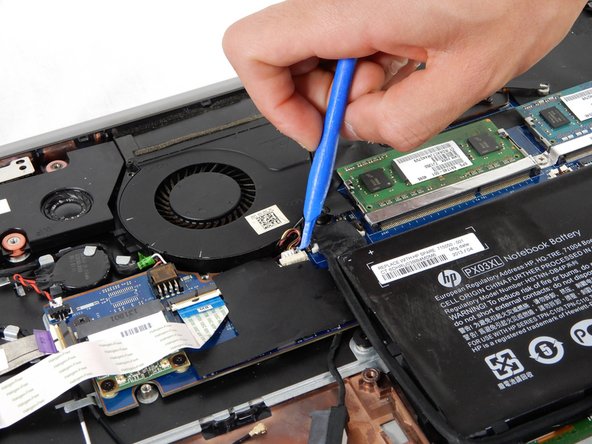
      • Disconnect the battery power cable from the motherboard.

      Demander à FixBot

      Ajouter un commentaire

    4. HP Envy Sleekbook m6-k010dx Keyboard Replacement: étape 4, image 1 de 1
      • Remove the six 6 mm Phillips #00 screws from the battery.

      Demander à FixBot

      Ajouter un commentaire

    5. HP Envy Sleekbook m6-k010dx Keyboard Replacement: étape 5, image 1 de 2 HP Envy Sleekbook m6-k010dx Keyboard Replacement: étape 5, image 2 de 2
      • Lift the battery out of the laptop.

      Demander à FixBot

      Ajouter un commentaire

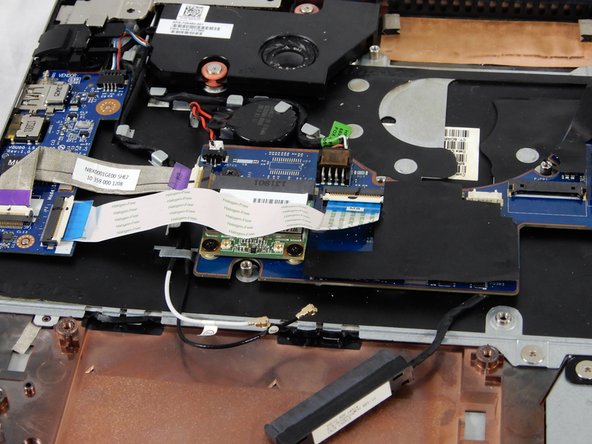
    1. HP Envy Sleekbook m6-k010dx Keyboard Replacement, Fan: étape 6, image 1 de 1
      • Remove two 3mm Phillips #00 screws from the fan.

      Demander à FixBot

      Ajouter un commentaire

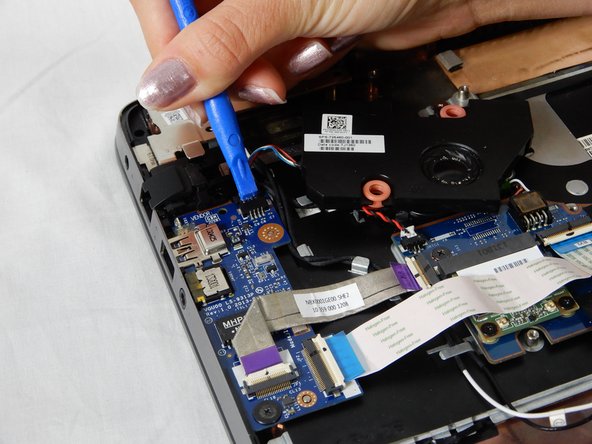
    2. HP Envy Sleekbook m6-k010dx Keyboard Replacement: étape 7, image 1 de 2 HP Envy Sleekbook m6-k010dx Keyboard Replacement: étape 7, image 2 de 2
      • Disconnect the fan cable by pulling it out of the motherboard socket.

      Demander à FixBot

      Ajouter un commentaire

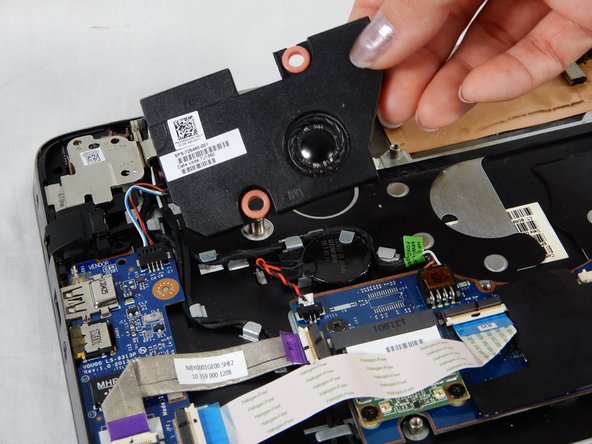
    3. HP Envy Sleekbook m6-k010dx Keyboard Replacement: étape 8, image 1 de 1
      • Lift the fan upwards to remove it from the computer.

      Demander à FixBot

      Ajouter un commentaire

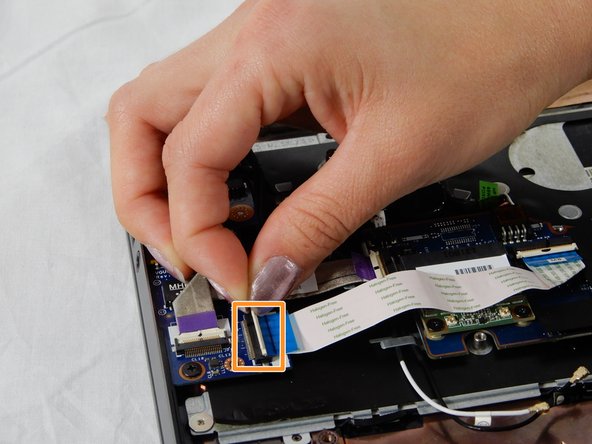
    1. HP Envy Sleekbook m6-k010dx Keyboard Replacement, Keyboard: étape 9, image 1 de 1
      • Flip up the black tab on the ZIF connector and pull the blue and white flex cable connecting the touchpad to the motherboard.

      Demander à FixBot

      Ajouter un commentaire

    2. HP Envy Sleekbook m6-k010dx Keyboard Replacement: étape 10, image 1 de 2 HP Envy Sleekbook m6-k010dx Keyboard Replacement: étape 10, image 2 de 2
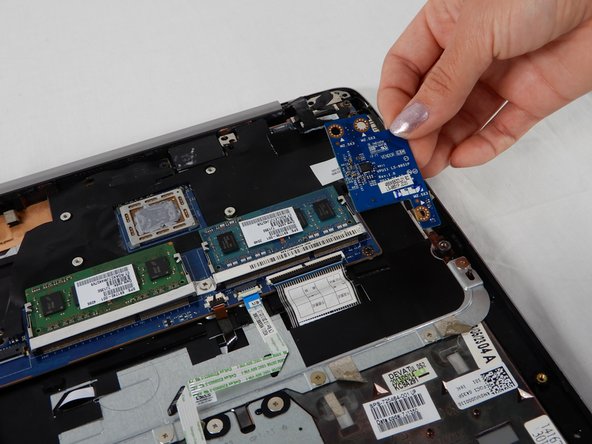
      • Remove three 3mm Phillips #00 screws from the SD card board.

      • Remove the SD card board.

      Demander à FixBot

      Ajouter un commentaire

    3. HP Envy Sleekbook m6-k010dx Keyboard Replacement: étape 11, image 1 de 2 HP Envy Sleekbook m6-k010dx Keyboard Replacement: étape 11, image 2 de 2
      • In order to remove the RAM, pull each silver clip (one at a time) away from the RAM.

      • The RAM chip should pop up. Gently remove the RAM from the motherboard.

      Demander à FixBot

      Ajouter un commentaire

    4. HP Envy Sleekbook m6-k010dx Keyboard Replacement: étape 12, image 1 de 2 HP Envy Sleekbook m6-k010dx Keyboard Replacement: étape 12, image 2 de 2
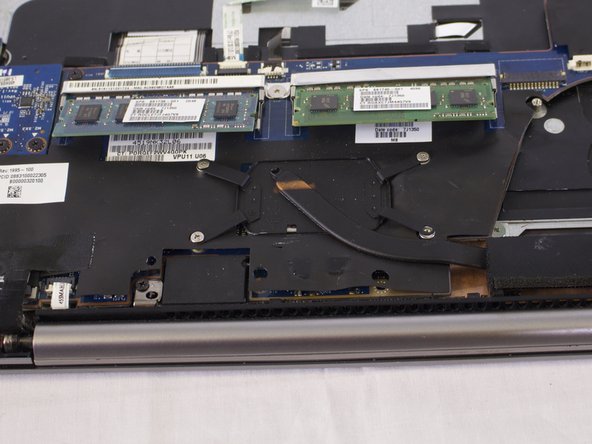
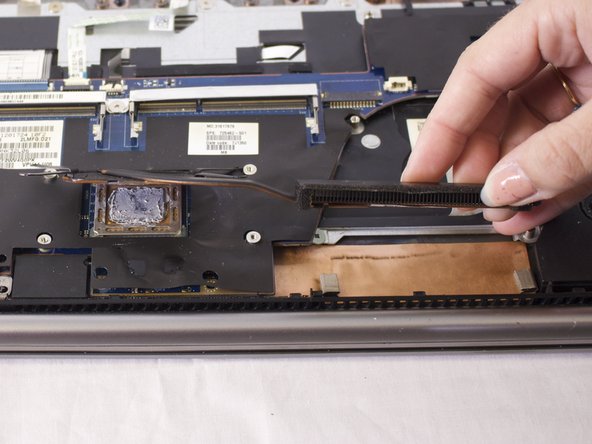
      • Remove four 3mm Phillips #00 screws from the heatsink.

      • Lift the heat sink out from the device and set it aside.

      Demander à FixBot

      Ajouter un commentaire

    5. HP Envy Sleekbook m6-k010dx Keyboard Replacement: étape 13, image 1 de 2 HP Envy Sleekbook m6-k010dx Keyboard Replacement: étape 13, image 2 de 2
      • Remove the black and white antenna wires from the Wi-Fi card.

      Demander à FixBot

      Ajouter un commentaire

    6. HP Envy Sleekbook m6-k010dx Keyboard Replacement: étape 14, image 1 de 3 HP Envy Sleekbook m6-k010dx Keyboard Replacement: étape 14, image 2 de 3 HP Envy Sleekbook m6-k010dx Keyboard Replacement: étape 14, image 3 de 3
      • Remove the two 3mm Phillips #00 screws that secure the speaker to the device.

      • Remove the four 4mm Phillips #00 screws from the bracket.

      • Locate the speaker cable connecting the speaker to the audio board. Gently tug on this cable to dislodge. Set the speaker aside.

      Demander à FixBot

      Ajouter un commentaire

    7. HP Envy Sleekbook m6-k010dx Keyboard Replacement: étape 15, image 1 de 3 HP Envy Sleekbook m6-k010dx Keyboard Replacement: étape 15, image 2 de 3 HP Envy Sleekbook m6-k010dx Keyboard Replacement: étape 15, image 3 de 3
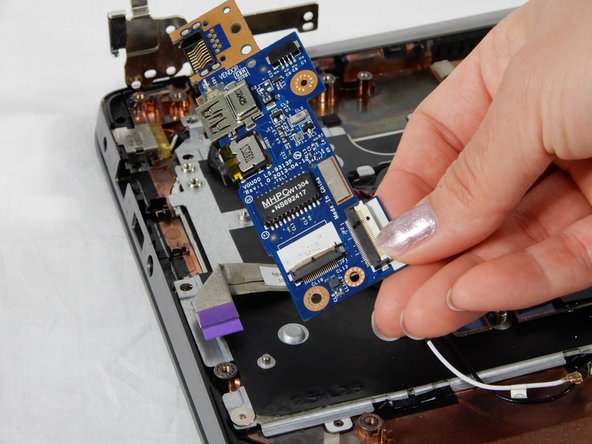
      • Remove the two 3mm Phillips #00 screws that secure the RJ-45 module.

      • Lift the white tab on the ZIF connector and pull the ribbon cable out.

      Demander à FixBot

      Ajouter un commentaire

    8. HP Envy Sleekbook m6-k010dx Keyboard Replacement: étape 16, image 1 de 3 HP Envy Sleekbook m6-k010dx Keyboard Replacement: étape 16, image 2 de 3 HP Envy Sleekbook m6-k010dx Keyboard Replacement: étape 16, image 3 de 3
      • Remove the 3mm Phillips #00 screw connecting the chip to the housing.

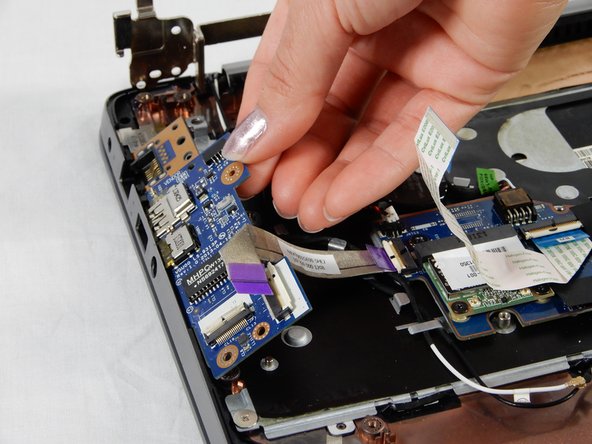
      • Lift up silver bracket.

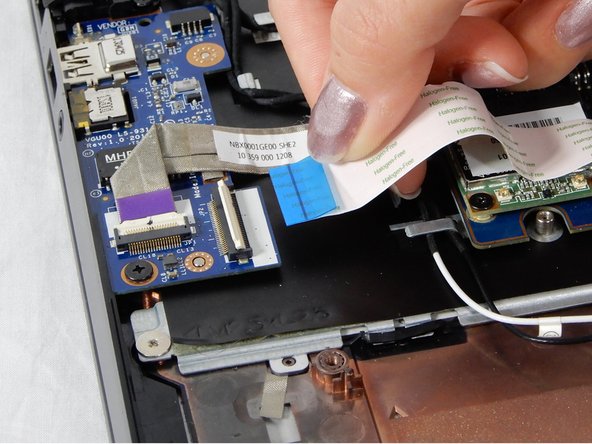
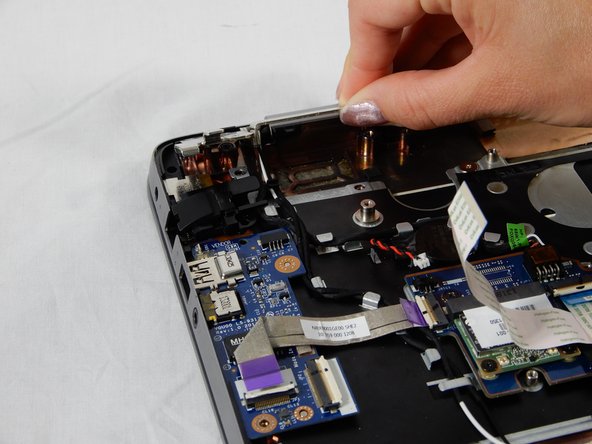
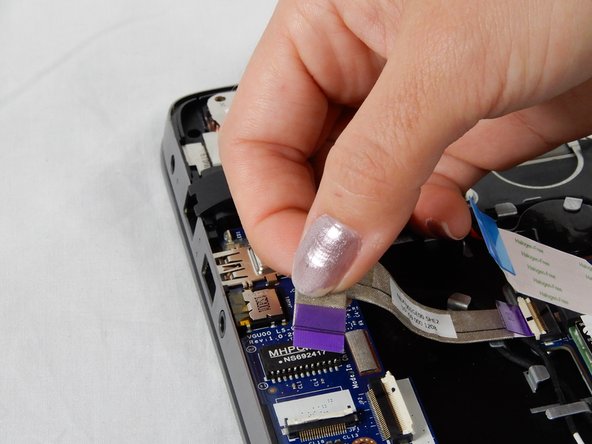
      • Lift up the white flap on the ZIF connector and remove the purple ribbon cable.

      Demander à FixBot

      Ajouter un commentaire

    9. HP Envy Sleekbook m6-k010dx Keyboard Replacement: étape 17, image 1 de 3 HP Envy Sleekbook m6-k010dx Keyboard Replacement: étape 17, image 2 de 3 HP Envy Sleekbook m6-k010dx Keyboard Replacement: étape 17, image 3 de 3
      • Remove the cover for the RM-45 port.

      • Gently lift and remove the chip from its housing.

      Demander à FixBot

      Ajouter un commentaire

    10. HP Envy Sleekbook m6-k010dx Keyboard Replacement: étape 18, image 1 de 3 HP Envy Sleekbook m6-k010dx Keyboard Replacement: étape 18, image 2 de 3 HP Envy Sleekbook m6-k010dx Keyboard Replacement: étape 18, image 3 de 3
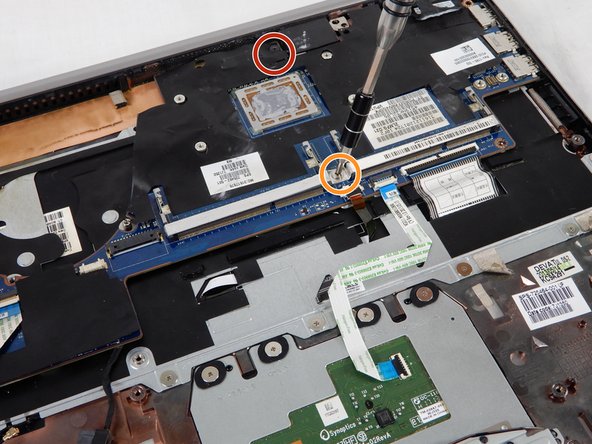
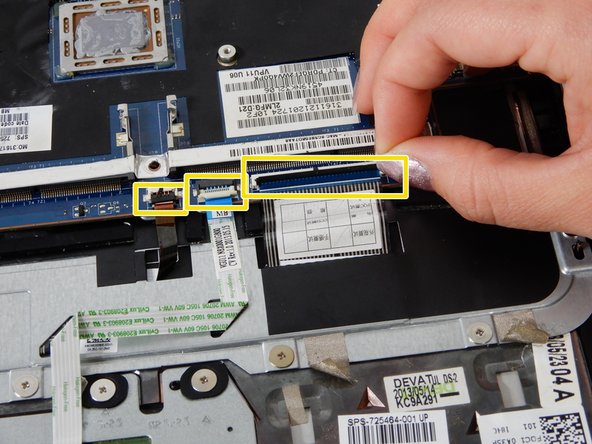
      • Remove the 4mm Phillips #00 screws.

      • Remove the silver 3mm Phillips 3 mm screw.

      • Lift all three black flaps in the ZIF connectors and remove the attached ribbon cables.

      Demander à FixBot

      Ajouter un commentaire

    11. HP Envy Sleekbook m6-k010dx Keyboard Replacement: étape 19, image 1 de 3 HP Envy Sleekbook m6-k010dx Keyboard Replacement: étape 19, image 2 de 3 HP Envy Sleekbook m6-k010dx Keyboard Replacement: étape 19, image 3 de 3
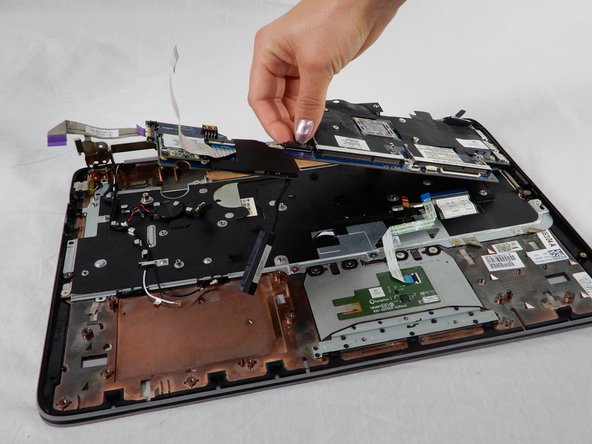
      • Use your hand and gently remove the connector to the back up battery for the motherboard.

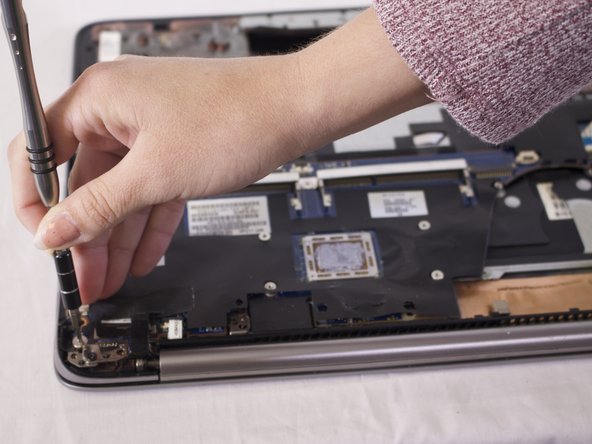
      • Remove the four 4mm Phillips #00 screws from the motherboard.

      • Lift the board at an angle and pull outwards to dislodge it from the device.

      Demander à FixBot

      Ajouter un commentaire

    12. HP Envy Sleekbook m6-k010dx Keyboard Replacement: étape 20, image 1 de 2 HP Envy Sleekbook m6-k010dx Keyboard Replacement: étape 20, image 2 de 2
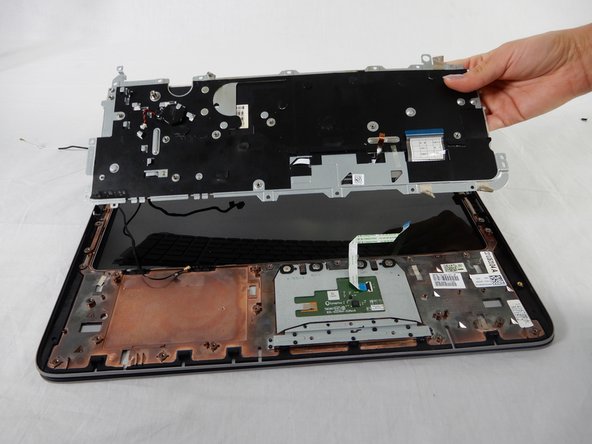
      • Remove the thirteen silver 3mm Phillips #00 screws that secure the keyboard to the frame.

      • Lift up the keyboard from the bracket and pull outwards to remove the keyboard from the device.

      Demander à FixBot

      Ajouter un commentaire

Conclusion

To reassemble your device, follow these instructions in reverse order.

Annulation : je n'ai pas terminé ce tutoriel.

2 autres ont terminé cette réparation.

codi whittaker

Membre depuis le 02/14/18

508 Réputation

3 tutoriels rédigés

Équipe

USF Tampa, Team S1-G4, Nance Spring 2018 Membre de l'équipe USF Tampa, Team S1-G4, Nance Spring 2018

USFT-NANCE-S18S1G4

4 membres

55 tutoriels rédigés

0 commentaires de tutoriel

Ajouter un commentaire

Nombre de vues :

Dernières 24 heures : 2

7 derniers jours : 14

30 derniers jours : 46

Total : 2,433