Aller au contenu principal
Pour réparer ensemble - Je crée un compte

MacBook Air 11" Early 2015 Logic Board Replacement

Ce dont vous avez besoin

  1. MacBook Air 11" Early 2015 Logic Board Replacement, Lower Case: étape 1, image 1 de 1
    Outil utilisé dans cette étape :
    P5 Pentalobe Screwdriver Retina MacBook Pro and Air
    $5.99
    • Shut down and close your computer. Lay it on a soft surface top-side down.

    • Remove the following ten screws:

    • Two 8 mm 5-point Pentalobe screws

    • Eight 2.5 mm 5-point Pentalobe screws

    • The special screwdriver needed to remove the 5-point Pentalobe screws can be found here.

    Demander à FixBot

    Ajouter un commentaire

  2. MacBook Air 11" Early 2015 Logic Board Replacement: étape 2, image 1 de 1
    • Wedge your fingers between the display and the lower case and pull upward to pop the lower case off the Air.

    Demander à FixBot

    Ajouter un commentaire

  3. MacBook Air 11" Early 2015 Logic Board Replacement, Battery Connector: étape 3, image 1 de 2 MacBook Air 11" Early 2015 Logic Board Replacement, Battery Connector: étape 3, image 2 de 2
    • In this step you will disconnect the battery to help avoid shorting out any components during service.

    • Use the flat end of a spudger to pry both short sides of the battery connector upward to disconnect it from its socket on the logic board.

    • Bend the battery cable slightly away from the logic board so the connector will not accidentally bend back and make contact with its socket.

    Demander à FixBot

    Ajouter un commentaire

  4. MacBook Air 11" Early 2015 Logic Board Replacement, I/O Board Cable: étape 4, image 1 de 2 MacBook Air 11" Early 2015 Logic Board Replacement, I/O Board Cable: étape 4, image 2 de 2
    • Use the flat end of a spudger to pry the left and right I/O board cable connectors up off their respective sockets on the I/O board.

    Demander à FixBot

    Ajouter un commentaire

  5. MacBook Air 11" Early 2015 Logic Board Replacement: étape 5, image 1 de 1
    • Lift and remove the I/O board cable.

    Demander à FixBot

    Ajouter un commentaire

  6. MacBook Air 11" Early 2015 Logic Board Replacement, Fan: étape 6, image 1 de 2 MacBook Air 11" Early 2015 Logic Board Replacement, Fan: étape 6, image 2 de 2
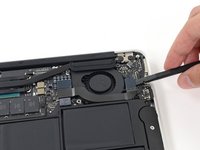
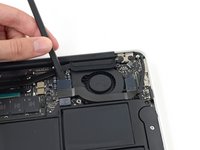
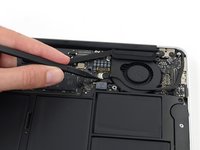
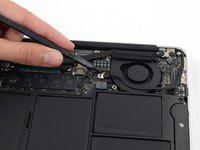
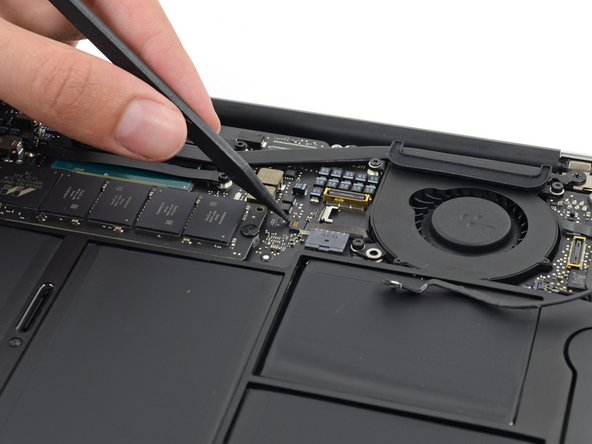
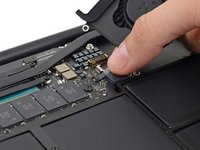
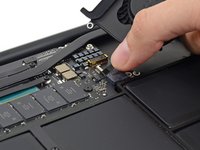
    • Use the tip of a spudger to carefully push on each side of the iSight camera cable connector to loosen it out of its socket on the logic board.

    • We recommend you gently "walk" the connector out of its socket.

    Demander à FixBot

    Ajouter un commentaire

  7. MacBook Air 11" Early 2015 Logic Board Replacement: étape 7, image 1 de 2 MacBook Air 11" Early 2015 Logic Board Replacement: étape 7, image 2 de 2
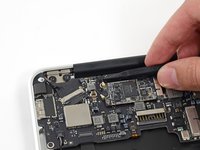
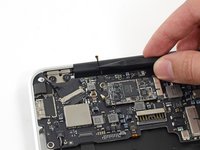
    • Peel the iSight camera cable up off the adhesive securing it to the fan.

    Demander à FixBot

    Ajouter un commentaire

  8. MacBook Air 11" Early 2015 Logic Board Replacement: étape 8, image 1 de 2 MacBook Air 11" Early 2015 Logic Board Replacement: étape 8, image 2 de 2
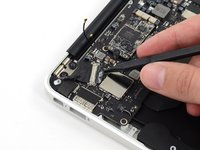
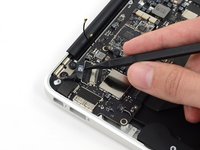
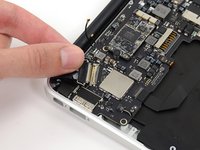
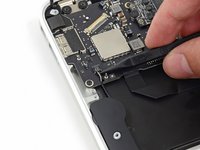
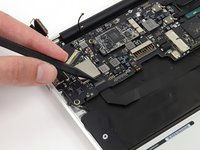
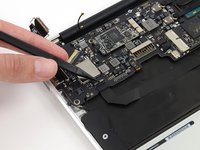
    • Use the tip of a spudger to carefully flip up the retaining flap on the fan cable ZIF socket.

    • Be sure you are prying up on the hinged retaining flap, not the socket itself.

    Demander à FixBot

    Ajouter un commentaire

  9. MacBook Air 11" Early 2015 Logic Board Replacement: étape 9, image 1 de 1
    • Remove the following three screws securing the fan to the upper case:

    • Two 5.5 mm T5 Torx screws

    • One 4.6 mm T5 Torx screw

    • In some models this is a 3.6 mm T5 Torx screw.

    Demander à FixBot

    Ajouter un commentaire

  10. MacBook Air 11" Early 2015 Logic Board Replacement: étape 10, image 1 de 3 MacBook Air 11" Early 2015 Logic Board Replacement: étape 10, image 2 de 3 MacBook Air 11" Early 2015 Logic Board Replacement: étape 10, image 3 de 3
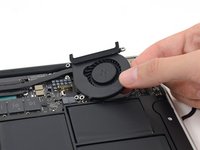
    • Lift, but do not remove the fan out of its recess in the upper case.

    • Carefully pull the fan ribbon cable out of its socket as you remove the fan from the Air.

    Demander à FixBot

    Ajouter un commentaire

  11. MacBook Air 11" Early 2015 Logic Board Replacement, Logic Board Assembly: étape 11, image 1 de 3 MacBook Air 11" Early 2015 Logic Board Replacement, Logic Board Assembly: étape 11, image 2 de 3 MacBook Air 11" Early 2015 Logic Board Replacement, Logic Board Assembly: étape 11, image 3 de 3
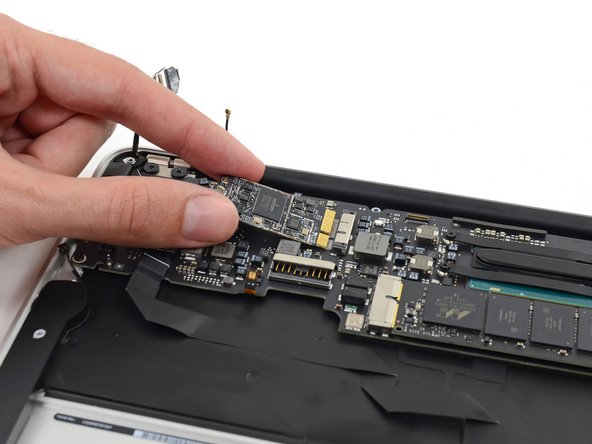
    • Use the flat end of a spudger to pry both antenna connectors up from their sockets on the AirPort/Bluetooth card, and move them out of the way.

    Demander à FixBot

    Ajouter un commentaire

  12. MacBook Air 11" Early 2015 Logic Board Replacement: étape 12, image 1 de 1
    • Remove the following five screws securing the battery to the upper case:

    • Two 5.2 mm T5 Torx screws

    • One 6 mm T5 Torx screw

    • Two 2.6 mm T5 Torx screws

    Demander à FixBot

    Ajouter un commentaire

  13. MacBook Air 11" Early 2015 Logic Board Replacement: étape 13, image 1 de 1
    • When handling the battery, avoid squeezing or touching the six exposed lithium polymer cells.

    • Lift the battery from its edge nearest the logic board and remove it from the upper case.

    Demander à FixBot

    Ajouter un commentaire

  14. MacBook Air 11" Early 2015 Logic Board Replacement: étape 14, image 1 de 2 MacBook Air 11" Early 2015 Logic Board Replacement: étape 14, image 2 de 2
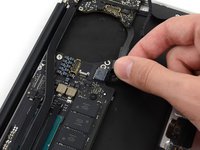
    • Disconnect the I/O board by pulling the power cable away from its socket on the logic board.

    • Pull the cable parallel to the face of the logic board toward the front edge of the Air.

    Demander à FixBot

    Ajouter un commentaire

  15. MacBook Air 11" Early 2015 Logic Board Replacement: étape 15, image 1 de 3 MacBook Air 11" Early 2015 Logic Board Replacement: étape 15, image 2 de 3 MacBook Air 11" Early 2015 Logic Board Replacement: étape 15, image 3 de 3
    • Use the tip of a spudger to de-route the antenna cables from their notches in the logic board.

    Demander à FixBot

    Ajouter un commentaire

  16. MacBook Air 11" Early 2015 Logic Board Replacement: étape 16, image 1 de 3 MacBook Air 11" Early 2015 Logic Board Replacement: étape 16, image 2 de 3 MacBook Air 11" Early 2015 Logic Board Replacement: étape 16, image 3 de 3
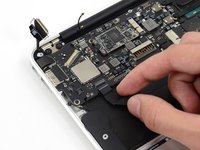
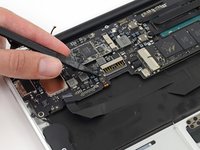
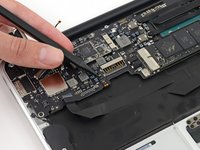
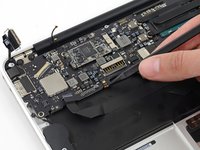
    • Gently push the tip of a spudger under the black plastic flap stuck to the display data cable lock to make the lock pop upward and away from the socket.

    • While holding the lock away from the socket, gently pull the display data cable out of its socket.

    • Do not pull upward on the display data cable as you disconnect it, as its socket may break off the logic board.

    Demander à FixBot

    Ajouter un commentaire

  17. MacBook Air 11" Early 2015 Logic Board Replacement: étape 17, image 1 de 3 MacBook Air 11" Early 2015 Logic Board Replacement: étape 17, image 2 de 3 MacBook Air 11" Early 2015 Logic Board Replacement: étape 17, image 3 de 3
    • Use the tip of a spudger to pry under the speaker cable connector, lifting it straight up from its socket.

    • De-route the cable from its notch in the logic board.

    Demander à FixBot

    Ajouter un commentaire

  18. MacBook Air 11" Early 2015 Logic Board Replacement: étape 18, image 1 de 3 MacBook Air 11" Early 2015 Logic Board Replacement: étape 18, image 2 de 3 MacBook Air 11" Early 2015 Logic Board Replacement: étape 18, image 3 de 3
    • Use the tip of a spudger or your fingernail to flip up the retaining flap on the trackpad ribbon cable ZIF socket.

    • Be sure you are prying up on the hinged retaining flap, not the socket itself.

    • Pull the trackpad ribbon cable straight out of its socket toward the front edge of the Air.

    Demander à FixBot

    Ajouter un commentaire

  19. MacBook Air 11" Early 2015 Logic Board Replacement: étape 19, image 1 de 3 MacBook Air 11" Early 2015 Logic Board Replacement: étape 19, image 2 de 3 MacBook Air 11" Early 2015 Logic Board Replacement: étape 19, image 3 de 3
    • Use the tip of a spudger to flip up the retaining flap on the keyboard backlight ribbon cable ZIF socket.

    • Be sure you are prying up on the hinged retaining flap, not the socket itself.

    • Pull the keyboard backlight ribbon cable out of its socket.

    Demander à FixBot

    Ajouter un commentaire

  20. MacBook Air 11" Early 2015 Logic Board Replacement: étape 20, image 1 de 1
    • Remove the single 2.9 mm T5 Torx screw securing the AirPort/Bluetooth card to the logic board.

    Demander à FixBot

    Ajouter un commentaire

  21. MacBook Air 11" Early 2015 Logic Board Replacement: étape 21, image 1 de 3 MacBook Air 11" Early 2015 Logic Board Replacement: étape 21, image 2 de 3 MacBook Air 11" Early 2015 Logic Board Replacement: étape 21, image 3 de 3
    • Slightly lift the free end of the AirPort/Bluetooth board and pull it out of its socket on the logic board.

    • To avoid damaging its socket on the logic board, do not excessively lift the free end of the AirPort/Bluetooth card.

    Demander à FixBot

    Ajouter un commentaire

  22. MacBook Air 11" Early 2015 Logic Board Replacement: étape 22, image 1 de 1
    • Remove the three 3.6 mm T5 Torx screws securing the logic board to the upper case.

    • In some models these are 3.1 mm T5 Torx screws.

    Demander à FixBot

    Ajouter un commentaire

  23. MacBook Air 11" Early 2015 Logic Board Replacement: étape 23, image 1 de 3 MacBook Air 11" Early 2015 Logic Board Replacement: étape 23, image 2 de 3 MacBook Air 11" Early 2015 Logic Board Replacement: étape 23, image 3 de 3
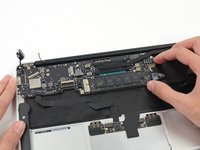
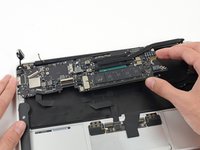
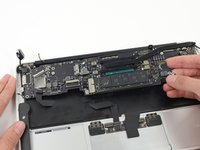
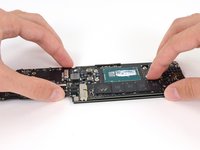
    • Gently lift the logic board assembly from the heat sink end and pull it away from the port side of the case to remove it from the Air.

    • When replacing the logic board, insert the board's rubber edge under the port-side rubber gasket, then lower the board into place.

    Demander à FixBot

    Ajouter un commentaire

  24. MacBook Air 11" Early 2015 Logic Board Replacement, Logic Board: étape 24, image 1 de 1
    • Remove the four 2.5 mm T5 Torx screws securing the heat sink to the logic board.

    Demander à FixBot

    Ajouter un commentaire

  25. MacBook Air 11" Early 2015 Logic Board Replacement: étape 25, image 1 de 1
    • If the heat sink seems to be stuck to the logic board after removing all four screws, use a spudger to carefully separate the heat sink from the faces of the CPU.

    • Remove the heat sink from the logic board.

    • When reinstalling the heat sink, be sure to apply a new layer of thermal paste. If you have never applied thermal paste before, we have a guide that makes it easy.

    Demander à FixBot

    Ajouter un commentaire

  26. MacBook Air 11" Early 2015 Logic Board Replacement: étape 26, image 1 de 1
    • Remove the single 2.9 mm T5 Torx screw securing the SSD to the logic board.

    Demander à FixBot

    Ajouter un commentaire

  27. MacBook Air 11" Early 2015 Logic Board Replacement: étape 27, image 1 de 3 MacBook Air 11" Early 2015 Logic Board Replacement: étape 27, image 2 de 3 MacBook Air 11" Early 2015 Logic Board Replacement: étape 27, image 3 de 3
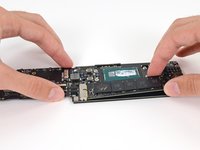
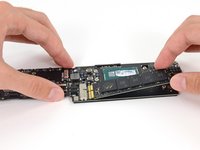
    • Lift the free end of the SSD just enough to get a good hold of it.

    • Do not excessively lift the end of the SSD.

    • Pull the drive straight out of its socket and remove it from the logic board.

    • When reinstalling the SSD, be sure it is properly seated before reinstalling its retaining screw.

    Demander à FixBot

    Ajouter un commentaire

Conclusion

To reassemble your device, follow these instructions in reverse order.

Annulation : je n'ai pas terminé ce tutoriel.

16 autres ont terminé cette réparation.

Sam Goldheart

Membre depuis le 10/18/12

477 361 Réputation

538 tutoriels rédigés

Équipe

iFixit Membre de l'équipe iFixit

Staff

122 membres

25 808 tutoriels rédigés

3 commentaires de tutoriel

Thank you so much! This actually wasn't difficult at all, especially following your guide! I was able to fix my dad's computer with a replacement logic board. He's going to be super happy about this!

Robin H - Réponse Partager

I don’t see a difference between this and the guide for the Early 2014 11” MacBook Air. Is there a difference or can I replace my dead 2014 Air’s Logic Board with a 2015? That Thunderbolt 2 port would be really helpful!

vnangia - Réponse Partager

Where can one order a Logic board?

Buntu Mfaku - Réponse Partager

Ajouter un commentaire

Nombre de vues :

Dernières 24 heures : 6

7 derniers jours : 32

30 derniers jours : 177

Total : 21,585