Aller au contenu principal
Pour réparer ensemble - Je crée un compte

MacBook Air Models A1237 and A1304 Display Assembly Replacement

Vues: 185 k

Afficher les statistiques :

Dernières 24 heures :
2
Sept derniers jours :
29
Trente derniers jours :
160
Total :
185 466
Commentaires: 21

13 commentaires d'étapes, 8 commentaires de tutoriel.

Aller aux commentaires de tutoriel
Terminé: 118

118 personnes ont marqué ce tutoriel comme « terminé ». Serez-vous la prochaine ?

Favoris: 64

64 personnes ont mis ce tutoriel en favori (et s'y sont abonnées). Serez-vous la prochaine ?

Temps nécessaire: 1 - 2 heures
Difficulté: Difficile
Tutoriel vedette

L'équipe iFixit trouve ce tutoriel particulièrement réussi.

MacBook Air Models A1237 and A1304 Display Assembly Replacement

Use this guide to replace a broken display.

Ce dont vous avez besoin

Pièces

Outils

Vidéo d'introduction

    1. MacBook Air Models A1237 and A1304 Display Assembly Replacement, Lower Case: étape 1, image 1 de 1
      • Unplug your MacBook Air and power it off before you proceed.

      • Remove ten Phillips screws securing the lower case to the MacBook Air:

      • Six 2.8 mm screws

      • Two 3.8 mm screws

      • Two 5.4 mm screws

      Demander à FixBot

      Ajouter un commentaire

    2. MacBook Air Models A1237 and A1304 Display Assembly Replacement: étape 2, image 1 de 2 MacBook Air Models A1237 and A1304 Display Assembly Replacement: étape 2, image 2 de 2
      • Slightly lift the lower case near the vents and push it toward the rear of the computer to free the mounting tabs.

      Demander à FixBot

      Ajouter un commentaire

    1. MacBook Air Models A1237 and A1304 Display Assembly Replacement, Battery: étape 3, image 1 de 1
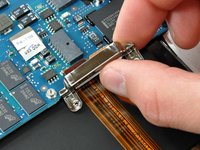
      • Disconnect the battery connector by pulling it straight out of its socket.

      Demander à FixBot

      Ajouter un commentaire

    2. MacBook Air Models A1237 and A1304 Display Assembly Replacement: étape 4, image 1 de 1
      • Remove the following nine screws securing the battery to the Air:

      • Four 2.9 mm Phillips.

      • Four 3.8 mm Phillips.

      • One 7.2 mm Phillips.

      Demander à FixBot

      Ajouter un commentaire

    3. MacBook Air Models A1237 and A1304 Display Assembly Replacement: étape 5, image 1 de 1
      • Lift the battery out of the Air.

      • If you're installing a new battery, you should calibrate it after installation:

      • Charge it to 100%, and then keep charging it for at least 2 more hours. Then, unplug and use it normally to drain the battery. When you see the low battery warning, save your work, and keep your laptop on until it goes to sleep due to low battery. Wait at least 5 hours, then charge your laptop uninterrupted to 100%.

      • If you notice any unusual behavior or problems after installing your new battery, you may need to reset your MacBook's SMC.

      Demander à FixBot

      Ajouter un commentaire

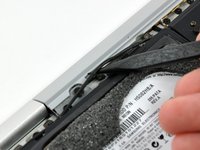
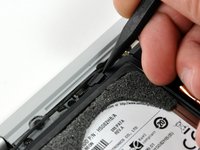
    1. MacBook Air Models A1237 and A1304 Display Assembly Replacement, Hard Drive: étape 6, image 1 de 3 MacBook Air Models A1237 and A1304 Display Assembly Replacement, Hard Drive: étape 6, image 2 de 3 MacBook Air Models A1237 and A1304 Display Assembly Replacement, Hard Drive: étape 6, image 3 de 3
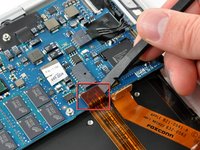
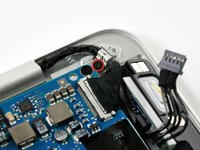
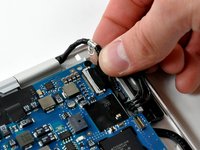
      • Disconnect the port hatch ribbon cable from the logic board by pulling it straight up by its black pull tab.

      • Pull the audio out ribbon cable off the adhesive securing it to the upper case.

      • Use a spudger to pry the audio out ribbon cable connector board off the hard drive bracket.

      Demander à FixBot

      Ajouter un commentaire

    2. MacBook Air Models A1237 and A1304 Display Assembly Replacement: étape 7, image 1 de 1
      • Disconnect the audio out cable from its socket on the port hatch ribbon cable.

      Demander à FixBot

      Ajouter un commentaire

    3. MacBook Air Models A1237 and A1304 Display Assembly Replacement: étape 8, image 1 de 1
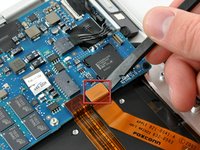
      • Use a spudger to pry the hard drive cable connector up off the logic board.

      Demander à FixBot

      Ajouter un commentaire

    4. MacBook Air Models A1237 and A1304 Display Assembly Replacement: étape 9, image 1 de 2 MacBook Air Models A1237 and A1304 Display Assembly Replacement: étape 9, image 2 de 2
      • Use the sharp end of a spudger to de-route the microphone cable from the hard drive bracket.

      • Remove the cosmetic screw cover from the adhesive securing it to the hard drive bracket.

      Demander à FixBot

      Ajouter un commentaire

    5. MacBook Air Models A1237 and A1304 Display Assembly Replacement: étape 10, image 1 de 1
      • Remove the four Phillips screws securing the hard drive assembly to the upper case:

      • Two 4.7 mm screws.

      • Two 3.9 mm screws.

      Demander à FixBot

      Ajouter un commentaire

    6. MacBook Air Models A1237 and A1304 Display Assembly Replacement: étape 11, image 1 de 1
      • Lift the hard drive assembly out of the upper case.

      Demander à FixBot

      Ajouter un commentaire

    1. MacBook Air Models A1237 and A1304 Display Assembly Replacement, Heat Sink: étape 12, image 1 de 1
      • Use the tip of a spudger to pull the fan cable connector straight away from its connector on the logic board.

      Demander à FixBot

      Ajouter un commentaire

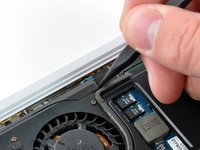
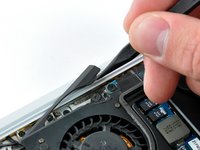
    2. MacBook Air Models A1237 and A1304 Display Assembly Replacement: étape 13, image 1 de 2 MacBook Air Models A1237 and A1304 Display Assembly Replacement: étape 13, image 2 de 2
      • Use the tip of a spudger to move the cosmetic fan cover aside.

      Demander à FixBot

      Ajouter un commentaire

    3. MacBook Air Models A1237 and A1304 Display Assembly Replacement: étape 14, image 1 de 2 MacBook Air Models A1237 and A1304 Display Assembly Replacement: étape 14, image 2 de 2
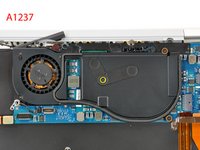
      • If you have the original version of the MacBook Air (A1237), refer to picture 1. Remove the following screws securing the heat sink to the logic board:

      • One 5.9 mm Phillips screw.

      • Two 1.9 mm Phillips screws.

      • One 1.9 mm Phillips screw.

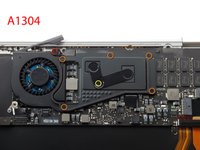
      • If you have the A1304 version of MacBook Air, refer to picture 2. Remove the following screws securing the heat sink to the logic board:

      • One 5.0 mm Phillips screw

      • Five 1.9 mm Philips screws.

      • One 2.5 mm Phillips screw.

      Demander à FixBot

      Ajouter un commentaire

    4. MacBook Air Models A1237 and A1304 Display Assembly Replacement: étape 15, image 1 de 1
      • Lift the processor clamp off the heat sink.

      Demander à FixBot

      Ajouter un commentaire

    5. MacBook Air Models A1237 and A1304 Display Assembly Replacement: étape 16, image 1 de 1
      • Deroute the microphone cable away from the channel in the fan.

      Demander à FixBot

      Ajouter un commentaire

    6. MacBook Air Models A1237 and A1304 Display Assembly Replacement: étape 17, image 1 de 1
      • Lift the heat sink up off the logic board.

      • Be mindful of the microphone cable when lifting the heat sink, as it can get tangled on the top edge of the fan.

      • When you mount the heat sink back onto the logic board, be sure to apply a new layer of thermal paste. We have a guide that makes replacing the thermal paste easy.

      Demander à FixBot

      Ajouter un commentaire

    1. MacBook Air Models A1237 and A1304 Display Assembly Replacement, Logic Board: étape 18, image 1 de 1
      • Use a spudger to pry the audio cable connector up off the logic board.

      Demander à FixBot

      Ajouter un commentaire

    2. MacBook Air Models A1237 and A1304 Display Assembly Replacement: étape 19, image 1 de 1
      • If present, remove the small piece of black tape covering the microphone cable connector.

      • Disconnect the microphone cable by pulling its connector straight away from the socket on the logic board.

      Demander à FixBot

      Ajouter un commentaire

    3. MacBook Air Models A1237 and A1304 Display Assembly Replacement: étape 20, image 1 de 2 MacBook Air Models A1237 and A1304 Display Assembly Replacement: étape 20, image 2 de 2
      • Remove the two small Phillips screws securing the logic board bracket to the upper case.

      • Lift the logic board bracket out of the upper case.

      Demander à FixBot

      Ajouter un commentaire

    4. MacBook Air Models A1237 and A1304 Display Assembly Replacement: étape 21, image 1 de 2 MacBook Air Models A1237 and A1304 Display Assembly Replacement: étape 21, image 2 de 2
      • Use a spudger to pry the AirPort/Bluetooth and trackpad control cable connectors up off the logic board.

      Demander à FixBot

      Ajouter un commentaire

    5. MacBook Air Models A1237 and A1304 Display Assembly Replacement: étape 22, image 1 de 1
      • Disconnect the DC-In cable by pulling its connector straight away from the socket on the logic board.

      Demander à FixBot

      Ajouter un commentaire

    6. MacBook Air Models A1237 and A1304 Display Assembly Replacement: étape 23, image 1 de 2 MacBook Air Models A1237 and A1304 Display Assembly Replacement: étape 23, image 2 de 2
      • Remove the small Phillips screw securing the display data cable ground loop to the upper case.

      • Disconnect the display data cable by pulling its connector straight away from the socket on the logic board.

      Demander à FixBot

      Ajouter un commentaire

    7. MacBook Air Models A1237 and A1304 Display Assembly Replacement: étape 24, image 1 de 1
      • Remove the three Phillips screws securing the logic board to the upper case.

      Demander à FixBot

      Ajouter un commentaire

    8. MacBook Air Models A1237 and A1304 Display Assembly Replacement: étape 25, image 1 de 1
      • Lift the logic board out of the upper case.

      Demander à FixBot

      Ajouter un commentaire

    1. MacBook Air Models A1237 and A1304 Display Assembly Replacement, Display Assembly: étape 26, image 1 de 1
      • Remove the two following screws securing the AirPort/Bluetooth board bracket to the upper case:

      • One 4.7 mm Phillips.

      • One 3.9 mm Phillips.

      Demander à FixBot

      Ajouter un commentaire

    2. MacBook Air Models A1237 and A1304 Display Assembly Replacement: étape 27, image 1 de 1
      • Lift the AirPort/Bluetooth bracket out of the upper case.

      Demander à FixBot

      Ajouter un commentaire

    3. MacBook Air Models A1237 and A1304 Display Assembly Replacement: étape 28, image 1 de 1
      • Use a spudger to pry the three antenna cables up off the AirPort/Bluetooth board.

      Demander à FixBot

      Ajouter un commentaire

    4. MacBook Air Models A1237 and A1304 Display Assembly Replacement: étape 29, image 1 de 1
      • Peel the antenna cables up off the adhesive securing them to the upper case.

      Demander à FixBot

      Ajouter un commentaire

    5. MacBook Air Models A1237 and A1304 Display Assembly Replacement: étape 30, image 1 de 1
      • Remove the single Phillips screw securing the microphone cable ground loop to the upper case.

      Demander à FixBot

      Ajouter un commentaire

    6. MacBook Air Models A1237 and A1304 Display Assembly Replacement: étape 31, image 1 de 1
      • Remove the following 15 screws:

      • Thirteen 2.3 mm Phillips.

      • Two T6 Torx.

      • Leave one T6 Torx screw in each side of the display bracket.

      Demander à FixBot

      Ajouter un commentaire

    7. MacBook Air Models A1237 and A1304 Display Assembly Replacement: étape 32, image 1 de 1
      • Open the Air so the display is perpendicular to the upper case and place it on a table as shown.

      • While holding the top of the Air with one hand, remove the T6 Torx screw from the lower display bracket.

      Demander à FixBot

      Ajouter un commentaire

    8. MacBook Air Models A1237 and A1304 Display Assembly Replacement: étape 33, image 1 de 1
      • Be sure to hold the Air together while you remove the last Torx screw. Failure to do so may cause the display/upper case to fall, potentially damaging both components.

      • Remove the T6 Torx screw from the upper display bracket.

      Demander à FixBot

      Ajouter un commentaire

    9. MacBook Air Models A1237 and A1304 Display Assembly Replacement: étape 34, image 1 de 1
      • Pull the upper case straight away from the display, minding any cables that may get caught.

      Demander à FixBot

      Ajouter un commentaire

Conclusion

To reassemble your device, follow these instructions in reverse order.

Annulation : je n'ai pas terminé ce tutoriel.

118 autres ont terminé cette réparation.

8 commentaires de tutoriel

Great guide. I was able to remove the components without any trouble. Be sure to label your screws, as there are so many.

Steven Hanlon - Réponse Partager

Do you have a guide to put that macbook back togerher?

Antonio Korts - Réponse Partager

I was able to replace broken hinges without replacing the whole display. It takes patience and a bit of courage but it's doable (except if you are blonde and cute I guess ;)

Alfredo Sola - Réponse Partager

Buenas tardes Alberto. Tengo necesidad de sustituir una bisagra de este modelo y no sé donde puedo adquirirla. Le agradecería que me dijera donde puedo comprarla. muchas gracias por adelantado

jose enrique guijarro martinez - Réponse Partager

Thanks for the guide. My internal microphone stopped working but unfortunately I was not able to fix it. Still, very helpful guide.

pentzini - Réponse Partager

Ajouter un commentaire

Nombre de vues :

Dernières 24 heures : 2

7 derniers jours : 29

30 derniers jours : 160

Total : 185,466