Aller au contenu principal
Pour réparer ensemble - Je crée un compte

Brother PT-1010 Keyboard Replacement

Ce dont vous avez besoin

  1. Brother PT-1010 Keyboard Replacement, Remove Back Cover: étape 1, image 1 de 1
    • Flip the device over and press down on the indication arrows located at the top center of the back cover and pull it open.

    Demander à FixBot
  2. Brother PT-1010 Keyboard Replacement: étape 2, image 1 de 1
    • Remove batteries, cassette tape, and cutter blade.

    Demander à FixBot
  3. Brother PT-1010 Keyboard Replacement, Remove Screws: étape 3, image 1 de 1
    • Use a phillips size #00 screwdriver to unscrew the 5 corner screws circled in the picture.

    Demander à FixBot
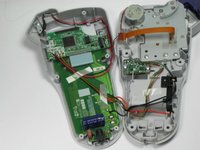
  4. Brother PT-1010 Keyboard Replacement, Separate Device: étape 4, image 1 de 1
    • Separate the top of the device from the bottom. Be very cautious when you separate the device, there is a ribbon attaching the top to the bottom.

    Demander à FixBot
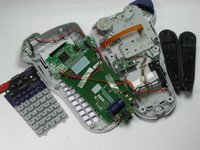
  5. Brother PT-1010 Keyboard Replacement, Remove side panels: étape 5, image 1 de 1
    • Remove the two black side panels. They will easily fall out so just move them to the side until you are putting your device back together.

    Demander à FixBot
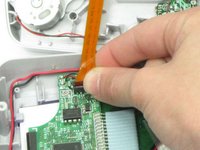
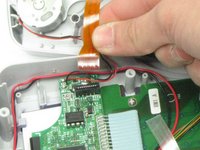
  6. Brother PT-1010 Keyboard Replacement, Pull Ribbon Out: étape 6, image 1 de 3 Brother PT-1010 Keyboard Replacement, Pull Ribbon Out: étape 6, image 2 de 3 Brother PT-1010 Keyboard Replacement, Pull Ribbon Out: étape 6, image 3 de 3
    • Using your index finger and thumb, pull out the golden ribbon from the green circuit board.

    Demander à FixBot
  7. Brother PT-1010 Keyboard Replacement, Remove Screws from Circuit Board: étape 7, image 1 de 1
    • Use a phillips size #00 screwdriver to remove the two screws, circled in red, from the green circuit board.

    Demander à FixBot
  8. Brother PT-1010 Keyboard Replacement, Remove Circuit Board: étape 8, image 1 de 1
    • Carefully remove the green circuit board by pulling it straight up. Be careful not to break the LCD cable ribbon that connects the circuit board to the device.

    • The ribbon is very fragile so be careful to break it when pulling up on the circuit board.

    Demander à FixBot
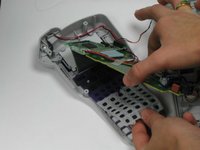
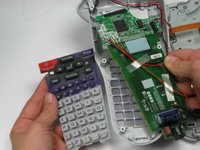
  9. Brother PT-1010 Keyboard Replacement, Peel Off Rubber Keyboard: étape 9, image 1 de 3 Brother PT-1010 Keyboard Replacement, Peel Off Rubber Keyboard: étape 9, image 2 de 3 Brother PT-1010 Keyboard Replacement, Peel Off Rubber Keyboard: étape 9, image 3 de 3
    • Underneath the circuit board you will find the rubber keyboard. Peel this off and remove it from the device.

    Demander à FixBot
Conclusion

To reassemble your device, follow these instructions in reverse order.

Haley Sweet

Membre depuis le 10/30/14

460 Réputation

4 tutoriels rédigés

Équipe

Baylor, Team 4-4, Williams Fall 2014 Membre de l'équipe Baylor, Team 4-4, Williams Fall 2014

BU-WILLIAMS-F14S4G4

4 membres

4 tutoriels rédigés

3 commentaires de tutoriel

Hi!

Thanks for this very helpful and detailed set of instructions. One small suggestion - assuming that replacing the keyboard means you need a working one to replace the old one with, you might want to consider adding “Parts: replacement keyboard” instead of “No parts required.”

Cheers,

Maria B

Maria Bitterli - Réponse Partager

Please specify what is being replaced. Is the rubber keyboard the part that needs to be replaced?

Sincere Cavalier - Réponse Partager

Screen is dull, what to do

Judy Baranczyk - Réponse Partager

Ajouter un commentaire

Nombre de vues :

Dernières 24 heures : 1

7 derniers jours : 11

30 derniers jours : 61

Total : 3,575