Aller au contenu principal
Pour réparer ensemble - Je crée un compte

Canon PowerShot S500 Flash Assembly Replacement

Ce dont vous avez besoin

  1. Canon PowerShot S500 Flash Assembly Replacement, Front and Rear Casing : étape 1, image 1 de 2 Canon PowerShot S500 Flash Assembly Replacement, Front and Rear Casing : étape 1, image 2 de 2
    • Unscrew five Phillips screws using a #0 Phillips screwdriver.

    • One screw is on upper right corner of the back panel.

    • The other four screws are on the bottom of the camera.

    Demander à FixBot
  2. Canon PowerShot S500 Flash Assembly Replacement: étape 2, image 1 de 1
    • Open the memory card cover by moving the slide switch toward the top end of of the camera.

    • Remove the memory card from the slot.

    Demander à FixBot
  3. Canon PowerShot S500 Flash Assembly Replacement: étape 3, image 1 de 1
    • Remove the rear cover from the rest of the camera.

    • This may require gentle rocking of the case to free it.

    Demander à FixBot
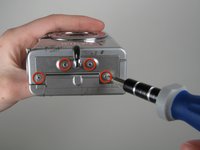
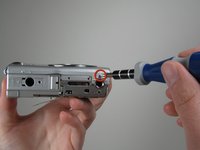
  4. Canon PowerShot S500 Flash Assembly Replacement: étape 4, image 1 de 2 Canon PowerShot S500 Flash Assembly Replacement: étape 4, image 2 de 2
    • Unscrew the four Phillips screws from the side of the casing and one screw from the bottom using a #0 Phillips screwdriver.

    Demander à FixBot
  5. Canon PowerShot S500 Flash Assembly Replacement: étape 5, image 1 de 1
    • Free the front cover from the rest of the camera.

    • The cover may require gentle rocking to remove.

    Demander à FixBot
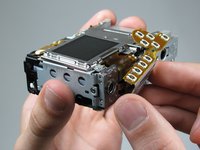
  6. Canon PowerShot S500 Flash Assembly Replacement, LCD: étape 6, image 1 de 1
    • Unscrew two Phillips screws above the LCD using a #0 Phillips screwdriver.

    Demander à FixBot
  7. Canon PowerShot S500 Flash Assembly Replacement: étape 7, image 1 de 1
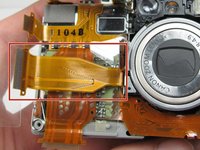
    • Gently separate the top of LCD from the rest of the camera using your thumb.

    • Be careful not pull the LCD too far because of the ribbon cable connection.

    • Place the Spudger in the hole of the electrical ribbon.

    • Gently pull the ribbon down using the Spudger until it is free from the camera but still connected to the LCD.

    • The LCD will still be connected to the rest of the camera

    Demander à FixBot
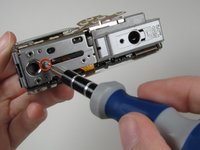
  8. Canon PowerShot S500 Flash Assembly Replacement: étape 8, image 1 de 2 Canon PowerShot S500 Flash Assembly Replacement: étape 8, image 2 de 2
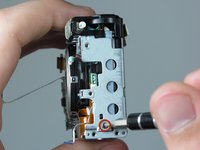
    • Unscrew single Phillips screw with a #0 Phillips screwdriver.

    • Free the bottom panel and attached ribbon from the rest of the camera.

    • Be careful not to damage the ribbon.

    Demander à FixBot
  9. Canon PowerShot S500 Flash Assembly Replacement: étape 9, image 1 de 1
    • Turn over the camera.

    • Lift the clear plastic from the face of the camera, peeling the adhesive just below the zoom lens.

    • The plastic will still be connected on the left side.

    Demander à FixBot
  10. Canon PowerShot S500 Flash Assembly Replacement: étape 10, image 1 de 1
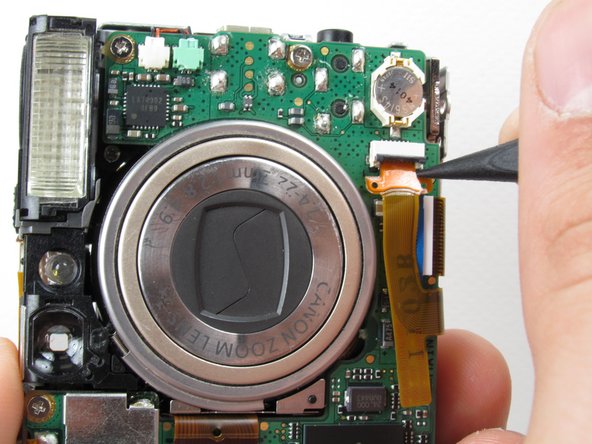
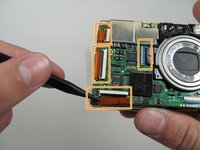
    • Place the Spudger between the orange ribbon and the black ribbon gate.

    • Lift the ribbon gate using the Spudger.

    Demander à FixBot
  11. Canon PowerShot S500 Flash Assembly Replacement: étape 11, image 1 de 1
    • Place the Spudger in the corner of the ribbon above the hole.

    • Remove the ribbon from the ribbon gate by pulling the Spudger away from the gate.

    Demander à FixBot
  12. Canon PowerShot S500 Flash Assembly Replacement: étape 12, image 1 de 1
    • Free this ribbon and the bottom panel from the rest of the camera.

    • Be careful not to damage the ribbon.

    Demander à FixBot
  13. Canon PowerShot S500 Flash Assembly Replacement: étape 13, image 1 de 1
    • Turn the camera over so you can see the LCD.

    • Remove single Phillips screw below the LCD using a #0 Phillips screwdriver.

    Demander à FixBot
  14. Canon PowerShot S500 Flash Assembly Replacement: étape 14, image 1 de 1
    • Lift the blue ribbon gate using the Spudger.

    Demander à FixBot
  15. Canon PowerShot S500 Flash Assembly Replacement: étape 15, image 1 de 1
    • Insert the Spudger into the hole of the ribbon.

    • Move the Spudger away from the gate to fully remove ribbon.

    • Be careful not to damage the ribbon.

    Demander à FixBot
  16. Canon PowerShot S500 Flash Assembly Replacement: étape 16, image 1 de 1
    • Lift the LCD away from the rest of the camera.

    Demander à FixBot
  17. Canon PowerShot S500 Flash Assembly Replacement, Logic Board: étape 17, image 1 de 2 Canon PowerShot S500 Flash Assembly Replacement, Logic Board: étape 17, image 2 de 2
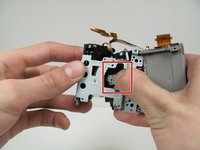
    • Lift off the capture button by wiggling it back and forth while pulling upward.

    • Be careful not to damage the two clips.

    Demander à FixBot
  18. Canon PowerShot S500 Flash Assembly Replacement: étape 18, image 1 de 2 Canon PowerShot S500 Flash Assembly Replacement: étape 18, image 2 de 2
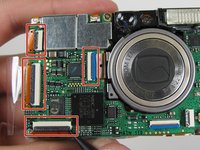
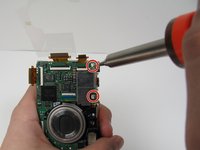
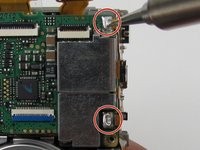
    • Flip open the four ribbon gates using the Spudger.

    • Gently pull out the ribbon cables from the gates using the Spudger.

    Demander à FixBot
  19. Canon PowerShot S500 Flash Assembly Replacement: étape 19, image 1 de 1
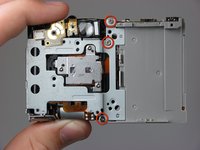
    • Unscrew the four Phillips screws using a #0 Phillips screwdriver.

    Demander à FixBot
  20. Canon PowerShot S500 Flash Assembly Replacement: étape 20, image 1 de 2 Canon PowerShot S500 Flash Assembly Replacement: étape 20, image 2 de 2
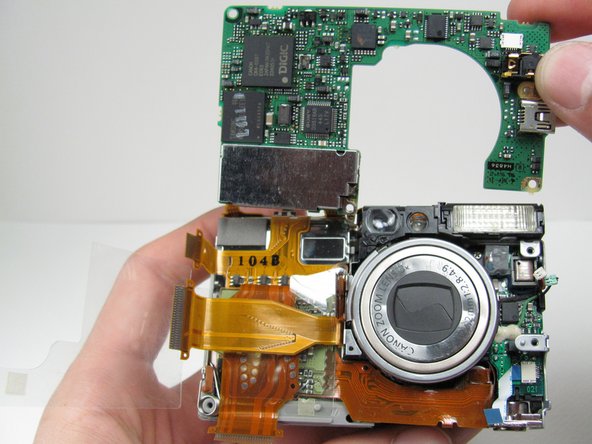
    • Gently lift the logic board.

    • Be careful not to pull too hard and damage the white ribbon cable.

    • Place the Spudger so that it is between the logic board, the white ribbon cable, and the rest of the camera.

    • Remove the white ribbon cable by pulling the Spudger away from the camera, keeping it parallel to the logic board.

    Demander à FixBot
  21. Canon PowerShot S500 Flash Assembly Replacement: étape 21, image 1 de 1
    Outil utilisé dans cette étape :
    Tweezers
    $4.99
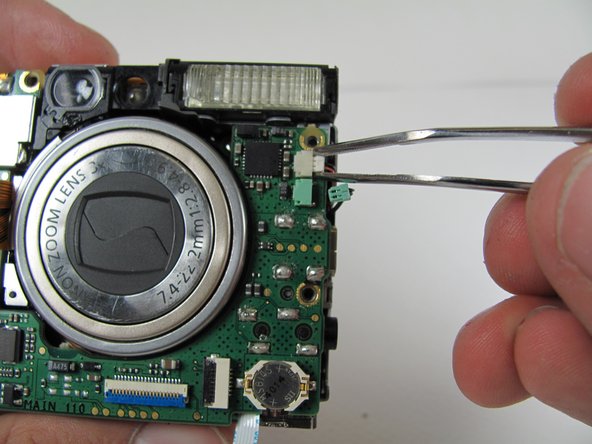
    • Lay the logic board back down so that it is resting on the body of the camera.

    • Pull the two plugs (white and green) out to the right from the logic board using the tweezers.

    Demander à FixBot
  22. Canon PowerShot S500 Flash Assembly Replacement: étape 22, image 1 de 2 Canon PowerShot S500 Flash Assembly Replacement: étape 22, image 2 de 2
    • We're now ready to begin the desoldering process. You'll need a soldering iron, solder, and desoldering wick. You should be able to find these items at a Radio Shack if you don't already have them.

    • Please do not perform this step if you are not comfortable or have previous experience with soldering. Doing so, could cause severe damage to your camera.

    • Desolder the two soldered ribbon cables attached to the logic board.

    Demander à FixBot
  23. Canon PowerShot S500 Flash Assembly Replacement: étape 23, image 1 de 1
    • Free the logic board from the rest of the camera.

    Demander à FixBot
  24. Canon PowerShot S500 Flash Assembly Replacement, Breakdown to Three Parts: étape 24, image 1 de 1
    • Turn the camera over so that the back is facing you.

    • Unscrew the three Phillips screws using a #0 Phillips screwdriver.

    Demander à FixBot
  25. Canon PowerShot S500 Flash Assembly Replacement: étape 25, image 1 de 2 Canon PowerShot S500 Flash Assembly Replacement: étape 25, image 2 de 2
    • Lift off the Memory Card casing, sliding the ribbon cable through the camera. Keep pulling until the Memory Card and ribbon cable have been removed from the camera.

    • Note that the ribbon cable is coming from the external front portion of the camera. Make sure that the ribbon cable will not get caught on anything.

    Demander à FixBot
  26. Canon PowerShot S500 Flash Assembly Replacement: étape 26, image 1 de 2 Canon PowerShot S500 Flash Assembly Replacement: étape 26, image 2 de 2
    • Unscrew one Phillips screws from the side and three Phillips screws from the back panel using a #0 Phillips screwdriver.

    Demander à FixBot
  27. Canon PowerShot S500 Flash Assembly Replacement: étape 27, image 1 de 3 Canon PowerShot S500 Flash Assembly Replacement: étape 27, image 2 de 3 Canon PowerShot S500 Flash Assembly Replacement: étape 27, image 3 de 3
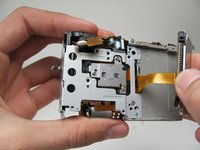
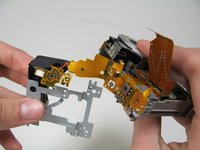
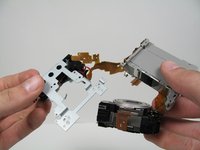
    • Firmly push on the back of the zoom lens, removing it from the left portion of the camera.

    • Lift the zoom lens away from the left portion of the camera so that there are three components connected by a ribbon cables.

    • Be careful not to tear the ribbon cables.

    Demander à FixBot
  28. Canon PowerShot S500 Flash Assembly Replacement: étape 28, image 1 de 1
    • The camera should now be able to be set in this orientation without too much stress on the cables.

    • The clear plastic is still attached to the battery casing.

    Demander à FixBot
  29. Canon PowerShot S500 Flash Assembly Replacement: étape 29, image 1 de 2 Canon PowerShot S500 Flash Assembly Replacement: étape 29, image 2 de 2
    Outil utilisé dans cette étape :
    Tweezers
    $4.99
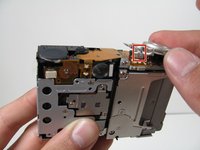
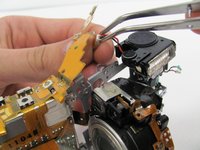
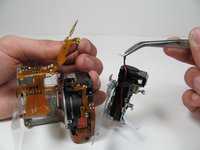
    • Locate the ribbon cable going from the battery case to the flash assembly.

    • Remove the plug from the ribbon cable using the tweezers.

    • The flash assembly is now free from the rest of the camera.

    Demander à FixBot
  30. Canon PowerShot S500 Flash Assembly Replacement: étape 30, image 1 de 1
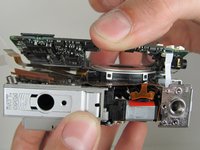
    • Pick up the remaining battery casing and zoom lens.

    • Pull off the clear plastic.

    • The clear plastic is secured by adhesive along the bottom edge and a small hook.

    Demander à FixBot
  31. Canon PowerShot S500 Flash Assembly Replacement: étape 31, image 1 de 1
    • Lift the zoom lens off of the battery casing.

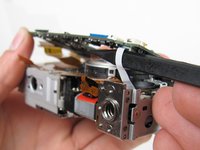
    • The back of the circuits are attached to the battery casing by a light adhesive, which can be removed with a slight pull upwards.

    Demander à FixBot
  32. Canon PowerShot S500 Flash Assembly Replacement: étape 32, image 1 de 1
    • The remaining pieces from left to right are: the battery casing, zoom lens and flash assembly.

    Demander à FixBot
  33. Canon PowerShot S500 Flash Assembly Replacement, Flash Assembly: étape 33, image 1 de 2 Canon PowerShot S500 Flash Assembly Replacement, Flash Assembly: étape 33, image 2 de 2
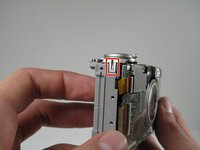
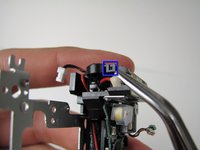
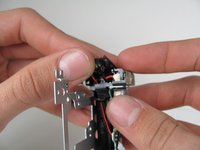
    • Lift off the tab on top of flash assembly.

    Demander à FixBot
  34. Canon PowerShot S500 Flash Assembly Replacement: étape 34, image 1 de 1
    • Unscrew one Phillips screw, using a #0 Phillips screwdriver.

    Demander à FixBot
  35. Canon PowerShot S500 Flash Assembly Replacement: étape 35, image 1 de 1
    • Lift the flash assembly from the paneling in a sliding manner.

    • If any part of this component is damaged, the whole flash assembly must be replaced.

    Demander à FixBot
Conclusion

To reassemble your device, follow these instructions in reverse order.

Nathan Balcom

Membre depuis le 01/21/10

102 Réputation

8 tutoriels rédigés

Équipe

Cal Poly, Team 16-28, Maness Winter 2010 Membre de l'équipe Cal Poly, Team 16-28, Maness Winter 2010

CPSU-MANESS-W10S16G28

4 membres

9 tutoriels rédigés

0 commentaires de tutoriel

Ajouter un commentaire

Nombre de vues :

Dernières 24 heures : 0

7 derniers jours : 8

30 derniers jours : 77

Total : 3,401