Aller au contenu principal
Pour réparer ensemble - Je crée un compte

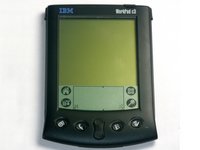
Disassembling IBM WorkPad c3 LCD

Ce dont vous avez besoin

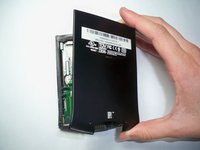
  1. Disassembling IBM WorkPad c3 LCD, Back Case: étape 1, image 1 de 2 Disassembling IBM WorkPad c3 LCD, Back Case: étape 1, image 2 de 2
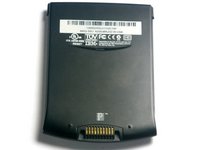
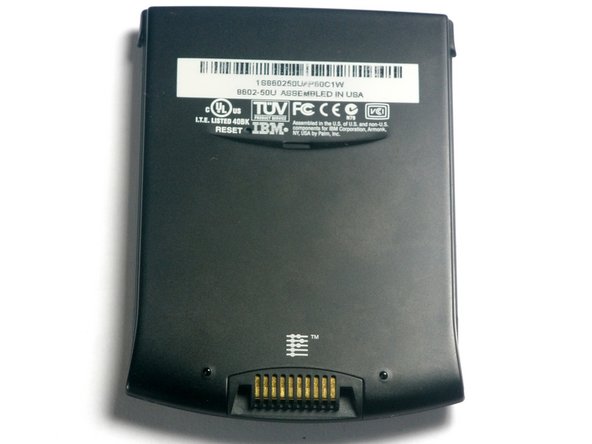
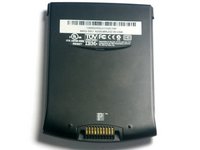
    • Turn the device over so that the screen is facing down.

    • In the next step the device will be heated, so the screen must be turned over to prevent heat damage to the LCD/Digitizer.

    Demander à FixBot

    Ajouter un commentaire

  2. Disassembling IBM WorkPad c3 LCD: étape 2, image 1 de 1
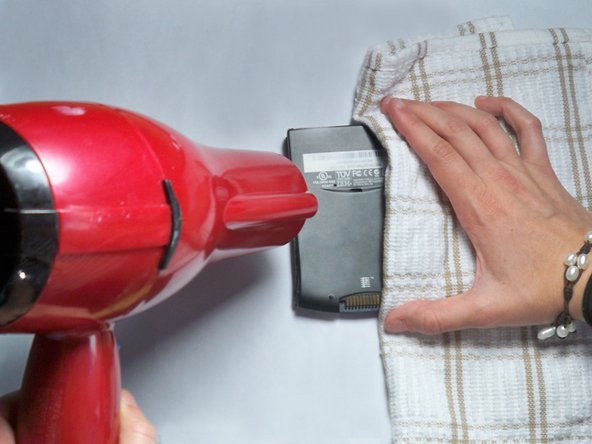
    • Using a hair dryer, slowly heat the edges of the WorkPad.

    • Spend at least one minute heating each side of the device. This will melt the glue holding the case together, and allow it to be removed.

    • Be sure not to touch the device directly after heating as it will be extremely hot. Use a towel or oven mitt to grab it.

    Demander à FixBot

    Ajouter un commentaire

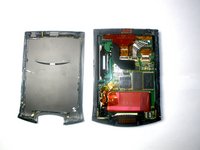
  3. Disassembling IBM WorkPad c3 LCD: étape 3, image 1 de 2 Disassembling IBM WorkPad c3 LCD: étape 3, image 2 de 2
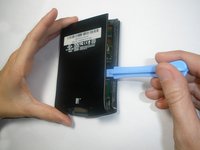
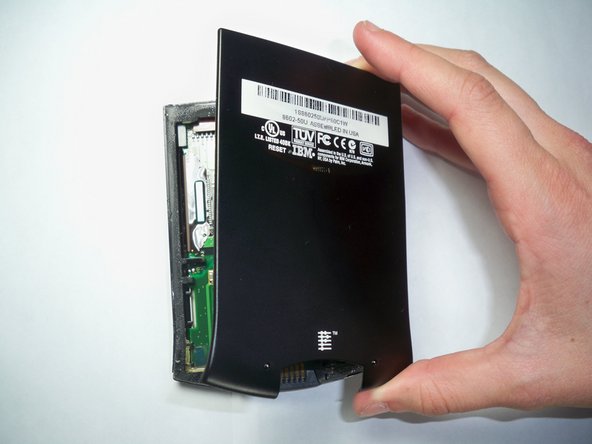
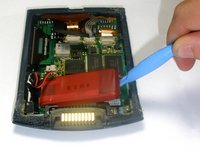
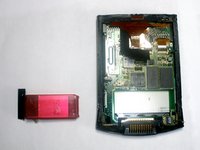
    • Use a plastic opening tool to pry the back case from the WorkPad.

    • If the rear cover is not coming off very easily, you probably need to reheat the case in order to sufficiently melt the glue.

    Demander à FixBot

    Ajouter un commentaire

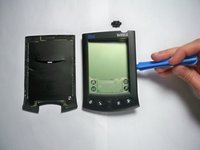
  4. Disassembling IBM WorkPad c3 LCD, Front Case: étape 4, image 1 de 2 Disassembling IBM WorkPad c3 LCD, Front Case: étape 4, image 2 de 2
    • Turn the device over, so that the screen is laying on a flat surface.

    Demander à FixBot

    Ajouter un commentaire

  5. Disassembling IBM WorkPad c3 LCD: étape 5, image 1 de 3 Disassembling IBM WorkPad c3 LCD: étape 5, image 2 de 3 Disassembling IBM WorkPad c3 LCD: étape 5, image 3 de 3
    • If the back case has already been removed, carefully place it on the WorkPad to protect the circuitry inside from the heat.

    • Using the hair dryer, slowly heat the edges of the device. Spend at least 1 minute on each side, thoroughly heating the case.

    • The LCD/Digitizer combo is very sensitive to heat, and can easily be ruined if it is directly exposed to the hair dryer. Verify that the screen is face down.

    Demander à FixBot

    Ajouter un commentaire

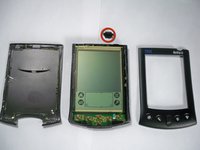
  6. Disassembling IBM WorkPad c3 LCD: étape 6, image 1 de 2 Disassembling IBM WorkPad c3 LCD: étape 6, image 2 de 2
    • The device will be extremely hot. Use a towel or oven mitt to grab it.

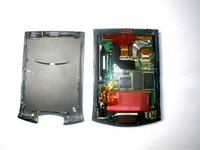
    • Using the Plastic Opening Tools, take the front of the case off.

    • If the case is difficult to remove, try repeating step 2.

    • The power button at the top of the device will be loose once the front part of the case is removed.

    Demander à FixBot

    Ajouter un commentaire

  7. Disassembling IBM WorkPad c3 LCD, Battery: étape 7, image 1 de 1
    • Remove the yellow tape that is covering the battery connector

    Demander à FixBot

    Ajouter un commentaire

  8. Disassembling IBM WorkPad c3 LCD: étape 8, image 1 de 1
    Outil utilisé dans cette étape :
    Tweezers
    $4.99
    • Using the tweezers, carefully disconnect the battery cable from the port

    Demander à FixBot

    Ajouter un commentaire

  9. Disassembling IBM WorkPad c3 LCD: étape 9, image 1 de 2 Disassembling IBM WorkPad c3 LCD: étape 9, image 2 de 2
    • Using the plastic opening tools, lift the battery out of the case

    • The battery is secured with adhesive and it will take some effort to remove

    Demander à FixBot

    Ajouter un commentaire

  10. Disassembling IBM WorkPad c3 LCD, LCD: étape 10, image 1 de 2 Disassembling IBM WorkPad c3 LCD, LCD: étape 10, image 2 de 2
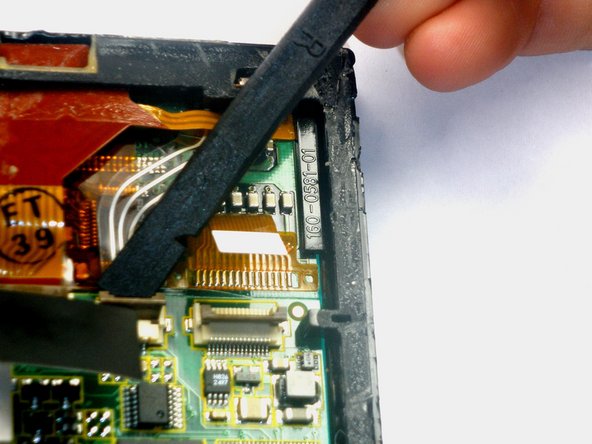
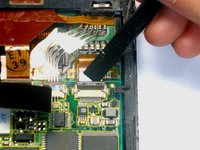
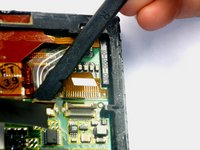
    • Using the spudger lift the tabs holding the LCD/Digitizer combo cables to the WorkPad.

    Demander à FixBot

    Ajouter un commentaire

  11. Disassembling IBM WorkPad c3 LCD: étape 11, image 1 de 2 Disassembling IBM WorkPad c3 LCD: étape 11, image 2 de 2
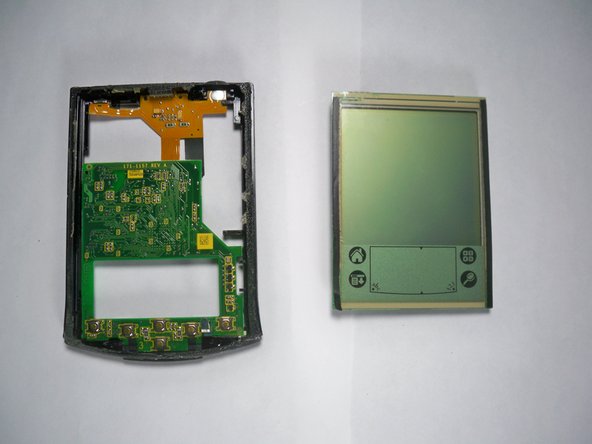
    • Using your thumb, press down gently on the back of the LCD.

    • The LCD will disconnect and fall out of the case, so be sure to have your hand waiting for it.

    Demander à FixBot

    Ajouter un commentaire

Conclusion

To reassemble your device, follow these instructions in reverse order.

Annulation : je n'ai pas terminé ce tutoriel.

Emily Falkenstein

Membre depuis le 10/05/10

75 Réputation

5 tutoriels rédigés

Équipe

Cal Poly, Team 21-35, Regan Fall 2010 Membre de l'équipe Cal Poly, Team 21-35, Regan Fall 2010

CPSU-REGAN-F10S21G35

3 membres

5 tutoriels rédigés

0 commentaires de tutoriel

Ajouter un commentaire

Nombre de vues :

Dernières 24 heures : 3

7 derniers jours : 14

30 derniers jours : 46

Total : 2,287