Aller au contenu principal
Pour réparer ensemble - Je crée un compte

Element GC-1020 Display Replacement

Ce dont vous avez besoin

  1. Element GC-1020 Display Replacement, Back Cover Replacement Guide: étape 1, image 1 de 1
    • Unscrew the four screws (size: 3.175mm) on the left and right side of the Element Electronics GC-1020 device using the PH#0 screwdriver.

    Demander à FixBot

    Ajouter un commentaire

  2. Element GC-1020 Display Replacement: étape 2, image 1 de 1
    • Carefully pull the back of the device (the silver portion) apart from the rest of the device.

    • If you pull back too forcefully the power button would move out of place.

    Demander à FixBot

    Ajouter un commentaire

  3. Element GC-1020 Display Replacement, Display: étape 3, image 1 de 1
    • Unscrew the visible Philips head screws (size: 3.968 mm) on the motherboard located on the top of left and right sides. Use a PH #0 sized screw driver head for removal.

    Demander à FixBot

    Ajouter un commentaire

  4. Element GC-1020 Display Replacement: étape 4, image 1 de 2 Element GC-1020 Display Replacement: étape 4, image 2 de 2
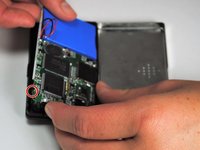
    • Carefully bend the plastic frame to remove the motherboard.

    • Upon doing this make sure your power button on the bottom left side stays attached to the outer frame because it will loosen as the motherboard is moved upwards.

    Demander à FixBot

    Ajouter un commentaire

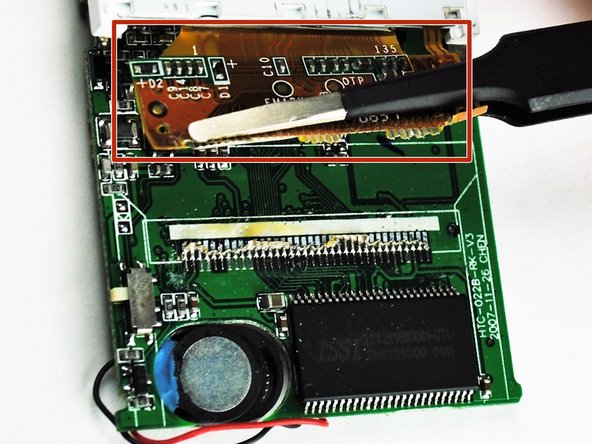
  5. Element GC-1020 Display Replacement: étape 5, image 1 de 1
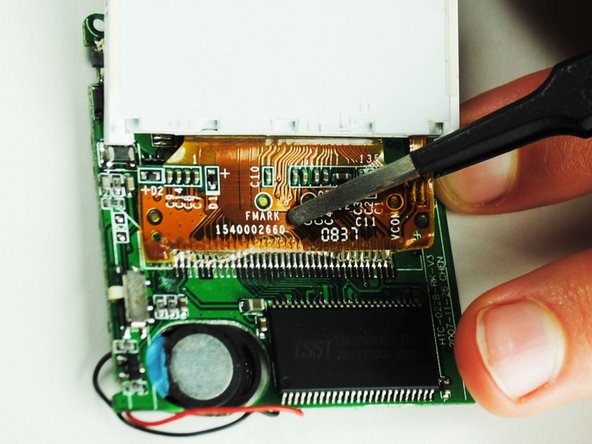
    • The display is attached to a dark yellow, flimsy, plastic material. This material is then attached to the motherboard. Tear off the plastic, successfully detaching the motherboard and display from each other.

    Demander à FixBot

    Ajouter un commentaire

  6. Element GC-1020 Display Replacement: étape 6, image 1 de 3 Element GC-1020 Display Replacement: étape 6, image 2 de 3 Element GC-1020 Display Replacement: étape 6, image 3 de 3
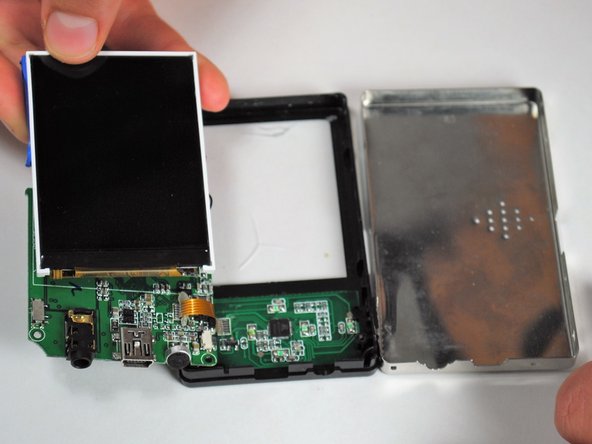
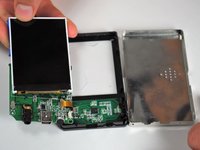
    • Once the display is by itself, separate from the rest of the device, you are ready to put in your new display.

    Demander à FixBot

    Ajouter un commentaire

Conclusion

To reassemble your device, follow these instructions in reverse order.

Annulation : je n'ai pas terminé ce tutoriel.

2 autres ont terminé cette réparation.

Lashaun Noel

Membre depuis le 09/25/15

591 Réputation

5 tutoriels rédigés

Équipe

University of Tampa, Team 1-4, Whiteside Fall 2015 Membre de l'équipe University of Tampa, Team 1-4, Whiteside Fall 2015

UT-WHITESIDE-F15S1G4

4 membres

5 tutoriels rédigés

1 commentaire de tutoriel

but can i ask do you know how to reboot the software ?

i mean we try to put in our music or video or image inside. can it be done

Nisha Najihah - Réponse Partager

Ajouter un commentaire

Nombre de vues :

Dernières 24 heures : 1

7 derniers jours : 9

30 derniers jours : 31

Total : 631