Introduction
In this guide, you will learn how to remove the back panel of the Google Pixelbook in order to replace the battery. Since the back panel is heavily adhered to the batteries, it is near impossible to remove them without causing damage. We strongly recommend purchasing a whole new back panel/battery pack instead of attempting to separate them.
Ce dont vous avez besoin
-
-
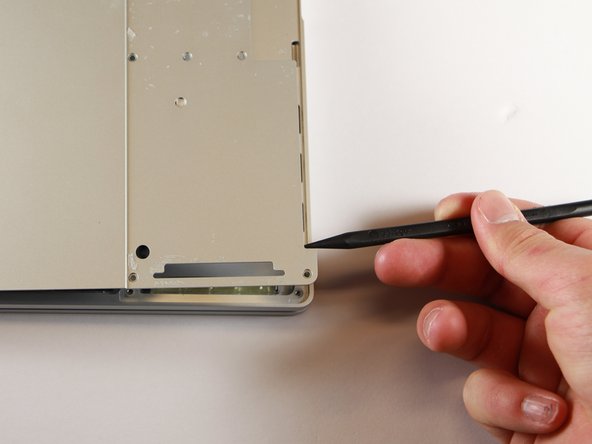
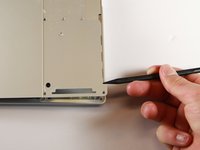
Use the iFixit opening tools or a metal spudger to pry the rubber covers off the back of your Pixelbook.
-
Peel the linings off completely until the back of the Pixelbook looks bare.
 Demander à FixBot
-
-
-
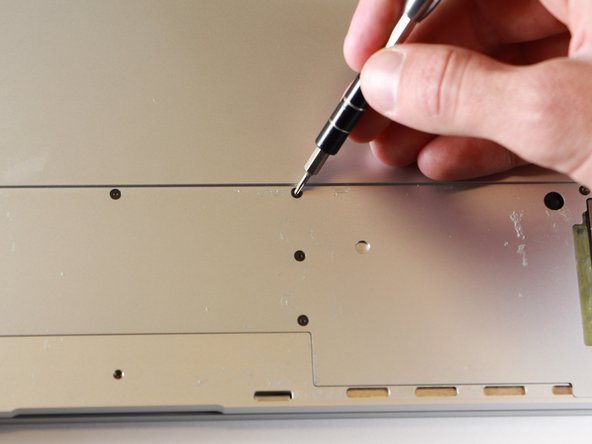
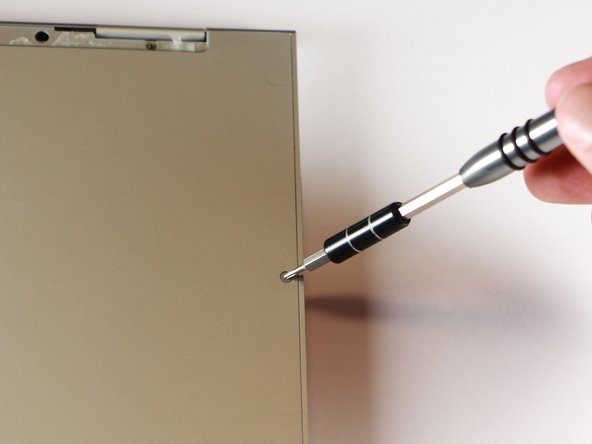
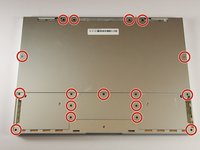
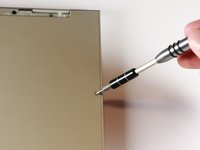
Remove the two yellow 2.0mm screws by using a T3 Torx screwdriver.
-
-
-
-
Use the nylon spudger to pry the edge of the Pixelbook up until you can grab the edge with your fingers.
-
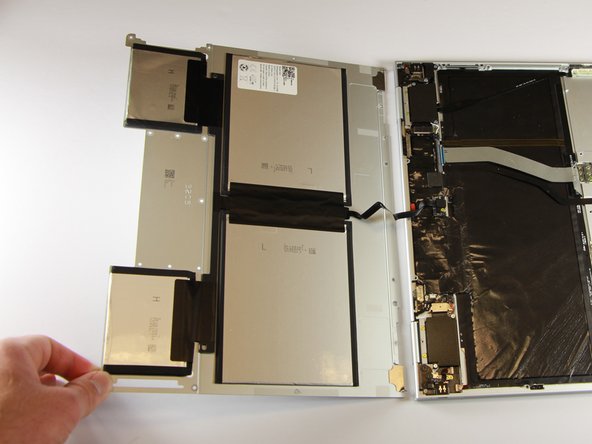
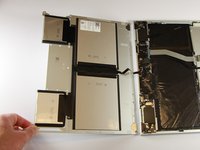
Open the back panel completely and lay it flat so you see the whole inside of the computer.
-
-
-
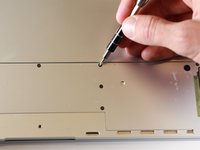
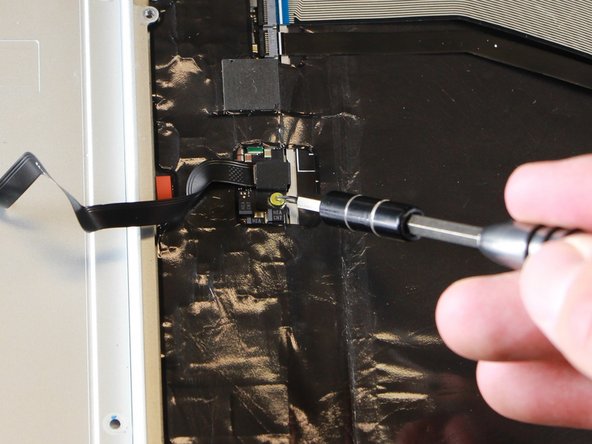
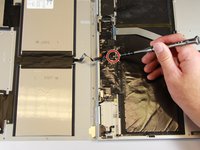
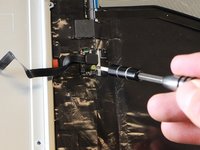
Remove the yellow 2.0mm screw from the middle of the panel by using the T3 Torx screwdriver to turn the screw counterclockwise.
-
-
-
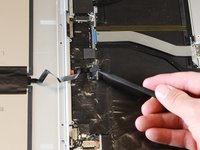
Remove the small, black casing by using the spudger to lift it up from its place.
-
-
-
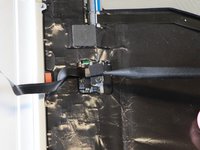
Disconnect the flat, black cord from the main component by using a spudger to push it out of the slot, or by using your hand to carefully pull it out.
-
Your back panel is now free from the main component.
-







To reassemble your device, follow these instructions in reverse order.
Annulation : je n'ai pas terminé ce tutoriel.
33 autres ont terminé cette réparation.

Équipe

Cal Poly, Team S18-G1, Livingston Winter 2018 Membre de l'équipe Cal Poly, Team S18-G1, Livingston Winter 2018
CPSU-LIVINGSTON-W18S18G1
4 membres
9 tutoriels rédigés
25 commentaires de tutoriel
Question; with the rubber pads removed from the bottom…is there adhesive and if so, what’s best used to replace those and make it look factory stock again?
The rubber pads are fixed with double sided tape.
I just use Isopropyl alcohol to quickly and completely remove any adhesive residue and use an ample amount of JB Weld and Automotive Bondo to get the unit ready. Use a wet rag to remove any excess adhesive. Do not fo0rget to centrealize the Feline Eyelash right at the longest point of the night and invokie MARDUK!!! AAAHHRHRGH.
So yeah basic Chemistry coupled with the ‘Dark Arts’ have created a sustainable situation.!
Where did you buy the back case replacement part?
