Aller au contenu principal
Pour réparer ensemble - Je crée un compte

HTC One Max Battery Replacement

Ce dont vous avez besoin

  1. HTC One Max Battery Replacement, Back Case: étape 1, image 1 de 1
    • Lift back cover while pressing highlighted release switch towards the center of the phone.

    Demander à FixBot

    Ajouter un commentaire

  2. HTC One Max Battery Replacement: étape 2, image 1 de 2 HTC One Max Battery Replacement: étape 2, image 2 de 2
    • Remove the four white stickers in each corner that cover the Tri-Wing screws.

    • Remove the white sticker near the buttons that control the volume.

    • Remove the white sticker near the SIM card.

    • Remove the big white sticker with the bar-code in the center of the phone.

    Demander à FixBot

    Ajouter un commentaire

  3. HTC One Max Battery Replacement: étape 3, image 1 de 1
    • Remove the thirteen Tri-Wing Y00 screws (Upper & Lower screws are 5 mm length, middle screws are 3.8 mm length) from the back case.

    • Disconnect the cable near the volume buttons.

    Demander à FixBot

    Ajouter un commentaire

  4. HTC One Max Battery Replacement: étape 4, image 1 de 2 HTC One Max Battery Replacement: étape 4, image 2 de 2
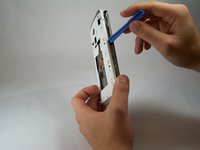
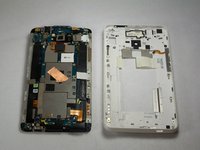
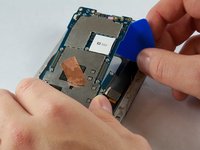
    • Use the small plastic opening tool to pry between the screen and the rear case.

    Demander à FixBot

    Ajouter un commentaire

  5. HTC One Max Battery Replacement, Fingerprint Sensor: étape 5, image 1 de 2 HTC One Max Battery Replacement, Fingerprint Sensor: étape 5, image 2 de 2
    Outil utilisé dans cette étape :
    Tweezers
    $4.99
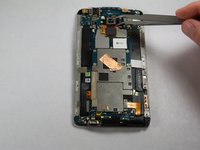
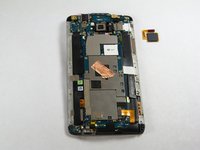
    • Use Tweezers to disconnect the ribbon cable connecting the fingerprint sensor to the motherboard.

    • When replacing the fingerprint sensor, make sure the ribbon cable snaps into the port on the motherboard.

    Demander à FixBot

    Ajouter un commentaire

  6. HTC One Max Battery Replacement, Motherboard: étape 6, image 1 de 2 HTC One Max Battery Replacement, Motherboard: étape 6, image 2 de 2
    • Remove the two 2.2 mm Phillips #000 screws holding the battery cable.

    • Use a plastic tool to remove the ribbon cable.

    Demander à FixBot

    Ajouter un commentaire

  7. HTC One Max Battery Replacement: étape 7, image 1 de 2 HTC One Max Battery Replacement: étape 7, image 2 de 2
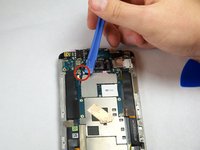
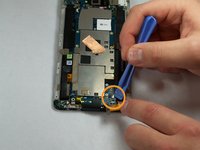
    • Use the plastic opening tool to disconnect the two antenna wires at the top of the phone.

    • Use the plastic opening tool to disconnect a third antenna wire at the bottom of the phone.

    Demander à FixBot

    Ajouter un commentaire

  8. HTC One Max Battery Replacement: étape 8, image 1 de 1
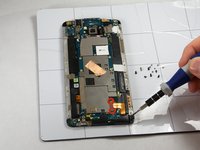
    • Remove the seven 3 mm Phillips #000 screws from the motherboard.

    Demander à FixBot

    Ajouter un commentaire

  9. HTC One Max Battery Replacement: étape 9, image 1 de 3 HTC One Max Battery Replacement: étape 9, image 2 de 3 HTC One Max Battery Replacement: étape 9, image 3 de 3
    • Use a plastic tool to pry up and disconnect the large ribbon cables on each side of the motherboard.

    • Use caution prying the ribbon cable on the right side because other ribbon cables run under it.

    Demander à FixBot

    Ajouter un commentaire

  10. HTC One Max Battery Replacement: étape 10, image 1 de 3 HTC One Max Battery Replacement: étape 10, image 2 de 3 HTC One Max Battery Replacement: étape 10, image 3 de 3
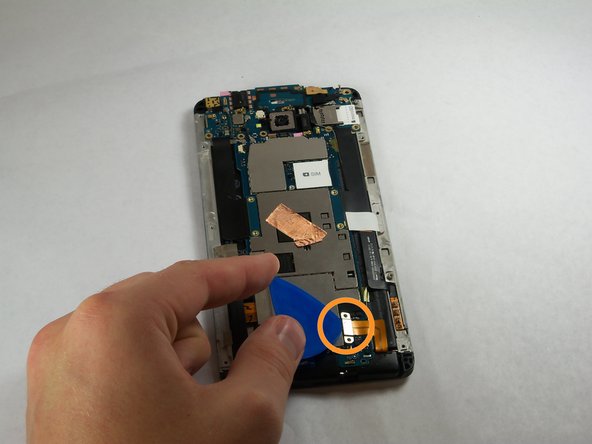
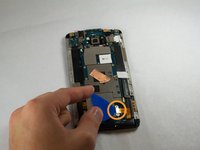
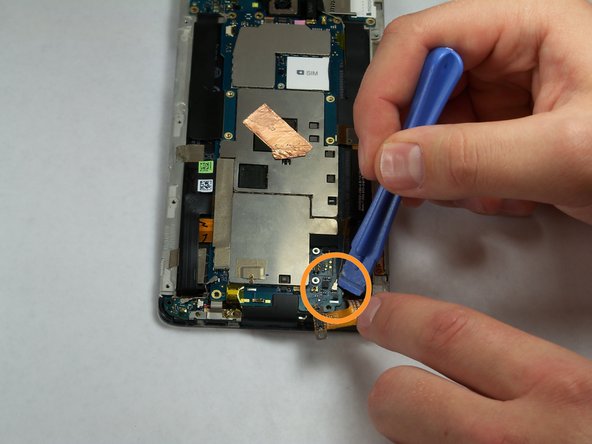
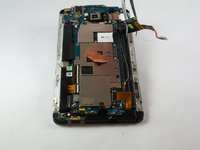
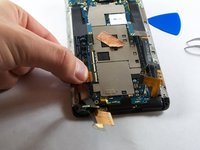
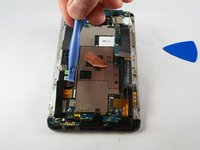
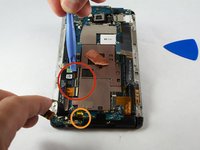
    • Remove the tape covering three flex cable gate connectors on the bottom left side of the phone.

    • Use small plastic opening tool to pry open the latch on each of these gate connectors to disconnect the three cables.

    • Use small plastic opening tool to pry open the latch on each of these gate connectors to disconnect the three cables.

    Demander à FixBot

    Ajouter un commentaire

  11. HTC One Max Battery Replacement: étape 11, image 1 de 2 HTC One Max Battery Replacement: étape 11, image 2 de 2
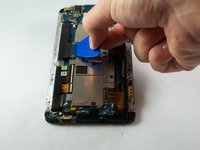
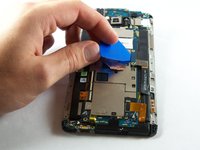
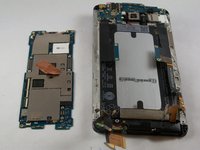
    • Use a plastic tool to lift and remove the motherboard.

    • Use a heat gun to loosen adhesive at bottom if needed.

    Demander à FixBot

    Ajouter un commentaire

  12. HTC One Max Battery Replacement, IR Blaster: étape 12, image 1 de 1
    • Remove the three 3 mm Phillips #000 screws from the secondary board at the top.

    Demander à FixBot

    Ajouter un commentaire

  13. HTC One Max Battery Replacement: étape 13, image 1 de 1
    • Pick up and set aside vibrator, do not disconnect.

    Demander à FixBot

    Ajouter un commentaire

  14. HTC One Max Battery Replacement: étape 14, image 1 de 1
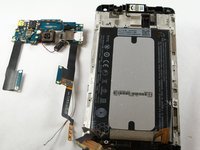
    • Pull out ribbon cable.

    • Peel back infrared sensor.

    Demander à FixBot

    Ajouter un commentaire

  15. HTC One Max Battery Replacement, Camera Board: étape 15, image 1 de 2 HTC One Max Battery Replacement, Camera Board: étape 15, image 2 de 2
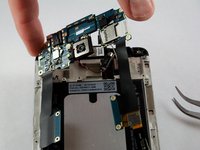
    • Pull out the secondary board with the camera attached.

    • Be advised of the adhesive on the back.

    Demander à FixBot

    Ajouter un commentaire

  16. HTC One Max Battery Replacement, Remove Bottom Screws: étape 16, image 1 de 1
    • Remove two screws from the bottom.

    • Set aside metal retaining plate.

    Demander à FixBot

    Ajouter un commentaire

  17. HTC One Max Battery Replacement, Speaker Assembly: étape 17, image 1 de 2 HTC One Max Battery Replacement, Speaker Assembly: étape 17, image 2 de 2
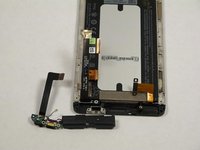
    • Pry back the speaker and microphone assembly from the bottom.

    • Be careful to not poke the speaker.

    Demander à FixBot

    Ajouter un commentaire

  18. HTC One Max Battery Replacement, Remove Battery: étape 18, image 1 de 3 HTC One Max Battery Replacement, Remove Battery: étape 18, image 2 de 3 HTC One Max Battery Replacement, Remove Battery: étape 18, image 3 de 3
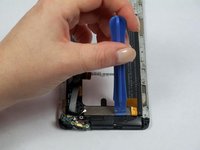
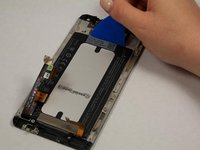
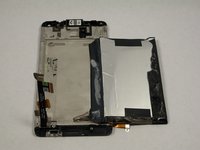
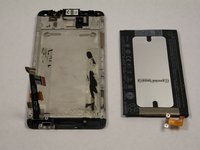
    • Pry the battery away from the back of the screen with a plastic tool.

    • We recommend using a heat gun to loosen the adhesive holding the battery in place.

    Demander à FixBot

    Ajouter un commentaire

Conclusion

To reassemble your device, follow these instructions in reverse order.

Annulation : je n'ai pas terminé ce tutoriel.

15 autres ont terminé cette réparation.

Andrey Sklyar

Membre depuis le 09/23/14

452 Réputation

2 tutoriels rédigés

Équipe

USF Tampa, Team 11-3, Blackwell Fall 2014 Membre de l'équipe USF Tampa, Team 11-3, Blackwell Fall 2014

USFT-BLACKWELL-F14S11G3

4 membres

7 tutoriels rédigés

4 commentaires de tutoriel

Microphone in the article, battery in the title.

AaronAndrusko - Réponse Partager

How to change LCD screen for this model?

Jembalang Tanah - Réponse Partager
What the &&^& man i prefer to buy another phone %#*@ it

Russel - Réponse Partager

What the &&^& man i prefer to buy a new phone

Russel - Réponse Partager

Ajouter un commentaire

Nombre de vues :

Dernières 24 heures : 2

7 derniers jours : 17

30 derniers jours : 64

Total : 16,160