Aller au contenu principal

How to Remove the Logic Board and Heatsink

Conditions préalables uniquement
Il s'agit d'un tutoriel prérequis ! Il fait partie d'une autre procédure et n'est pas destiné à être utilisé seul.

Ce dont vous avez besoin

  1. How to Remove the Logic Board and Heatsink, Prepare your MacBook for disassembly: étape 1, image 1 de 3 How to Remove the Logic Board and Heatsink, Prepare your MacBook for disassembly: étape 1, image 2 de 3 How to Remove the Logic Board and Heatsink, Prepare your MacBook for disassembly: étape 1, image 3 de 3
    • Allow your MacBook's battery to drain below 10% before starting this repair. A charged battery may catch fire if damaged during the repair.

    • Unplug all cables and fully shut down your MacBook.

    • Close the lid and flip your MacBook over. Keep the lid closed until you've physically disconnected the battery.

    • Opening the lid will power on your MacBook. If you're using macOS Big Sur v11.1 or earlier, disable this function using this guide.

  2. How to Remove the Logic Board and Heatsink, Unfasten the lower case: étape 2, image 1 de 1
    Outil utilisé dans cette étape :
    FixMat
    $36.95
    • Use a P5 Pentalobe driver to remove the six screws securing the lower case:

    • Two 6.8 mm screws

    • Two 5.3 mm screws

    • Two 3.4 mm screws

    • Throughout this repair, keep track of each screw and make sure it goes back exactly where it came from.

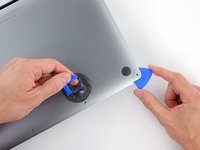
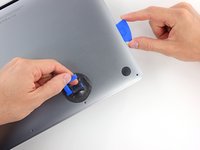
  3. How to Remove the Logic Board and Heatsink, Separate the lower case: étape 3, image 1 de 2 How to Remove the Logic Board and Heatsink, Separate the lower case: étape 3, image 2 de 2
    • Apply a suction handle near the front edge of the lower case, between the screw holes.

    • Pull up on the suction handle to create a gap between the lower case and the frame.

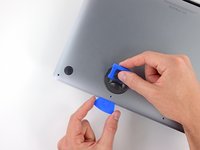
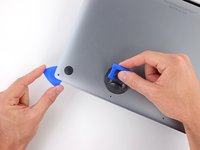
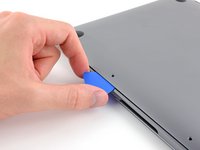
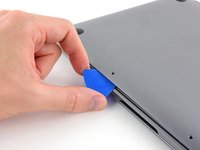
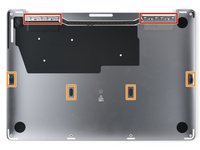
  4. How to Remove the Logic Board and Heatsink, Release the left clips: étape 4, image 1 de 3 How to Remove the Logic Board and Heatsink, Release the left clips: étape 4, image 2 de 3 How to Remove the Logic Board and Heatsink, Release the left clips: étape 4, image 3 de 3
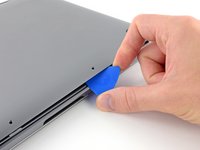
    • Insert an opening pick between the lower case and the frame.

    • Slide the pick around the left corner to release the first set of clips.

    • You'll hear and feel a pop when each clip releases.

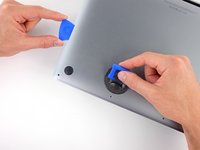
  5. How to Remove the Logic Board and Heatsink, Release the right clips: étape 5, image 1 de 3 How to Remove the Logic Board and Heatsink, Release the right clips: étape 5, image 2 de 3 How to Remove the Logic Board and Heatsink, Release the right clips: étape 5, image 3 de 3
    • Slide your opening pick around the right corner to release the second set of clips securing the lower case.

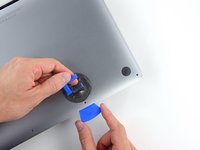
  6. How to Remove the Logic Board and Heatsink, Pry the lower case up: étape 6, image 1 de 3 How to Remove the Logic Board and Heatsink, Pry the lower case up: étape 6, image 2 de 3 How to Remove the Logic Board and Heatsink, Pry the lower case up: étape 6, image 3 de 3
    • Insert your opening pick between the lower case and the frame near the middle left screw hole.

    • Firmly twist the pick until the clip releases.

    • Repeat this procedure for the clip near the middle right screw hole.

  7. How to Remove the Logic Board and Heatsink, Release the remaining clips: étape 7, image 1 de 3 How to Remove the Logic Board and Heatsink, Release the remaining clips: étape 7, image 2 de 3 How to Remove the Logic Board and Heatsink, Release the remaining clips: étape 7, image 3 de 3
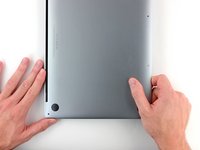
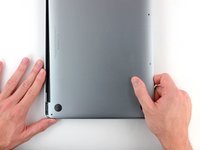
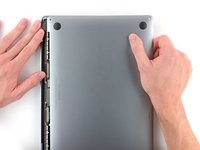
    • Firmly pull the lower case away from the screen hinges to release the last clips securing it to the frame.

    • This motion requires significant force. Don't pull the lower case up, as you may bend the clips.

    • If it feels stuck, pull one corner at a time.

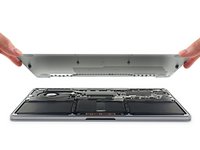
  8. How to Remove the Logic Board and Heatsink, Remove the lower case: étape 8, image 1 de 2 How to Remove the Logic Board and Heatsink, Remove the lower case: étape 8, image 2 de 2
    • Remove the lower case.

    • To reinstall the lower case:

    • Set it in place and align the sliding clips near the display hinges. Press down and slide the lower case toward the hinges.

    • Once the lower case is secured near the hinges, press down firmly to engage the remaining four clips.

    • You'll hear and feel a pop when each clip engages.

  9. How to Remove the Logic Board and Heatsink, Remove the battery board cover: étape 9, image 1 de 2 How to Remove the Logic Board and Heatsink, Remove the battery board cover: étape 9, image 2 de 2
    Outil utilisé dans cette étape :
    Tweezers
    $4.99
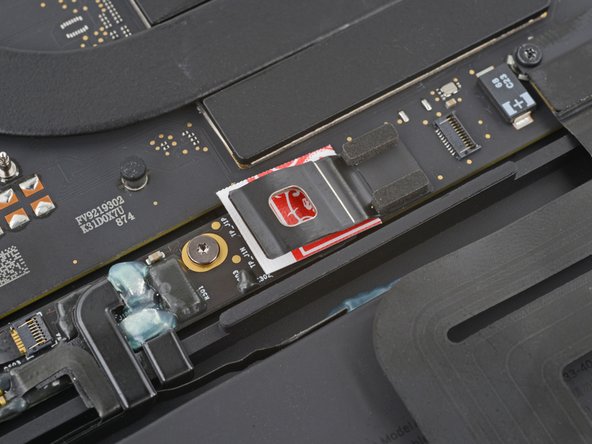
    • Use blunt nose tweezers or your fingers to peel and remove the cover from the battery board, just above the middle battery cell.

  10. How to Remove the Logic Board and Heatsink, Disconnect the battery data cable: étape 10, image 1 de 2 How to Remove the Logic Board and Heatsink, Disconnect the battery data cable: étape 10, image 2 de 2
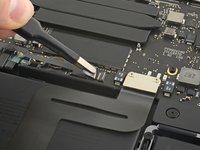
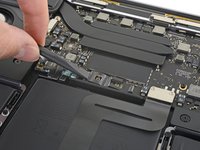
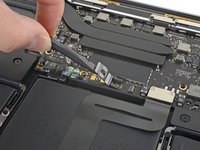
    • Use blunt nose tweezers to gently peel back the pull tab covering the battery data connector.

    • Don't remove or tear the pull tab, as it's attached to the head of the connector.

  11. How to Remove the Logic Board and Heatsink: étape 11, image 1 de 2 How to Remove the Logic Board and Heatsink: étape 11, image 2 de 2
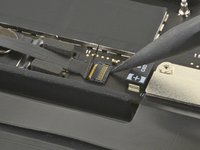
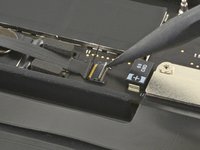
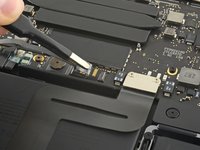
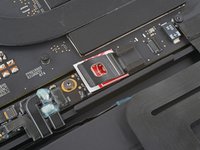
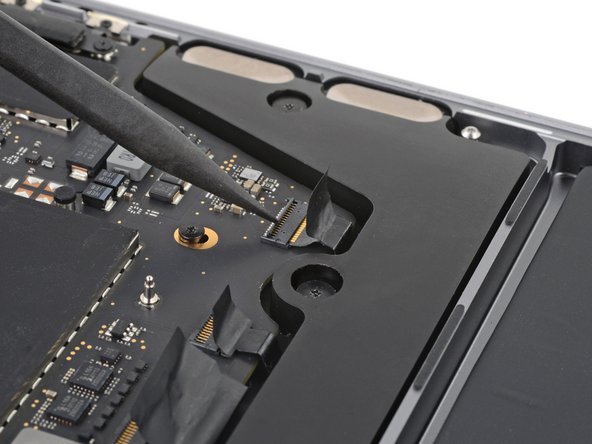
    • Use the point of a spudger to flip up the small locking tab securing the battery data connector.

    • Locking tabs on ZIF connectors are fragile—be gentle with your spudger.

  12. How to Remove the Logic Board and Heatsink: étape 12, image 1 de 3 How to Remove the Logic Board and Heatsink: étape 12, image 2 de 3 How to Remove the Logic Board and Heatsink: étape 12, image 3 de 3
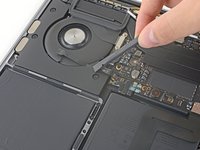
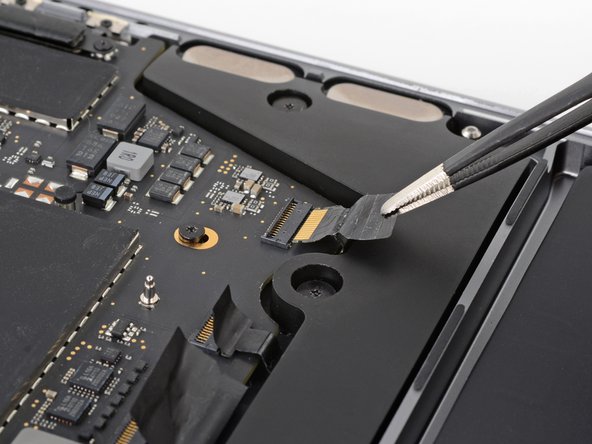
    • Use blunt nose tweezers or your fingers to grab the battery data cable pull tab and slide it straight out of its socket.

    • Move the cable to the left, out of the way of the battery board.

    • Don't strain the cable, as it's still attached to the battery board.

  13. How to Remove the Logic Board and Heatsink, Unfasten the battery connector: étape 13, image 1 de 1
    • Use a T5 Torx driver to remove the 3.7 mm screw securing the battery connector.

  14. How to Remove the Logic Board and Heatsink, Disconnect the battery: étape 14, image 1 de 3 How to Remove the Logic Board and Heatsink, Disconnect the battery: étape 14, image 2 de 3 How to Remove the Logic Board and Heatsink, Disconnect the battery: étape 14, image 3 de 3
    • Use the flat end of your spudger to slightly lift the battery connector away from the battery board.

    • Lifting the connector too high will break it. Angle it enough so it won't accidentally contact the battery board during repair.

    • Optionally, you may insert a barrier, such as a piece of a playing card, between the connector and the board during the repair.

  15. How to Remove the Logic Board and Heatsink, Remove the display cable bracket: étape 15, image 1 de 2 How to Remove the Logic Board and Heatsink, Remove the display cable bracket: étape 15, image 2 de 2
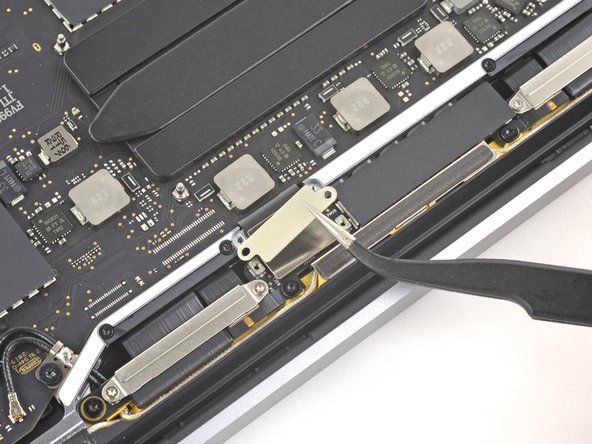
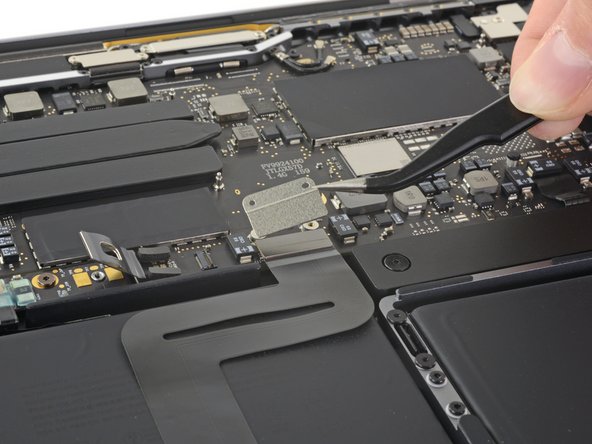
    • Use a T3 Torx driver to remove the two 3.1 mm screws securing the display cable retaining bracket.

    • Remove the bracket.

  16. How to Remove the Logic Board and Heatsink, Remove the display cable cover: étape 16, image 1 de 2 How to Remove the Logic Board and Heatsink, Remove the display cable cover: étape 16, image 2 de 2
    • Use your T3 Torx driver to remove the two 1.7 mm screws securing the display cable cover.

    • Remove the cover.

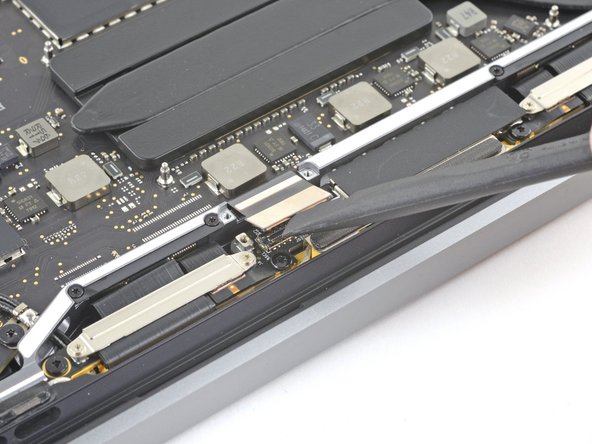
  17. How to Remove the Logic Board and Heatsink, Disconnect the display: étape 17, image 1 de 2 How to Remove the Logic Board and Heatsink, Disconnect the display: étape 17, image 2 de 2
    • Use the flat end of your spudger to pry up and disconnect the display cable from the display board.

  18. How to Remove the Logic Board and Heatsink, Remove the left cable bracket: étape 18, image 1 de 3 How to Remove the Logic Board and Heatsink, Remove the left cable bracket: étape 18, image 2 de 3 How to Remove the Logic Board and Heatsink, Remove the left cable bracket: étape 18, image 3 de 3
    • Use your T5 Torx driver to remove the two screws securing the left cable bracket to the logic board:

    • One 3.6 mm screw

    • One 2.6 mm screw

    • Remove the bracket.

  19. How to Remove the Logic Board and Heatsink, Disconnect the interconnect cable: étape 19, image 1 de 2 How to Remove the Logic Board and Heatsink, Disconnect the interconnect cable: étape 19, image 2 de 2
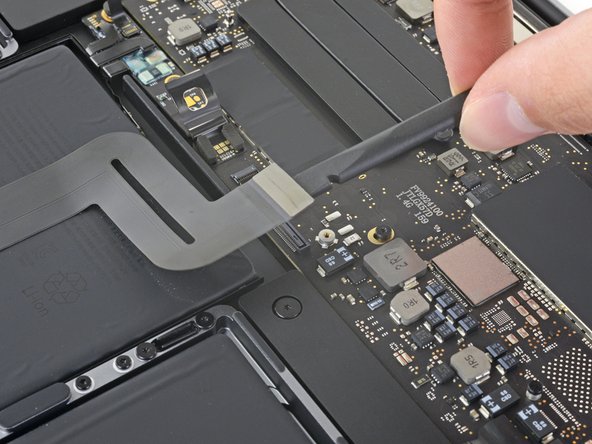
    • Use the flat end of your spudger to pry up and disconnect the left interconnect cable.

  20. How to Remove the Logic Board and Heatsink, Remove the antenna cable cover: étape 20, image 1 de 2 How to Remove the Logic Board and Heatsink, Remove the antenna cable cover: étape 20, image 2 de 2
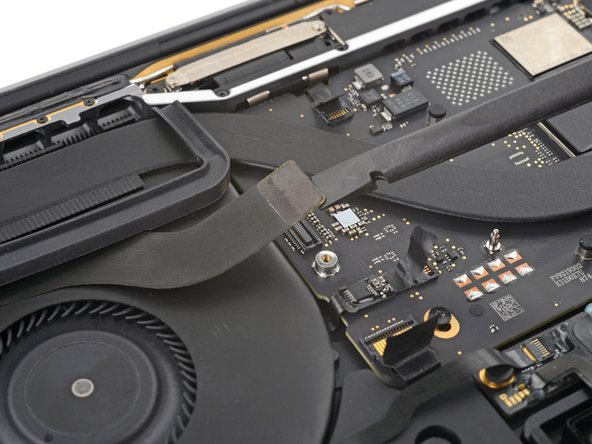
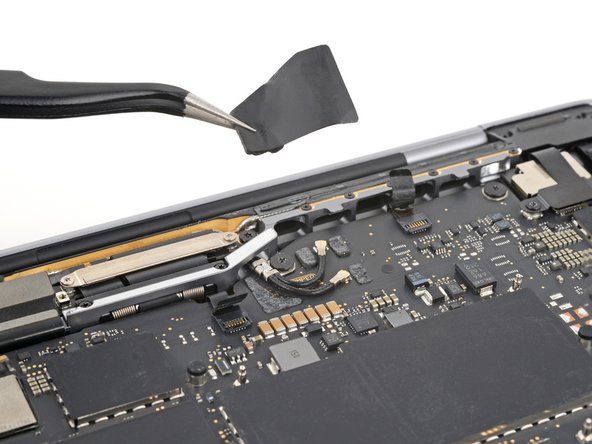
    • Peel and remove the plastic cover from the antenna cables.

  21. How to Remove the Logic Board and Heatsink, Disconnect the antenna bar: étape 21, image 1 de 3 How to Remove the Logic Board and Heatsink, Disconnect the antenna bar: étape 21, image 2 de 3 How to Remove the Logic Board and Heatsink, Disconnect the antenna bar: étape 21, image 3 de 3
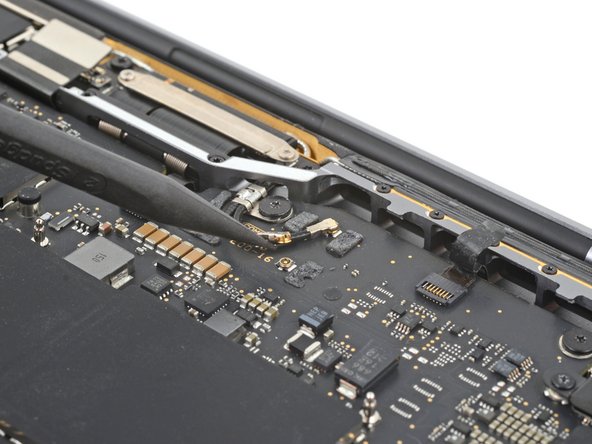
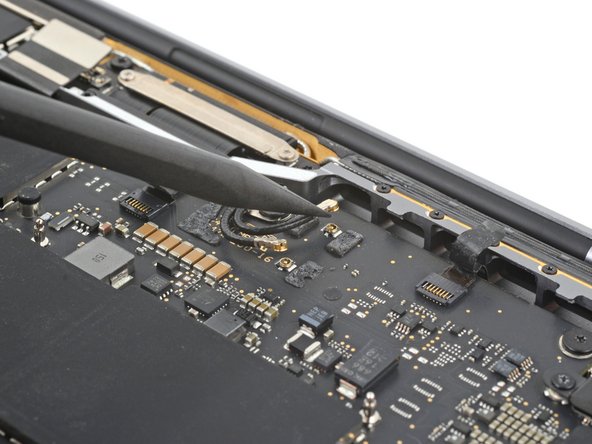
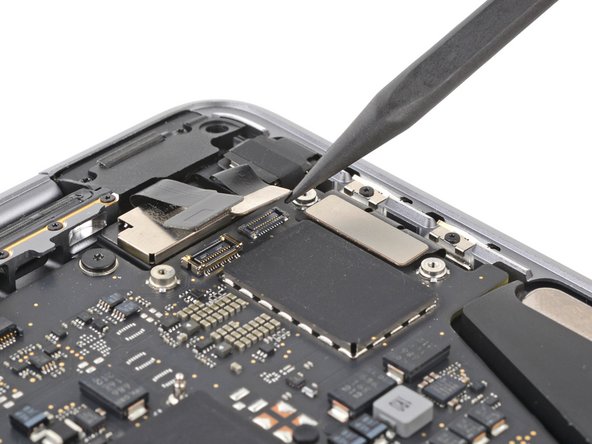
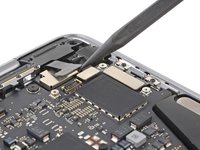
    • Use the point of your spudger to pry up and disconnect the antenna cables from the logic board.

    • Pry on the metal head of the connector. Avoid lifting the cable itself as much as possible.

    • To reconnect the cables, align the connectors directly over their sockets and press down with the flat end of a spudger until they snap into place.

  22. How to Remove the Logic Board and Heatsink, Unfasten the antenna cables: étape 22, image 1 de 1
    • Use your T5 Torx driver to remove the 3.4 mm screw securing the antenna cables to the logic board.

  23. How to Remove the Logic Board and Heatsink, Disconnect the logic board: étape 23, image 1 de 3 How to Remove the Logic Board and Heatsink, Disconnect the logic board: étape 23, image 2 de 3 How to Remove the Logic Board and Heatsink, Disconnect the logic board: étape 23, image 3 de 3
    • Use the point of a spudger to flip up the small locking tab securing the right speaker connector.

    • Grab the pull tab on the head of the cable and slide it straight out of its socket.

  24. How to Remove the Logic Board and Heatsink, Remove the trackpad cable bracket: étape 24, image 1 de 2 How to Remove the Logic Board and Heatsink, Remove the trackpad cable bracket: étape 24, image 2 de 2
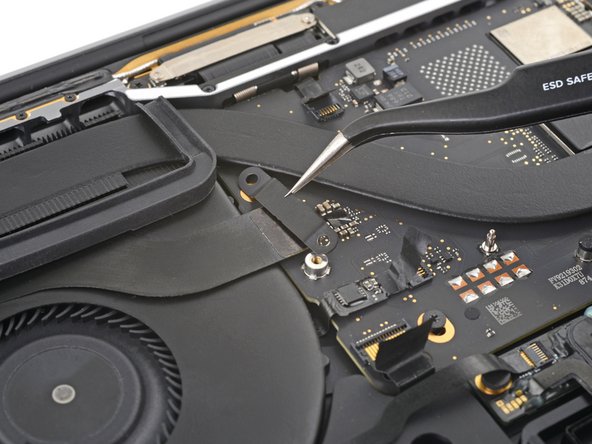
    • Use your T5 Torx driver to remove the two 1.9 mm screws securing the trackpad cable bracket.

    • Remove the bracket.

  25. How to Remove the Logic Board and Heatsink, Disconnect the trackpad: étape 25, image 1 de 2 How to Remove the Logic Board and Heatsink, Disconnect the trackpad: étape 25, image 2 de 2
    • Use the flat end of your spudger to pry up and disconnect the trackpad cable from the logic board.

  26. How to Remove the Logic Board and Heatsink: étape 26, image 1 de 2 How to Remove the Logic Board and Heatsink: étape 26, image 2 de 2
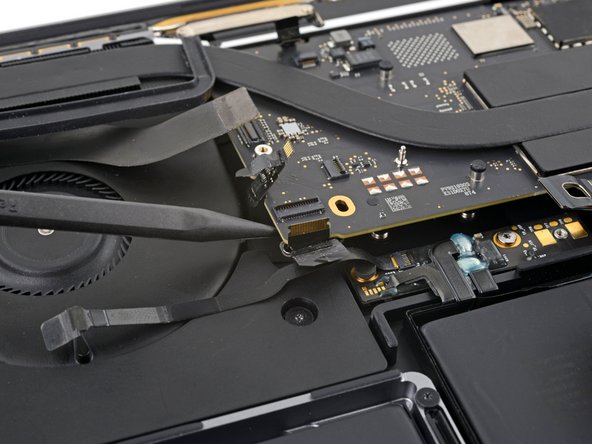
    • Disconnect the seven remaining ZIF connectors from the logic board by lifting their locking tabs and pulling them straight out of their sockets.

  27. How to Remove the Logic Board and Heatsink, Remove the right cable bracket: étape 27, image 1 de 3 How to Remove the Logic Board and Heatsink, Remove the right cable bracket: étape 27, image 2 de 3 How to Remove the Logic Board and Heatsink, Remove the right cable bracket: étape 27, image 3 de 3
    • Use your T3 Torx driver to remove the three 1.4 mm screws securing the cable bracket to the top right of the logic board.

    • Remove the bracket.

  28. How to Remove the Logic Board and Heatsink, Disconnect the top right press connectors: étape 28, image 1 de 3 How to Remove the Logic Board and Heatsink, Disconnect the top right press connectors: étape 28, image 2 de 3 How to Remove the Logic Board and Heatsink, Disconnect the top right press connectors: étape 28, image 3 de 3
    • Use the point of your spudger to pry up and disconnect the Touch Bar press connector from the top right of the logic board.

    • Repeat this step for the lid angle sensor and the Thunderbolt ports press connectors.

  29. How to Remove the Logic Board and Heatsink, Remove the top left cable cover: étape 29, image 1 de 3 How to Remove the Logic Board and Heatsink, Remove the top left cable cover: étape 29, image 2 de 3 How to Remove the Logic Board and Heatsink, Remove the top left cable cover: étape 29, image 3 de 3
    • Use your T3 Torx driver to remove the two screws securing the cable cover near the headphone jack:

    • One 1.4 mm screw

    • One 4.9 mm screw

    • Remove the cover.

  30. How to Remove the Logic Board and Heatsink, Unfasten the logic board: étape 30, image 1 de 2 How to Remove the Logic Board and Heatsink, Unfasten the logic board: étape 30, image 2 de 2
    • Remove the five screws securing the logic board:

    • One 3.0 mm hex head screw

    • One 3.7 mm T5 Torx screw

    • Three 3.3 mm T5 Torx screws

  31. How to Remove the Logic Board and Heatsink, Reassembly information: étape 31, image 1 de 3 How to Remove the Logic Board and Heatsink, Reassembly information: étape 31, image 2 de 3 How to Remove the Logic Board and Heatsink, Reassembly information: étape 31, image 3 de 3
    Outil utilisé dans cette étape :
    Tweezers
    $4.99
    • Your 3.0 mm nut driver may be too long to thread the hex head screw in. Use one of the following techniques to begin threading the screw in:

    • Thread the screw in using your fingertips.

    • Thread the screw in using blunt nose tweezers.

    • Use your T3 Torx driver to install the 1.4 mm screw into the hex head screw. Then, install the hex head screw using the T3 Torx driver. Finally, hold the hex head screw while you remove the 1.4 mm screw.

    • Once the hex head screw is threaded in a few turns, tighten it using your nut driver.

  32. How to Remove the Logic Board and Heatsink, Pry up the logic board: étape 32, image 1 de 2 How to Remove the Logic Board and Heatsink, Pry up the logic board: étape 32, image 2 de 2
    • Insert the point of your spudger between the bottom left of the logic board and the left speaker assembly.

    • Pry up on the logic board until you can grab it with your fingers.

  33. How to Remove the Logic Board and Heatsink, Remove the logic board: étape 33, image 1 de 3 How to Remove the Logic Board and Heatsink, Remove the logic board: étape 33, image 2 de 3 How to Remove the Logic Board and Heatsink, Remove the logic board: étape 33, image 3 de 3
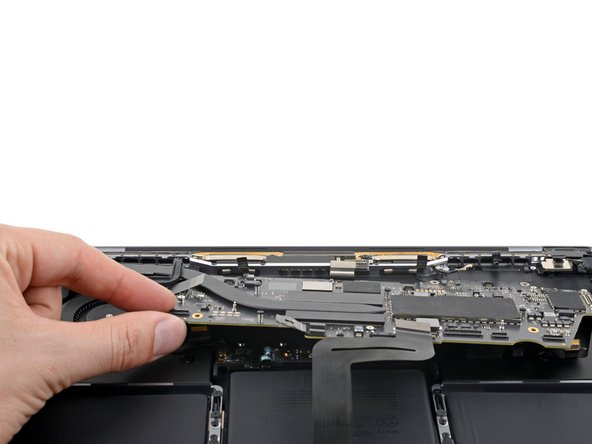
    • Grip the bottom left edge of the logic board.

    • Pull the logic board down and left to free it from the press connectors and antenna cables in the upper right corner.

    • Lift the logic board out of its recess, making sure not to catch on any loose cables.

    • During reassembly, make sure all 15 connectors are above the logic board before reinstalling it.

Conclusion

To reassemble your device, follow these instructions in reverse order.

Clay Eickemeyer

Membre depuis le 09/19/22

95 641 Réputation

466 tutoriels rédigés

Équipe

Guide Team Membre de l'équipe Guide Team

Staff

10 membres

15 803 tutoriels rédigés

0 commentaires de tutoriel

Ajouter un commentaire

Nombre de vues :

Dernières 24 heures : 0

7 derniers jours : 1

30 derniers jours : 4

Total : 148