Aller au contenu principal

Mac mini (2024) Fan Replacement

Ce dont vous avez besoin

  1. Mac mini (2024) Fan Replacement, Before you begin: étape 1, image 1 de 2 Mac mini (2024) Fan Replacement, Before you begin: étape 1, image 2 de 2
    • Fully shut down your Mac mini and unplug all cables from it.

    • Flip over your Mac mini and place it on a clean, flat surface to avoid scratching the chassis.

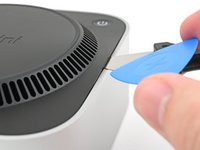
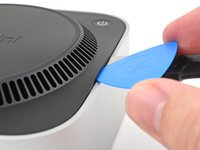
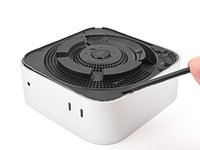
  2. Mac mini (2024) Fan Replacement, Create a gap: étape 2, image 1 de 3 Mac mini (2024) Fan Replacement, Create a gap: étape 2, image 2 de 3 Mac mini (2024) Fan Replacement, Create a gap: étape 2, image 3 de 3
    • Using the Jimmy or other metal tools during this step could scratch the aluminum chassis; however, it's the simplest way to perform this step. Follow the alternate instructions to avoid scratching the aluminum.

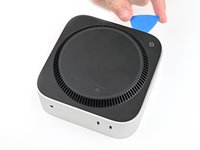
    • Insert a Jimmy into the gap between the bottom cover and the chassis.

    • Pry up the bottom cover to create a gap.

    • Alternatively, you can insert the point of a spudger into one of the plastic vent holes and pry up to create a gap big enough to insert an opening pick into.

    • Keep the Jimmy inserted under the bottom cover.

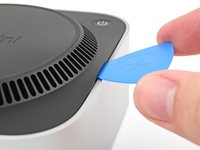
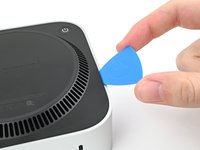
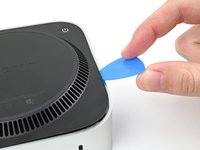
  3. Mac mini (2024) Fan Replacement, Insert an opening pick: étape 3, image 1 de 3 Mac mini (2024) Fan Replacement, Insert an opening pick: étape 3, image 2 de 3 Mac mini (2024) Fan Replacement, Insert an opening pick: étape 3, image 3 de 3
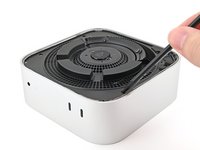
    • Insert an opening pick into the gap created by the Jimmy.

    • Remove the Jimmy.

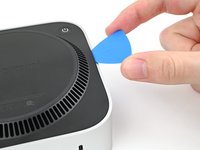
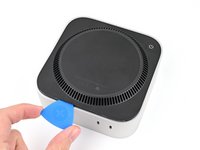
  4. Mac mini (2024) Fan Replacement, Release the pins: étape 4, image 1 de 3 Mac mini (2024) Fan Replacement, Release the pins: étape 4, image 2 de 3 Mac mini (2024) Fan Replacement, Release the pins: étape 4, image 3 de 3
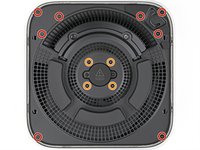
    • Slide the opening pick along the bottom cover until you feel it snag on a pin.

    • There are four pins total—one at each corner of the bottom cover.

    • Twist the pick to lift the pin out of its slot.

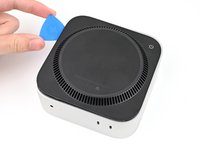
  5. Mac mini (2024) Fan Replacement: étape 5, image 1 de 3 Mac mini (2024) Fan Replacement: étape 5, image 2 de 3 Mac mini (2024) Fan Replacement: étape 5, image 3 de 3
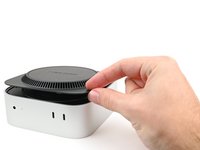
    • Continue sliding and prying with the pick along the perimeter of the bottom cover to release the remaining pins.

    • Don't insert the pick more than an inch when sliding near the power button, as you risk damaging the cable.

    • During reassembly, press along the perimeter of the bottom until you hear and feel all four pins click back into place.

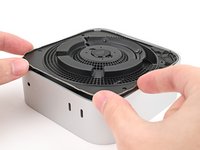
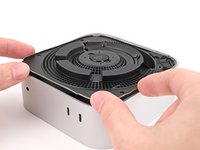
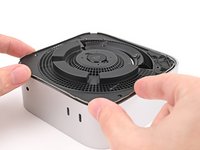
  6. Mac mini (2024) Fan Replacement: étape 6, image 1 de 2 Mac mini (2024) Fan Replacement: étape 6, image 2 de 2
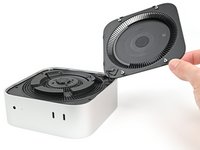
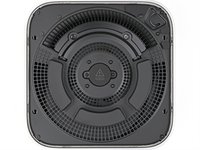
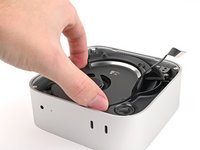
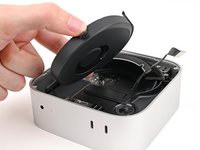
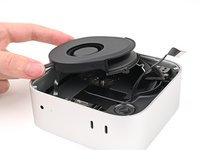
    • Don't remove the bottom cover, as it's still connected to the Mac mini with a cable.

    • Lift the edge of the bottom cover opposite the power button and flip it over to expose the power button cable.

  7. Mac mini (2024) Fan Replacement, Disconnect the power button: étape 7, image 1 de 2 Mac mini (2024) Fan Replacement, Disconnect the power button: étape 7, image 2 de 2
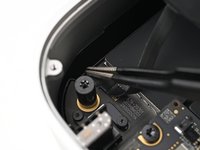
    • The power button cable is very fragile! You don't have to disconnect it to access the internals— but it will require you to keep the bottom cover propped up.

    • To disconnect the cable and remove the bottom cover, follow the next two steps.

    • If you don't disconnect the cable, prop up the bottom cover to prevent straining the cable and skip the next two steps.

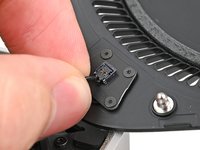
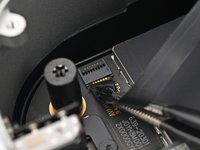
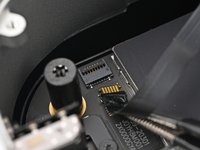
    • Grip the power button cable close to the head and pull it away from its socket to disconnect it.

  8. Mac mini (2024) Fan Replacement, Remove the bottom cover: étape 8, image 1 de 1
    • Remove the bottom cover.

  9. Mac mini (2024) Fan Replacement, Remove the inner plate screws: étape 9, image 1 de 2 Mac mini (2024) Fan Replacement, Remove the inner plate screws: étape 9, image 2 de 2
    Outil utilisé dans cette étape :
    FixMat
    $31.41
    • Throughout this repair, keep track of each screw and make sure it goes back exactly where it came from.

    • While the Mac mini uses Torx Plus screws, standard Torx bits work. Make sure to apply constant, downward force to prevent stripping.

    • Use a T5 Torx screwdriver to remove the twelve screws securing the inner plate:

    • Eight 3.4 mm‑long screws

    • Four 2.4 mm‑long screws

  10. Mac mini (2024) Fan Replacement, Separate the inner plate: étape 10, image 1 de 3 Mac mini (2024) Fan Replacement, Separate the inner plate: étape 10, image 2 de 3 Mac mini (2024) Fan Replacement, Separate the inner plate: étape 10, image 3 de 3
    • Insert the point of a spudger into one of the clips' slots on the inner plate.

    • Pry up the inner plate enough so you can grip the edge along the same side as the headphone jack.

  11. Mac mini (2024) Fan Replacement: étape 11, image 1 de 2 Mac mini (2024) Fan Replacement: étape 11, image 2 de 2
    • Pull the inner plate away from the chassis to slide it out from under the lip on the heat sink.

    • During reassembly, slide the inner plate back under the heat sink and press along its edges to secure it in the chassis.

  12. Mac mini (2024) Fan Replacement: étape 12, image 1 de 3 Mac mini (2024) Fan Replacement: étape 12, image 2 de 3 Mac mini (2024) Fan Replacement: étape 12, image 3 de 3
    • Don't remove the inner plate yet, as it's still connected to the Mac mini by a cable.

    • Lift the inner plate and flip it over to expose the wireless module cable.

  13. Mac mini (2024) Fan Replacement, Remove the wireless module cover: étape 13, image 1 de 3 Mac mini (2024) Fan Replacement, Remove the wireless module cover: étape 13, image 2 de 3 Mac mini (2024) Fan Replacement, Remove the wireless module cover: étape 13, image 3 de 3
    • Use one hand to secure the wireless module during this step.

    • Use a Torx Plus 5IP screwdriver to remove the four 2.5 mm‑long screws securing the wireless module cover.

  14. Mac mini (2024) Fan Replacement, Remove the cover: étape 14, image 1 de 2 Mac mini (2024) Fan Replacement, Remove the cover: étape 14, image 2 de 2
    • Remove the wireless module cover.

    • During reassembly, look the bottom of the cover to find the foam rectangle. Align the foam rectangle over the wireless module press connector to find the proper orientation for the cover.

  15. Mac mini (2024) Fan Replacement, Disconnect the wireless module: étape 15, image 1 de 2 Mac mini (2024) Fan Replacement, Disconnect the wireless module: étape 15, image 2 de 2
    • Use one hand to secure the wireless module during this step.

    • Insert the point of a spudger under one of the short edges of the wireless module press connector.

    • Don't insert your spudger anywhere else, as you risk dislodging surface-mounted components.

    • Pry up to disconnect the wireless module.

  16. Mac mini (2024) Fan Replacement, Remove the inner plate: étape 16, image 1 de 1
    • Remove the inner plate.

  17. Mac mini (2024) Fan Replacement, Remove the fan screws: étape 17, image 1 de 2 Mac mini (2024) Fan Replacement, Remove the fan screws: étape 17, image 2 de 2
    • If you're following this guide to clean your fan, this is a good time to do so.

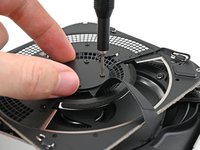
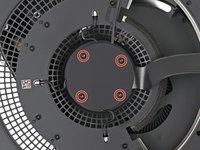
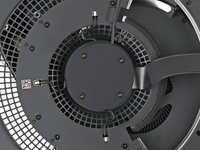
    • Remove the four screws securing the fan:

    • Two 2.4 mm‑long Torx Plus 3IP screws

    • Two 7.9 mm‑long Torx Plus 5IP screws

  18. Mac mini (2024) Fan Replacement, Reposition the fan: étape 18, image 1 de 3 Mac mini (2024) Fan Replacement, Reposition the fan: étape 18, image 2 de 3 Mac mini (2024) Fan Replacement, Reposition the fan: étape 18, image 3 de 3
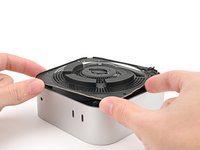
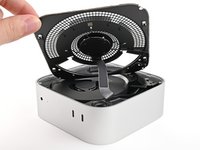
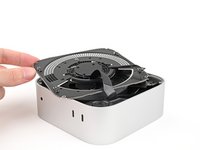
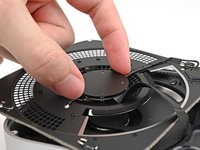
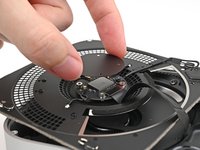
    • Lift the fan out of its recess in the chassis and flip it over to expose its wire and connector.

    • Let the fan rest on the chassis and heat sink.

  19. Mac mini (2024) Fan Replacement, Disconnect the fan: étape 19, image 1 de 3 Mac mini (2024) Fan Replacement, Disconnect the fan: étape 19, image 2 de 3 Mac mini (2024) Fan Replacement, Disconnect the fan: étape 19, image 3 de 3
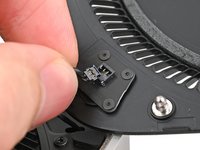
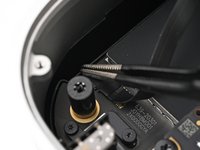
    • Use tweezers to peel back the tape covering the fan ZIF connector.

  20. Mac mini (2024) Fan Replacement: étape 20, image 1 de 2 Mac mini (2024) Fan Replacement: étape 20, image 2 de 2
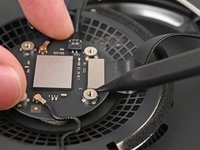
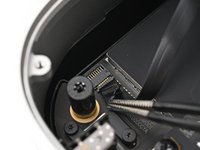
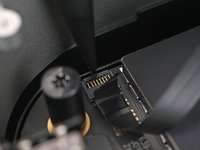
    • Use the point of a spudger, or your fingernail, to flip up the locking tab on the fan ZIF connector.

  21. Mac mini (2024) Fan Replacement: étape 21, image 1 de 2 Mac mini (2024) Fan Replacement: étape 21, image 2 de 2
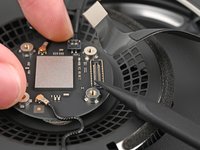
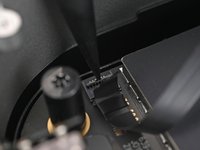
    • Use tweezers, or your fingers, to slide the ZIF connector straight out of its socket.

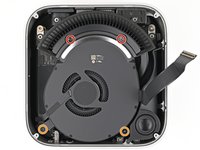
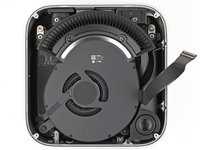
  22. Mac mini (2024) Fan Replacement, Remove the fan: étape 22, image 1 de 1
    • Remove the fan.

Conclusion

To reassemble your device, follow these instructions in reverse order.

Take your e-waste to an R2 or e-Stewards certified recycler.

Repair didn’t go as planned? Try some basic troubleshooting, or ask our Mac mini (2024) Answers Community for help.

Une autre personne a terminé cette réparation.

Alex Diaz-Kokaisl

Membre depuis le 01/16/22

213 178 Réputation

1 040 tutoriels rédigés

Équipe

iFixit Membre de l'équipe iFixit

Staff

123 membres

23 638 tutoriels rédigés

0 commentaires de tutoriel

Ajouter un commentaire

Nombre de vues :

Dernières 24 heures : 14

7 derniers jours : 99

30 derniers jours : 486

Total : 4,696