Aller au contenu principal
Pour réparer ensemble - Je crée un compte

Managing Texas Instruments TI-92 Keyboard

Ce dont vous avez besoin

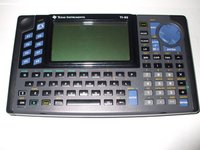
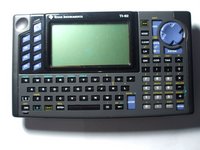
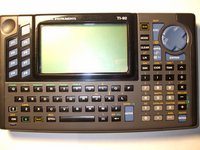
  1. Managing Texas Instruments TI-92 Keyboard, Back Cover: étape 1, image 1 de 3 Managing Texas Instruments TI-92 Keyboard, Back Cover: étape 1, image 2 de 3 Managing Texas Instruments TI-92 Keyboard, Back Cover: étape 1, image 3 de 3
    • The first step to any repair operation is to remove the front cover.

    • Grab the back of the calculator with one hand and the cover with the other.

    • Pull the cover off from one of the sides for easy removal.

    Demander à FixBot
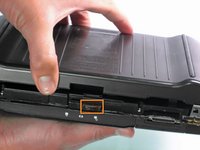
  2. Managing Texas Instruments TI-92 Keyboard: étape 2, image 1 de 2 Managing Texas Instruments TI-92 Keyboard: étape 2, image 2 de 2
    • Orientate the calculator with the top facing towards you.

    • Slide the locking tab,found on the top part of the calculator, to the unlock position.

    Demander à FixBot
  3. Managing Texas Instruments TI-92 Keyboard: étape 3, image 1 de 2 Managing Texas Instruments TI-92 Keyboard: étape 3, image 2 de 2
    • "Locking Tab"

    • To remove the back cover, slide the cover away from the locking tab towards the bottom of the calculator until the cover no longer slides.

    • Then with the front of the calculator facing down, pull up on the back cover.

    • The calculator should now be orientated with the front facing down, as shown in picture 2.

    Demander à FixBot
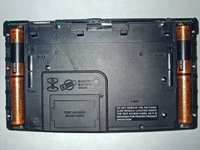
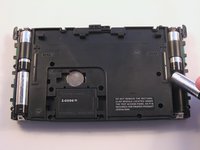
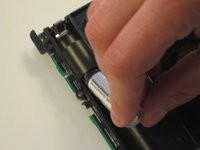
  4. Managing Texas Instruments TI-92 Keyboard, Batteries: étape 4, image 1 de 3 Managing Texas Instruments TI-92 Keyboard, Batteries: étape 4, image 2 de 3 Managing Texas Instruments TI-92 Keyboard, Batteries: étape 4, image 3 de 3
    • The Batteries are now exposed and the calculator is face down with the back towards you.

    • Remove the bottom batteries by pressing the battery towards you while pulling it out from the far end.

    • If you can not do the previous step with your finger try using a flat ended tool such as an Ipod opening tool.

    • After the bottom battery has been removed push or slide the other(top) battery towards you until it is fully exposed in the battery slot.

    • Now simply remove the battery.

    Demander à FixBot
  5. Managing Texas Instruments TI-92 Keyboard, Texas Instruments TI-92 Back Case Disassembly: étape 5, image 1 de 3 Managing Texas Instruments TI-92 Keyboard, Texas Instruments TI-92 Back Case Disassembly: étape 5, image 2 de 3 Managing Texas Instruments TI-92 Keyboard, Texas Instruments TI-92 Back Case Disassembly: étape 5, image 3 de 3
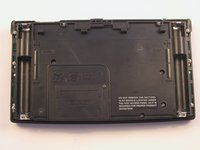
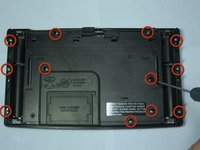
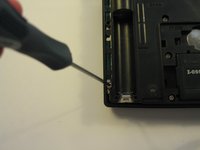
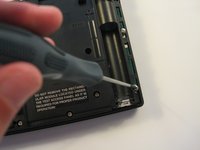
    • Using a Philips Screwdriver #00 unscrew the twelve 11.8mm screws shown in the picture and located on the back of the calculator.

    Demander à FixBot
  6. Managing Texas Instruments TI-92 Keyboard: étape 6, image 1 de 1
    • Unscrew the 19mm screw located near center of the back of the calculator.

    • Remove the panel being held by the screw.

    Demander à FixBot
  7. Managing Texas Instruments TI-92 Keyboard: étape 7, image 1 de 1
    • Using the same Phillips screwdriver, unscrew the remaining three 11.8mm screws.

    Demander à FixBot
  8. Managing Texas Instruments TI-92 Keyboard: étape 8, image 1 de 2 Managing Texas Instruments TI-92 Keyboard: étape 8, image 2 de 2
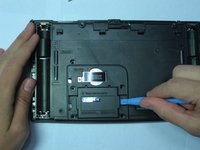
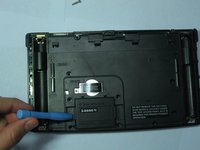
    • Using the Ipod Opening Tool pull up on both sides of the rectangular module while keeping the rest of the calculator flat on a surface face down

    • You may get a lot of resistance from the module. Do not use too much force as you risk damage. Use small amounts of force to work the module out.

    Demander à FixBot
  9. Managing Texas Instruments TI-92 Keyboard: étape 9, image 1 de 2 Managing Texas Instruments TI-92 Keyboard: étape 9, image 2 de 2
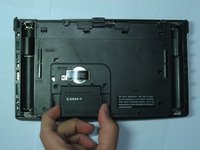
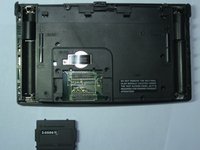
    • Pull out the rectangular module when it is finally loose enough.

    Demander à FixBot
  10. Managing Texas Instruments TI-92 Keyboard: étape 10, image 1 de 2 Managing Texas Instruments TI-92 Keyboard: étape 10, image 2 de 2
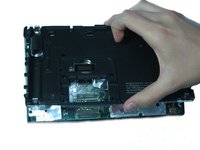
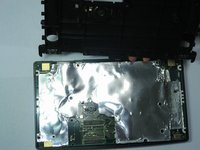
    • Now pull up on the back cover of the calculator while holding the rest of it flat on a surface.

    • Be careful not to tilt the front of the calculator at this point. The keyboard buttons are now unsupported and will fall out of place.

    Demander à FixBot
  11. Managing Texas Instruments TI-92 Keyboard, Keyboard: étape 11, image 1 de 2 Managing Texas Instruments TI-92 Keyboard, Keyboard: étape 11, image 2 de 2
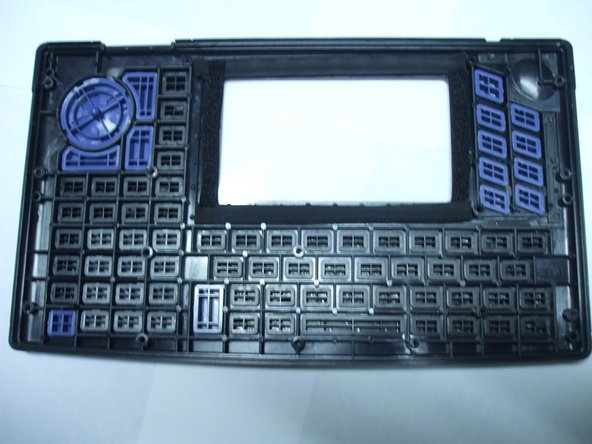
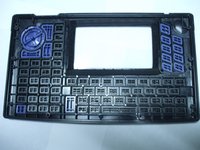
    • Here we will use the front panel, separate from the motherboard

    • Make sure not to tilt this part unless you want to remove all the keys from the face plate.

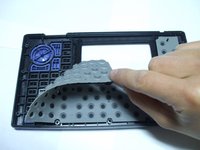
    • Remove the rubber contact lying on top of the keys.

    Demander à FixBot
  12. Managing Texas Instruments TI-92 Keyboard: étape 12, image 1 de 1
    Outil utilisé dans cette étape :
    Tweezers
    $4.99
    • With the rubber contact removed the keys can now be removed to be replaced, cleaned, or manipulated in other ways.

    • To aid the removal of individual keys you can use the Ipod Opening Tool or preferably a pair of tweezers.

    Demander à FixBot
  13. Managing Texas Instruments TI-92 Keyboard: étape 13, image 1 de 3 Managing Texas Instruments TI-92 Keyboard: étape 13, image 2 de 3 Managing Texas Instruments TI-92 Keyboard: étape 13, image 3 de 3
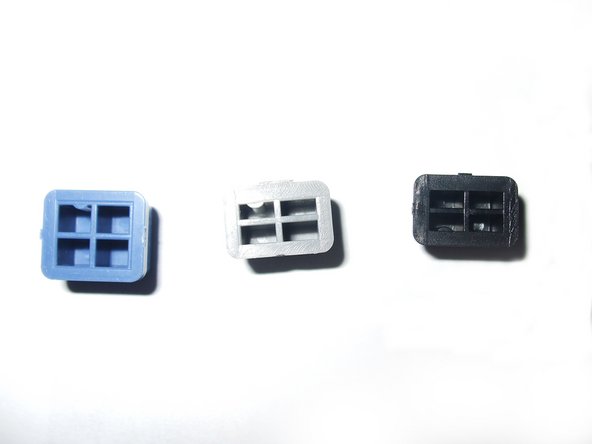
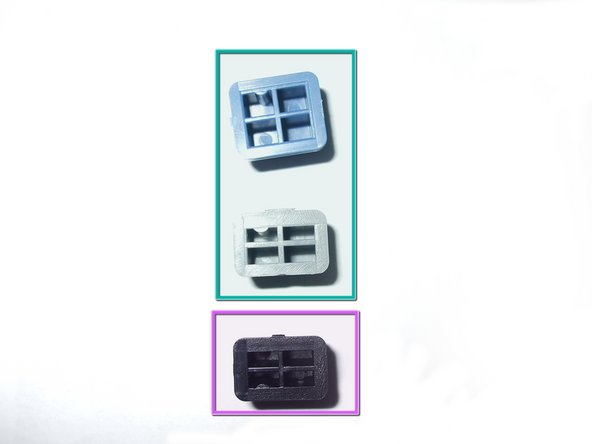
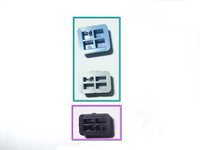
    • When placing the keys back into the faceplate you have to make sure that they are going in the right direction.

    • You can tell which way is up by a semicircular extrusion on the back of a key.

    • The gray and blue keys have the extrusion on the upper left hole looking at the back of the key.

    • The black keys on the other hand have the extrusions on the lower left hole looking at the back of the key.

    Demander à FixBot
  14. Managing Texas Instruments TI-92 Keyboard: étape 14, image 1 de 3 Managing Texas Instruments TI-92 Keyboard: étape 14, image 2 de 3 Managing Texas Instruments TI-92 Keyboard: étape 14, image 3 de 3
    • Use the pictures shown here as guides for where the keys should go if the keys fell out or you simply chose to remove them.

    Demander à FixBot
Conclusion

To reassemble your device, follow these instructions in reverse order.

Daniel Maldonado

Membre depuis le 04/14/10

264 Réputation

9 tutoriels rédigés

Équipe

Cal Poly, Team 15-51, Garner Spring 2010 Membre de l'équipe Cal Poly, Team 15-51, Garner Spring 2010

CPSU-GARNER-S10S15G51

5 membres

9 tutoriels rédigés

0 commentaires de tutoriel

Ajouter un commentaire

Nombre de vues :

Dernières 24 heures : 2

7 derniers jours : 8

30 derniers jours : 66

Total : 2,962