Aller au contenu principal

Microsoft Surface Laptop 7 (13.8-inch) SSD Replacement

Ce dont vous avez besoin

  1. Microsoft Surface Laptop 7 (13.8-inch) SSD Replacement, Prepare your laptop for disassembly: étape 1, image 1 de 3 Microsoft Surface Laptop 7 (13.8-inch) SSD Replacement, Prepare your laptop for disassembly: étape 1, image 2 de 3 Microsoft Surface Laptop 7 (13.8-inch) SSD Replacement, Prepare your laptop for disassembly: étape 1, image 3 de 3
    • Before starting this repair, allow your laptop's battery to drain below 25%. A charged battery may catch fire if damaged.

    • Unplug all cables and fully shut down your laptop.

  2. Microsoft Surface Laptop 7 (13.8-inch) SSD Replacement, Flip your laptop over: étape 2, image 1 de 3 Microsoft Surface Laptop 7 (13.8-inch) SSD Replacement, Flip your laptop over: étape 2, image 2 de 3 Microsoft Surface Laptop 7 (13.8-inch) SSD Replacement, Flip your laptop over: étape 2, image 3 de 3
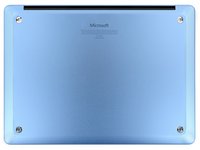
    • Close your laptop and lay it down so the rubber feet are facing up.

  3. Microsoft Surface Laptop 7 (13.8-inch) SSD Replacement, Remove the feet: étape 3, image 1 de 3 Microsoft Surface Laptop 7 (13.8-inch) SSD Replacement, Remove the feet: étape 3, image 2 de 3 Microsoft Surface Laptop 7 (13.8-inch) SSD Replacement, Remove the feet: étape 3, image 3 de 3
    • Gently slide one arm of your angled tweezers into the recess near the upper right edge of one of the feet.

    • You can also use the point of a spudger. However, you're more likely to damage the foot, if you're reusing it.

    • Use your tweezers to pry up and remove the foot.

    • The feet may eject very quickly—be careful not to lose them.

    • Repeat the process to remove the remaining feet.

    • To install a foot, align the pegs on the bottom with their cutouts in the frame and press the foot into place.

  4. Microsoft Surface Laptop 7 (13.8-inch) SSD Replacement, Remove the lower case screws: étape 4, image 1 de 2 Microsoft Surface Laptop 7 (13.8-inch) SSD Replacement, Remove the lower case screws: étape 4, image 2 de 2
    Outil utilisé dans cette étape :
    FixMat
    $31.41
    • Throughout this repair, keep track of each screw and make sure it goes back exactly where it came from.

    • While the Surface Laptop 7 uses Torx Plus screws, standard Torx bits work. Make sure to apply constant, downward force to prevent stripping.

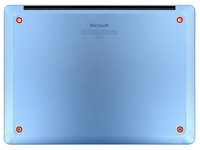
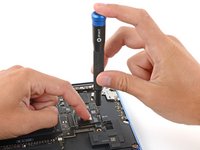
    • Use a Torx Plus 5IP screwdriver to remove the four 4.5 mm‑long screws (with washers) securing the lower case.

  5. Microsoft Surface Laptop 7 (13.8-inch) SSD Replacement, Detach the lower case: étape 5, image 1 de 3 Microsoft Surface Laptop 7 (13.8-inch) SSD Replacement, Detach the lower case: étape 5, image 2 de 3 Microsoft Surface Laptop 7 (13.8-inch) SSD Replacement, Detach the lower case: étape 5, image 3 de 3
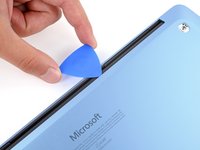
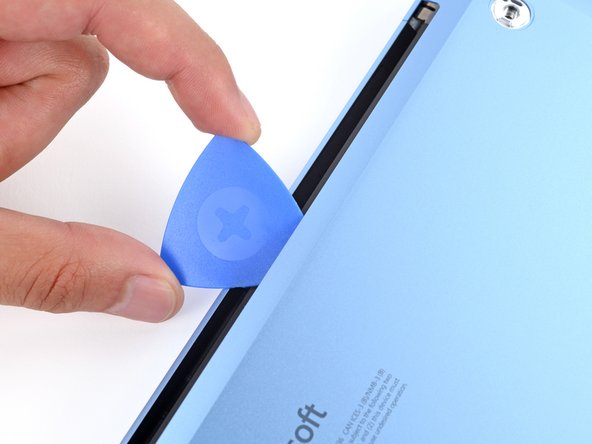
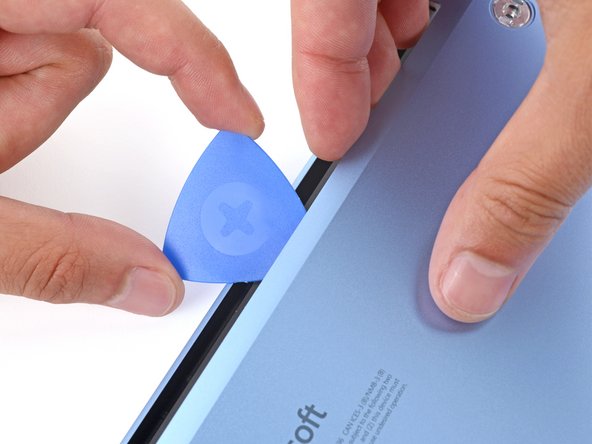
    • Insert the tip of an opening pick under the top edge of the lower case, about an inch (2.5 cm) to the left or right of the Microsoft logo.

    • Don't insert the pick near the outer edges or you'll damage the antenna bar.

  6. Microsoft Surface Laptop 7 (13.8-inch) SSD Replacement: étape 6, image 1 de 3 Microsoft Surface Laptop 7 (13.8-inch) SSD Replacement: étape 6, image 2 de 3 Microsoft Surface Laptop 7 (13.8-inch) SSD Replacement: étape 6, image 3 de 3
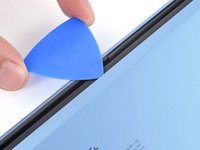
    • Twist the pick to lift the lower case enough that you can grip it with your hand.

  7. Microsoft Surface Laptop 7 (13.8-inch) SSD Replacement, Remove the lower case: étape 7, image 1 de 3 Microsoft Surface Laptop 7 (13.8-inch) SSD Replacement, Remove the lower case: étape 7, image 2 de 3 Microsoft Surface Laptop 7 (13.8-inch) SSD Replacement, Remove the lower case: étape 7, image 3 de 3
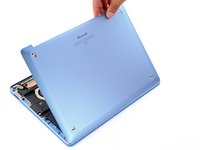
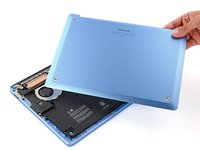
    • Lift the lower case and remove it.

  8. Microsoft Surface Laptop 7 (13.8-inch) SSD Replacement, Disconnect the battery: étape 8, image 1 de 3 Microsoft Surface Laptop 7 (13.8-inch) SSD Replacement, Disconnect the battery: étape 8, image 2 de 3 Microsoft Surface Laptop 7 (13.8-inch) SSD Replacement, Disconnect the battery: étape 8, image 3 de 3
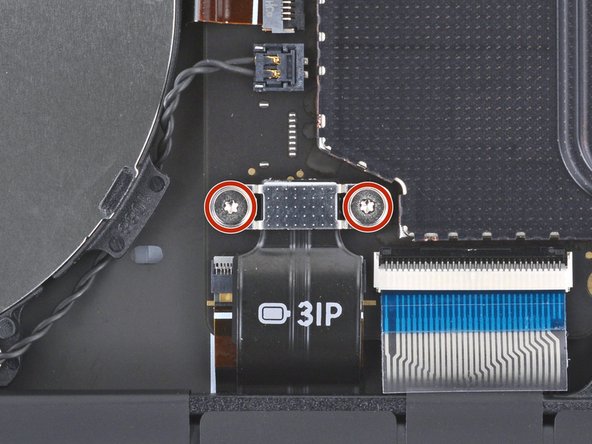
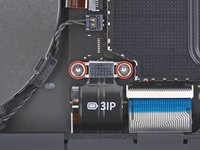
    • Use a Torx Plus 3IP screwdriver to remove the two 2.3 mm‑long screws securing the battery connector cover.

  9. Microsoft Surface Laptop 7 (13.8-inch) SSD Replacement: étape 9, image 1 de 2 Microsoft Surface Laptop 7 (13.8-inch) SSD Replacement: étape 9, image 2 de 2
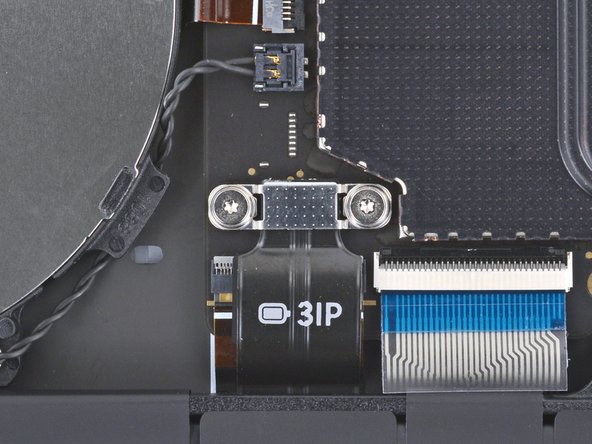
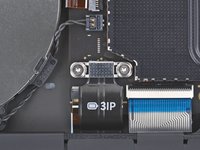
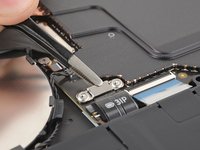
    • Use tweezers or your fingers to remove the battery connector cover.

  10. Microsoft Surface Laptop 7 (13.8-inch) SSD Replacement: étape 10, image 1 de 2 Microsoft Surface Laptop 7 (13.8-inch) SSD Replacement: étape 10, image 2 de 2
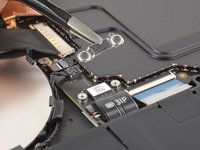
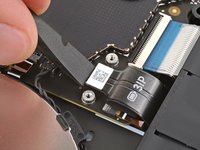
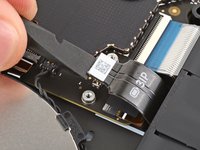
    • Insert the flat end of a spudger under the top edge of the battery press connector and pry up to disconnect it.

    • To reconnect a press connector, align it over the socket and gently press down on one side until it clicks into place, then press down on the other side. It may take a few tries to align the connector—don't try to force it into place.

  11. Microsoft Surface Laptop 7 (13.8-inch) SSD Replacement, Peel up the SSD tape: étape 11, image 1 de 3 Microsoft Surface Laptop 7 (13.8-inch) SSD Replacement, Peel up the SSD tape: étape 11, image 2 de 3 Microsoft Surface Laptop 7 (13.8-inch) SSD Replacement, Peel up the SSD tape: étape 11, image 3 de 3
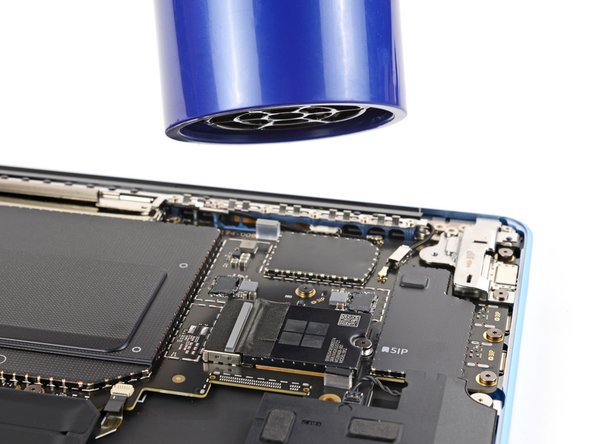
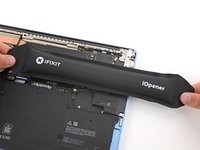
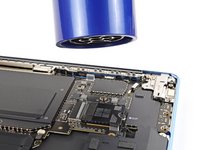
    • Heat an iOpener and lay it on the SSD for one minute to heat the tape on its left edge.

    • Alternatively, you can use a hair dryer to lightly heat the tape.

  12. Microsoft Surface Laptop 7 (13.8-inch) SSD Replacement: étape 12, image 1 de 3 Microsoft Surface Laptop 7 (13.8-inch) SSD Replacement: étape 12, image 2 de 3 Microsoft Surface Laptop 7 (13.8-inch) SSD Replacement: étape 12, image 3 de 3
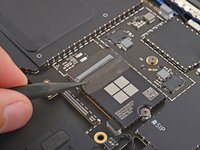
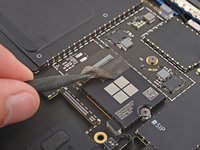
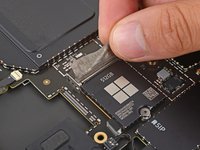
    • Carefully insert the point of a spudger under the SSD tape and lift until you can grip the tape with your fingers.

    • Be careful not to tear the tape, since you'll reuse it during reassembly.

    • Use your fingers to gently peel the tape from the SSD.

    • You don't need to fully remove the tape, it just needs to be off the SSD.

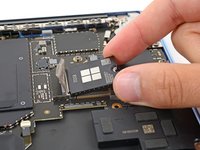
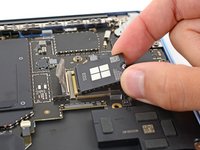
  13. Microsoft Surface Laptop 7 (13.8-inch) SSD Replacement, Remove the SSD: étape 13, image 1 de 3 Microsoft Surface Laptop 7 (13.8-inch) SSD Replacement, Remove the SSD: étape 13, image 2 de 3 Microsoft Surface Laptop 7 (13.8-inch) SSD Replacement, Remove the SSD: étape 13, image 3 de 3
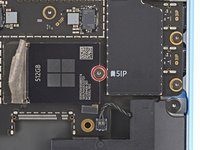
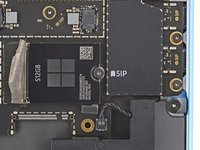
    • Use a Torx Plus 5IP screwdriver to remove the 2.9 mm‑long screw securing the SSD.

    • With the screw removed, the SSD may pop up at a slight angle.

    • During reassembly, gently hold the SSD down while installing its screw.

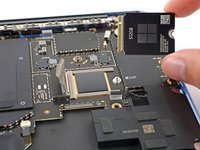
  14. Microsoft Surface Laptop 7 (13.8-inch) SSD Replacement: étape 14, image 1 de 3 Microsoft Surface Laptop 7 (13.8-inch) SSD Replacement: étape 14, image 2 de 3 Microsoft Surface Laptop 7 (13.8-inch) SSD Replacement: étape 14, image 3 de 3
    • Grip the SSD by its edges near the screw notch and pull it straight out of its socket.

    • During reassembly, make sure the tape is completely out of the way and insert the SSD at a slight downward angle into its socket.

    • The SSD is notched so you can only insert it in the correct orientation.

Conclusion

To reassemble your device, follow these instructions in reverse order.

Once your laptop is reassembled, follow Microsoft's post SSD replacement guide.

Take your e-waste to an R2 or e-Stewards certified recycler.

Repair didn’t go as planned? Try some basic troubleshooting, or ask our Answers community for help.

5 autres ont terminé cette réparation.

Spencer Day

Membre depuis le 09/14/22

149 052 Réputation

995 tutoriels rédigés

Équipe

iFixit Membre de l'équipe iFixit

Staff

123 membres

23 603 tutoriels rédigés

5 commentaires de tutoriel

only the original SSD can be replaced? other manufacturers won't work?

Александр - Réponse

Any other SSD will work. I replaced mine with a 1tb drive after I cloned the original. Reinstalled and it was like nothing happened. No need to update windows or anything. I used DiskGenius but use whatever safe program you prefer.

Jonathan Sikes -
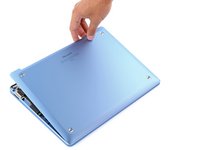
Is there a need to remove the battery?

Stevenson Yu - Réponse

Hello! You don't need to remove the battery, just disconnect it to avoid damaging your laptop.

Nick Schultz -

also. this needs to say it needs DISM to backup drivers first

coshvji cujmlqef - Réponse

Ajouter un commentaire

Nombre de vues :

Dernières 24 heures : 28

7 derniers jours : 251

30 derniers jours : 1,018

Total : 9,921