Aller au contenu principal
Pour réparer ensemble - Je crée un compte

Nostalgia GCM200 Power Button Replacement

Ce dont vous avez besoin

  1. Nostalgia GCM200 Power Button Replacement, Nostalgia GCM200 Disassembly: étape 1, image 1 de 2 Nostalgia GCM200 Power Button Replacement, Nostalgia GCM200 Disassembly: étape 1, image 2 de 2
    • Remove the two 1.3 mm Phillips #2 screws.

    • Remove the S6 spanner screw.

    • Carefully place these three screws somewhere safe to use later in reassembly.

    Demander à FixBot

    Ajouter un commentaire

  2. Nostalgia GCM200 Power Button Replacement: étape 2, image 1 de 1
    • Split the device in half to expose the internal parts of the device.

    • Again, there are two more Phillips screws to remove.

    Demander à FixBot

    Ajouter un commentaire

  3. Nostalgia GCM200 Power Button Replacement: étape 3, image 1 de 1
    • Remove the two screws from both sides of the heating coil.

    Demander à FixBot

    Ajouter un commentaire

  4. Nostalgia GCM200 Power Button Replacement, Power Button: étape 4, image 1 de 1
    • Split the device into 2 parts to change the power button.

    • Power button hold the other parts, so be careful.

    Demander à FixBot

    Ajouter un commentaire

  5. Nostalgia GCM200 Power Button Replacement: étape 5, image 1 de 1
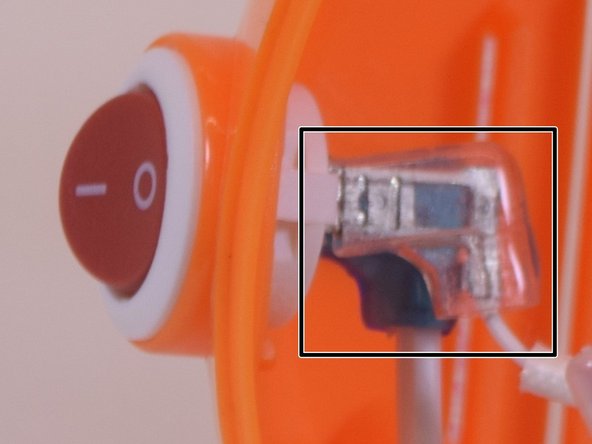
    • Remove (flexible) plastic sleeves from the inside end of the power cable.

    • You might want to use force, pull out while shaking it.

    • Inside the product, ensure you look at the power button and try to understand this step before you take action. There are two notches, push them at the same time on both sides to push the button out of the device.

    Demander à FixBot

    Ajouter un commentaire

  6. Nostalgia GCM200 Power Button Replacement: étape 6, image 1 de 1
    • Depress the little tab inside the top portion of the device to remove the On/Off switch.

    Demander à FixBot

    Ajouter un commentaire

  7. Nostalgia GCM200 Power Button Replacement: étape 7, image 1 de 1
    • Replace the power button, and put the plastic sleeves in the original position.

    • Great, you just finished replacing power button

    Demander à FixBot

    Ajouter un commentaire

  8. Nostalgia GCM200 Power Button Replacement: étape 8, image 1 de 1
    • To reassemble your device, follow these instructions in reverse order.

    Demander à FixBot

    Ajouter un commentaire

Conclusion

This guide will help you to replace the power button

Annulation : je n'ai pas terminé ce tutoriel.

3 autres ont terminé cette réparation.

Xingdi Zhou

Membre depuis le 06/27/17

466 Réputation

3 tutoriels rédigés

Équipe

UW Tacoma, Team S1-G4, Liner Summer 2017 Membre de l'équipe UW Tacoma, Team S1-G4, Liner Summer 2017

UWT-LINER-SU17S1G4

4 membres

5 tutoriels rédigés

0 commentaires de tutoriel

Ajouter un commentaire

Nombre de vues :

Dernières 24 heures : 0

7 derniers jours : 6

30 derniers jours : 19

Total : 408