Aller au contenu principal
Pour réparer ensemble - Je crée un compte
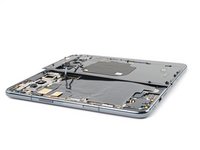
Top Bracket Removal

Conditions préalables uniquement
Il s'agit d'un tutoriel prérequis ! Il fait partie d'une autre procédure et n'est pas destiné à être utilisé seul.

Ce dont vous avez besoin

  1. Top Bracket Removal, Safety Precautions: étape 1, image 1 de 1
    • Allow your battery to drain below 25% before starting this repair. A charged battery may catch fire if damaged.

    • Fully power off your phone and unplug any cables.

  2. Top Bracket Removal, Heat the bottom edge: étape 2, image 1 de 1
    • Lay the phone down on a clean, smooth surface so the back glass is facing up.

    • Heat an iOpener and apply it to the bottom edge of the back glass for two minutes.

    • You can also use a hair dryer, heat gun, or hot plate—but extreme heat can damage the displays and/or internal batteries, so proceed with care.

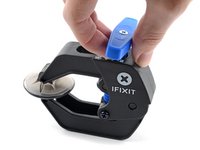
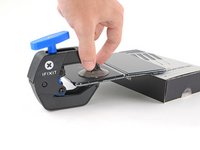
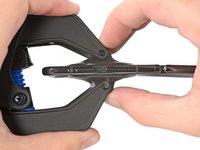
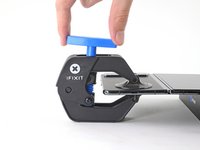
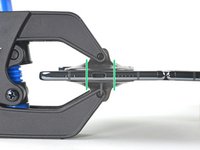
  3. Top Bracket Removal, Anti-Clamp instructions: étape 3, image 1 de 3 Top Bracket Removal, Anti-Clamp instructions: étape 3, image 2 de 3 Top Bracket Removal, Anti-Clamp instructions: étape 3, image 3 de 3
    Outil utilisé dans cette étape :
    Clampy - Anti-Clamp
    $24.95
    • The next three steps demonstrate the Anti-Clamp, a tool we designed to make the opening procedure easier. If you aren't using the Anti-Clamp, skip down three steps for an alternate method.

    • For complete instructions on how to use the Anti-Clamp, check out this guide.

    • Pull the blue handle backwards to unlock the Anti-Clamp's arms.

    • Unfold your phone completely and slide the Anti-Clamp arms over the left edge of the back glass, below the Google "G" logo.

    • Position the suction cups near the bottom edge of the phone—one on the front, and one on the back.

    • Make sure the suction cup on the inner screen isn't touching the bezel, as it won't stick properly.

    • Squeeze the cups together to apply suction to the desired area.

    • If you find that the surface of your phone is too slippery for the Anti-Clamp to hold onto, you can use tape to create a grippier surface. If the glass if cracked, use packing tape to help the suction cups adhere.

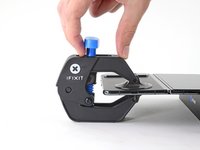
  4. Top Bracket Removal: étape 4, image 1 de 3 Top Bracket Removal: étape 4, image 2 de 3 Top Bracket Removal: étape 4, image 3 de 3
    • Place an object under your phone, like a box or a stack of books, so it rests level while between the Anti-Clamp's arms.

    • Pull the blue handle forward to lock the arms.

    • Turn the handle clockwise 360 degrees or until the cups start to stretch.

    • Make sure the suction cups remain aligned with each other. If they begin to slip out of alignment, detach the suction cups and realign the arms.

  5. Top Bracket Removal: étape 5, image 1 de 1
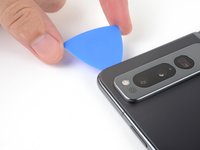
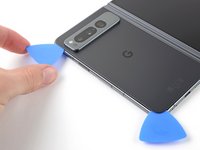
    • Insert an opening pick into the gap under the back glass.

    • If the Anti-Clamp doesn't create a sufficient gap, apply more heat to the area and rotate the handle a quarter turn.

    • Don't crank more than a quarter turn at a time, and wait one minute between turns. Let the Anti-Clamp and time do the work for you.

    • Skip the next step.

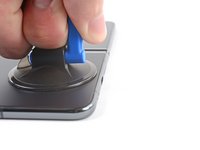
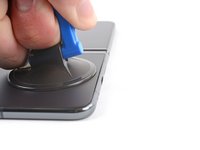
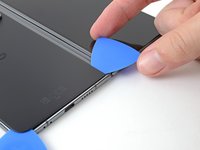
  6. Top Bracket Removal, Insert an opening pick: étape 6, image 1 de 3 Top Bracket Removal, Insert an opening pick: étape 6, image 2 de 3 Top Bracket Removal, Insert an opening pick: étape 6, image 3 de 3
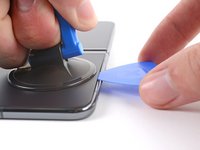
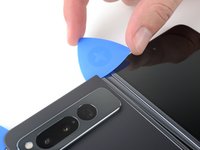
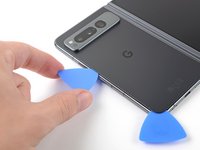
    • Apply a suction cup to the back glass, as close to the center of the bottom edge as possible.

    • Pull up on the suction cup with strong, steady force to create a gap between the back glass and the frame.

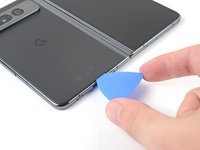
    • Insert an opening pick into the gap.

    • Depending on the age of your phone, this may be difficult. If you're having trouble, apply more heat to the edge and try again.

    • If your back glass is badly cracked, covering it with a layer of clear packing tape may allow the suction cup to adhere. Alternatively, very strong tape may be used instead of the suction cup. If all else fails, you can superglue the suction cup to the broken back glass.

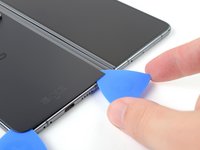
  7. Top Bracket Removal, Separate the bottom adhesive: étape 7, image 1 de 3 Top Bracket Removal, Separate the bottom adhesive: étape 7, image 2 de 3 Top Bracket Removal, Separate the bottom adhesive: étape 7, image 3 de 3
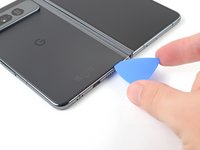
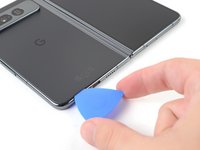
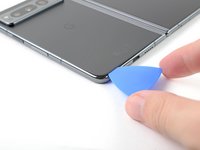
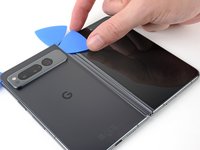
    • Don’t insert the opening pick deeper than 3.5 mm when separating the back glass adhesive, as you risk damaging internal components.

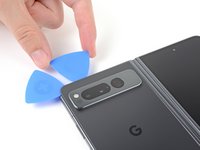
    • Slide the opening pick back and forth along the bottom edge to separate the adhesive.

    • Leave the opening pick in the bottom left corner before continuing.

  8. Top Bracket Removal, Heat the left edge: étape 8, image 1 de 1
    • Apply a heated iOpener to the left edge of the back glass for two minutes.

  9. Top Bracket Removal, Separate the bottom left adhesive: étape 9, image 1 de 2 Top Bracket Removal, Separate the bottom left adhesive: étape 9, image 2 de 2
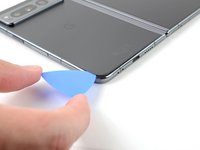
    • Rotate the opening pick around the bottom left corner to separate the adhesive.

  10. Top Bracket Removal, Separate the left adhesive: étape 10, image 1 de 3 Top Bracket Removal, Separate the left adhesive: étape 10, image 2 de 3 Top Bracket Removal, Separate the left adhesive: étape 10, image 3 de 3
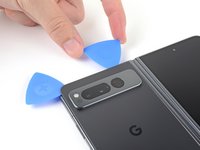
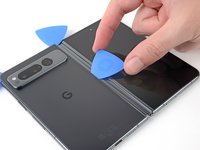
    • Insert a second opening pick at the bottom left corner.

    • Slide the opening pick toward the top left corner to separate the adhesive.

    • Leave the opening pick in the top left corner before continuing.

  11. Top Bracket Removal, Heat the top edge: étape 11, image 1 de 1
    • Apply a heated iOpener to the top edge of the back glass for two minutes.

  12. Top Bracket Removal, Separate the top left adhesive: étape 12, image 1 de 2 Top Bracket Removal, Separate the top left adhesive: étape 12, image 2 de 2
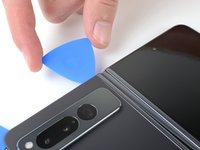
    • Rotate the opening pick around the top left corner to separate the adhesive.

  13. Top Bracket Removal, Separate the top adhesive: étape 13, image 1 de 2 Top Bracket Removal, Separate the top adhesive: étape 13, image 2 de 2
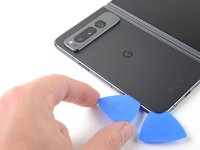
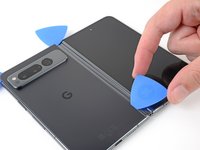
    • Insert a third opening pick in the top left corner.

    • Slide the opening pick toward the top right corner to separate the adhesive.

  14. Top Bracket Removal, Heat the right edge: étape 14, image 1 de 1
    • Apply a heated iOpener to the right edge of the back glass for two minutes.

  15. Top Bracket Removal, Separate the top right adhesive: étape 15, image 1 de 2 Top Bracket Removal, Separate the top right adhesive: étape 15, image 2 de 2
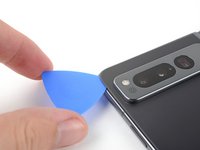
    • This sharp corner is very fragile. Use plenty of heat and be very gentle around the corner during this step.

    • Angle your pick so it's as flat as possible to the back glass.

    • Rotate the opening pick around the top right corner to separate the adhesive.

  16. Top Bracket Removal, Separate the right adhesive: étape 16, image 1 de 3 Top Bracket Removal, Separate the right adhesive: étape 16, image 2 de 3 Top Bracket Removal, Separate the right adhesive: étape 16, image 3 de 3
    • Insert a fourth opening pick in the top right corner.

    • Slide the opening pick toward the bottom right corner to separate the adhesive.

  17. Top Bracket Removal, Separate the bottom right adhesive: étape 17, image 1 de 2 Top Bracket Removal, Separate the bottom right adhesive: étape 17, image 2 de 2
    • This sharp corner is very fragile. Use plenty of heat and be very gentle around the corner during this step.

    • Angle your pick so it's as flat as possible to the back glass.

    • Rotate the opening pick around the bottom right corner to separate the adhesive.

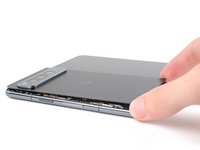
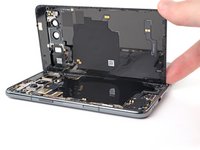
  18. Top Bracket Removal, Reposition the back glass: étape 18, image 1 de 3 Top Bracket Removal, Reposition the back glass: étape 18, image 2 de 3 Top Bracket Removal, Reposition the back glass: étape 18, image 3 de 3
    • Don't fully remove the back glass yet, as it's still connected to the phone by a cable.

    • At this point, the back glass should be separated from the frame. If there's still resistance around the edges, use an opening pick to separate any remaining adhesive.

    • Swing the left edge of the back glass up and over the right edge of the phone.

    • Lay the back glass to the right side of the phone before continuing.

  19. Top Bracket Removal, Unfasten the middle bracket: étape 19, image 1 de 1
    Outil utilisé dans cette étape :
    FixMat
    $36.95
    • Throughout this repair, keep track of each screw and make sure it goes back exactly where it came from.

    • While the Pixel Fold uses Torx Plus screws, standard Torx bits also work. Use the same size or one size larger (T3 or T4 Torx bits with 3IP Torx Plus screws) and apply constant, downward force to prevent stripping.

    • Use a Torx Plus 3IP driver to remove the two 2.8 mm‑long screws securing the middle bracket.

  20. Top Bracket Removal, Remove the middle bracket: étape 20, image 1 de 3 Top Bracket Removal, Remove the middle bracket: étape 20, image 2 de 3 Top Bracket Removal, Remove the middle bracket: étape 20, image 3 de 3
    Outil utilisé dans cette étape :
    Tweezers
    $4.99
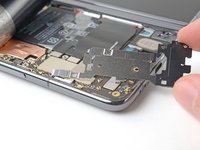
    • Use tweezers, or your fingers, to pull the middle bracket toward the left edge of the phone and release its clip.

    • Remove the middle bracket.

    • During reassembly, reinsert the middle bracket clip under its slot in the frame before aligning the screw holes.

  21. Top Bracket Removal, Disconnect the back glass cable: étape 21, image 1 de 2 Top Bracket Removal, Disconnect the back glass cable: étape 21, image 2 de 2
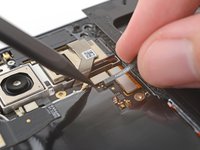
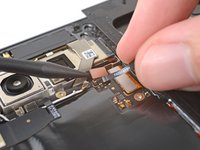
    • Use the point of a spudger to pry up and disconnect the back glass cable from the motherboard.

    • To re-attach press connectors like this one, carefully align and press down on one side until it clicks into place, then repeat on the other side. Don't press down in the middle. If the connector is misaligned, the pins can bend and cause permanent damage.

  22. Top Bracket Removal, Remove the back glass: étape 22, image 1 de 1
    • Remove the back glass.

  23. Top Bracket Removal, Reassembly information: étape 23, image 1 de 2 Top Bracket Removal, Reassembly information: étape 23, image 2 de 2
    Outil utilisé dans cette étape :
    Tesa 61395 Tape
    $8.95
    • During reassembly:

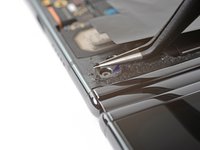
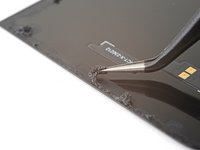
    • If you're reusing your back glass, use tweezers to remove big chunks of adhesive from the perimeter of the back glass.

    • Repeat for any adhesive on the frame.

    • Use isopropyl alcohol (>90%) and a lint-free cloth to remove any remaining adhesive residue.

    • Follow this guide to replace the back glass adhesive with custom cut strips.

    • If you don't have custom cut adhesive strips, use double-sided tape, like Tesa Tape, to secure the back glass to the frame.

  24. Top Bracket Removal, Reposition the graphite sheet: étape 24, image 1 de 3 Top Bracket Removal, Reposition the graphite sheet: étape 24, image 2 de 3 Top Bracket Removal, Reposition the graphite sheet: étape 24, image 3 de 3
    Outil utilisé dans cette étape :
    Tesa 61395 Tape
    $8.95
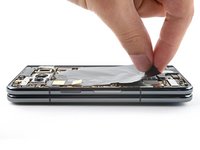
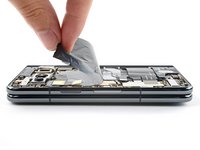
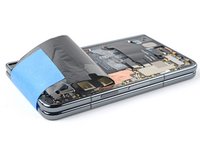
    • The graphite sheet is very fragile. Be gentle peeling the graphite sheet in this step, especially if you're reusing it.

    • The graphite sheet is lightly adhered to the logic board.

    • Peel the bottom of the graphite sheet toward the top of the phone until you can access the bottom bracket.

    • Use your hands, or tape with light adhesive, to keep the graphite sheet out of the way.

    • During reassembly:

    • If you completely removed your graphite sheet, follow this guide to replace it.

    • If you don't have custom cut adhesive strips for the antenna, use double-sided tape, like Tesa Tape, to secure the graphite sheet to the logic board.

  25. Top Bracket Removal, Remove the screw cover: étape 25, image 1 de 3 Top Bracket Removal, Remove the screw cover: étape 25, image 2 de 3 Top Bracket Removal, Remove the screw cover: étape 25, image 3 de 3
    Outil utilisé dans cette étape :
    Tweezers
    $4.99
  26. Top Bracket Removal, Unfasten the bottom bracket: étape 26, image 1 de 1
    • Use a Torx Plus 3IP driver to remove the five 3.1 mm‑long screws securing the bottom bracket.

  27. Top Bracket Removal, Remove the bottom bracket: étape 27, image 1 de 3 Top Bracket Removal, Remove the bottom bracket: étape 27, image 2 de 3 Top Bracket Removal, Remove the bottom bracket: étape 27, image 3 de 3
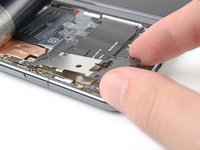
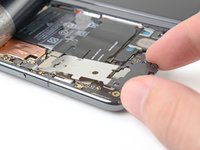
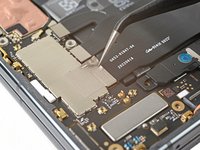
    • Use tweezers, or your fingers, to pull the bottom bracket toward the bottom edge of the phone and release its clip.

    • Remove the bottom bracket.

    • During reassembly, reinsert the bottom bracket clip under its slot in the logic board before aligning its screw holes.

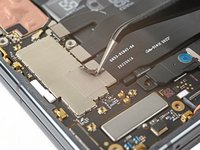
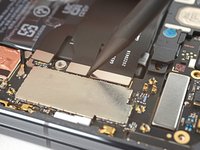
  28. Top Bracket Removal, Disconnect the base battery: étape 28, image 1 de 2 Top Bracket Removal, Disconnect the base battery: étape 28, image 2 de 2
    • There are two batteries you need to disconnect, one for each half of the phone.

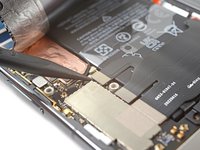
    • Use the point of a spudger to pry up and disconnect the base battery cable press connector.

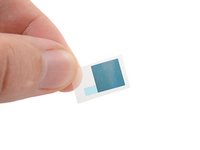
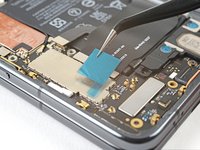
  29. Top Bracket Removal, Remove the tape: étape 29, image 1 de 2 Top Bracket Removal, Remove the tape: étape 29, image 2 de 2
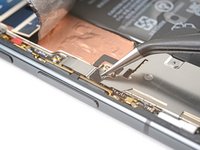
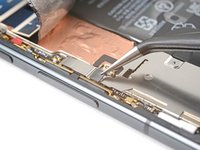
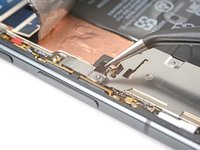
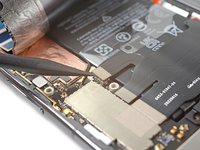
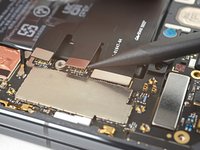
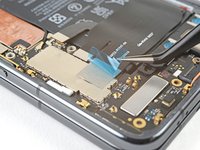
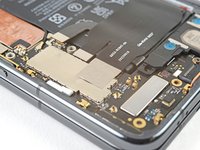
    • Peel the grey conductive tape off the bottom interconnect cable.

  30. Top Bracket Removal, Disconnect the flip battery: étape 30, image 1 de 3 Top Bracket Removal, Disconnect the flip battery: étape 30, image 2 de 3 Top Bracket Removal, Disconnect the flip battery: étape 30, image 3 de 3
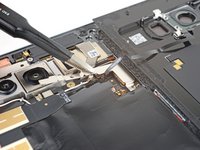
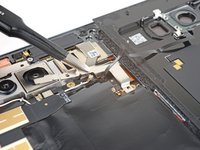
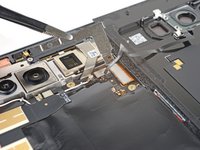
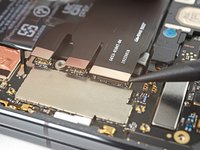
    • Use a point of a spudger to pry up and disconnect the flip battery and bottom interconnect press connectors.

    • You have to disconnect both cables to keep the battery connector from accidentally touching the logic board.

  31. Top Bracket Removal, Reassembly information: étape 31, image 1 de 3 Top Bracket Removal, Reassembly information: étape 31, image 2 de 3 Top Bracket Removal, Reassembly information: étape 31, image 3 de 3
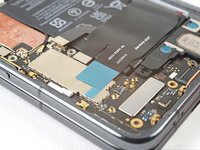
    • During reassembly, the next two steps demonstrate how to replace the flip battery and bottom interconnect cable conductive tape.

    • Peel off the new conductive tape from its liner and apply the sticky side to the bottom interconnect connector, making sure to bridge the logic board.

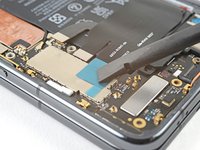
  32. Top Bracket Removal: étape 32, image 1 de 3 Top Bracket Removal: étape 32, image 2 de 3 Top Bracket Removal: étape 32, image 3 de 3
    • Use a spudger, or your fingers, to press down the conductive tape and adhere it.

    • Use tweezers, or your fingers, to pull on the tab and expose the tape.

  33. Top Bracket Removal, Unfasten the top bracket: étape 33, image 1 de 1
    • Use a Torx Plus 3IP screwdriver to remove the two 2.8 mm‑long screws securing the top bracket.

  34. Top Bracket Removal, Remove the top bracket: étape 34, image 1 de 3 Top Bracket Removal, Remove the top bracket: étape 34, image 2 de 3 Top Bracket Removal, Remove the top bracket: étape 34, image 3 de 3
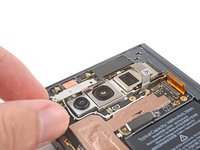
    • Pull the top bracket toward the left edge of the phone to release its clips.

    • Remove the top bracket.

    • During reassembly, insert the top bracket clips under their slots in the frame before aligning the screw holes.

Conclusion

To reassemble your device, follow these instructions in reverse order.

Alex Diaz-Kokaisl

Membre depuis le 01/16/22

218 415 Réputation

1 087 tutoriels rédigés

Équipe

iFixit Membre de l'équipe iFixit

Staff

125 membres

24 015 tutoriels rédigés

0 commentaires de tutoriel

Ajouter un commentaire

Nombre de vues :

Dernières 24 heures : 0

7 derniers jours : 1

30 derniers jours : 3

Total : 65