Wiki réalisé avec l'aide d'étudiants
Une formidable équipe d’étudiants de notre programme éducatif a créé ce wiki.
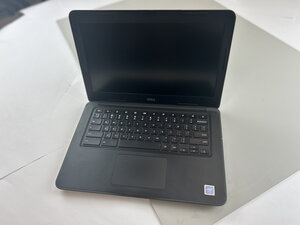
Si certaines touches de votre Dell Chromebook 13 3380 semblent coincées, répondent de façon irrégulière ou ne fonctionnent plus—particulièrement après un contact avec un liquide ou un choc physique—suivez cette page pour trouver des solutions.
Nappe de clavier desserrée ou endommagée
Une nappe desserrée ou endommagée reliant le clavier à la carte mère peut empêcher certaines touches de répondre.
Solution :
1. Éteignez le Chromebook et retirez le panneau inférieur.
2. Localisez la nappe plate sous le module clavier.
3. Déconnectez et rebranchez délicatement la nappe.
4. Si elle est endommagée, changez la nappe du clavier. Consultez les pages d’assistance officielles de Dell sur le « retrait / installation du clavier ».
Bloc clavier défectueux
Si plusieurs touches ou des rangées entières ne fonctionnent pas, le circuit interne du clavier est peut-être défectueux.
Solution :
Changez tout le bloc clavier en suivant le tutoriel de remplacement du clavier. Assurez-vous que la pièce de rechange correspond bien au numéro de modèle de votre Chromebook (13 3380).
Contamination par un liquide ou des débris
Des éclaboussures ou des débris peuvent obstruer les contacts des touches.
Solution :
1. Éteignez immédiatement le Chromebook et retirez la batterie (si elle est accessible).
2. Utilisez de l’air comprimé pour éliminer les débris sous les touches concernées.
3. En cas de liquide renversé, séchez complètement le clavier avant de tester.
4. Si des traces de corrosion ou de résidus collants subsistent, un remplacement est recommandé.

Équipe

Texas Tech, Team 46-2, Johansen Fall 2025 Membre de l'équipe Texas Tech, Team 46-2, Johansen Fall 2025
TTU-JOHANSEN-F25S46G2
4 membres
48 tutoriels rédigés

0 commentaires