Aller au contenu principal
Pour réparer ensemble - Je crée un compte

Google Pixel 5a Screen Adhesive Installation

Ce dont vous avez besoin

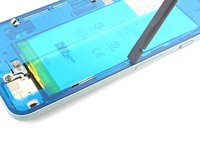
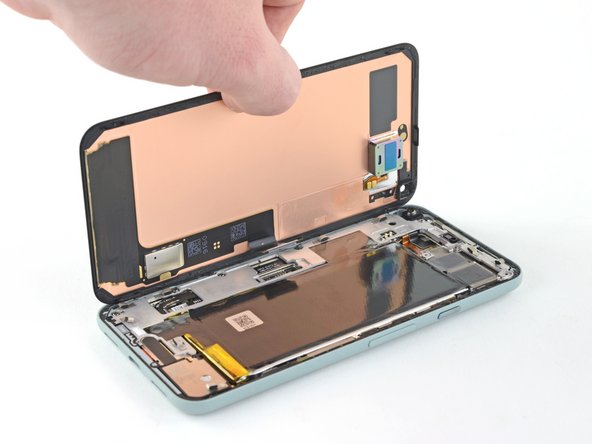
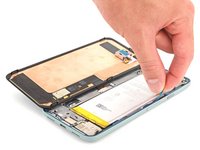
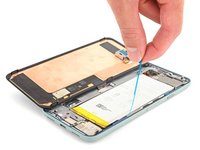
  1. Google Pixel 5a Screen Adhesive Installation, Remove adhesive residue from the frame: étape 1, image 1 de 3 Google Pixel 5a Screen Adhesive Installation, Remove adhesive residue from the frame: étape 1, image 2 de 3 Google Pixel 5a Screen Adhesive Installation, Remove adhesive residue from the frame: étape 1, image 3 de 3
    Outil utilisé dans cette étape :
    Tweezers
    $4.99
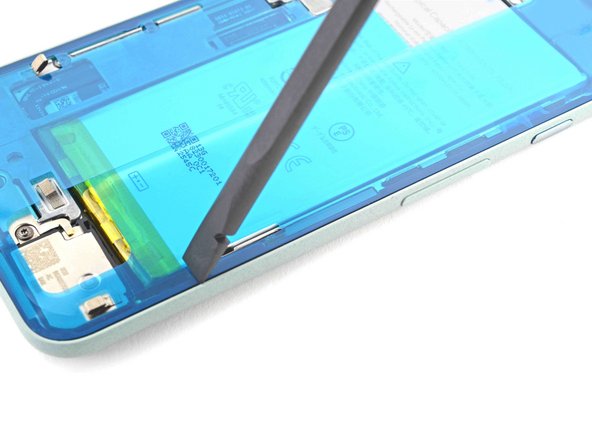
    • Peel off as much adhesive as you can with a pair of tweezers.

    • Use a spudger to scrape away any lingering adhesive.

    • Don't use metal tools to scrape away adhesive as this will damage the frame.

    • For best results, clean the area underneath the removed adhesive with 90% or greater isopropyl alcohol to prep the surface for the new adhesive.

    Demander à FixBot

    Ajouter un commentaire

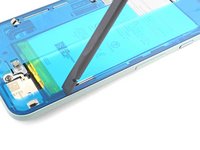
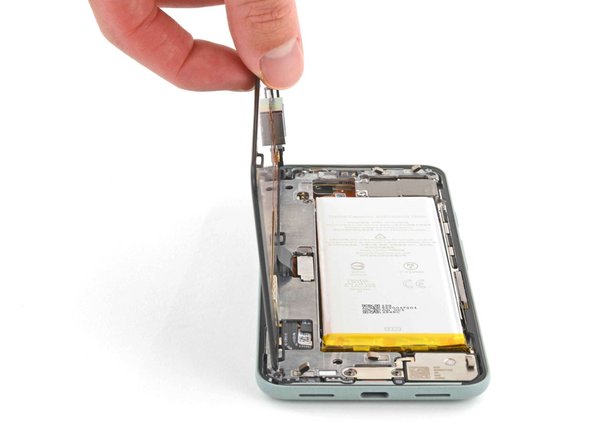
  2. Google Pixel 5a Screen Adhesive Installation, Remove adhesive residue from the screen: étape 2, image 1 de 3 Google Pixel 5a Screen Adhesive Installation, Remove adhesive residue from the screen: étape 2, image 2 de 3 Google Pixel 5a Screen Adhesive Installation, Remove adhesive residue from the screen: étape 2, image 3 de 3
    • Repeat the previous step for the screen adhesive.

    • Don't use metal tools to scrape away adhesive as this will damage the screen.

    • Don't use isopropyl alcohol near the front camera bracket as it will loosen its adhesive.

    Demander à FixBot

    Ajouter un commentaire

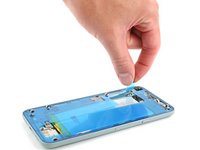
  3. Google Pixel 5a Screen Adhesive Installation, Align the adhesive: étape 3, image 1 de 1
    • Use the front camera and corners of the frame to correctly align the adhesive.

    Demander à FixBot

    Ajouter un commentaire

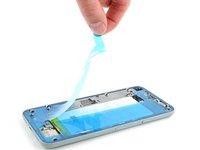
  4. Google Pixel 5a Screen Adhesive Installation, Prepare the adhesive: étape 4, image 1 de 1
    • Peel away the clear plastic lining to expose the frame side of the adhesive.

    Demander à FixBot

    Ajouter un commentaire

  5. Google Pixel 5a Screen Adhesive Installation, Apply the adhesive: étape 5, image 1 de 2 Google Pixel 5a Screen Adhesive Installation, Apply the adhesive: étape 5, image 2 de 2
    • Be very careful during this step! The adhesive is very sticky and can't be repositioned once it sticks. Misaligned adhesive can lead to an improper seal.

    • Lower the adhesive onto the frame.

    • Use the front camera and corners to help align the adhesive during installation.

    Demander à FixBot

    Ajouter un commentaire

  6. Google Pixel 5a Screen Adhesive Installation, Secure the adhesive to the frame: étape 6, image 1 de 2 Google Pixel 5a Screen Adhesive Installation, Secure the adhesive to the frame: étape 6, image 2 de 2
    • Use the flat end of a spudger or your fingernail to press down on the adhesive.

    • Slide along the perimeter to secure the adhesive to the frame.

    Demander à FixBot

    Ajouter un commentaire

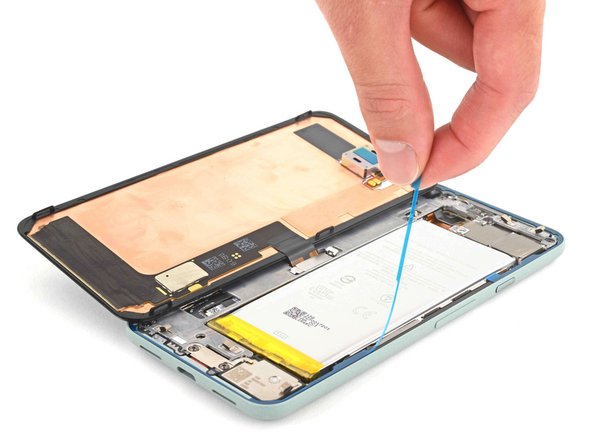
  7. Google Pixel 5a Screen Adhesive Installation, Peel away the outer plastic lining: étape 7, image 1 de 2 Google Pixel 5a Screen Adhesive Installation, Peel away the outer plastic lining: étape 7, image 2 de 2
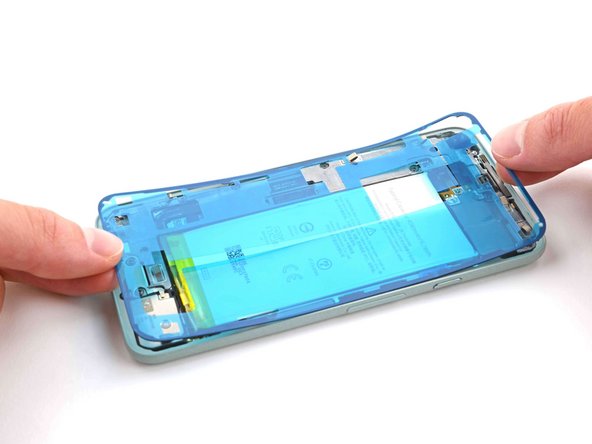
    • Use your fingers to grasp the blue plastic lining near the center and peel it away from the phone.

    • This should leave a thin perimeter of adhesive still covered by blue plastic lining.

    Demander à FixBot

    Ajouter un commentaire

  8. Google Pixel 5a Screen Adhesive Installation, Connect the screen: étape 8, image 1 de 2 Google Pixel 5a Screen Adhesive Installation, Connect the screen: étape 8, image 2 de 2
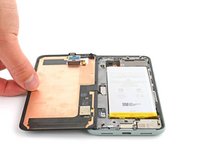
    • Follow the screen replacement guide in reverse order and connect the screen to your pixel.

    • Remember to reinstall the screen connector bracket.

    • If you replaced the screen, check the screen's front-facing camera hole and remove any protective liners covering it.

    Demander à FixBot

    Ajouter un commentaire

  9. Google Pixel 5a Screen Adhesive Installation, Peel away the remaining plastic lining: étape 9, image 1 de 2 Google Pixel 5a Screen Adhesive Installation, Peel away the remaining plastic lining: étape 9, image 2 de 2
    • Peel away the blue plastic lining to expose the perimeter adhesive.

    Demander à FixBot

    Ajouter un commentaire

  10. Google Pixel 5a Screen Adhesive Installation, Position the screen: étape 10, image 1 de 3 Google Pixel 5a Screen Adhesive Installation, Position the screen: étape 10, image 2 de 3 Google Pixel 5a Screen Adhesive Installation, Position the screen: étape 10, image 3 de 3
    • Position the screen so it lays on the frame.

    Demander à FixBot

    Ajouter un commentaire

  11. Google Pixel 5a Screen Adhesive Installation, Press down the screen corners: étape 11, image 1 de 2 Google Pixel 5a Screen Adhesive Installation, Press down the screen corners: étape 11, image 2 de 2
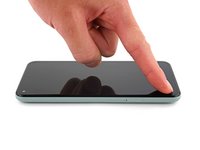
    • Press down the corners of the screen to secure them to the frame.

    Demander à FixBot

    Ajouter un commentaire

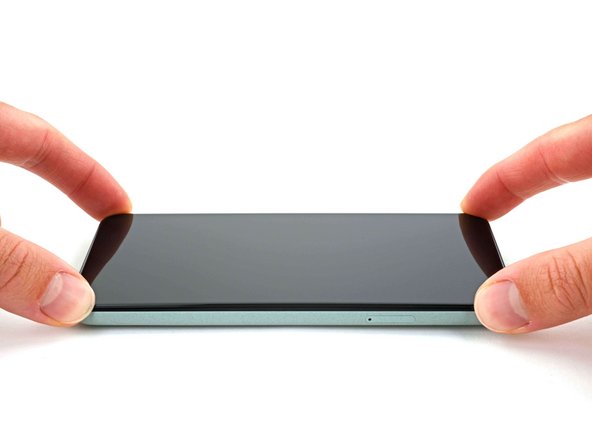
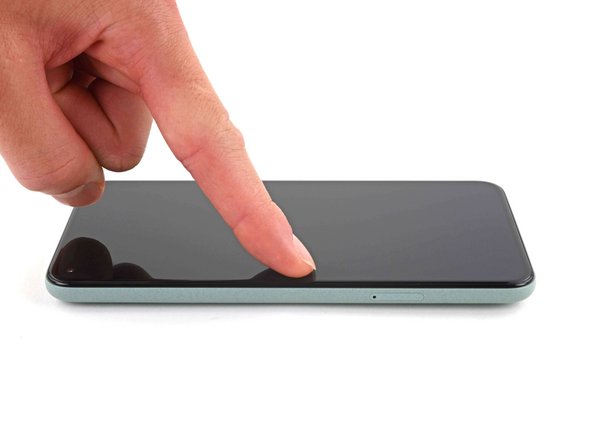
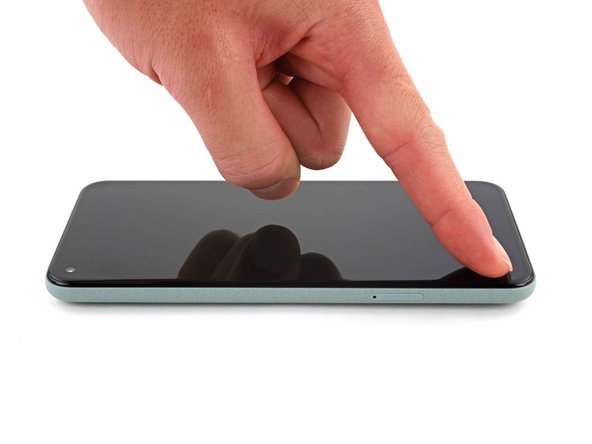
  12. Google Pixel 5a Screen Adhesive Installation, Secure the screen to the frame: étape 12, image 1 de 3 Google Pixel 5a Screen Adhesive Installation, Secure the screen to the frame: étape 12, image 2 de 3 Google Pixel 5a Screen Adhesive Installation, Secure the screen to the frame: étape 12, image 3 de 3
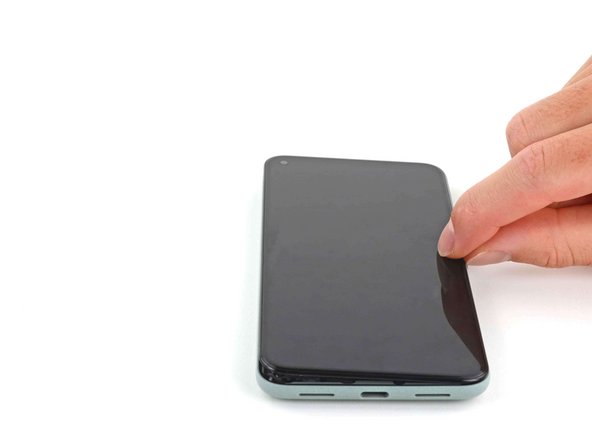
    • Press down on the edges of the screen.

    • Slide along the perimeter to secure it to the frame.

    • You can heat the perimeter of the screen to soften the adhesive and help it bond more securely.

    Demander à FixBot

    Ajouter un commentaire

Conclusion

Repair didn’t go as planned? Try some basic troubleshooting, or ask our Pixel 5a Answers community for help.

Annulation : je n'ai pas terminé ce tutoriel.

19 autres ont terminé cette réparation.

Chayton Ritter

Membre depuis le 08/21/20

26 809 Réputation

105 tutoriels rédigés

Équipe

Guide Team Membre de l'équipe Guide Team

Staff

10 membres

17 854 tutoriels rédigés

5 commentaires de tutoriel

Pretty easy. Maybe 20 mins job. Nice guide.

Toby Phillippe - Réponse Partager
What is the stack of books for?

ccc - Réponse Partager
Hey there!

Usually you would place a stack of books or 2L+ bottle of water on top of the device to apply extra force to the adhesive and leave it for some time, like 30-60 minutes. That would ensure better adhesion for the replacement screen. It is not necessary nowadays, but it's an old-school style way of gluing things together and seasoned repair techs still place something heavy on top of the device when replacing glued-in components

Nastya Grifon - Réponse Partager

Excellent instructions. I was able to get through this no problem.

Chrystian - Réponse Partager

Bought the kit and followed this guide, worked perfectly. Thanks Ifixit for helping me fix my phone.

David Helton - Réponse Partager

Ajouter un commentaire

Nombre de vues :

Dernières 24 heures : 1

7 derniers jours : 15

30 derniers jours : 68

Total : 8,431