Aller au contenu principal
Pour réparer ensemble - Je crée un compte

Lenovo ThinkPad T460 RAM Replacement

Ce dont vous avez besoin

  1. Lenovo ThinkPad T460 RAM Replacement, External Battery: étape 1, image 1 de 3 Lenovo ThinkPad T460 RAM Replacement, External Battery: étape 1, image 2 de 3 Lenovo ThinkPad T460 RAM Replacement, External Battery: étape 1, image 3 de 3
    • Before you begin this guide, make sure to disable the internal battery, power down your device, and disconnect from any external power sources.

    • Place the laptop so that the bottom is facing upwards.

    • Slide the latch on the left side of the battery to the left until it clicks in place.

    Demander à FixBot

    Ajouter un commentaire

  2. Lenovo ThinkPad T460 RAM Replacement: étape 2, image 1 de 3 Lenovo ThinkPad T460 RAM Replacement: étape 2, image 2 de 3 Lenovo ThinkPad T460 RAM Replacement: étape 2, image 3 de 3
    • Slide the latch on the right side of the battery to the right and hold it in place with your thumb.

    • Use your other hand to slide the battery towards the back of the laptop.

    • Lift the battery up and away from the laptop.

    Demander à FixBot

    Ajouter un commentaire

  3. Lenovo ThinkPad T460 RAM Replacement, Bottom Cover: étape 3, image 1 de 2 Lenovo ThinkPad T460 RAM Replacement, Bottom Cover: étape 3, image 2 de 2
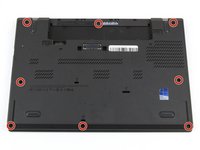
    • Loosen the eight captive screws in the bottom cover using a Phillips #1 screwdriver.

    Demander à FixBot

    Ajouter un commentaire

  4. Lenovo ThinkPad T460 RAM Replacement: étape 4, image 1 de 3 Lenovo ThinkPad T460 RAM Replacement: étape 4, image 2 de 3 Lenovo ThinkPad T460 RAM Replacement: étape 4, image 3 de 3
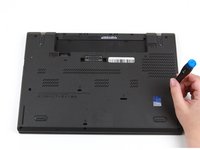
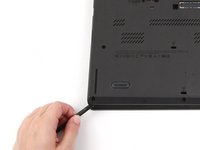
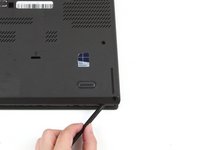
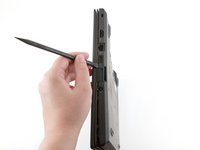
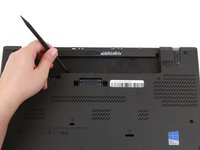
    • Insert the flat end of a spudger in between the bottom cover and the rest of the laptop, starting in the lower left corner.

    • Pry the lower left corner of the bottom cover up by a few millimeters.

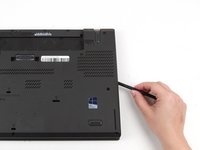
    • Slide the spudger along the bottom of the laptop to release the clips until you reach the lower right corner.

    • You may hear some snapping noises as the clips are released.

    Demander à FixBot

    Ajouter un commentaire

  5. Lenovo ThinkPad T460 RAM Replacement: étape 5, image 1 de 2 Lenovo ThinkPad T460 RAM Replacement: étape 5, image 2 de 2
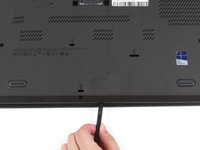
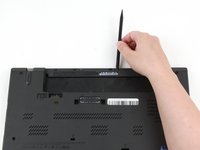
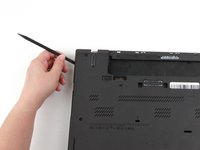
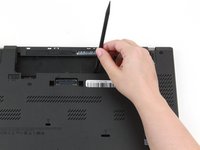
    • Slide the spudger along the right and top sides of the bottom cover to release the clips.

    • You may hear some snapping noises as the clips are released.

    • Potential for device damage: If the clips do not release easily, check to ensure that the captive screws are fully loosened. Forcing the clips to detach can crack the bottom cover.

    Demander à FixBot

    Ajouter un commentaire

  6. Lenovo ThinkPad T460 RAM Replacement: étape 6, image 1 de 2 Lenovo ThinkPad T460 RAM Replacement: étape 6, image 2 de 2
    • Use the spudger to pry the upper left corner up by a few millimeters.

    • Pry up the sections of the bottom cover with printed logos of the ports.

    • Potential for device damage: Prying inside the ports themselves can damage your laptop. Be sure to only pry up on the sections of the cover that extend past the ports.

    Demander à FixBot

    Ajouter un commentaire

  7. Lenovo ThinkPad T460 RAM Replacement: étape 7, image 1 de 2 Lenovo ThinkPad T460 RAM Replacement: étape 7, image 2 de 2
    • Use the spudger to pry up the bottom cover in the lower portion of the external battery compartment by a few millimeters.

    Demander à FixBot

    Ajouter un commentaire

  8. Lenovo ThinkPad T460 RAM Replacement: étape 8, image 1 de 3 Lenovo ThinkPad T460 RAM Replacement: étape 8, image 2 de 3 Lenovo ThinkPad T460 RAM Replacement: étape 8, image 3 de 3
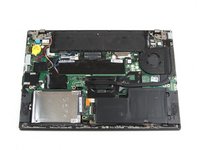
    • Use both hands to lift the bottom cover up and away from the laptop.

    Demander à FixBot

    Ajouter un commentaire

  9. Lenovo ThinkPad T460 RAM Replacement, RAM: étape 9, image 1 de 2 Lenovo ThinkPad T460 RAM Replacement, RAM: étape 9, image 2 de 2
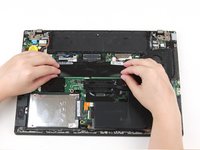
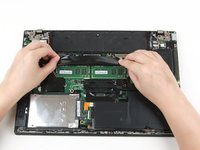
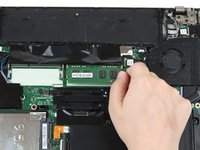
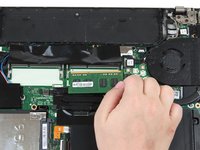
    • Use your fingers to lift up the black flap covering the RAM.

    Demander à FixBot

    Ajouter un commentaire

  10. Lenovo ThinkPad T460 RAM Replacement: étape 10, image 1 de 2 Lenovo ThinkPad T460 RAM Replacement: étape 10, image 2 de 2
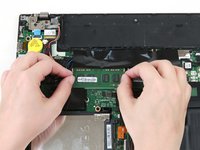
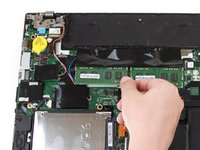
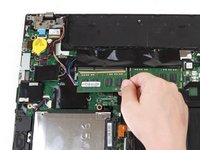
    • Use your fingers to push the metal clips on either end of the first RAM stick outwards.

    • The RAM stick will pop up by a few millimeters.

    Demander à FixBot

    Ajouter un commentaire

  11. Lenovo ThinkPad T460 RAM Replacement: étape 11, image 1 de 2 Lenovo ThinkPad T460 RAM Replacement: étape 11, image 2 de 2
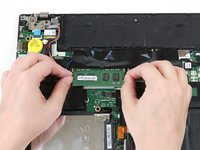
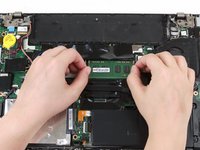
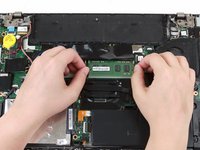
    • Use your fingers to lift the RAM out of its socket and away from the laptop to remove it.

    Demander à FixBot

    Ajouter un commentaire

  12. Lenovo ThinkPad T460 RAM Replacement: étape 12, image 1 de 2 Lenovo ThinkPad T460 RAM Replacement: étape 12, image 2 de 2
    • Use your fingers to push the metal clips on either end of the second RAM stick outwards.

    • The RAM stick will pop up by a few millimeters.

    Demander à FixBot

    Ajouter un commentaire

  13. Lenovo ThinkPad T460 RAM Replacement: étape 13, image 1 de 2 Lenovo ThinkPad T460 RAM Replacement: étape 13, image 2 de 2
    • Use your fingers to lift the RAM out of its socket and away from the laptop to remove it.

    Demander à FixBot

    Ajouter un commentaire

Conclusion

To reassemble your device, follow these instructions in reverse order.

Take your e-waste to an R2 or e-Stewards certified recycler.

Repair didn’t go as planned? Try some basic troubleshooting, or ask our Answers community for help.

Annulation : je n'ai pas terminé ce tutoriel.

3 autres ont terminé cette réparation.

Kristen Gismondi

Membre depuis le 11/12/14

107 206 Réputation

270 tutoriels rédigés

Équipe

iFixit Membre de l'équipe iFixit

Staff

122 membres

25 947 tutoriels rédigés

2 commentaires de tutoriel

NICE CLEAR STEPS . THANKS. Only one user platform conversation mentioned that, of the 2 Ram locations , one is soldered and the other is free to upgrade. Until I read this, I wondered if I could update using both RAM slots . It would be good to add this info . Thanks Again

Bill

Bill Cino - Réponse Partager
Just looked at the DEPTH of fixes that you have illustrated. WOW

Bill Cino - Réponse Partager
Ajouter un commentaire

Nombre de vues :

Dernières 24 heures : 5

7 derniers jours : 47

30 derniers jours : 194

Total : 17,266