Cette traduction a été générée automatiquement et n’a pas encore fait l’objet d’une relecture humaine. Vous parlez cette langue ? Relisez-la.
Introduction
Suivez ce tutoriel pour remplacer une batterie HS ou défectueuse dans votre souris sans fil MX Ergo Plus.
Il est naturel que les batteries perdent de leur capacité avec le temps. Si votre souris s'éteint rapidement et ne tient plus la charge, il est peut-être temps de remplacer la batterie.
Par mesure de sécurité, effectuez cette réparation lorsque la charge de votre batterie est inférieure à 15 %. Toute batterie lithium-ion chargée peut être dangereuse si elle est perforée ou endommagée. Si votre batterie semble gonflée ou déformée, prenez les précautions appropriées.
Ce dont vous avez besoin
-
-
-
Faites glisser le bouton de marche de la souris vers le bas pour le mettre en position OFF.
-
Débranchez tous les câbles de la souris.
 Demander à FixBot
-
-
-
-
-
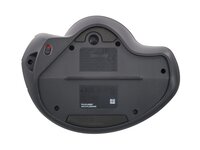
Retirez le cache magnétique en le décollant de la partie inférieure de votre souris.
-
-
-
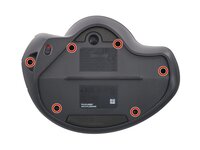
Utilisez un tournevis Torx T6 pour retirer les six vis de 5,7 mm de long qui fixent les deux moitiés de la souris.
-
-
-
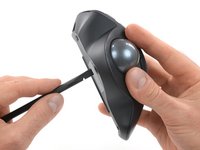
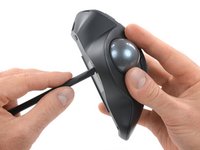
Insérez une spatule (spudger) dans l'orifice en bas de la souris, sous le trackball.
-
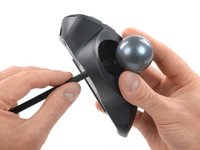
Utilisez la spatule pour pousser le trackball hors de son logement.
-
Retirez le trackball.
-
-
-
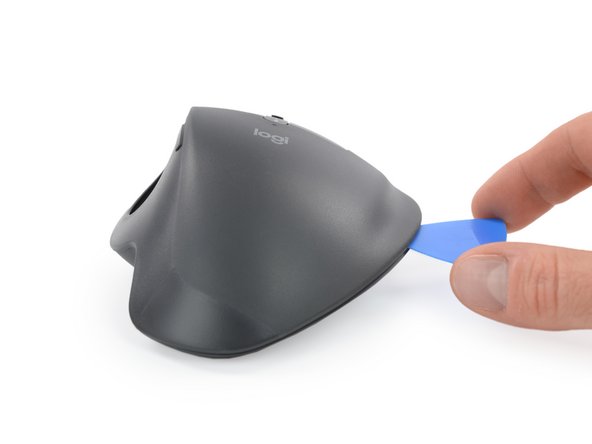
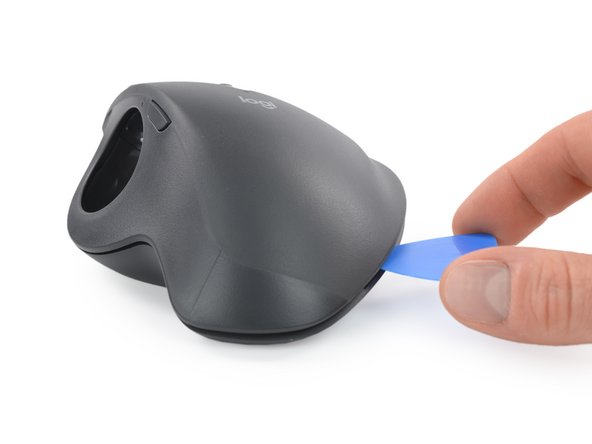
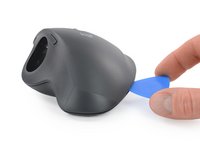
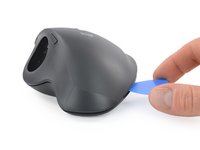
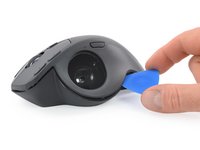
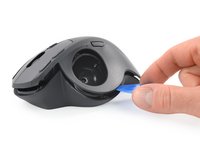
Insérez la pointe d'un médiator dans la jointure entre les deux moitiés, vers le milieu du bord droit.
-
Faites pivoter le médiator pour détacher le clip en plastique.
-
-
-
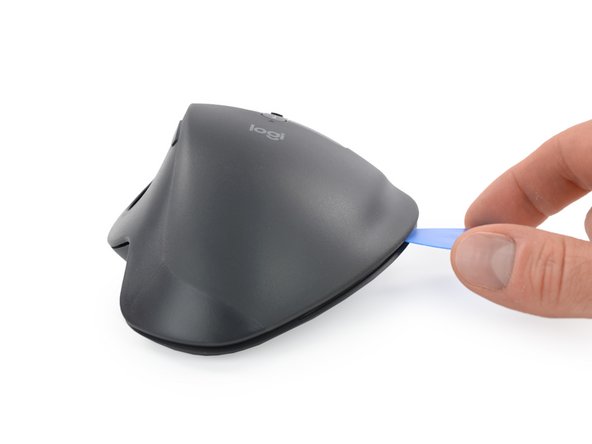
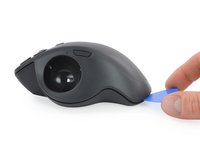
Faites glisser le médiator le long de la jointure jusqu'à environ la moitié de la partie arrière de la souris.
-
Faites pivoter le médiator pour détacher le clip en plastique.
-
-
-
-
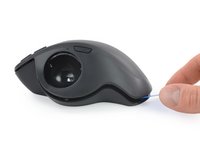
Faites glisser le médiator jusqu'au dos de la souris.
-
Faites pivoter le médiator pour détacher le clip en plastique.
-
-
-
Faites glisser le médiator vers le milieu du bord gauche, à côté du logement du trackball.
-
Faites pivoter le médiator pour détacher le clip en plastique.
-
-
-
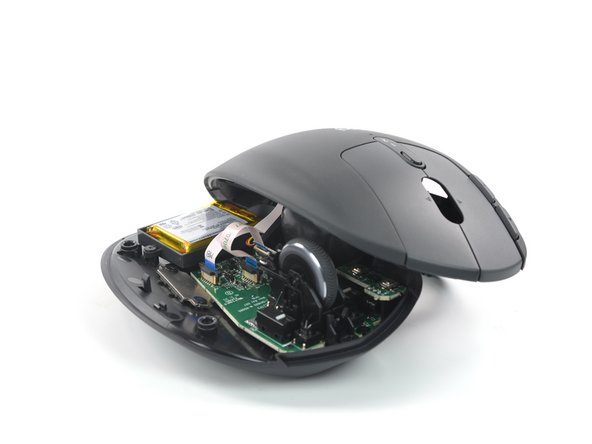
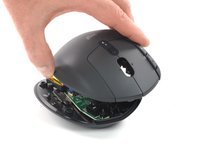
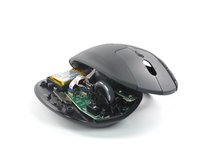
Soulevez délicatement la moitié supérieure et placez-la à gauche de la souris, afin de pouvoir accéder aux composants internes.
-
-
-
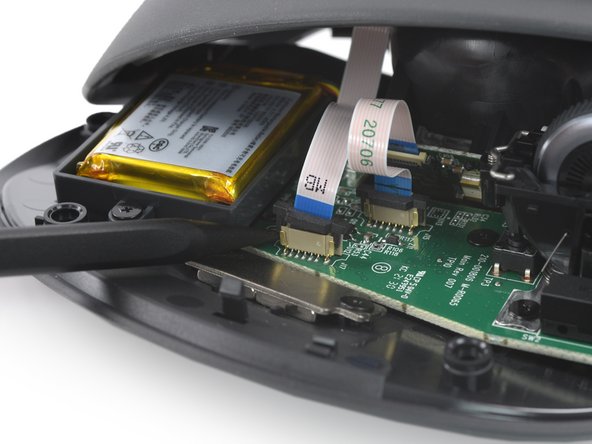
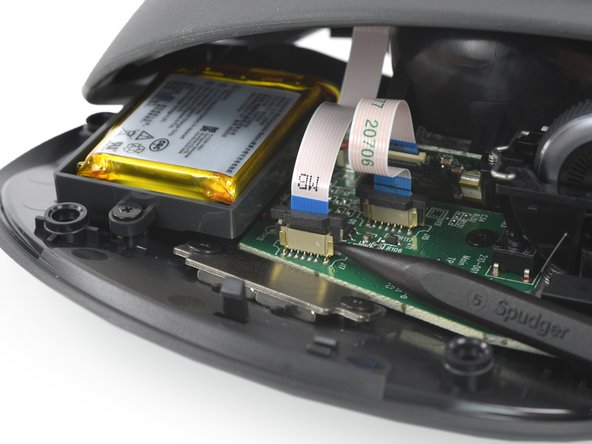
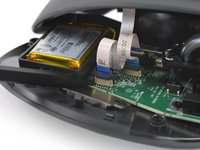
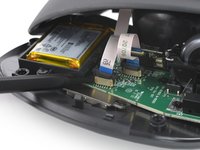
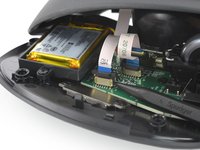
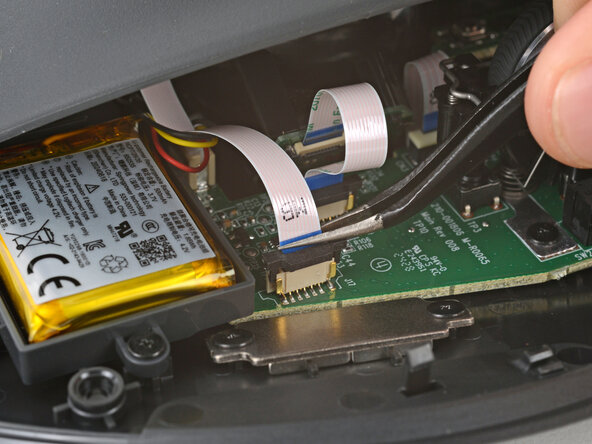
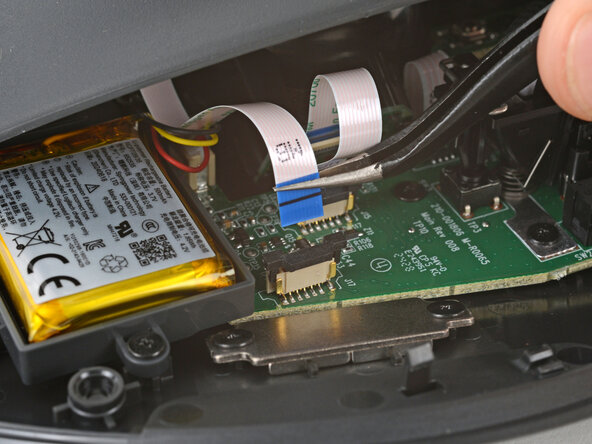
Utilisez la pointe d'une spatule pour soulever délicatement et alternativement les côtés du loquet coulissant noir de la prise de la nappe d'interconnexion.
-
-
-
Utilisez une pincette ou vos doigts pour retirer la nappe d'interconnexion en la tirant vers le haut et hors de sa prise.
-
-
-
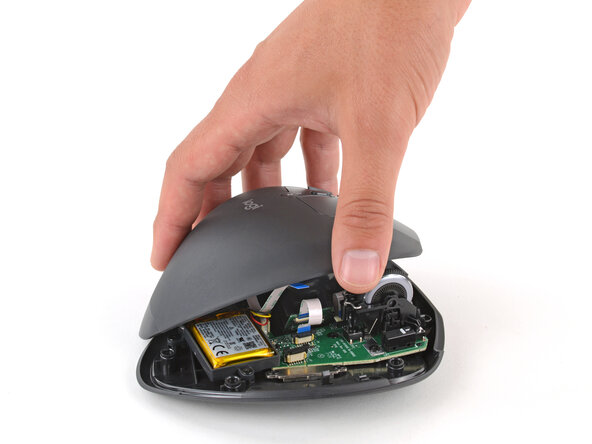
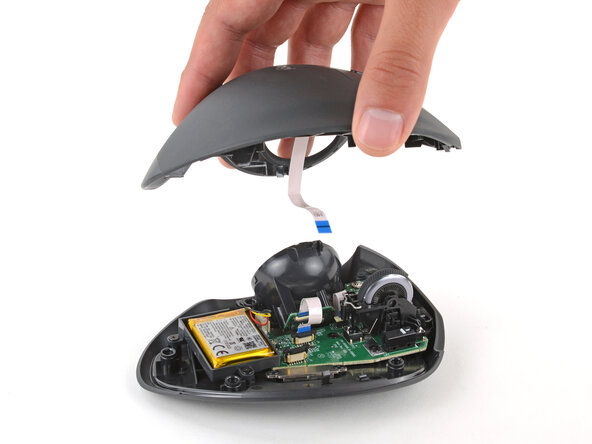
Soulevez la moitié supérieure de la souris vers le haut et retirez-la.
-
-
-
-
-
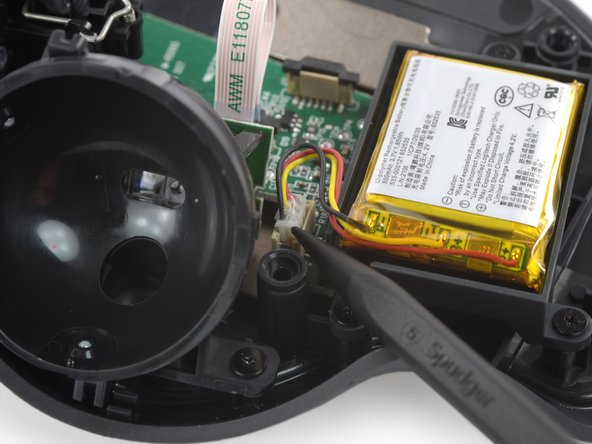
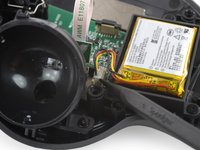
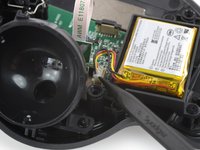
Utilisez l'extrémité pointue d'une spatule pour soulever le connecteur de batterie et le déloger de sa prise.
-
-
-
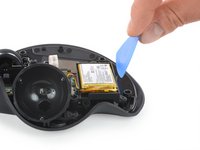
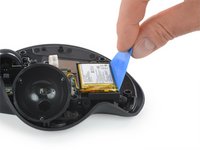
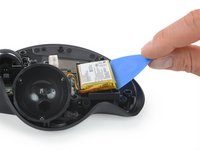
Insérez le bord long d'un médiator entre le bord long de la batterie et son compartiment, du côté opposé au câble de la batterie.
-
Utilisez votre médiator pour soulever et décoller la batterie. Appliquez une force régulière et constante, et enfoncez le médiator davantage sous la batterie si nécessaire.
-
-
-
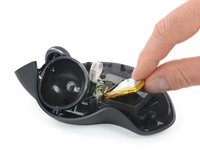
Utilisez vos doigts pour retirer la batterie de son compartiment.
-
-
Outil utilisé dans cette étape :Tesa 61395 Tape$2.95
-
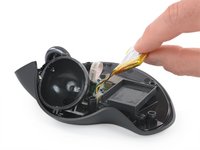
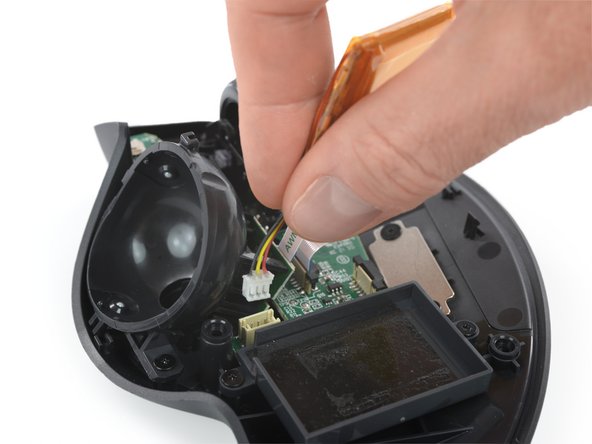
Utilisez vos doigts pour saisir les câbles de la batterie aussi près que possible du connecteur et tirez le connecteur vers le haut, pour le retirer de sa prise.
-
Retirez la batterie.
-
Si l'adhésif de la batterie est encore collant, vous pouvez le réutiliser. Dans le cas contraire, nettoyez tout l'ancien adhésif de la batterie.
-
Si votre nouvelle batterie est dotée d'un adhésif préinstallé, enlevez le film plastique pour découvrir l'adhésif. Sinon, appliquez des bandes de ruban adhésif double-face fin dans le compartiment de la batterie (et non directement sur la batterie), là où se trouvait l'ancien adhésif.
-
Appuyez fermement dessus pour la mettre en place, en veillant à ce que les câbles soient du côté de leur prise.
-
-


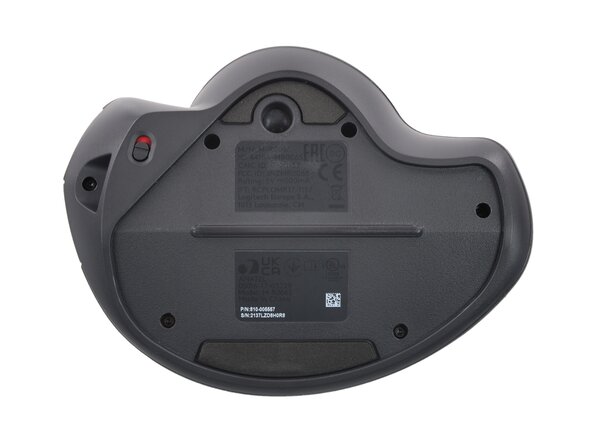

















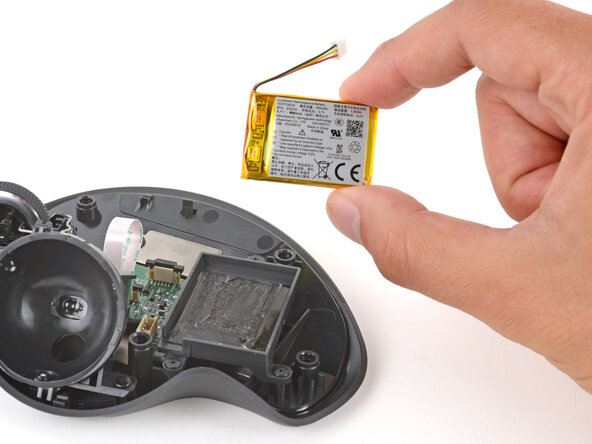

Comparez votre nouvelle pièce de rechange avec la pièce d'origine — vous devrez peut-être transférer les composants restants ou retirer les adhésifs de la nouvelle pièce avant de l'installer.
Pour remonter votre appareil, suivez ces instructions en sens inverse.
Votre réparation ne s’est pas déroulée comme prévu ? Consultez nos conseils basiques de diagnostic ou notre Forum pour obtenir de l’aide.
Réutilisez ou recyclez — Ne jetez jamais vos composants électroniques usagés avec les déchets ménagers. Visitez Logitech Recycling pour trouver les points de collecte les plus proches, y compris l'option de renvoyer gratuitement vos anciens appareils à Logitech si aucune solution pratique n'existe près de chez vous. Vous pouvez également déposer vos e-déchets auprès de tout recycleur certifié R2 ou e-Stewards. Ne laissez pas les pièces encore en état de marche ou les appareils réparés finir dans un tiroir — donnez-les à quelqu'un qui pourra s'en servir.
Partagez votre expérience — Laissez un commentaire ici ou envoyez vos retours directement à Logitech à l'adresse repair@logitech.com pour aider à améliorer les futurs tutoriels de réparation et la conception des produits.

