Aller au contenu principal
Pour réparer ensemble - Je crée un compte

Google Pixel 10 Pro Fold Outer Screen Replacement

Ce dont vous avez besoin

  1. Google Pixel 10 Pro Fold Outer Screen Replacement, Prepare your phone for disassembly: étape 1, image 1 de 1
    • Let your phone's battery drain below 25% before starting this repair. A charged lithium‑ion battery may catch fire if damaged.

    • Unplug all cables from your phone and completely power it down.

    Demander à FixBot

    Ajouter un commentaire

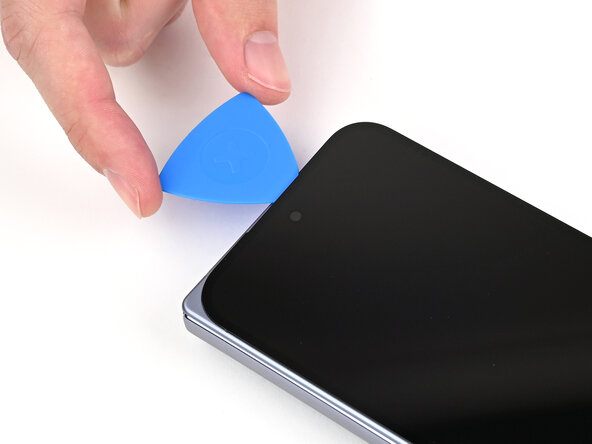
  2. Google Pixel 10 Pro Fold Outer Screen Replacement, Insert an opening pick: étape 2, image 1 de 3 Google Pixel 10 Pro Fold Outer Screen Replacement, Insert an opening pick: étape 2, image 2 de 3 Google Pixel 10 Pro Fold Outer Screen Replacement, Insert an opening pick: étape 2, image 3 de 3
    • Apply a suction cup to the screen, as close to the center of the bottom edge as possible.

    • Pull up on the suction cup with strong, steady force to create a gap between the screen and the frame.

    • Insert an opening pick into the gap.

    • If your screen is badly cracked, covering it with a layer of clear packing tape may allow the suction cup to adhere. Alternatively, very strong tape may be used instead of the suction cup. If all else fails, you can superglue the suction cup to the screen.

    Demander à FixBot

    Ajouter un commentaire

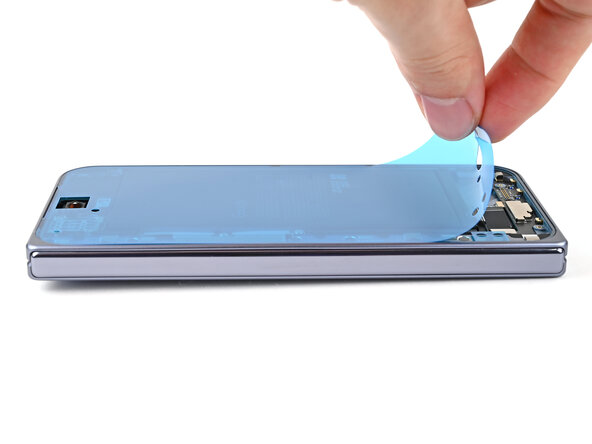
  3. Google Pixel 10 Pro Fold Outer Screen Replacement, Separate the adhesive: étape 3, image 1 de 3 Google Pixel 10 Pro Fold Outer Screen Replacement, Separate the adhesive: étape 3, image 2 de 3 Google Pixel 10 Pro Fold Outer Screen Replacement, Separate the adhesive: étape 3, image 3 de 3
    • During the next three steps, don't insert your opening pick deeper than 3 mm to prevent damaging internal components.

    • Optionally, you can measure and mark your opening pick at 3 mm to help you visualize the length.

    • Slide the opening pick around the bottom right corner and up the right edge of the screen to separate the adhesive.

    Demander à FixBot

    Ajouter un commentaire

  4. Google Pixel 10 Pro Fold Outer Screen Replacement: étape 4, image 1 de 3 Google Pixel 10 Pro Fold Outer Screen Replacement: étape 4, image 2 de 3 Google Pixel 10 Pro Fold Outer Screen Replacement: étape 4, image 3 de 3
    • Slide the pick around the top right corner and along the top edge of the screen.

    Demander à FixBot

    Ajouter un commentaire

  5. Google Pixel 10 Pro Fold Outer Screen Replacement: étape 5, image 1 de 3 Google Pixel 10 Pro Fold Outer Screen Replacement: étape 5, image 2 de 3 Google Pixel 10 Pro Fold Outer Screen Replacement: étape 5, image 3 de 3
    • Slide your pick down the left edge and around the bottom left corner to separate the remaining adhesive.

    Demander à FixBot

    Ajouter un commentaire

  6. Google Pixel 10 Pro Fold Outer Screen Replacement: étape 6, image 1 de 3 Google Pixel 10 Pro Fold Outer Screen Replacement: étape 6, image 2 de 3 Google Pixel 10 Pro Fold Outer Screen Replacement: étape 6, image 3 de 3
    • Don't fully remove the screen yet, as it's still connected to the phone by a cable.

    • At this point, the screen should be free from the frame. If there's still resistance around the edges, use an opening pick to separate any remaining adhesive.

    • Lift the left edge of the screen and swing it over the right edge of the phone, like opening a book.

    • Prop up the screen with your suction handle or a clean, sturdy object.

    Demander à FixBot

    Ajouter un commentaire

  7. Google Pixel 10 Pro Fold Outer Screen Replacement, Remove the display cable bracket screws: étape 7, image 1 de 2 Google Pixel 10 Pro Fold Outer Screen Replacement, Remove the display cable bracket screws: étape 7, image 2 de 2
    Outil utilisé dans cette étape :
    FixMat
    $31.41
    • Throughout this repair, keep track of each screw and make sure it goes back exactly where it came from.

    • While the Pixel 10 Pro Fold uses Torx Plus screws, standard Torx bits also work. Use the same size or one size larger (T3 or T4 Torx bits with 3IP Torx Plus screws) and apply constant, downward force to prevent stripping.

    • Use a Torx Plus 3IP driver to remove the three screws securing the display cable bracket:

    • One 1.8 mm‑long screw

    • Two 2.5 mm‑long screws

    Demander à FixBot

    Ajouter un commentaire

  8. Google Pixel 10 Pro Fold Outer Screen Replacement, Remove the display bracket: étape 8, image 1 de 3 Google Pixel 10 Pro Fold Outer Screen Replacement, Remove the display bracket: étape 8, image 2 de 3 Google Pixel 10 Pro Fold Outer Screen Replacement, Remove the display bracket: étape 8, image 3 de 3
    • Use the point of a spudger to pry up the display bracket and release its clip from the bottom edge of the frame.

    • Remove the display bracket.

    Demander à FixBot

    Ajouter un commentaire

  9. Google Pixel 10 Pro Fold Outer Screen Replacement, Disconnect the screen: étape 9, image 1 de 2 Google Pixel 10 Pro Fold Outer Screen Replacement, Disconnect the screen: étape 9, image 2 de 2
    • When disconnecting press connectors, pry only at the gold outlines on the logic board.

    • Don't insert your spudger anywhere else, as you risk dislodging surface‑mounted components.

    • Use the point of a spudger to pry up the display cable press connector.

    Demander à FixBot

    Ajouter un commentaire

  10. Google Pixel 10 Pro Fold Outer Screen Replacement, Remove the screen: étape 10, image 1 de 1
    • Lift the screen off the frame and remove it.

    Demander à FixBot

    Ajouter un commentaire

  11. Google Pixel 10 Pro Fold Outer Screen Replacement, End of disassembly: étape 11, image 1 de 1
    • Congratulations on completing disassembly! The remaining steps will show you how to reassemble your device.

    Demander à FixBot

    Ajouter un commentaire

  12. Google Pixel 10 Pro Fold Outer Screen Replacement, Remove the old adhesive: étape 12, image 1 de 3 Google Pixel 10 Pro Fold Outer Screen Replacement, Remove the old adhesive: étape 12, image 2 de 3 Google Pixel 10 Pro Fold Outer Screen Replacement, Remove the old adhesive: étape 12, image 3 de 3
    • Use a spudger, or your fingers, to remove the old outer screen adhesive on the frame.

    • Use isopropyl alcohol (>90%) and a coffee filter or a microfiber cloth to remove any adhesive residue.

    • If your new outer screen has a liner covering the front camera cutout, remove it now.

    • If your new outer screen comes with pre-installed adhesive, skip here. Otherwise, follow the guide normally to install new adhesive.

    Demander à FixBot

    Ajouter un commentaire

  13. Google Pixel 10 Pro Fold Outer Screen Replacement, Compare your new adhesive: étape 13, image 1 de 2 Google Pixel 10 Pro Fold Outer Screen Replacement, Compare your new adhesive: étape 13, image 2 de 2
    • Before removing any liners, check if the outer screen adhesive matches the frame.

    • The clear liner should face the frame.

    Demander à FixBot

    Ajouter un commentaire

  14. Google Pixel 10 Pro Fold Outer Screen Replacement, Apply the new adhesive: étape 14, image 1 de 2 Google Pixel 10 Pro Fold Outer Screen Replacement, Apply the new adhesive: étape 14, image 2 de 2
    • Peel away the top half of the new adhesive strip from its clear liner and keep the liner folded before continuing.

    Demander à FixBot

    Ajouter un commentaire

  15. Google Pixel 10 Pro Fold Outer Screen Replacement: étape 15, image 1 de 2 Google Pixel 10 Pro Fold Outer Screen Replacement: étape 15, image 2 de 2
    • Be careful during this step, as it's easy to stick the adhesive in the wrong spot. Take your time and work slowly.

    • Align the top half of the adhesive over the frame, using the corners as reference points.

    • Place the adhesive on the frame.

    Demander à FixBot

    Ajouter un commentaire

  16. Google Pixel 10 Pro Fold Outer Screen Replacement: étape 16, image 1 de 3 Google Pixel 10 Pro Fold Outer Screen Replacement: étape 16, image 2 de 3 Google Pixel 10 Pro Fold Outer Screen Replacement: étape 16, image 3 de 3
    • Use the flat end of a spudger, or your fingers, to press down the top edge of the adhesive and adhere it to the frame.

    Demander à FixBot

    Ajouter un commentaire

  17. Google Pixel 10 Pro Fold Outer Screen Replacement: étape 17, image 1 de 3 Google Pixel 10 Pro Fold Outer Screen Replacement: étape 17, image 2 de 3 Google Pixel 10 Pro Fold Outer Screen Replacement: étape 17, image 3 de 3
    • While peeling away the rest of the clear liner, slowly lay the adhesive over the perimeter of the phone.

    Demander à FixBot

    Ajouter un commentaire

  18. Google Pixel 10 Pro Fold Outer Screen Replacement: étape 18, image 1 de 2 Google Pixel 10 Pro Fold Outer Screen Replacement: étape 18, image 2 de 2
    • Use the flat end of a spudger, or your fingers, to press down the rest of the adhesive and adhere it to the frame.

    Demander à FixBot

    Ajouter un commentaire

  19. Google Pixel 10 Pro Fold Outer Screen Replacement: étape 19, image 1 de 2 Google Pixel 10 Pro Fold Outer Screen Replacement: étape 19, image 2 de 2
    • Use the point of a spudger to pry up the segmented tab on the bottom edge of the large blue liner.

    Demander à FixBot

    Ajouter un commentaire

  20. Google Pixel 10 Pro Fold Outer Screen Replacement: étape 20, image 1 de 3 Google Pixel 10 Pro Fold Outer Screen Replacement: étape 20, image 2 de 3 Google Pixel 10 Pro Fold Outer Screen Replacement: étape 20, image 3 de 3
    • Lift the tab and peel off the large blue liner to expose the secondary liner.

    • If any of the adhesive starts to peel up with the liner, gently lay it back on the frame and use the flat end of a spudger to secure it to the frame.

    Demander à FixBot

    Ajouter un commentaire

  21. Google Pixel 10 Pro Fold Outer Screen Replacement, Reconnect the outer screen: étape 21, image 1 de 2 Google Pixel 10 Pro Fold Outer Screen Replacement, Reconnect the outer screen: étape 21, image 2 de 2
    • Support the screen with your hand or prop it up on something sturdy.

    • Reconnect the outer screen cable press connector.

    Demander à FixBot

    Ajouter un commentaire

  22. Google Pixel 10 Pro Fold Outer Screen Replacement, Place the display bracket: étape 22, image 1 de 2 Google Pixel 10 Pro Fold Outer Screen Replacement, Place the display bracket: étape 22, image 2 de 2
    • Place the display bracket over its spot on the frame.

    Demander à FixBot

    Ajouter un commentaire

  23. Google Pixel 10 Pro Fold Outer Screen Replacement: étape 23, image 1 de 2 Google Pixel 10 Pro Fold Outer Screen Replacement: étape 23, image 2 de 2
    • Use the point of a spudger to press down the display bracket and slide its clip under the bottom edge of the frame.

    Demander à FixBot

    Ajouter un commentaire

  24. Google Pixel 10 Pro Fold Outer Screen Replacement, Install the display bracket screws: étape 24, image 1 de 2 Google Pixel 10 Pro Fold Outer Screen Replacement, Install the display bracket screws: étape 24, image 2 de 2
    • Use a Torx Plus 3IP driver to install the three screws securing the display cable bracket:

    • One 1.8 mm‑long screw

    • Two 2.5 mm‑long screws

    • If your new outer screen comes with pre-installed adhesive, remove the liner to expose its adhesive and skip here.

    Demander à FixBot

    Ajouter un commentaire

  25. Google Pixel 10 Pro Fold Outer Screen Replacement, Expose the adhesive: étape 25, image 1 de 2 Google Pixel 10 Pro Fold Outer Screen Replacement, Expose the adhesive: étape 25, image 2 de 2
    • Use tweezers to grip the pull tab of the secondary liner at the bottom left corner of the phone.

    Demander à FixBot

    Ajouter un commentaire

  26. Google Pixel 10 Pro Fold Outer Screen Replacement: étape 26, image 1 de 3 Google Pixel 10 Pro Fold Outer Screen Replacement: étape 26, image 2 de 3 Google Pixel 10 Pro Fold Outer Screen Replacement: étape 26, image 3 de 3
    • Peel the liner from the left and top edge of the phone.

    Demander à FixBot

    Ajouter un commentaire

  27. Google Pixel 10 Pro Fold Outer Screen Replacement: étape 27, image 1 de 3 Google Pixel 10 Pro Fold Outer Screen Replacement: étape 27, image 2 de 3 Google Pixel 10 Pro Fold Outer Screen Replacement: étape 27, image 3 de 3
    • While holding the screen over the frame, peel the liner from the right and bottom edge of the frame and expose the adhesive.

    Demander à FixBot

    Ajouter un commentaire

  28. Google Pixel 10 Pro Fold Outer Screen Replacement, Secure the outer screen: étape 28, image 1 de 3 Google Pixel 10 Pro Fold Outer Screen Replacement, Secure the outer screen: étape 28, image 2 de 3 Google Pixel 10 Pro Fold Outer Screen Replacement, Secure the outer screen: étape 28, image 3 de 3
    • Align the outer screen over the frame and press it into place.

    Demander à FixBot

    Ajouter un commentaire

  29. Google Pixel 10 Pro Fold Outer Screen Replacement: étape 29, image 1 de 2 Google Pixel 10 Pro Fold Outer Screen Replacement: étape 29, image 2 de 2
    • Press along the perimeter of the outer screen to adhere it to the frame.

    • Optionally, you can use a hair dryer or heat gun to lightly heat the edges of the back cover and create a stronger bond.

    • Let the phone sit a few hours for the adhesive to cure.

    Demander à FixBot

    Ajouter un commentaire

Conclusion

Congratulations on completing your repair!

Take your e-waste to an R2 or e-Stewards certified recycler.

Repair didn’t go as planned? Try some basic troubleshooting, or ask our Google Pixel 10 Pro Fold Answers Community for help.

Annulation : je n'ai pas terminé ce tutoriel.

Alex Diaz-Kokaisl

Membre depuis le 01/16/22

239 335 Réputation

1 171 tutoriels rédigés

0 commentaires de tutoriel

Ajouter un commentaire

Nombre de vues :

Dernières 24 heures : 3

7 derniers jours : 30

30 derniers jours : 113

Total : 549